Applicable scenarios
When you can't remember the file name and only remember the screen content, voice content, document gist or folder clues, you can use ZettAI to search. It is suitable for natural language description and not suitable for replacing precise paths and permission management.
Preparation before starting
- ZettAI is turned on, and the relevant files have been completed or are undergoing AI learning.
- The current user has permission to access the file being searched.
Search for files
- Open "ZettAI".
- Enter a natural language description in the input box and submit the search.
- Switch between result types such as pictures, videos, audios, documents, folders, etc., and click on the results to preview, open the location or download as needed.
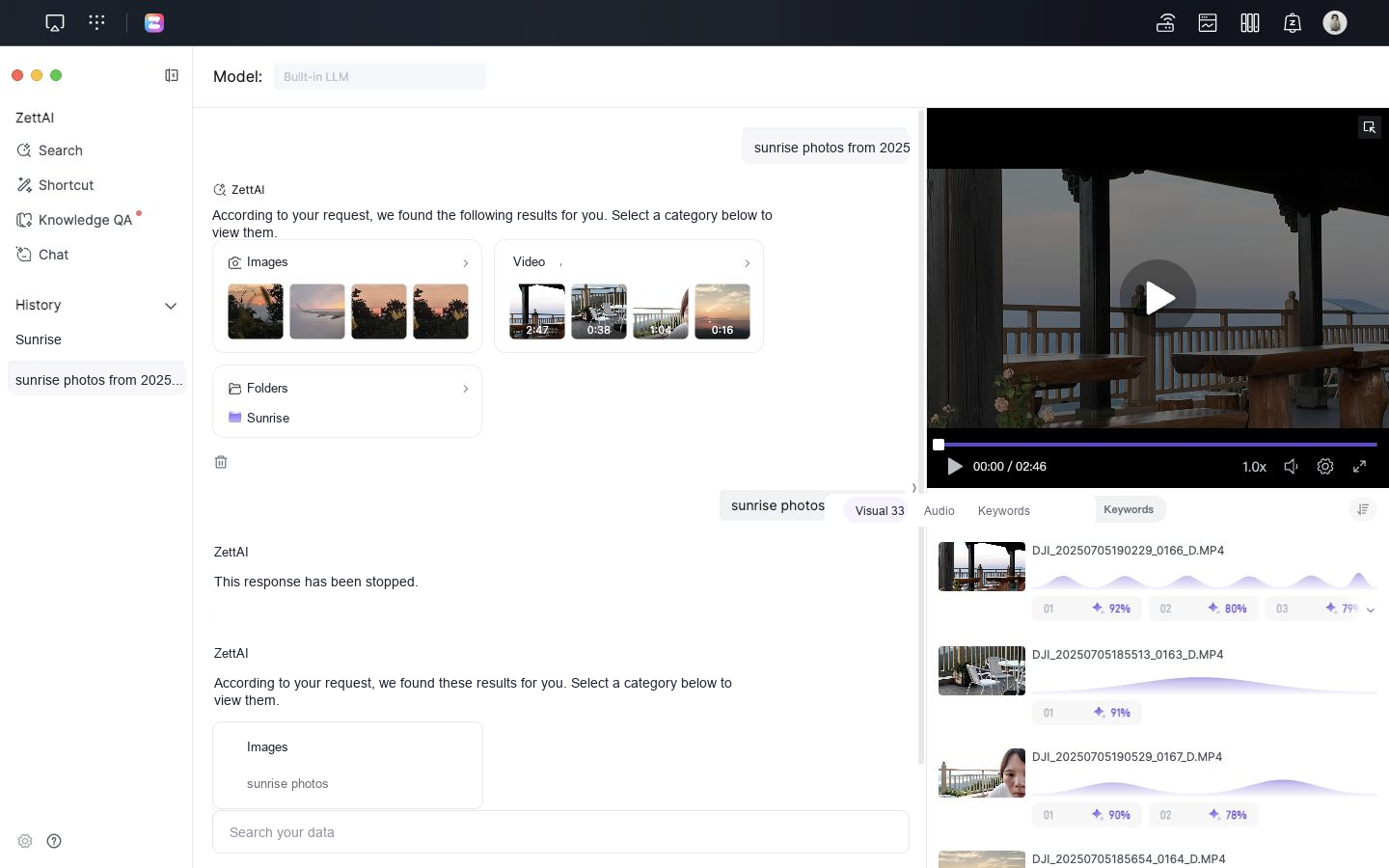
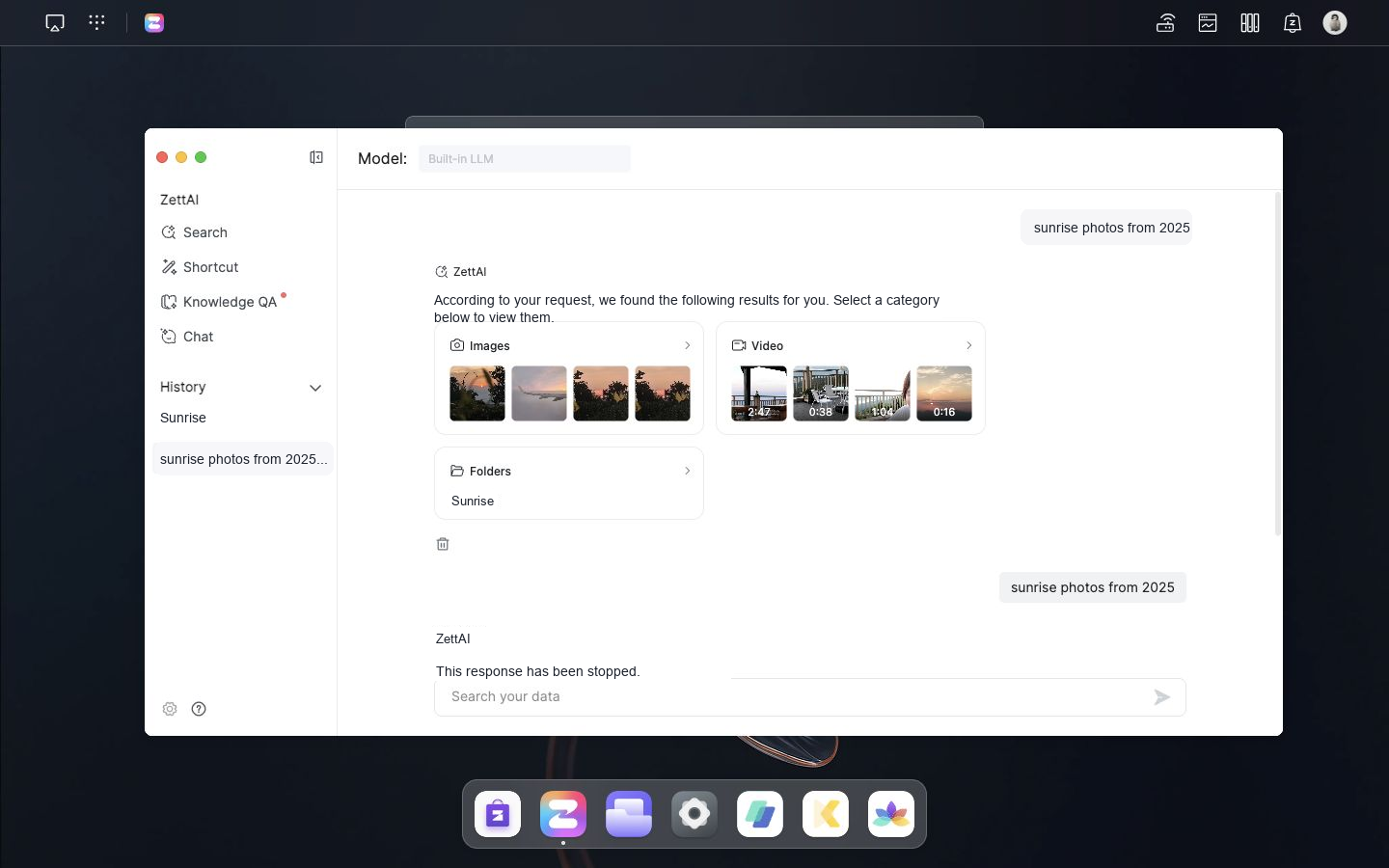
How to search
ZettAI supports searching by screen content, voice content, document content, file name and folder name; semantic and voice content rely on AI learning results, and folders are mainly matched by name and path.
| Object | Support how to search |
|---|---|
| Pictures | Search by screen content or file name keywords. |
| Video | Search by screen content, voice content in the video or file name keywords. |
| Audio | Search by voice content or file name keywords in the recording. |
| Documents | Search by document content or keywords. |
| Folder | Search by folder name or path keyword. |
It is recommended to give priority to searching for content in files that can be learned by AI, or clear keywords in file names and folder names; the closer the description is to the screen content, original voice text, document text, or file name, the easier it is to hit the target.
Search scope and privacy
By default, search results are restricted by the permissions of the current account and only display files that the current account has permission to access. Files that other users haven't shared with you won't appear in the results.
Whether remote location, share to me, and recycle bin are included in the search scope depends on the current version index and permission implementation. If you cannot confirm, please refer to the actual display on the search results page, and give priority to checking by location in file management.
FAQ
| Phenomenon | Possible causes Solutions |
|---|---|
| The file just uploaded cannot be found | The file has not yet completed AI learning Wait for the "Task - AI Learning Task" to be completed before searching again. |
| No results | AI has not learned the relevant files, or the description is too vague Change the description to a more specific description, or check the learning scope. |
| Only some files were found | User permission restrictions, file types are not supported, or some files have not been learned yet Use an authorized account to confirm and wait for the learning to be completed. |
| Is it possible to search in mixed Chinese and English | You can try to mix keywords, but the effect depends on the file name, file content and learning results Give priority to the language that actually appears in the file. |
| How to choose between short description and long description | Short description is suitable for clear objects, long description is suitable for supplementing scenes, characters or document themes Short first and then long, adjust keywords multiple times. |
| The search is slow or unresponsive | There are a large number of files, the AI service is busy, the model is being upgraded, or system resources are tight Try again later and check the AI service and task center. |
| The video result cannot jump to the segment | The current version supports the range or file learning result limit Wait for the learning to be completed; if it is still unavailable, press the normal video result to open. |
| Whether the searched files can be opened or downloaded directly | Depends on the result type and current account permissions Use available operations such as preview, open location, or download in the result card. |
