Provide files or folders to others for access through external sharing or internal sharing.
Applicable scenarios
When you need to send NAS files to external parties, use external shares; when you need to share them with users or user groups within the NAS, use internal shares.
Preparation before starting
- Only files or folders that the current account has permission to access can be shared.
- External sharing requires that the NAS can be accessed by the recipient; if the page prompts that remote access needs to be enabled, please follow the prompts or contact the administrator.
- Internal sharing is mainly used in personal space.
Create external share
After selecting the file or folder, open the right-click menu and click "External Sharing". If you are currently in your personal space, you can also click "Share - External Sharing".
Select the validity period in the pop-up window and click "Generate". Current validity options are 1 day, 7 days, 30 days, and 90 days.
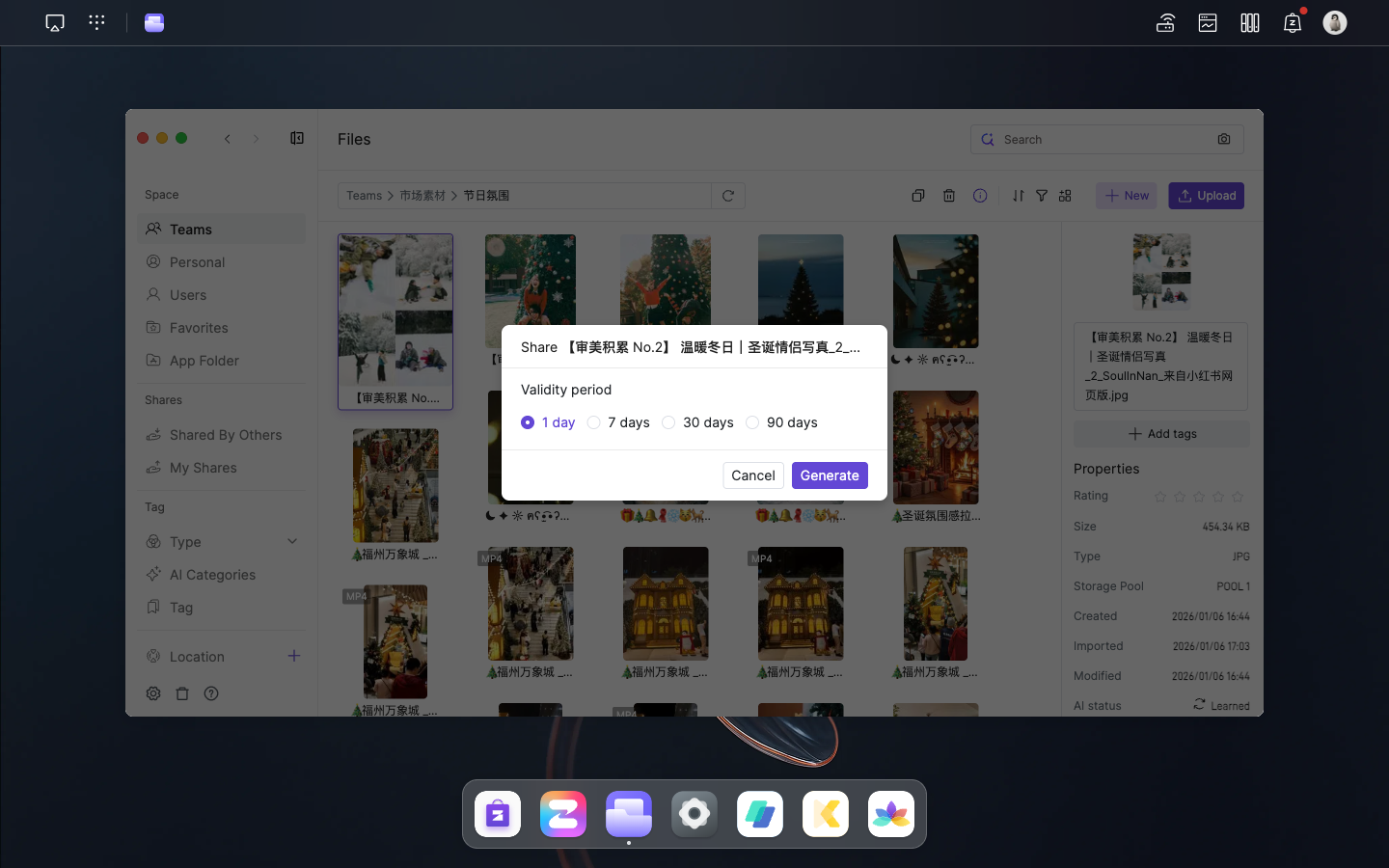
Copy link and extraction code
After the external sharing is generated, click "Copy Link and Extraction Code" and then send it to the recipient. The link will take effect according to the selected validity period, and the sharing needs to be re-created after expiration.
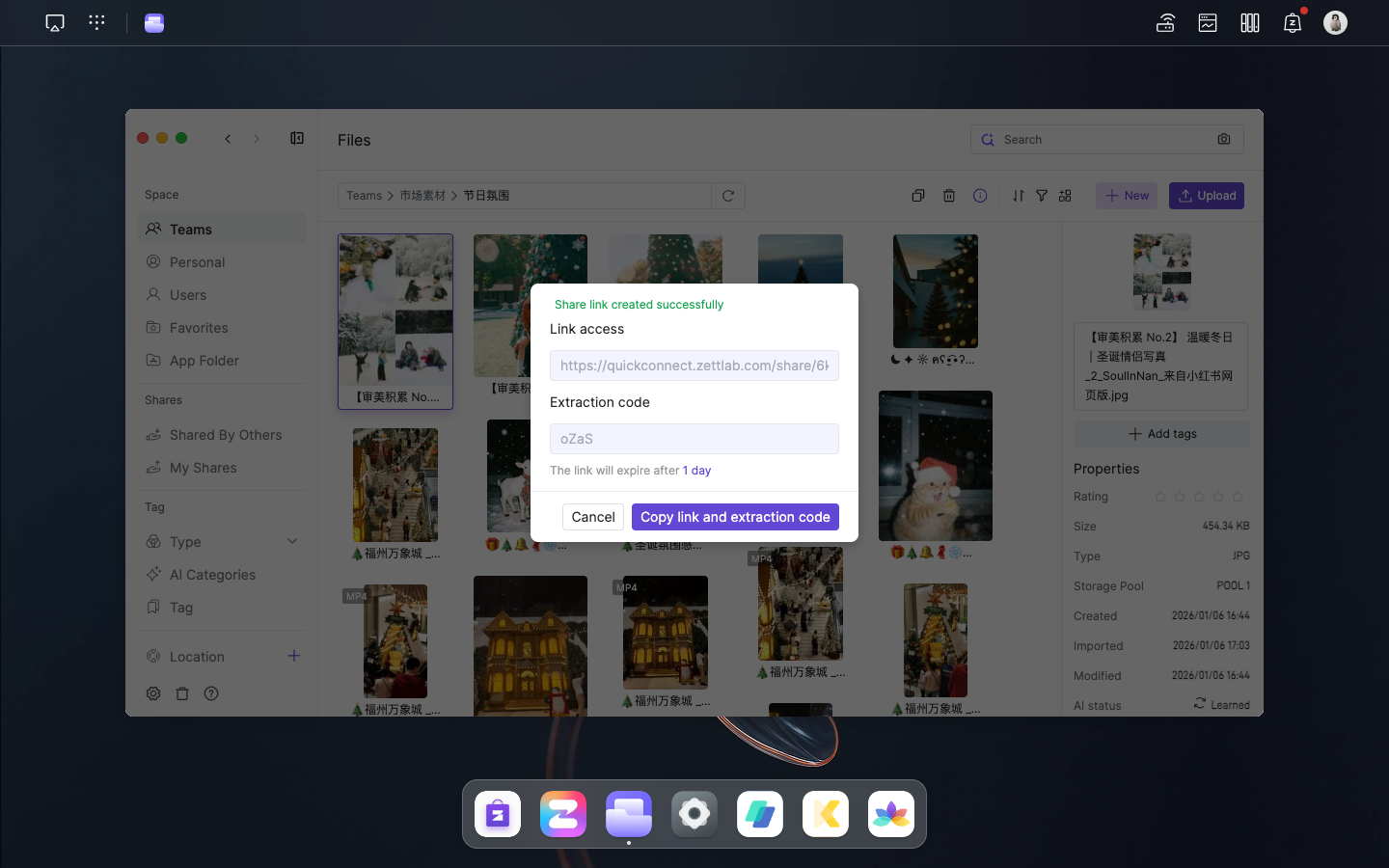
Extraction code and public access
External sharing generates links and extraction codes. The current interface does not provide an entrance to remove the extraction code or customize the extraction code. The receiver accesses through the link and extraction code and does not need to log in to the Zettlab account; however, the success of the access depends on the remote access, public network access or network reachability status of the NAS.
Create internal share
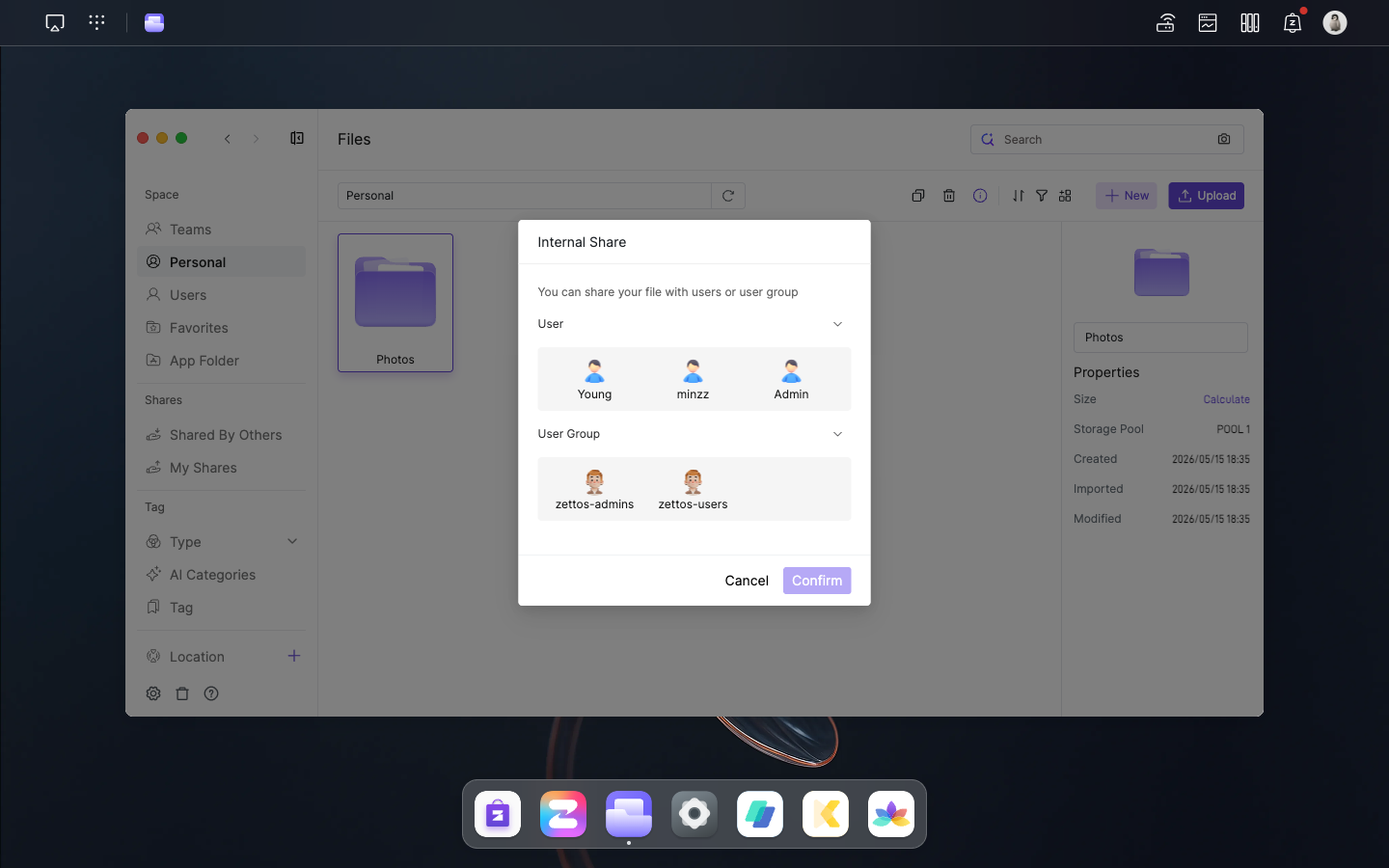
Enter your personal space, select the files or folders you want to share, click "Share - Internal Sharing", select a user or user group and confirm.
After the sharing is successful, the recipient can view it in "Sharing - Sharing with Others".
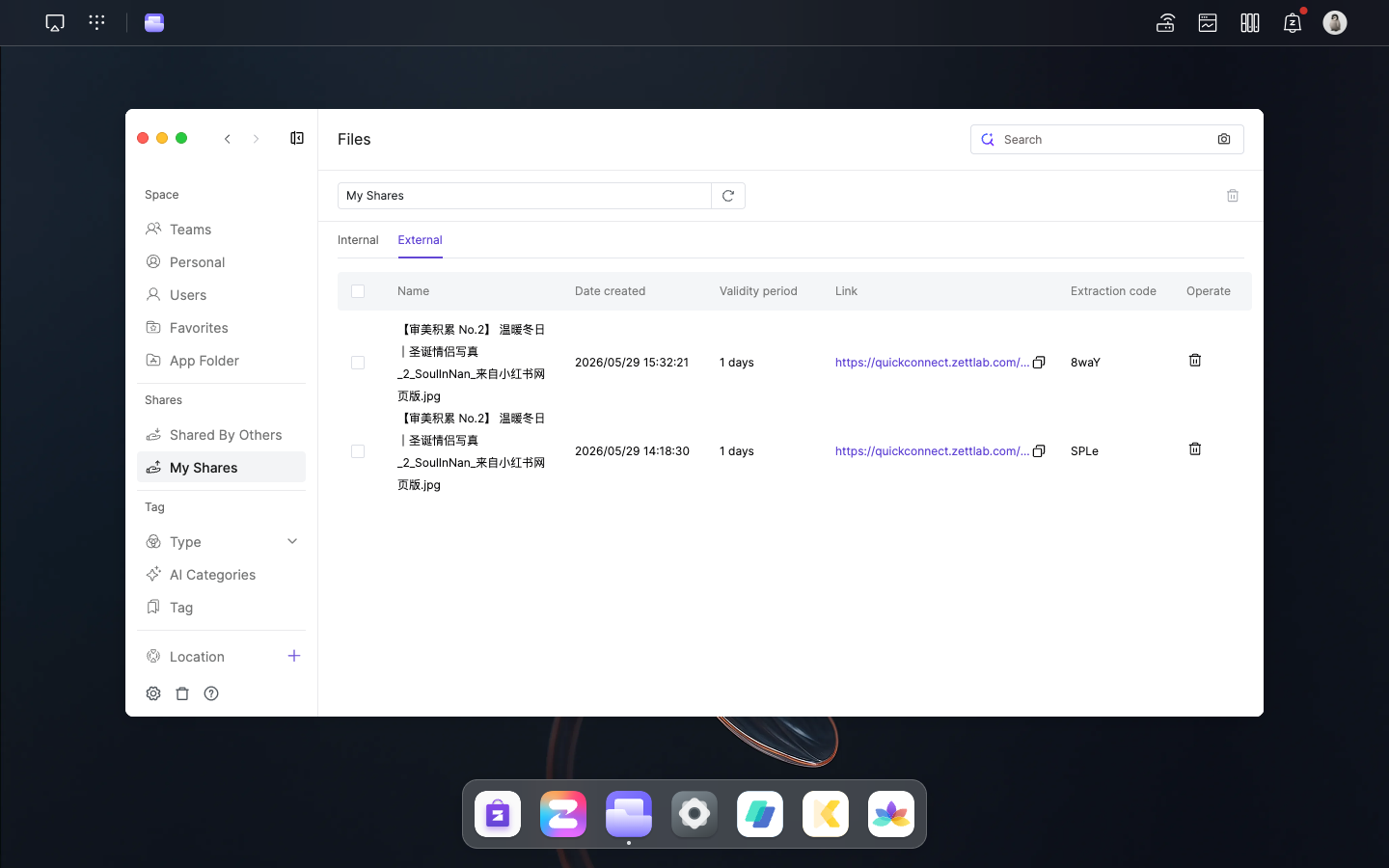
Manage my shares
Enter "Sharing - My Sharing" and switch between "Internal" and "External" to view the sharing records created by the current account.
View what others have shared
Enter "Sharing - Sharing with Others" to view files or folders shared by other users to the current account. Available actions depend on the sharing party settings and current account permissions.
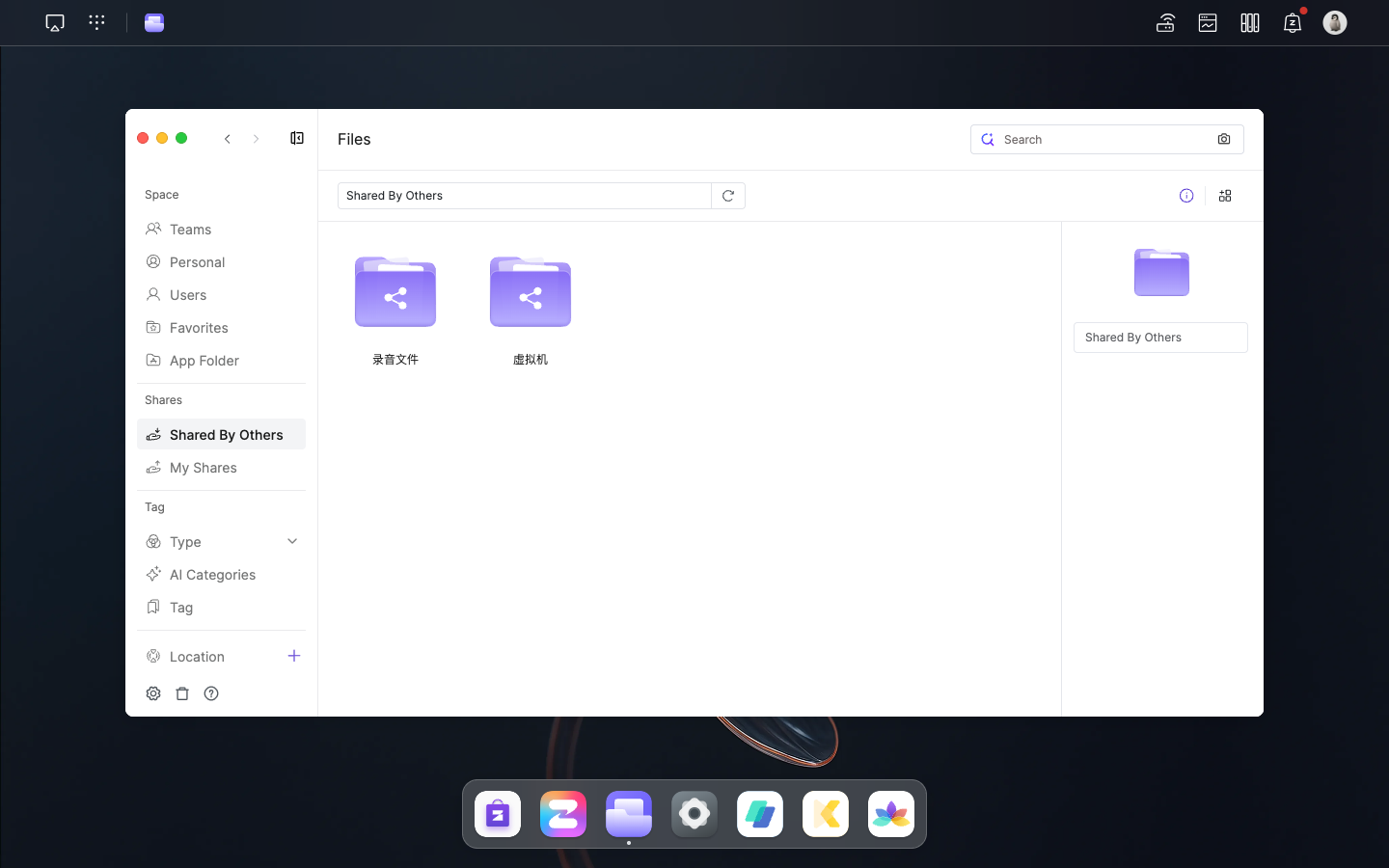
Note: If no items shared by others appear in the current demo account, ask another demo account to share files with this account first.
Stop sharing
After selecting the sharing record in "Sharing - My Sharing", click "Delete" or "Stop Sharing". Once stopped, recipients will no longer be able to access files through the share.
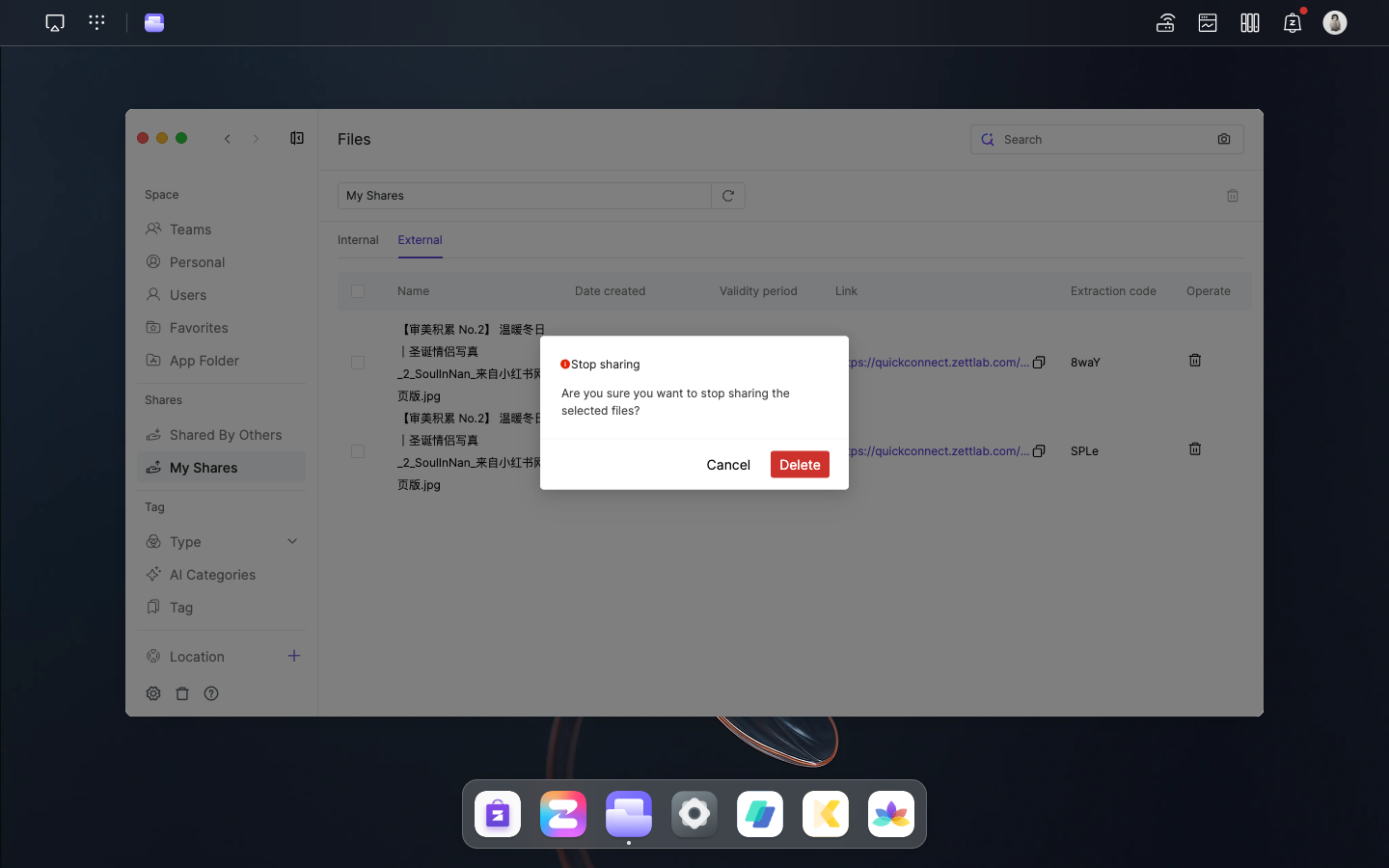
Note: If there is no share record to stop in the current demo account, create a share first and then stop sharing it.
FAQ
| Problem | Solution |
|---|---|
| The link cannot be opened from the external network | Confirm "Settings - Network" and whether remote access, public network access or port forwarding have been configured, and contact the administrator if necessary. |
| Unable to create external shares | Confirm whether remote access is turned on; if ordinary users do not have permission, please contact the administrator. |
| Whether the link is still available after the original file is deleted | Sharing depends on the original file. The link may become invalid if the original file is deleted, moved to an inaccessible location, or sharing is stopped. |
| Whether the shared link is renewable | The current creation pop-up window only provides the option to select the validity period when generating; if you need to extend it, please create the share again. |
| The recipient does not need an account | The external sharing recipient does not need a Zettlab account; the internal sharing recipient needs to be a NAS user or user group member. |
| The "External Sharing" button cannot be found | The current location may not support external sharing, or the current account may not have permission. Please change to an accessible normal file directory and try again. |
| Internal sharing entrance not found | First confirm whether the current location is in the personal space; internal sharing may not be displayed in the team space, remote location or recycle bin. |
| Sharing by others cannot be seen | Sharing may have been stopped, or the current account has not been added to the sharing scope. Please ask the sharing party to confirm. |
