Duplicate Photo Detection finds identical or highly similar photos in your library and groups the results so you can review each group, delete unwanted copies, and reclaim storage space.
Before You Begin
- ZettAI is enabled.
- The photo paths are included in the AI learning scope, and learning has finished or is in progress.
- Your account has permission to view and delete the photos you want to clean up.
Create a Detection Task
- Open Photos → Duplicate Photos.
- Click
New Task. - Choose the folder scope to scan. For a large library, start with a specific album or folder, review the result, then expand the scope if needed.
- Start the task and check its progress in the task list.
- Wait for the task to complete. The completed task shows how many groups of similar photos were found.
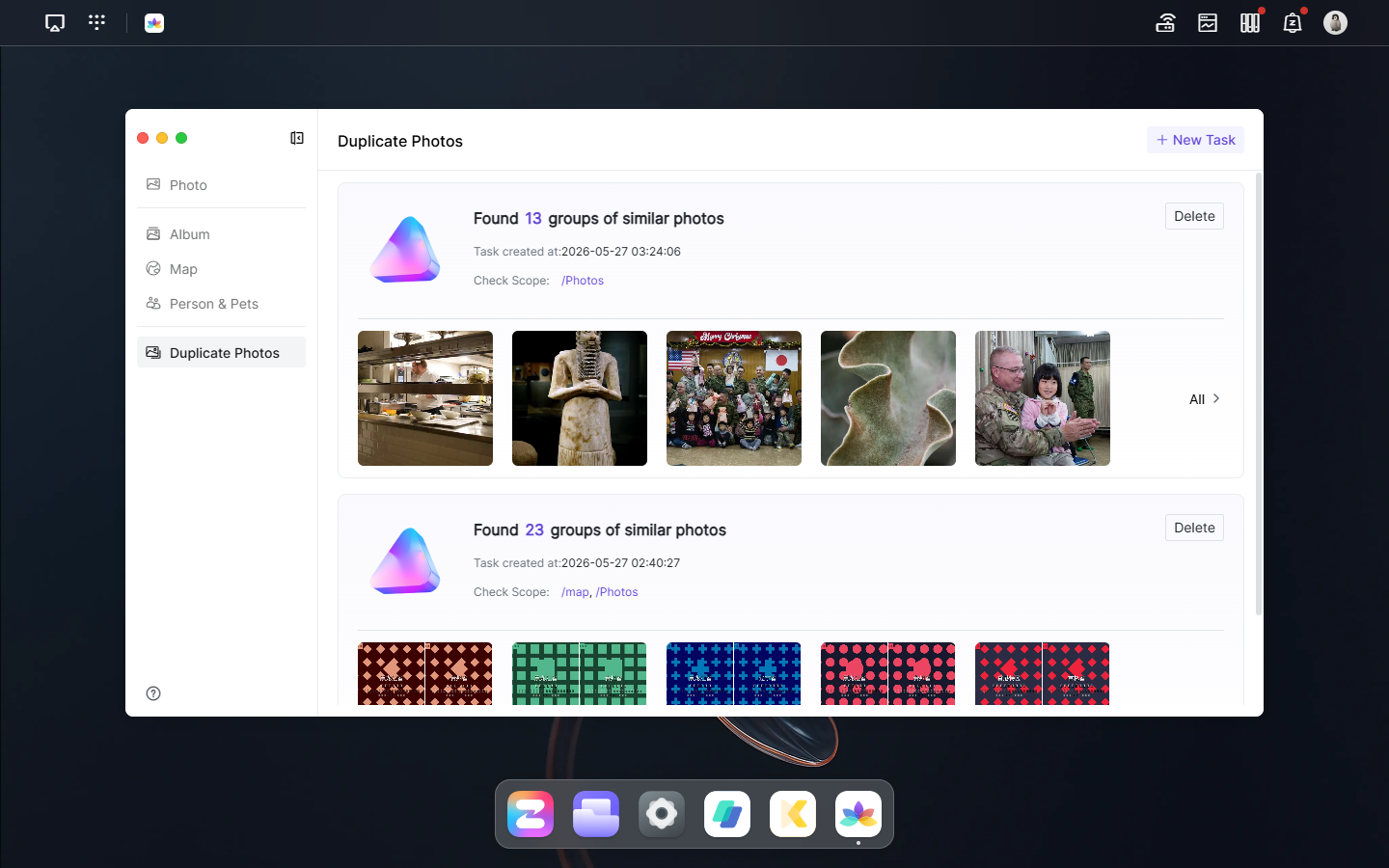
Review and Clean Up Results
- Open the completed detection task.
- Enter each similar-photo group and compare the photo content and information shown on the page.
- Choose which photo to keep. When unsure, keep the original or the version with more complete information.
- Delete the unwanted copies.
- Return to the task list and confirm the result has been handled.
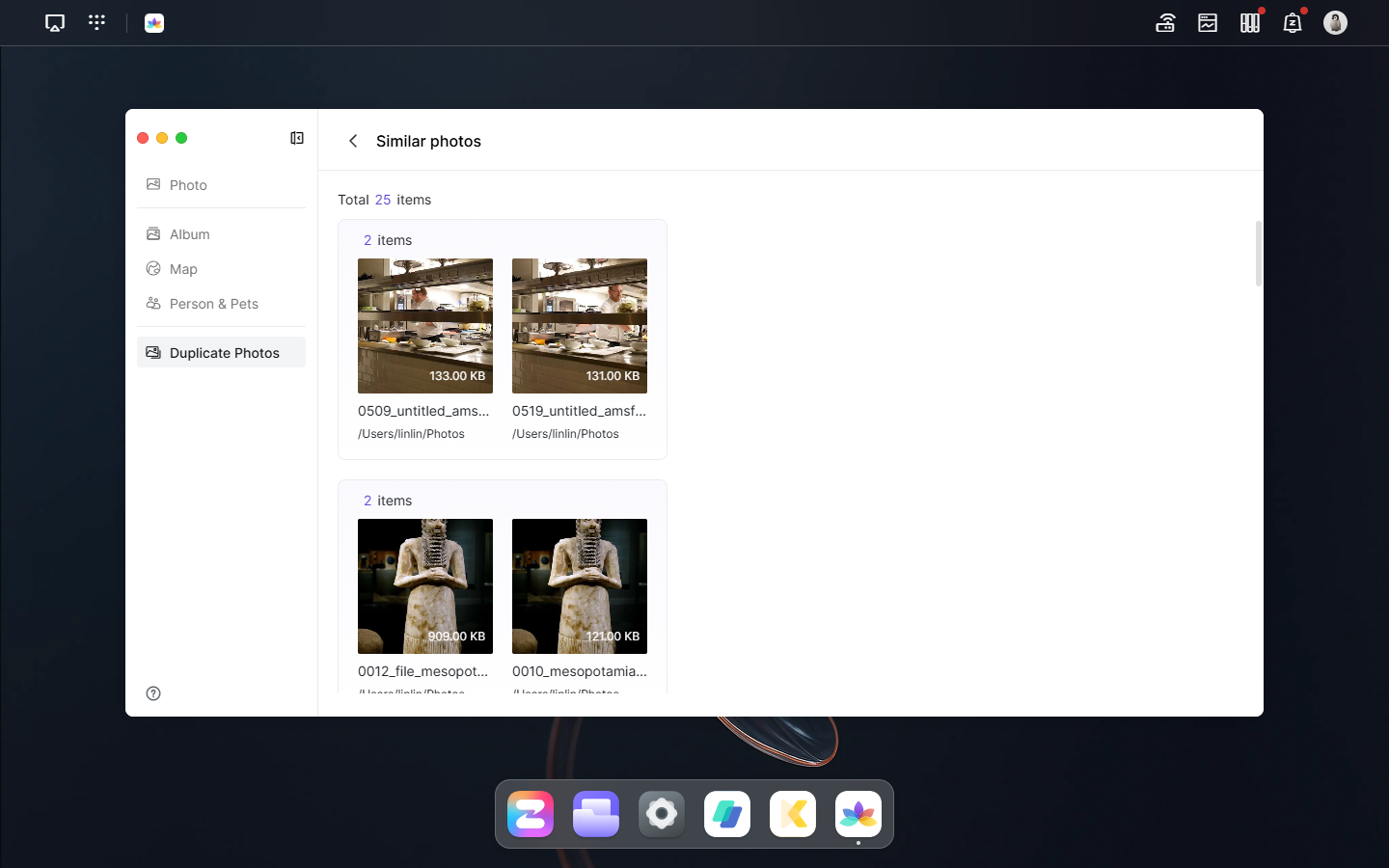
Success Indicators
- The detection task is complete.
- Results are grouped by duplicate or similar photos.
- Deleted copies no longer appear in the result page.
Troubleshooting
- Why ZettAI is required — Duplicate detection compares image content, not just file names, and needs ZettAI support.
- No results — There may be no duplicates in the selected scope, or the task has not finished scanning.
- Similar photos are not always identical — The system groups highly similar photos together, so review each photo before deleting.
- Not sure which one to delete — Keep the clearer version, the one with more complete information, or the version you use most often. If you cannot decide, do not delete it.
FAQ
| Question | Handling or suggestion |
|---|---|
| Why are People & Pets not recognized | ZettAI is off, learning isn't complete, or photo quality is too low Open ZettAI and enable AI; wait for learning; test with clear photos of the person/pet first |
| Why does Duplicate Scan need ZettAI on | It compares more than filenames — it analyzes image content Enable ZettAI and wait for learning to complete, then create a new duplicate scan |
