Use the Zettlab mobile app to continuously back up new photos and videos from your phone to your NAS Photos.
Download the Mobile App
- Official download center: https://zettlab.com/pages/download-center
- Or search "Zettlab" in Google Play or the Apple App Store
Before You Begin
- The NAS has completed Initial Setup and How to Add and Manage Your Photos
- Your phone can reach the NAS (LAN or remote access configured)
- Have your NAS account and password ready
Steps
- Download and install the Zettlab mobile app via the link above
- Open the app, enter the NAS address, sign in with your account
- Go to Photo, tap the
+in the top-right →Backup Photo Album - Choose the phone albums to back up (system albums / custom albums)
- Turn on backup
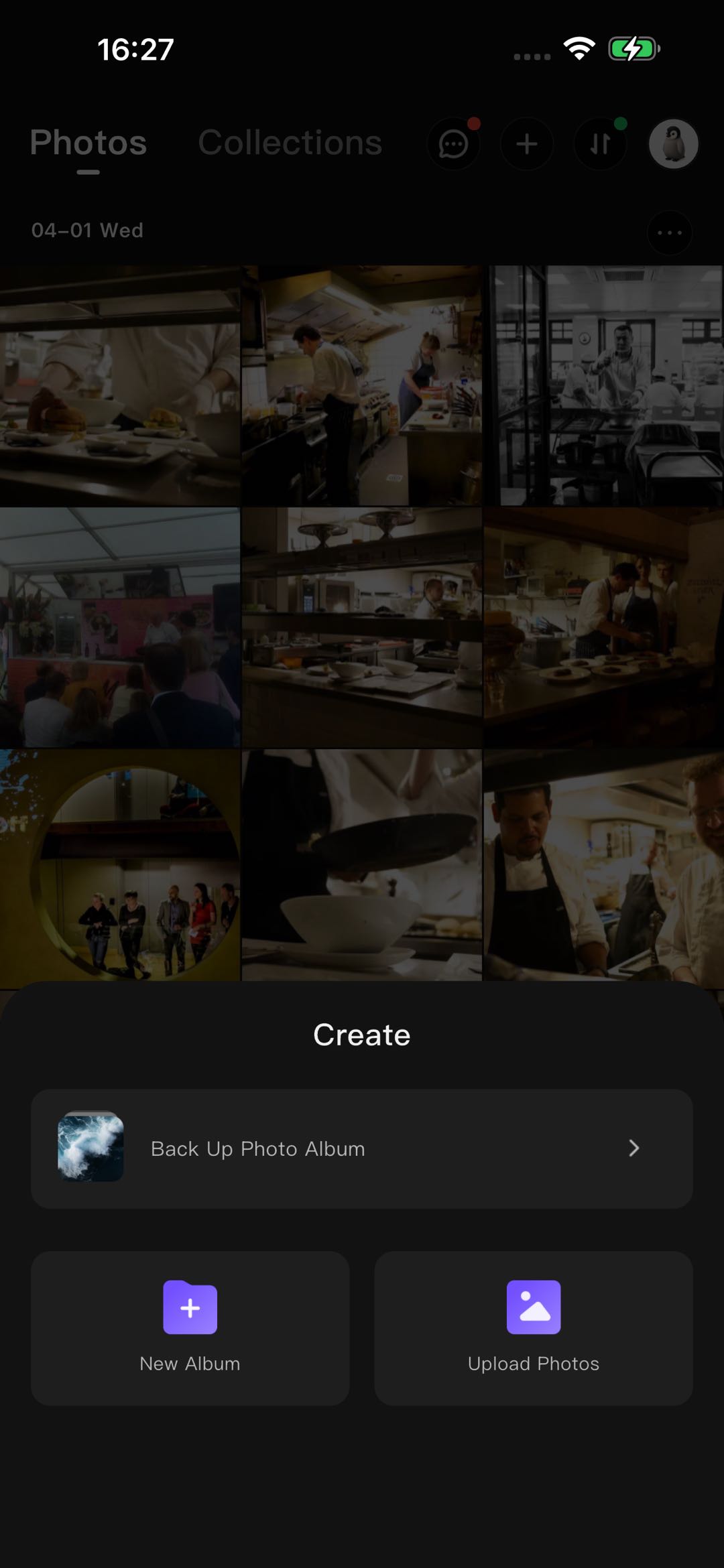
> ℹ️ Tips for faster backups: > ** Keep the app in the foreground for the fastest backup; the phone may warm up noticeably during backup, which is normal.
> ℹ️ About network modes: > ** The mobile app supports two access modes —
LAN sign-in (via IP): phone and NAS on the same network; fastest path, recommended for backup. Remote ID access (over public internet): connects via the NAS remote-access ID using our free relay line — but the relay has a speed cap, which affects backup/browse speed.
Success Indicators
- Verify that photos have been backed up to the NAS
Troubleshooting
- Backup is slow — Large historical library on first run; or Wi-Fi-only mode while on cellular
- Backup fails — Check NAS reachability, credentials, and free space in the target directory
- If I delete a photo on the phone, is it still on the NAS? — Yes. Backup is one-way "phone → NAS", not two-way sync.
