Browse the image registry (Docker Hub by default) to pull images, and manage images already downloaded to the NAS.
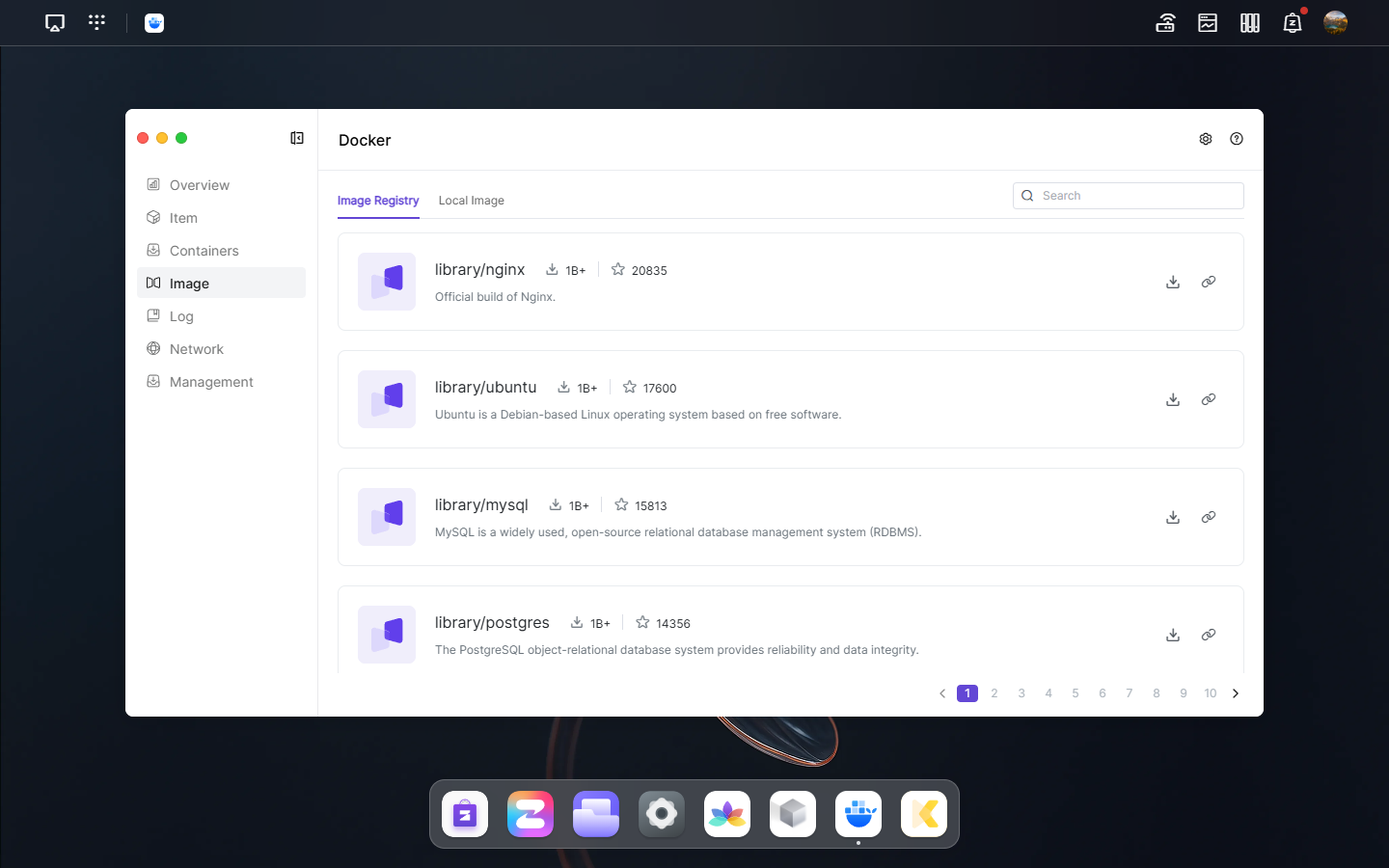
Pull an image
Find your target image in the "IMAGE Registry" tab, then click the ⬇ icon on the right of its row to pull it. When done, the image appears in the "Local Image" tab.
Mirror & proxy settings
Click the ⚙️ icon at the top right to open Settings — it has two tabs: "IMAGE Registry" and "Proxy".
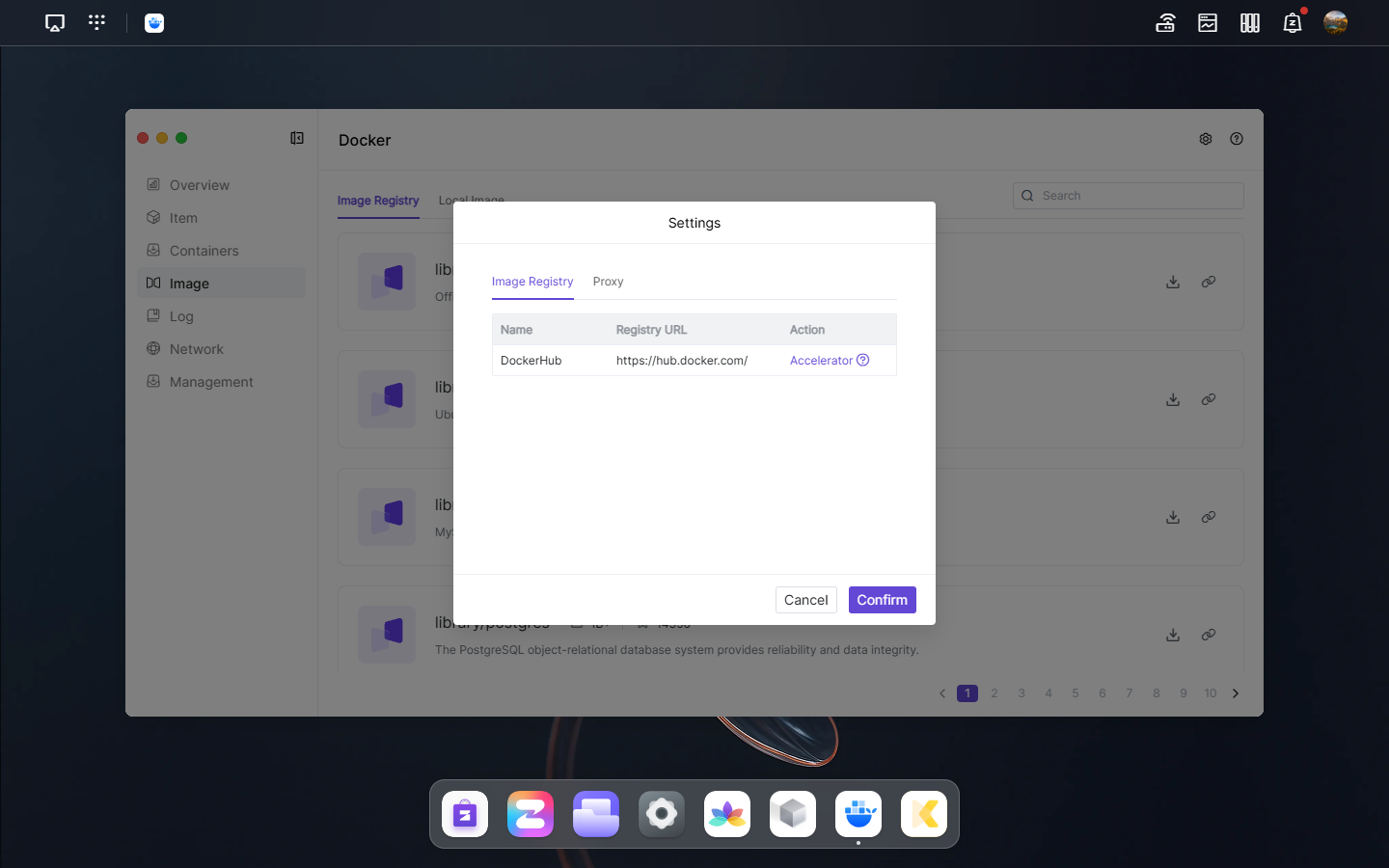
- IMAGE Registry: lists configured registries. Click the "Accelerator" link on a row to configure a mirror URL.
- Proxy: enable the proxy toggle and fill in the http/https proxy address.
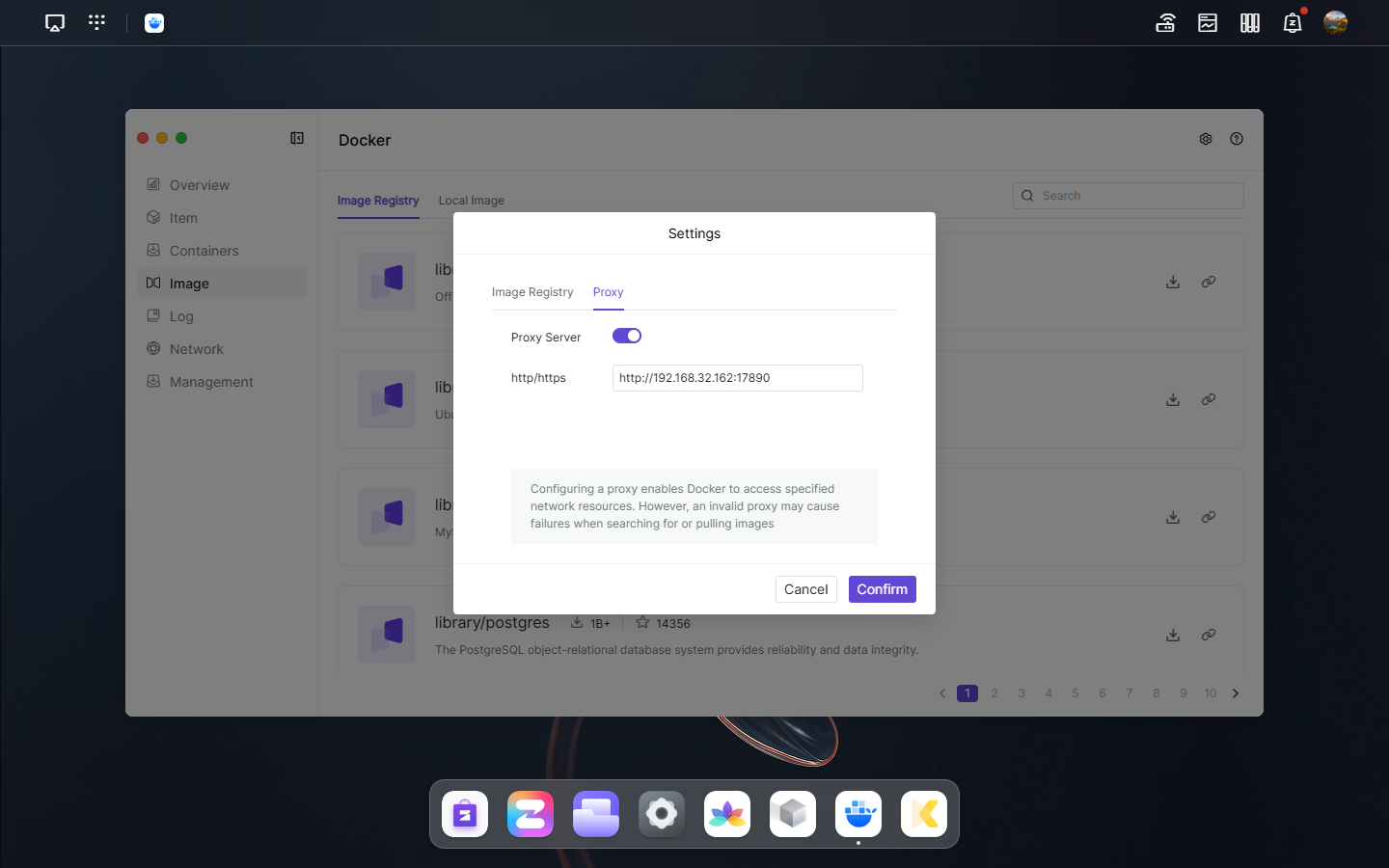
> ℹ️ An invalid proxy will break image pulls > **A proxy lets Docker reach specific network resources, but a misconfigured proxy can make search or pull operations fail.
FAQ
| Question | Handling or suggestion |
|---|---|
| Image pulls are slow / failing — what can I do | 1. Go to Images > top-right ⚙️ Settings. 2. In the "IMAGE Registry" tab, configure an accelerator URL for DockerHub. 3. Or, in the "Proxy" tab, enable an http/https proxy. |
| How do I know there's a new image version available | Open the Real-time detection switch on the *Management* page. The system will periodically check and hint updates in the list. Note: it does *not* cover apps installed from the App Center. |
