After scanning a media library, Theater identifies titles, posters, summaries, years, cast, episodes, and quality information.
Before You Start
- You have completed Set Media Library Paths.
- Media files are still stored in the folders added to the library.
- The NAS can access the media information recognition service.
- File names include title, year, season, or episode numbers where possible.
Steps
- Open Theater and go to the media library list.
- Select the media library to scan, or run scanning from the media library action menu.
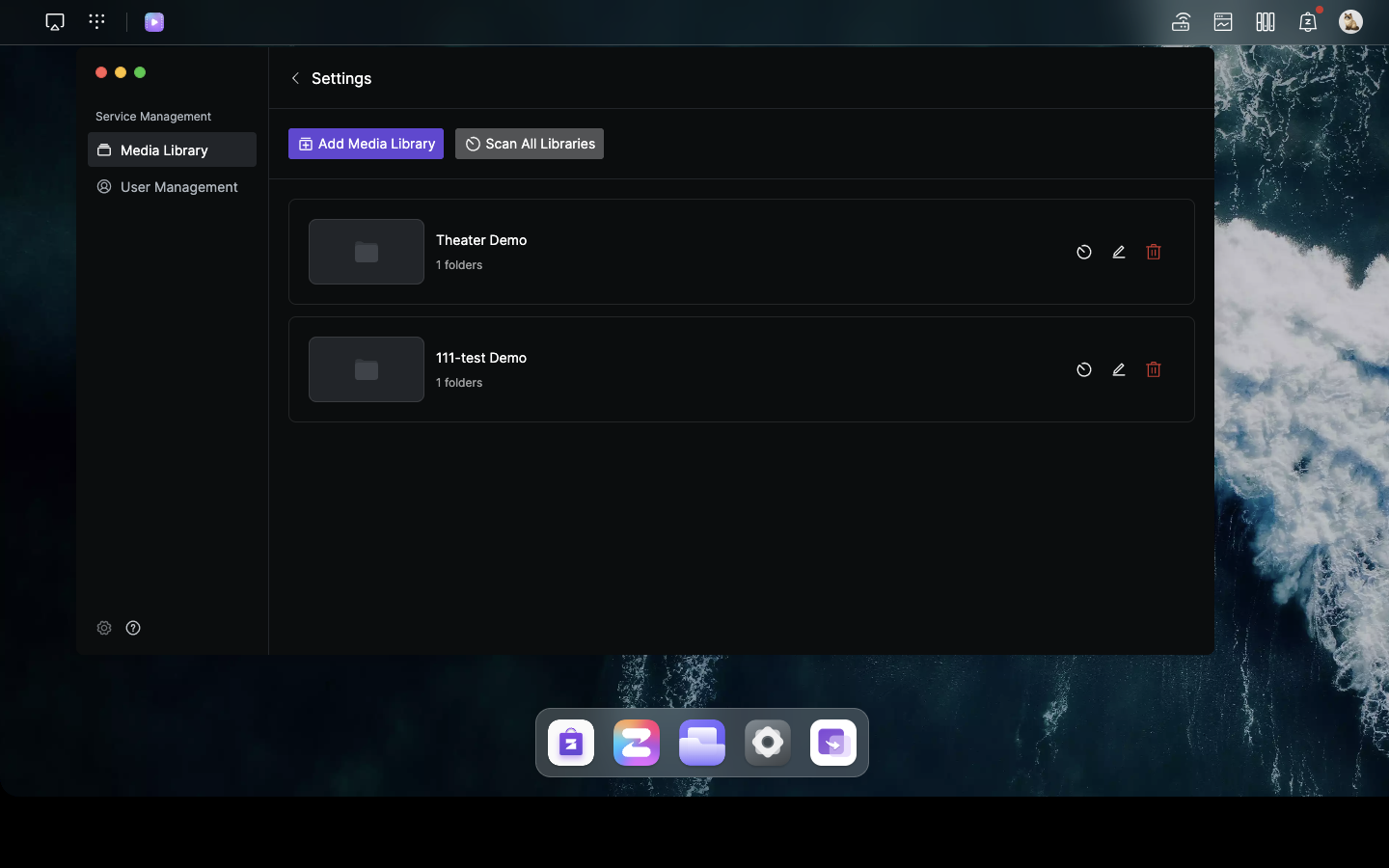
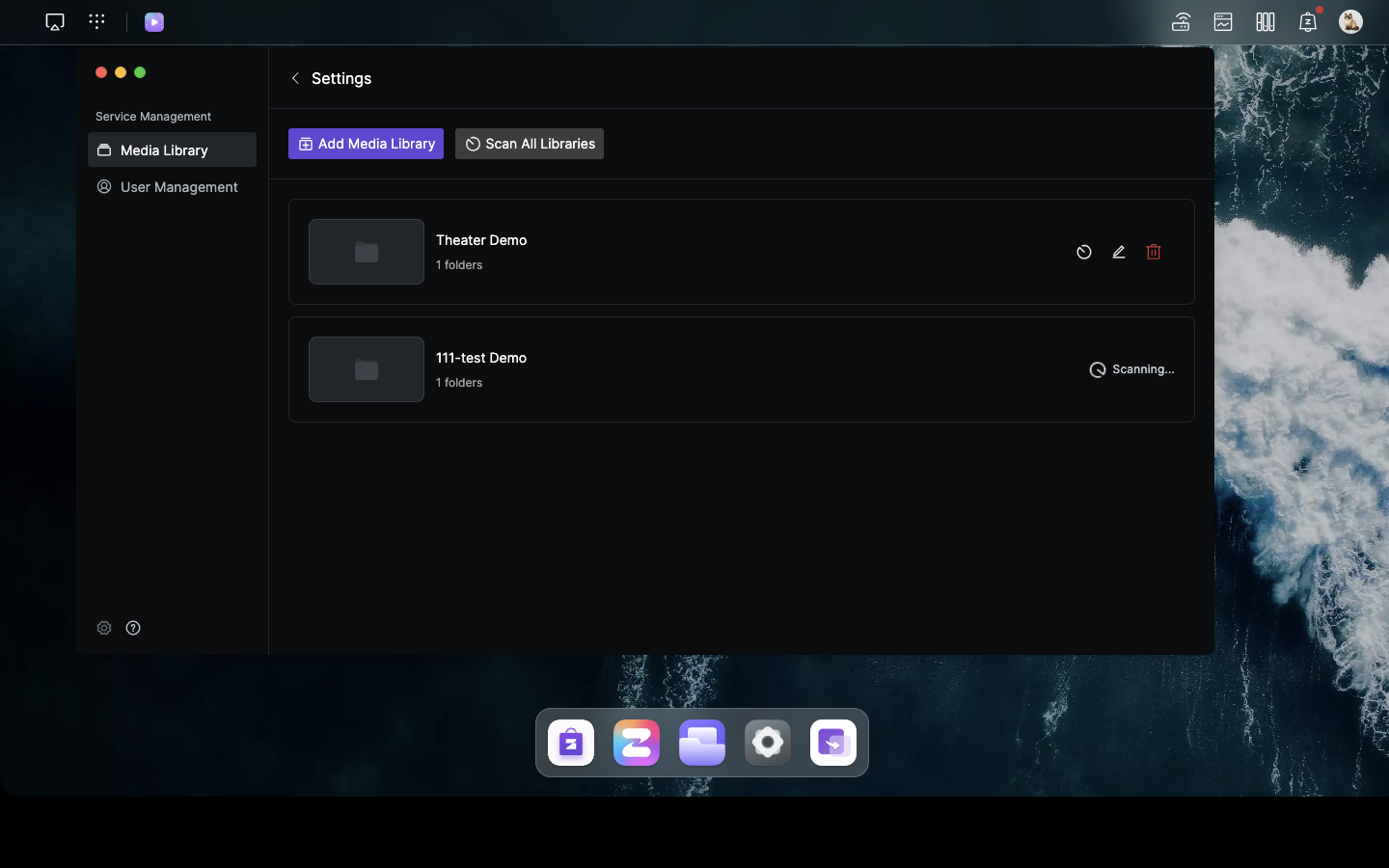
- During scanning or recognition, wait for the task progress to finish.
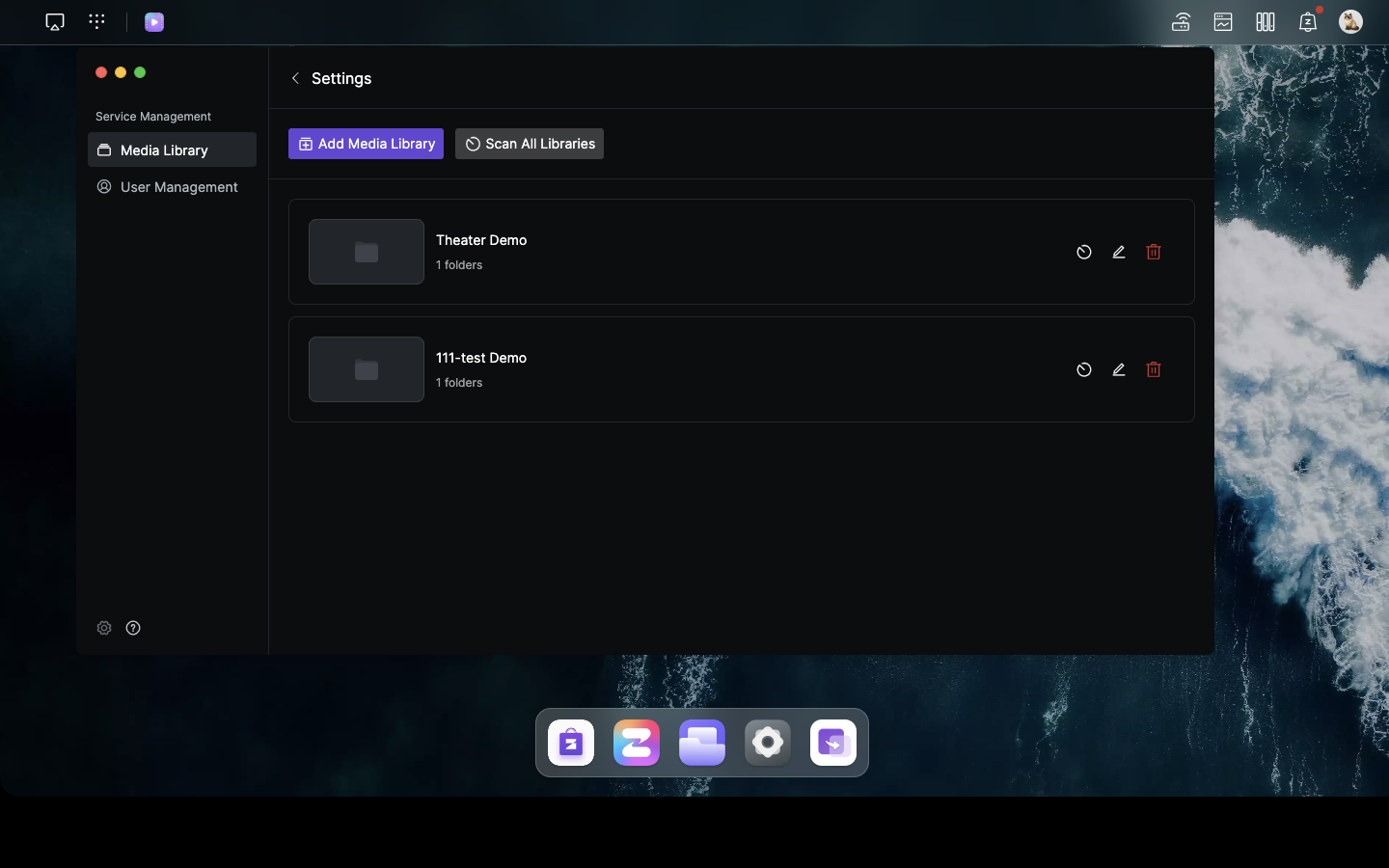
- After scanning finishes, return to the media library and check the recognition results.
- If a video is unmatched or the information is wrong, continue with Manually Match Media Information.
Success Criteria
- Videos appear in All, Movies, or TV Shows.
- The detail page shows a poster, title, summary, year, cast, or episode information.
- Unrecognized files can still be handled from the unmatched list or folder view.
FAQ
| Question | Handling or suggestion |
|---|---|
| The media library stays empty | Go back to media library paths, confirm the folder, and wait for scanning to finish. |
| A video is unmatched | Try standardizing the file name, or use manual matching. |
| A newly uploaded video does not appear | Wait for automatic scanning, or trigger a media library scan manually. |
| No videos appear after scanning | The file format is unsupported, the path has no permission, or scanning has not finished. Check file format and permissions, then refresh after scanning ends. |
| Video information is wrong | The file name is not standardized, or there are many titles with the same name. Use Manually Match Media Information to fix it. |
