After you connect an SMB or cloud drive location in Files, you can access remote files in a way that is similar to browsing local NAS folders.
When To Use This
Use remote locations when you need temporary access to a shared folder on your local network, or when you want to connect cloud files from Google Drive, Dropbox, or OneDrive.
Before You Start
- Before connecting SMB, make sure the NAS can reach the target SMB service over the network.
- For an SMB account connection, prepare the username and password.
- For SMB guest access, make sure the target SMB service allows guest access.
- For a cloud drive location, prepare the cloud account and make sure the current network can open the authorization page.
Connect An SMB Location
SMB is a local network file sharing protocol. You can use it to connect folders already shared by another device, such as a shared folder on a Windows or Mac computer, a shared folder on another NAS, or a file server on the local network. The NAS connects to the other device's network address and sharing service. It cannot use a local path from that device directly, such as /Users/your-name/Desktop or C:\Users\your-name\Desktop.
To connect a folder from your computer, first enable SMB file sharing on the computer and share the target folder. Before connecting, make sure the computer and NAS are on the same local network, the computer firewall allows SMB access, usually TCP port 445, and the sharing account has write permission if you need to write or delete files from the NAS.
- Open
Files. - Find
Locationin the left sidebar. - Click [+] next to
Location. - Select [SMB].
- Enter the
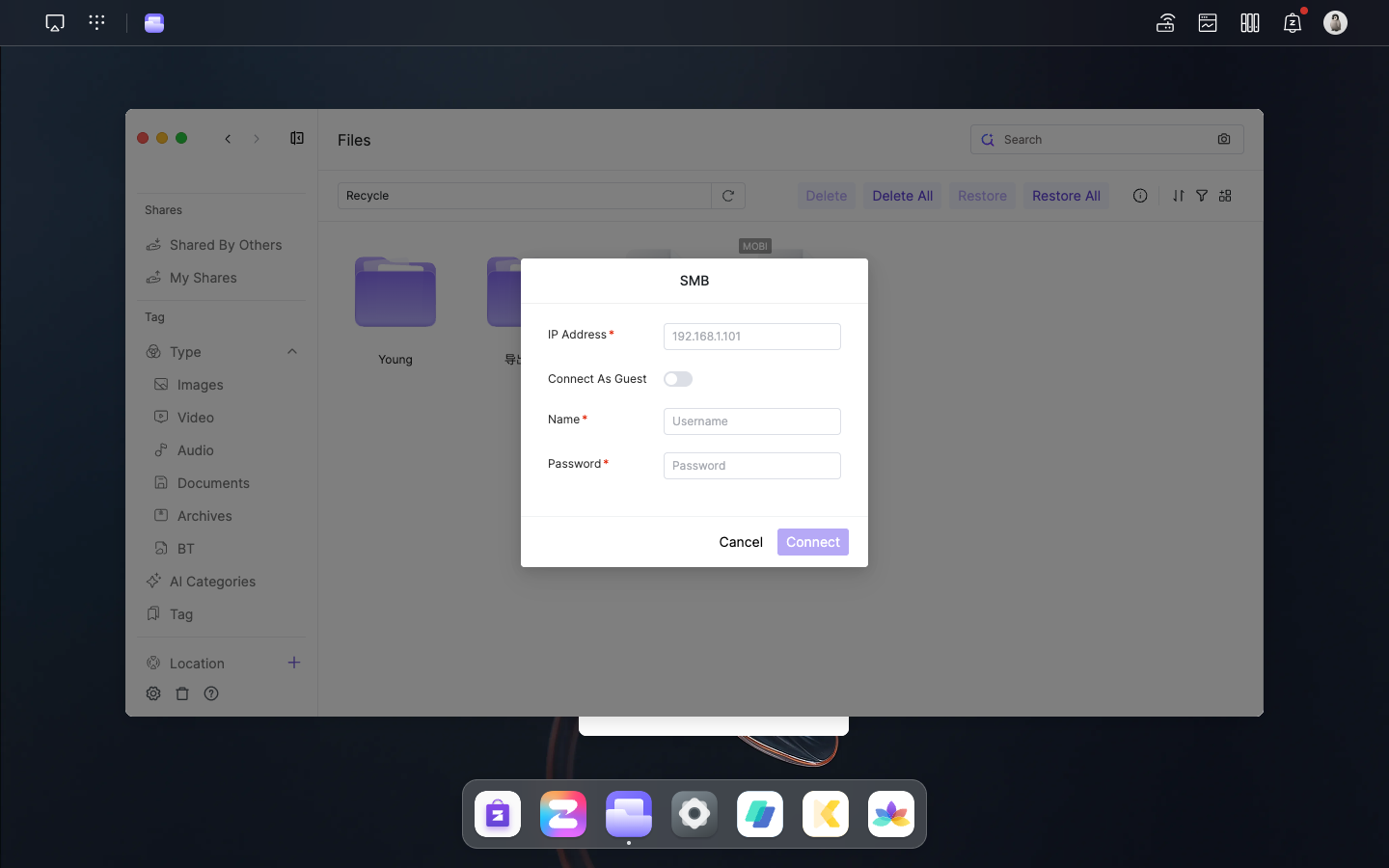
IP Addressof the computer, NAS, or file server. - To connect as a guest, turn on [Connect As Guest].
- To connect with an account, turn off [Connect As Guest], then enter
NameandPassword. - Click [Connect].
The current SMB dialog provides IP Address, Connect As Guest, Name, and Password. It does not provide separate fields for share name, path, or port. If you need to specify a shared path, follow the address rules of the target SMB service or confirm the connection method with your administrator.
After the connection succeeds, the new SMB location appears under Location in the left sidebar.
Connect A Cloud Drive Location
- Open
Files. - Find
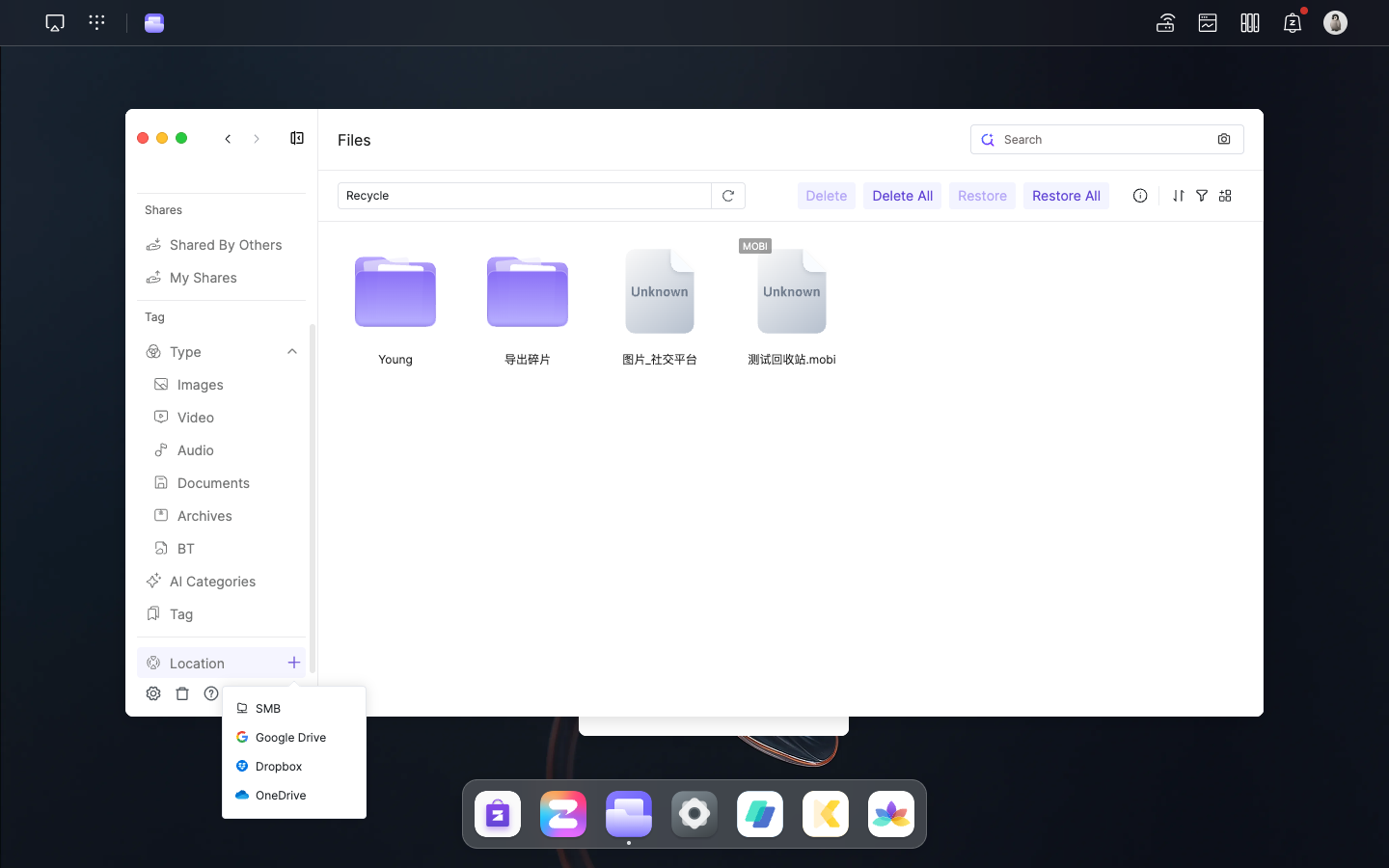
Locationin the left sidebar. - Click [+] next to
Location. - Select Google Drive, Dropbox, or OneDrive.
- Complete sign-in and authorization on the page that opens.
- Return to Files and confirm that the cloud drive location appears under
Locationin the left sidebar.
Cloud drive entries are provided by the system. The available cloud drive types depend on what is shown on the page.
FAQ
| Question | Handling or suggestion |
|---|---|
| SMB connection fails | Check the IP address, network connection, username, and password. If you use guest access, make sure the target SMB service allows guest access. |
| Can I mount a local folder from my computer to the NAS | Yes, but first share that folder as an SMB network location on the computer. The NAS connects to the computer IP and SMB sharing service; it cannot use a local path from the computer directly. |
| I cannot find share name, path, or port fields | The current SMB dialog does not provide separate share name, path, or port fields. Enter the IP Address according to the address rules of the target SMB service, or ask your administrator to confirm the connection method. |
| I want other computers to access the NAS through SMB | This is a file service setting and is outside the scope of this page. Go to Settings > File Services to enable SMB service. |
| Cloud drive authorization fails | Open the authorization page again and complete sign-in. If it still fails, check the network connection, account status, or third-party cloud drive authorization status. |
| A remote location cannot upload, rename, or delete files | The remote service or current account may not have write permission. Check the remote folder permissions. |
