Set the default installation location and app automatic update policy.
Before You Start
- Use an administrator account.
- At least one available storage pool exists. If not, complete initial setup first.
Steps
- Open the settings entry in the lower-left corner of App Center:
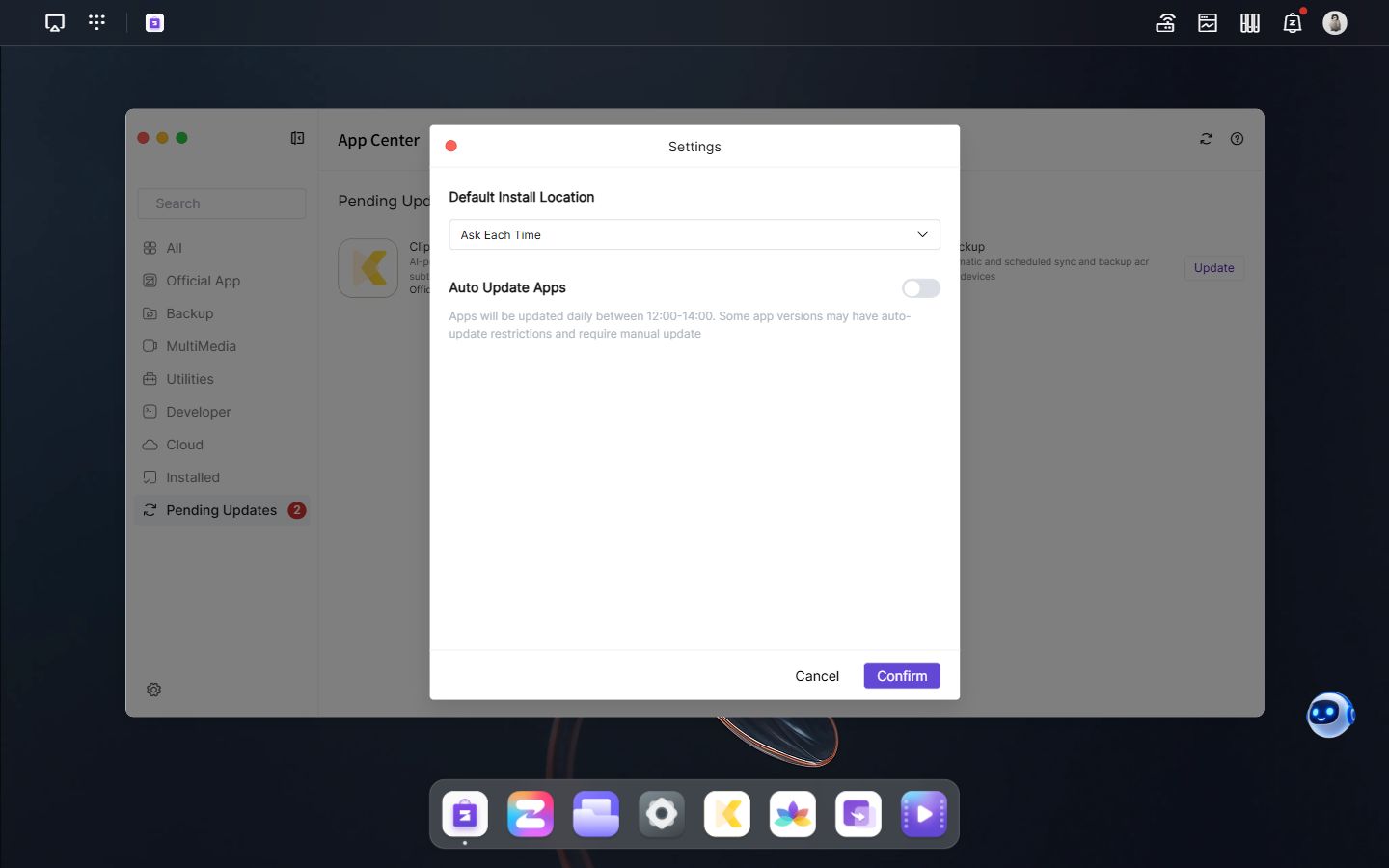
- In Default Install Location, select an available storage pool or choose [Ask every time].
- Enable [Auto Update Apps] as needed. The page indicates that apps will update daily from 12:00 to 14:00, and some app versions may restrict automatic updates and still require manual updates:
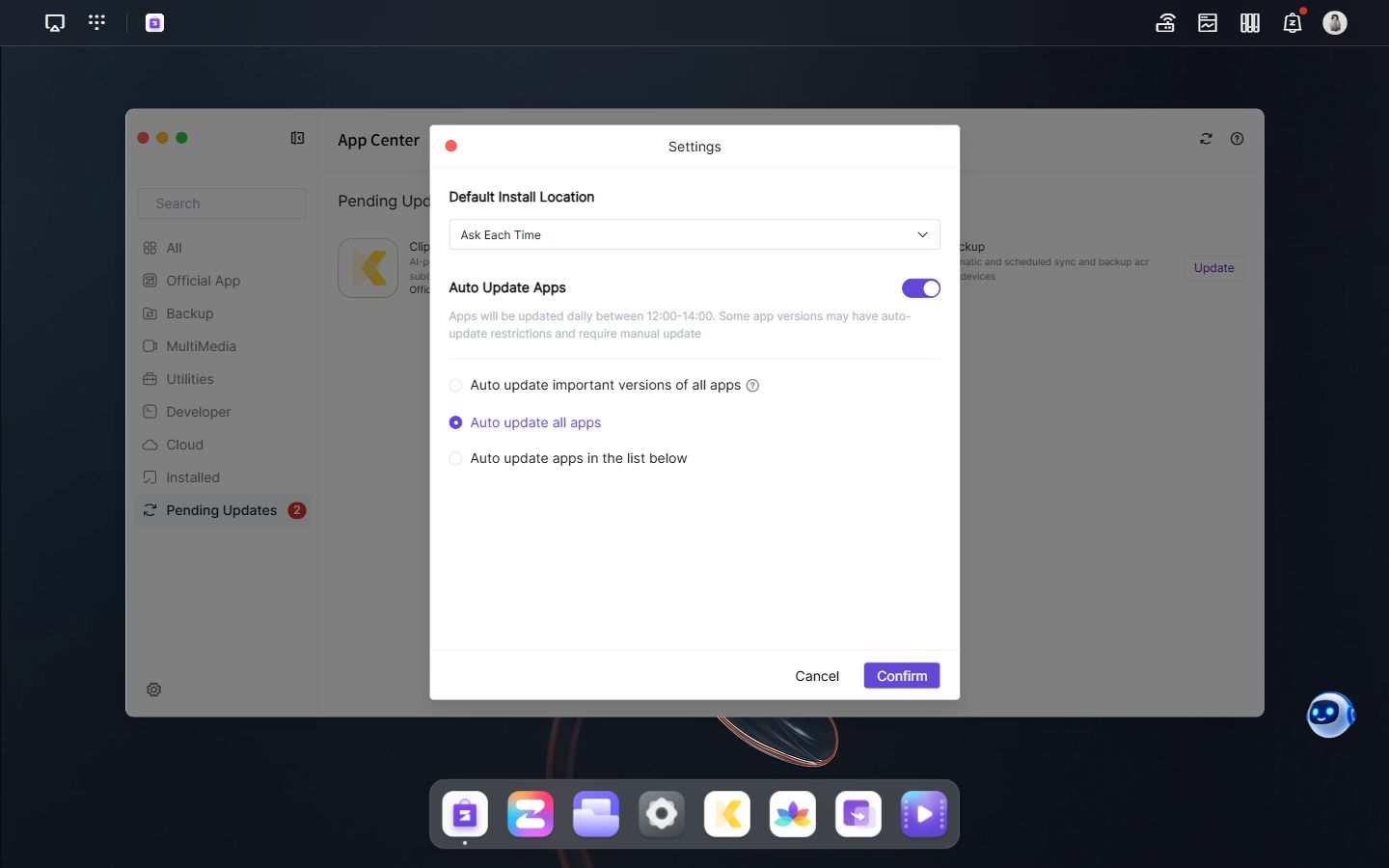
- Click [Confirm] to save settings. Click [Cancel] if you do not want to save.
Success Criteria
- The default installation location takes effect according to the setting.
- The automatic update policy is saved.
FAQ
| Question | Handling or suggestion |
|---|---|
| What is the default installation location for? | Later app installations will prefer this storage pool. If you choose Ask every time, the install location dialog appears for each installation. |
| When do automatic updates run? | The page indicates that apps will update daily from 12:00 to 14:00. |
| Why are manual updates still needed after enabling automatic updates? | Some app versions may restrict automatic updates, and the page indicates that those versions need manual updates. |
| Which apps are updated automatically? | App Center settings can select important versions, all apps, or selected apps. Open App Center settings to confirm the policy. |
| What should I note before updating? | Updates may temporarily stop the app service. Confirm there are no critical tasks running, and read the update confirmation dialog. |
