Remote assistance temporarily allows official support to help troubleshoot after you confirm the risk and authorization scope.
Before You Start
- Enable it only after confirming that the other party is official support and remote troubleshooting is needed.
- Make sure the device network connection is working.
- Read the authorization scope and risk notes shown on the page before enabling it.
Steps
- Open the Remote Assistance page in Support:
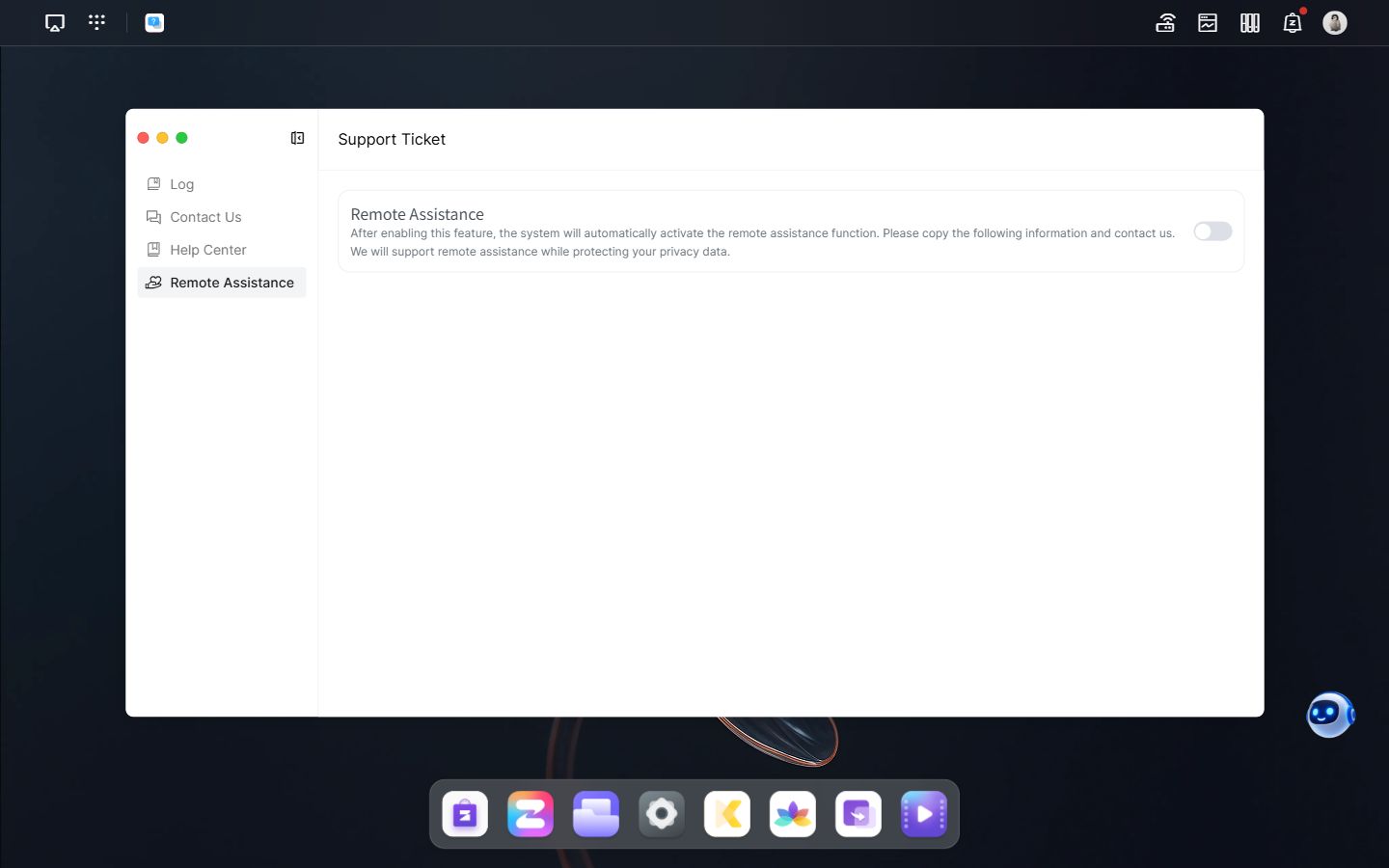
- Read the remote assistance notes and confirm whether support needs remote access.
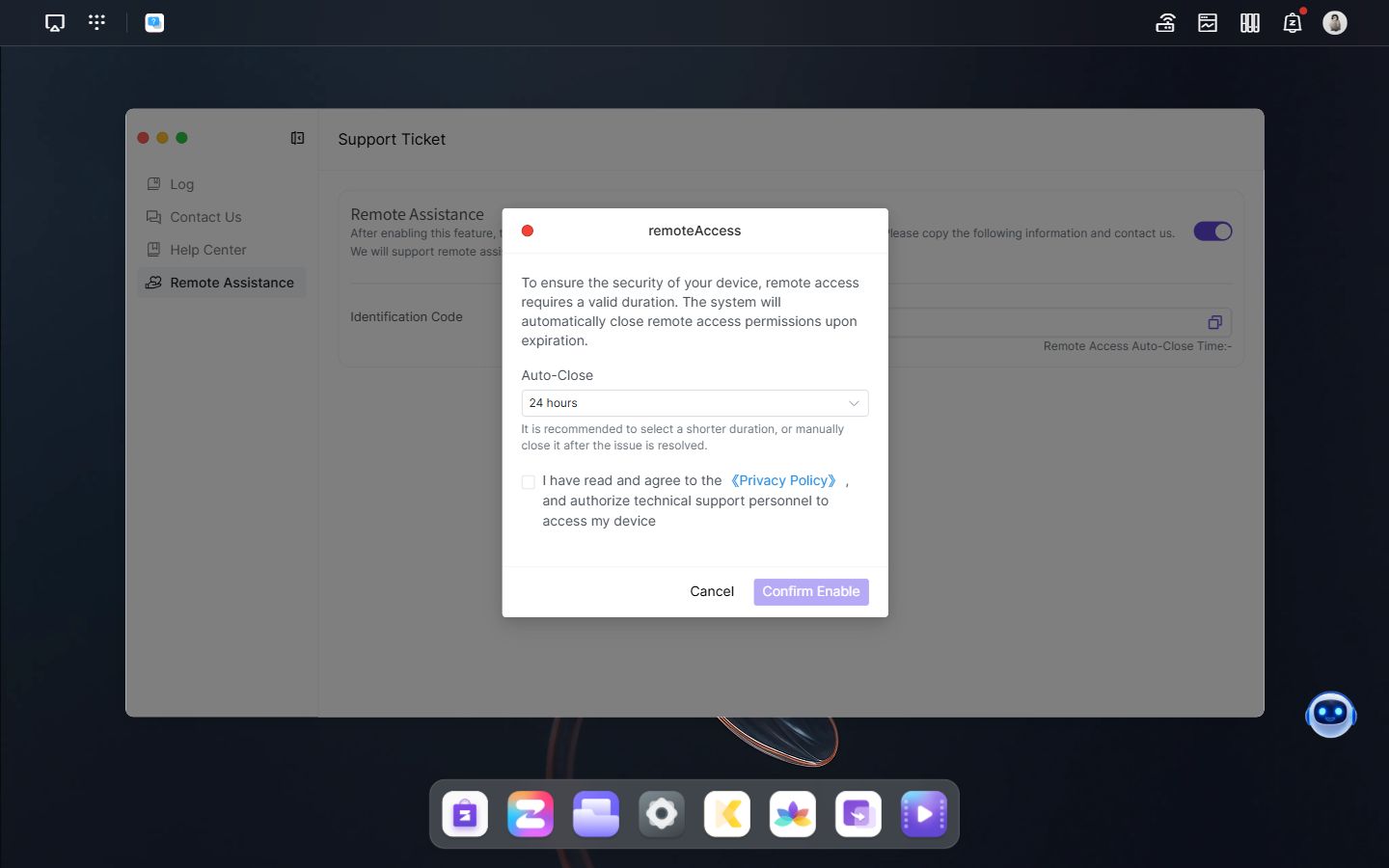
- Click the remote assistance switch and complete the required authorization or verification prompts:
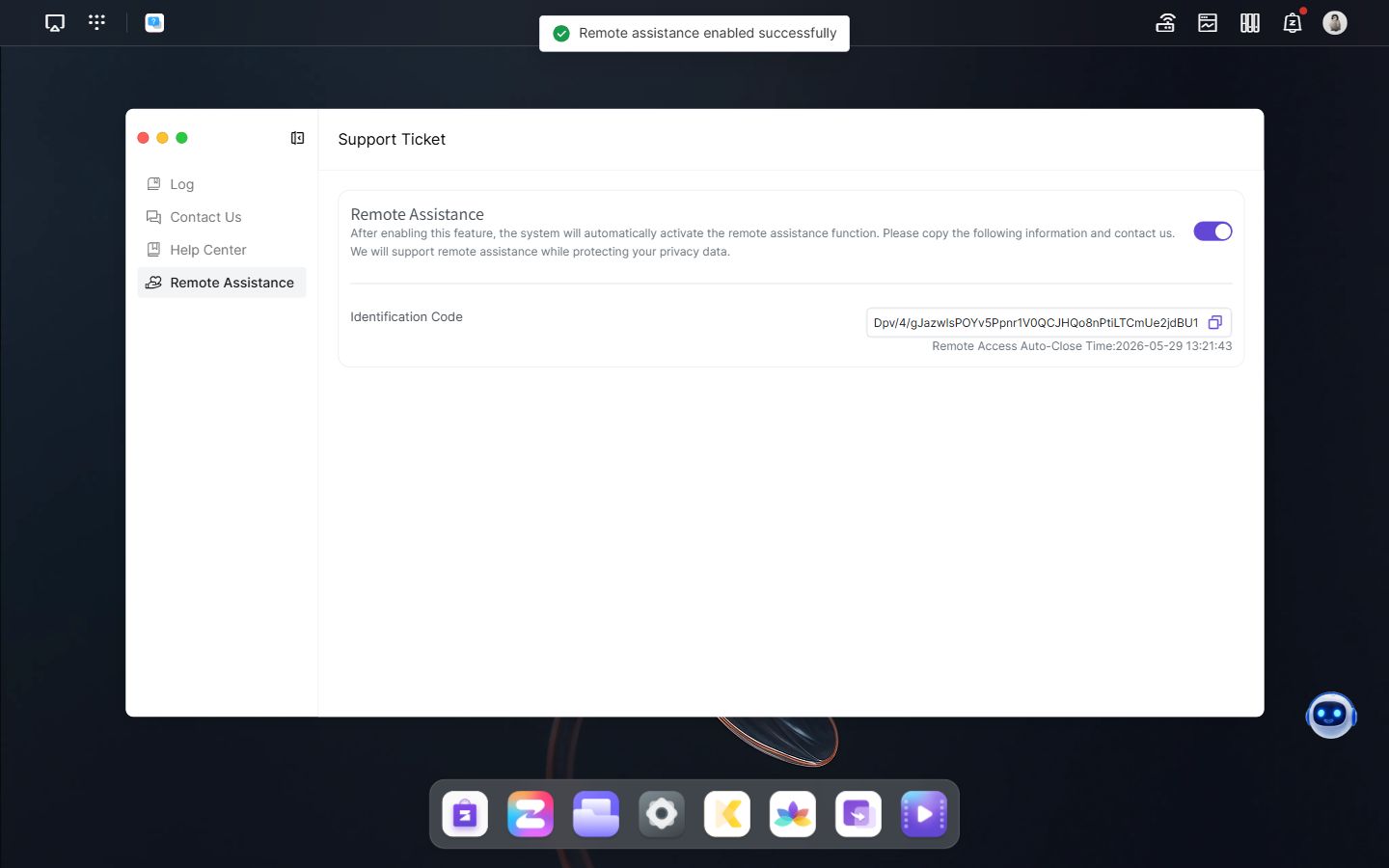
- After enabling it, provide the generated remote assistance information only to official support:
- After the issue is resolved, return to this page and turn off remote assistance.
Success Criteria
- The page shows that remote assistance is enabled.
- Support can assist within the authorized scope.
- After turning it off, the remote assistance entry returns to the disabled state.
FAQ
| Question | Handling or suggestion |
|---|---|
| When should I enable remote assistance? | Enable it when logs and screenshots are not enough to locate the issue and official support clearly needs remote troubleshooting. |
| Will remote assistance stay on? | Follow the page prompt. After the issue is resolved, manually turn it off. |
| Can I send remote assistance information to others? | Do not send it to anyone other than official support to avoid unauthorized access. |
