In File Manager, you can use semantic search, keyword search, filters, sorting, AI categories, and image search to find files on your NAS.
When to use it
Use search and filtering when you have many files, cannot remember where a file is saved, or only remember part of an image, video or audio content, document summary, or file name.
Before you start
- Search results only show files that the current account has permission to access.
- Semantic search, AI categories, and image search rely on ZettAI. If ZettAI is turned off, being upgraded, or has not finished learning the file, results may be unavailable or incomplete.
- If you already know where the file is, open that space or folder from the left sidebar first, then search or filter within that scope.
Search for files
File Manager supports two search modes: semantic search and keyword search.
| Search mode | Best for Examples |
|---|---|
| Semantic search | You remember the meaning or content, but not the file name or exact wording "sunset beach video", "meeting notes about budget changes", "child birthday photos" |
| Keyword search | You remember a file name, folder name, or exact text fragment contract, invoice, 2026 budget.xlsx, project review |
Semantic search is better for describing file content in natural language and does not require the query to exactly match the file name. Keyword search is better for file names, folder names, or text that appears in the file.
- Open File Manager.
- Enter what you remember in the search box at the top.
- On the search results page, choose Semantic or Keywords.
- Review the results, then open the file or go to its location to confirm.
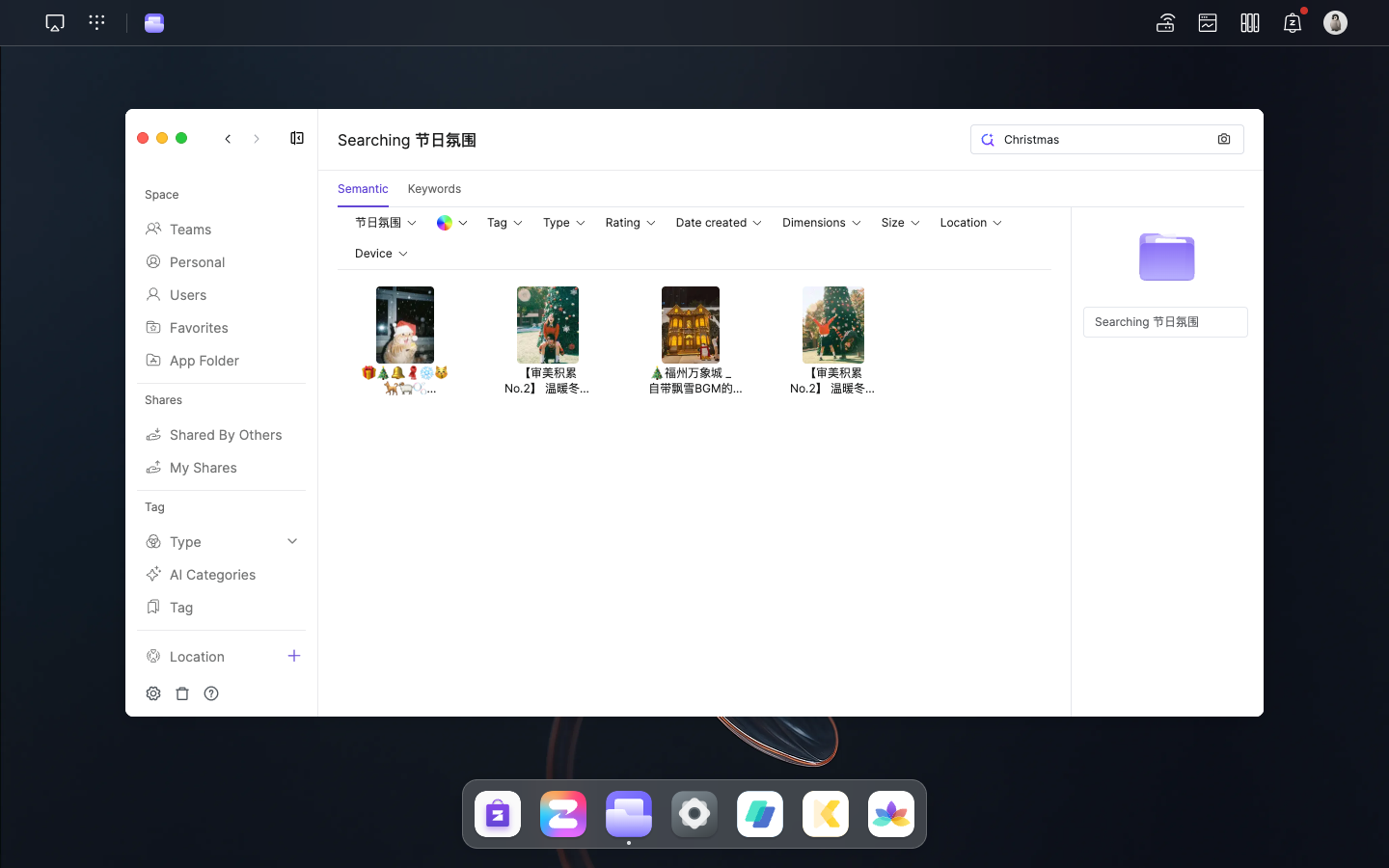
> Semantic search depends on file learning results. Files that were just uploaded, just modified, or failed to learn may not appear immediately.
Filter and sort
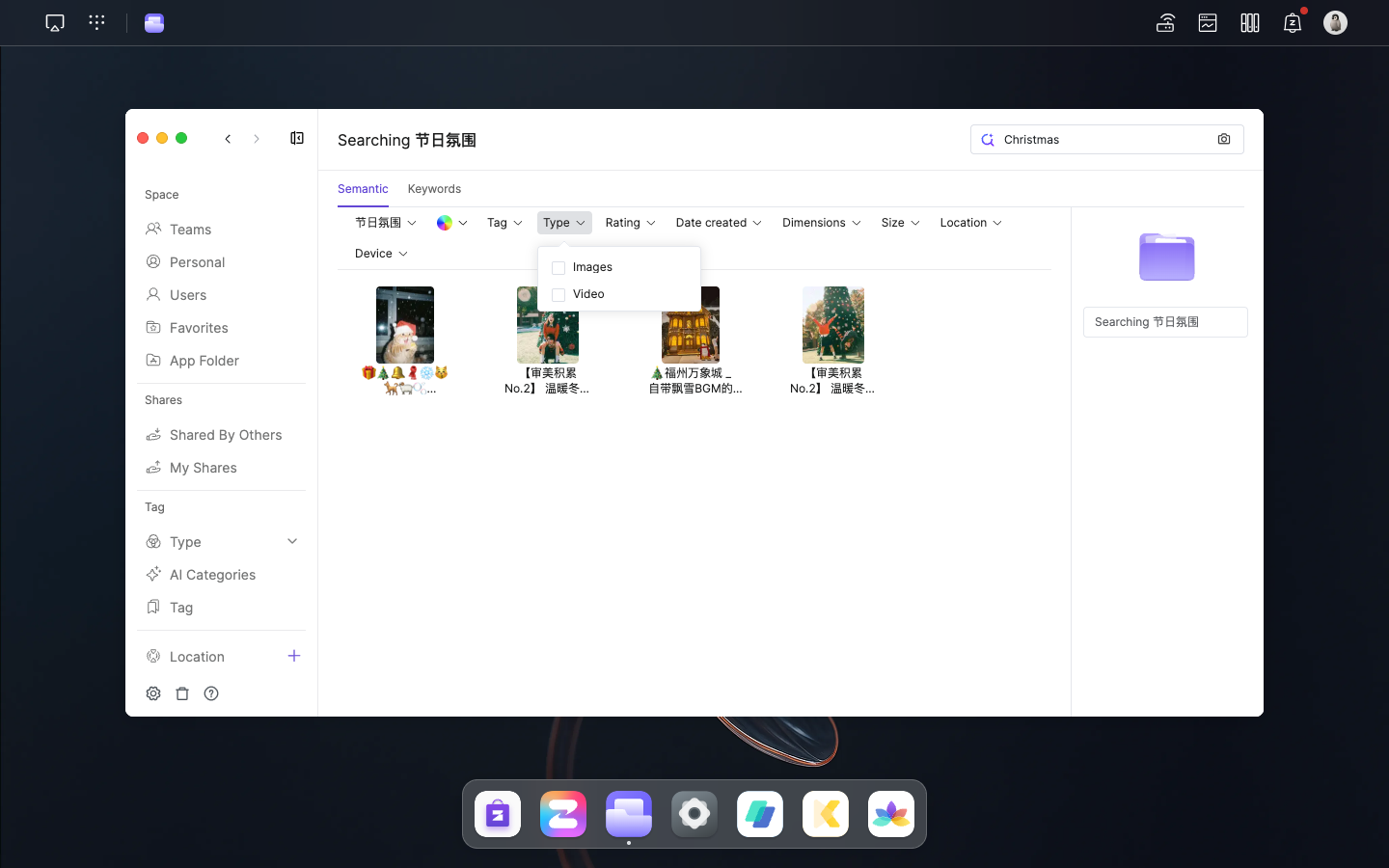
When there are many search results, use filters to narrow them down. Common filters include type, tags, rating, creation date, file size, image dimensions, location, and device.
Filters can be combined. For example, search semantically for "sunset beach", then filter by Images and a date range. If there are too few results, clear some filters and search again.
In search results or type views, you can sort by name, size, type, date added, date modified, and date created. Image and video results may also support sorting by color.
AI categories
AI categories automatically group images or videos that share similar content features. You can think of them as smart file collections generated by ZettAI, such as "beach", "pets", "meeting screenshots", or "product packaging". They are useful when you do not know the file name or path and want to browse by content theme.
AI categories depend on ZettAI learning results. Files that were just uploaded, just modified, still learning, or failed to learn may not appear in the expected category.
Create an AI category
- Open File Manager.
- In the left sidebar, go to Label > AI Categories.
- Click [New Categories] in the upper-right corner.
- Enter a category name and description. The description should explain the content features you want to group, such as "images and videos containing beaches, sand, and waves".
- Save it, then wait for the system to match files based on the description.
- After the category is created, open it to view matching results.
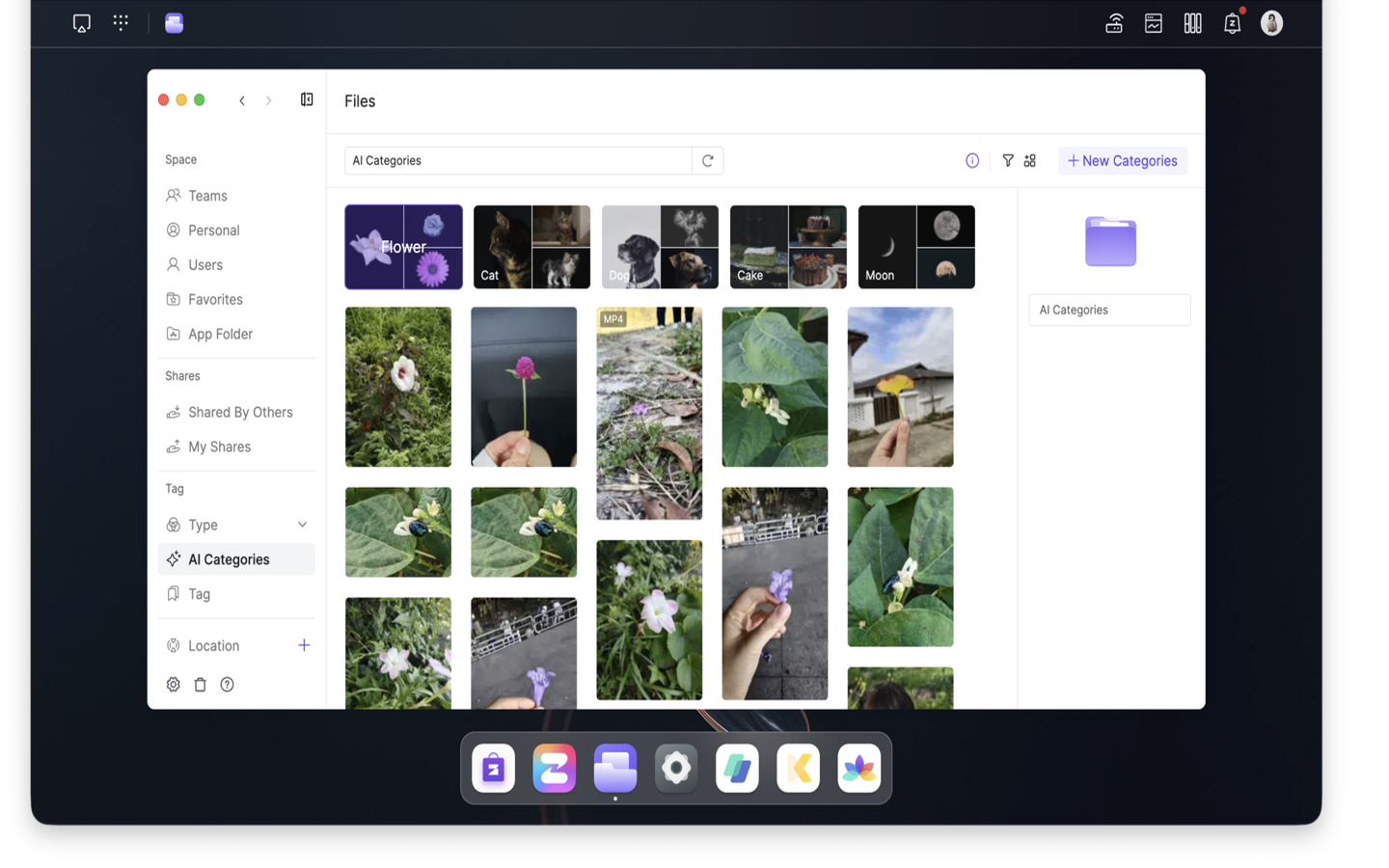
If the category results are incomplete, adjust the category description so it better matches the target content, or wait until the relevant files finish ZettAI learning.
Search by image
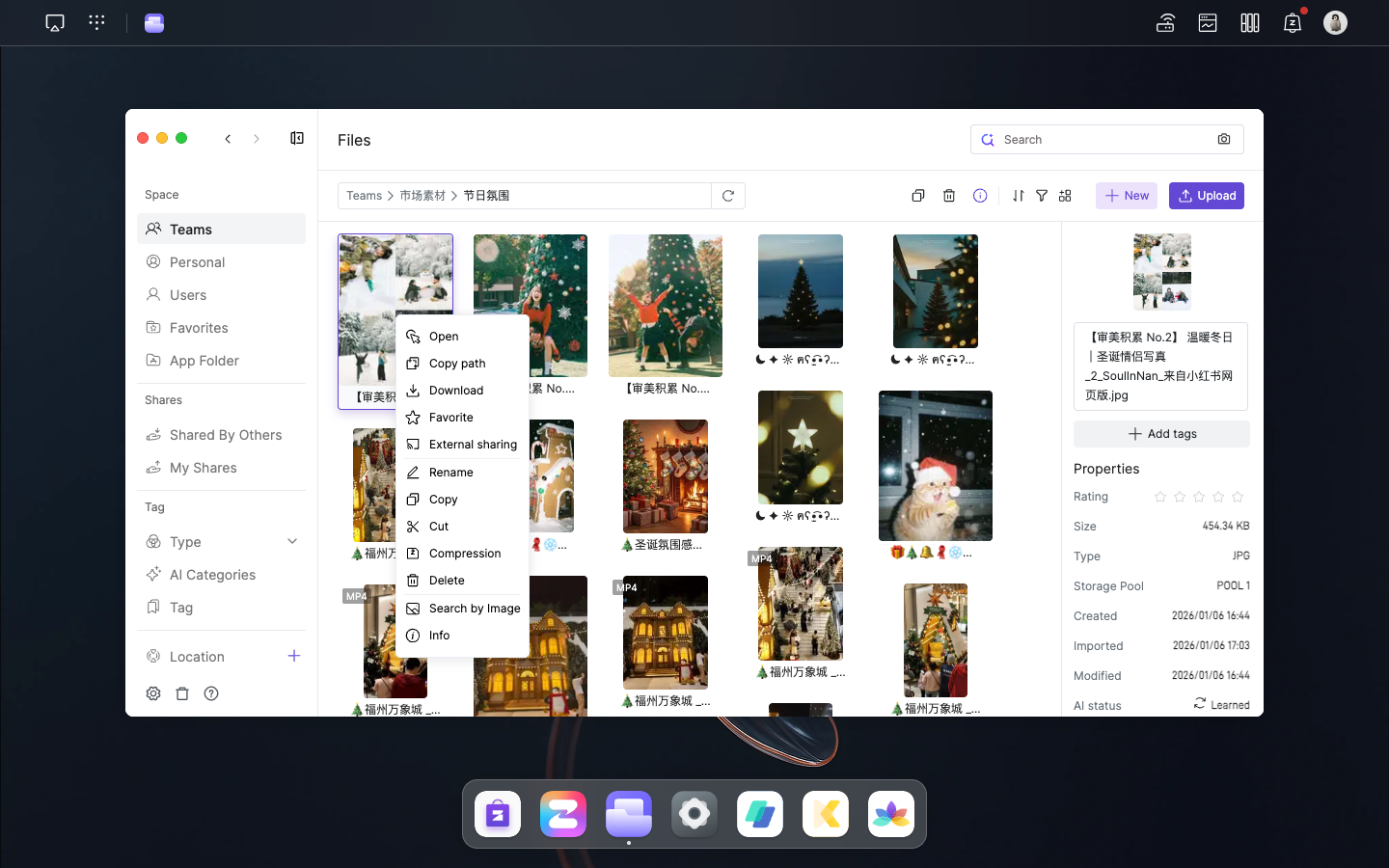
To find similar images, right-click an image file and choose Search by Image. The system searches for images with similar visual content based on the selected image.
Search by image is better for finding images with similar subjects, composition, or visual appearance. It is not intended for querying shooting time, location, file name, or file properties.
FAQ
| Question | Handling or suggestion |
|---|---|
| A file I just uploaded cannot be found | Wait for file indexing or ZettAI learning to finish. Large files and large batches take longer. |
| Semantic search has no results | Make sure ZettAI is enabled and the file has finished learning. You can also try a description closer to the file content. |
| Keyword search has no results | Check whether the keyword appears in the file name, folder name, or file content. Try fewer keywords and search again. |
| Is search scoped to the current space or global | Results only show content that the current account can access. Use the scope selector and filters on the results page to narrow the location. |
| Should I search in Chinese or English | Use the language that appears in the file name or content. If unsure, try both Chinese and English. |
| Will other people's files appear | Files that the current account cannot access will not be shown. |
| AI category results are incomplete | Wait until file learning is complete. Files that are not learned or failed to learn may not fully appear in categories. |
| Search by image results are inaccurate | Use a clearer image with a more obvious subject. Do not use it to query exact attributes such as shooting time or location. |
