"Connection Management" is used to create and maintain connections used by sync and backup tasks. The English UI offers Zettlab NAS, Google Drive, OneDrive, Dropbox, SMB, WebDAV, FTP, and Rsync.
View The Connection List
- Open "Sync & Backup".
- Go to "Connection Management".
- View existing connections.
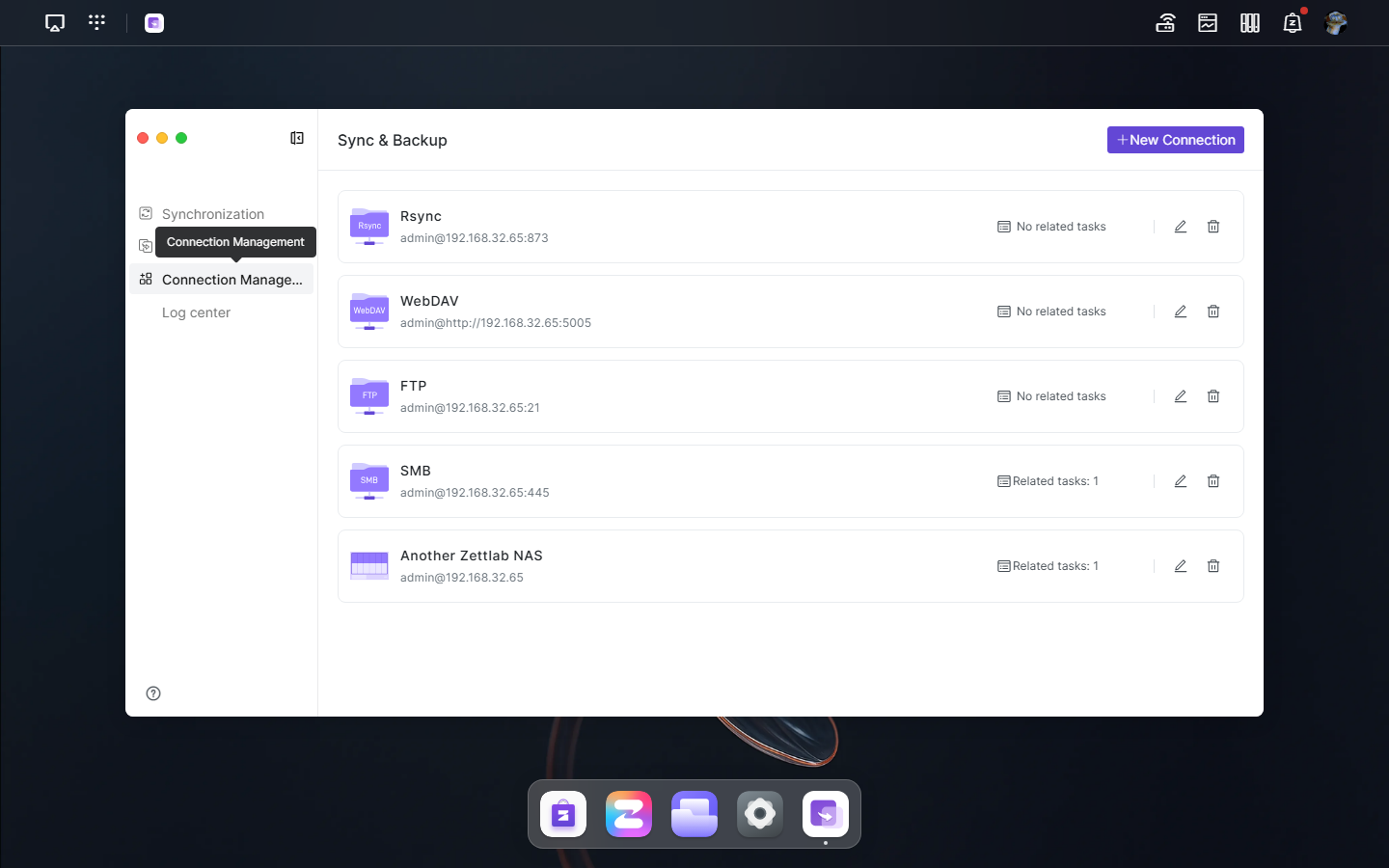
Saved connections appear in the connection list. When creating sync or backup tasks, you can choose an existing connection to continue.
Create A Connection
- Go to "Connection Management".
- Click [New Connection].
- Select the connection type.
- Complete authorization or fill in connection information according to the type.
- Confirm to save the connection.
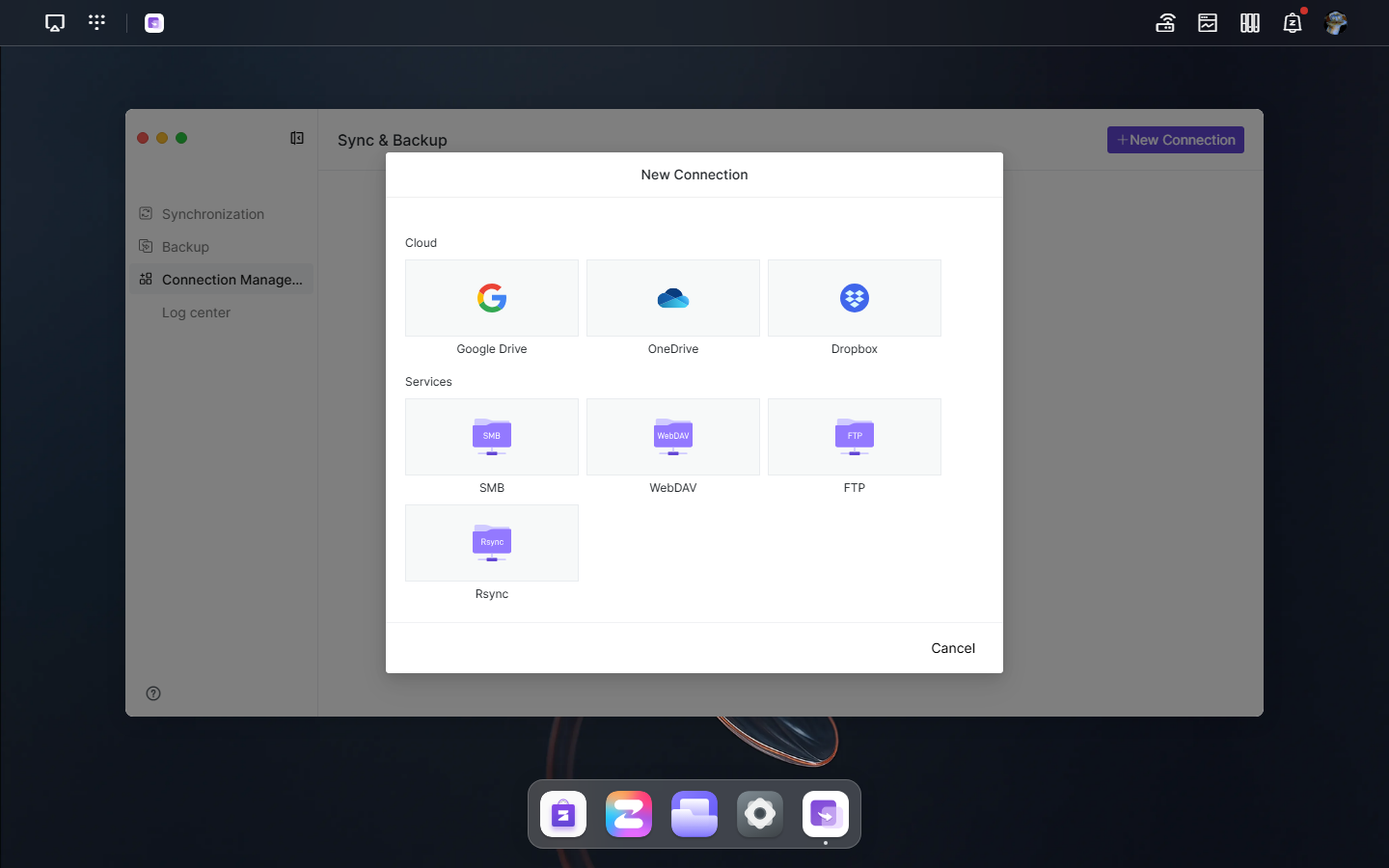
Connection types are grouped by device, cloud, and service. For cloud drives, continue with authorization. For file services, prepare the address and account information for the protocol.
Create An SMB Connection
After selecting SMB, the connection information dialog opens. Fill in the information and click [Confirm] to save.
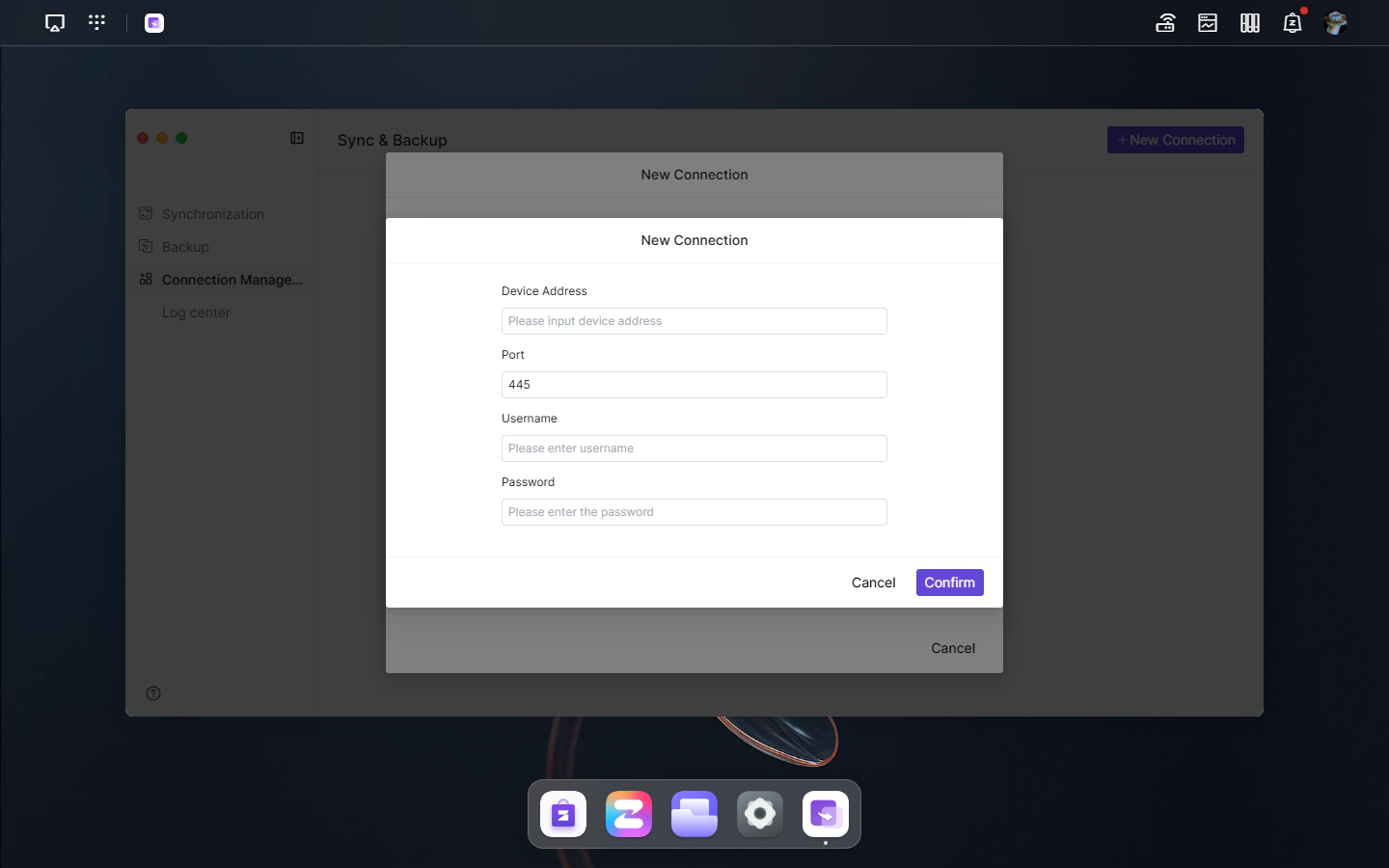
SMB, WebDAV, FTP, and Rsync use a similar service-connection flow. Fill in the service address, port, username, and password as required, then click [Confirm]. If connection verification fails, follow the prompt to check the target service, account, and network.
Use Connections To Create Tasks
After a connection is saved, it can be selected when creating sync or backup tasks. It is recommended to prepare connections in "Connection Management" before entering the task creation flow.
If a cloud authorization expires or a file service cannot be accessed, return to "Connection Management" to handle the connection before running the task.
FAQ
| Question | Handling or suggestion |
|---|---|
| Why Does Connecting To Another Zettlab NAS Fail | When creating a "Sync other Zettlab NAS" task, the remote NAS also needs the "Sync & Backup" app installed. You can connect to another NAS using its LAN IP address or Remote Access ID; the Remote Access ID can be enabled or viewed on the remote NAS in Settings - Remote Access. After confirming that the remote NAS has the app installed, return to "Connection Management" and verify the connection again. |
| Which Connection Types Are Supported | The English UI offers Zettlab NAS, Google Drive, OneDrive, Dropbox, SMB, WebDAV, FTP, and Rsync. |
| What Should I Do If Connection Verification Fails | When connection verification fails, first check whether the target machine has the corresponding service enabled. For SMB, FTP, WebDAV, or Rsync connections, enable the corresponding service on the target machine and confirm that the account has access permission. After the service is enabled, return to "Connection Management" and verify the connection again. |
| What If Cloud Authorization Expires | Go to "Connection Management", find the corresponding cloud-drive connection, and reauthorize it according to the page prompt. After authorization is restored, run the tasks that use the connection again. |
