Find your target photos in Photos via different entry points: timeline, albums, map, people & pets.
Before You Begin
- Some photos have been imported via How to Add and Manage Your Photos or Auto-backup from Phone
- The initial photo indexing has finished
Five Browsing Entries
The left navigation in Photos has 5 tabs, each corresponding to a different way to browse:
1. Photo (Timeline)
The default entry — all photos and videos in reverse chronological order. You can jump by date within the timeline to quickly reach a specific period.
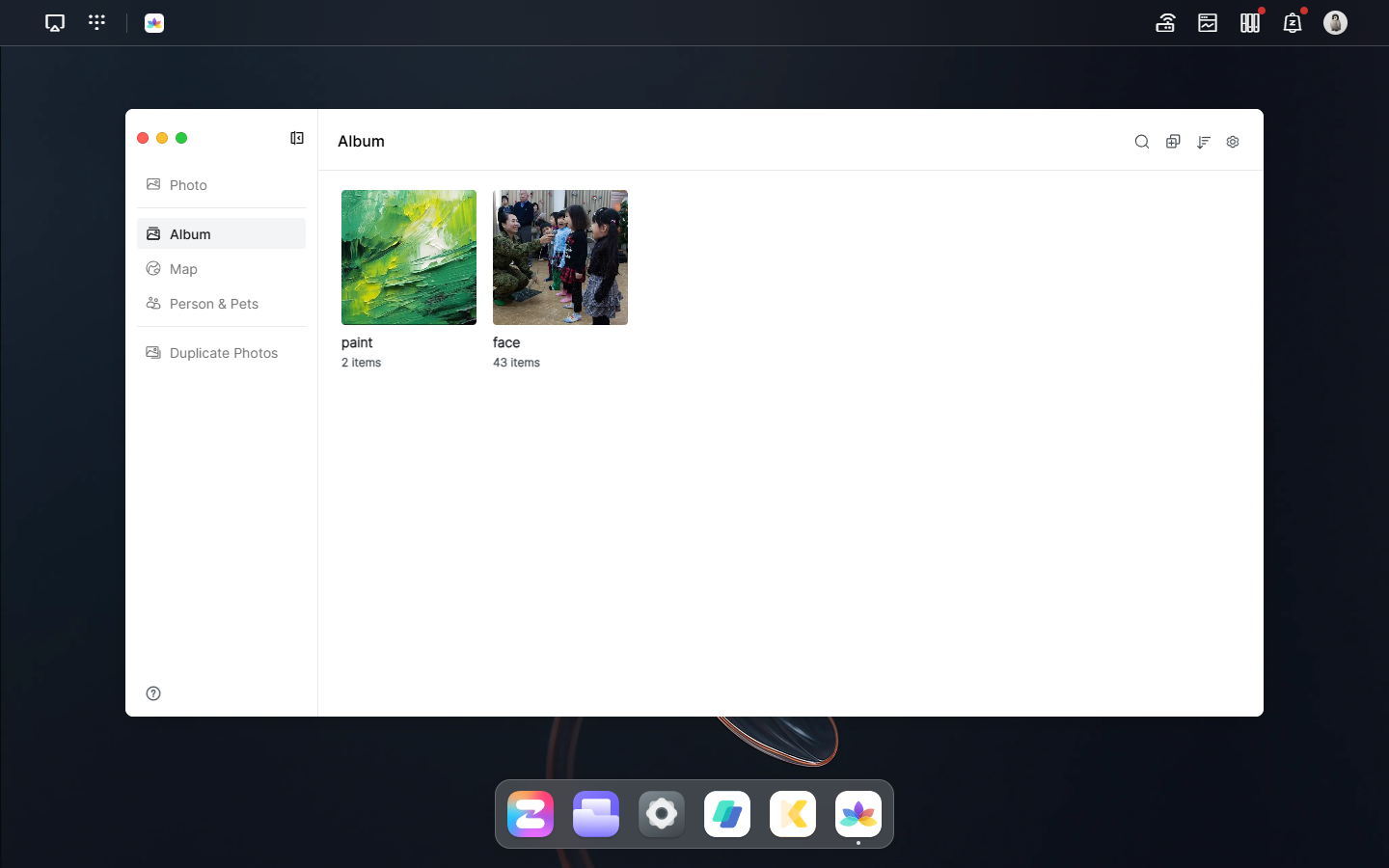
2. Album
Custom or auto-generated album collections. You can manually create albums to group photos by theme or event.
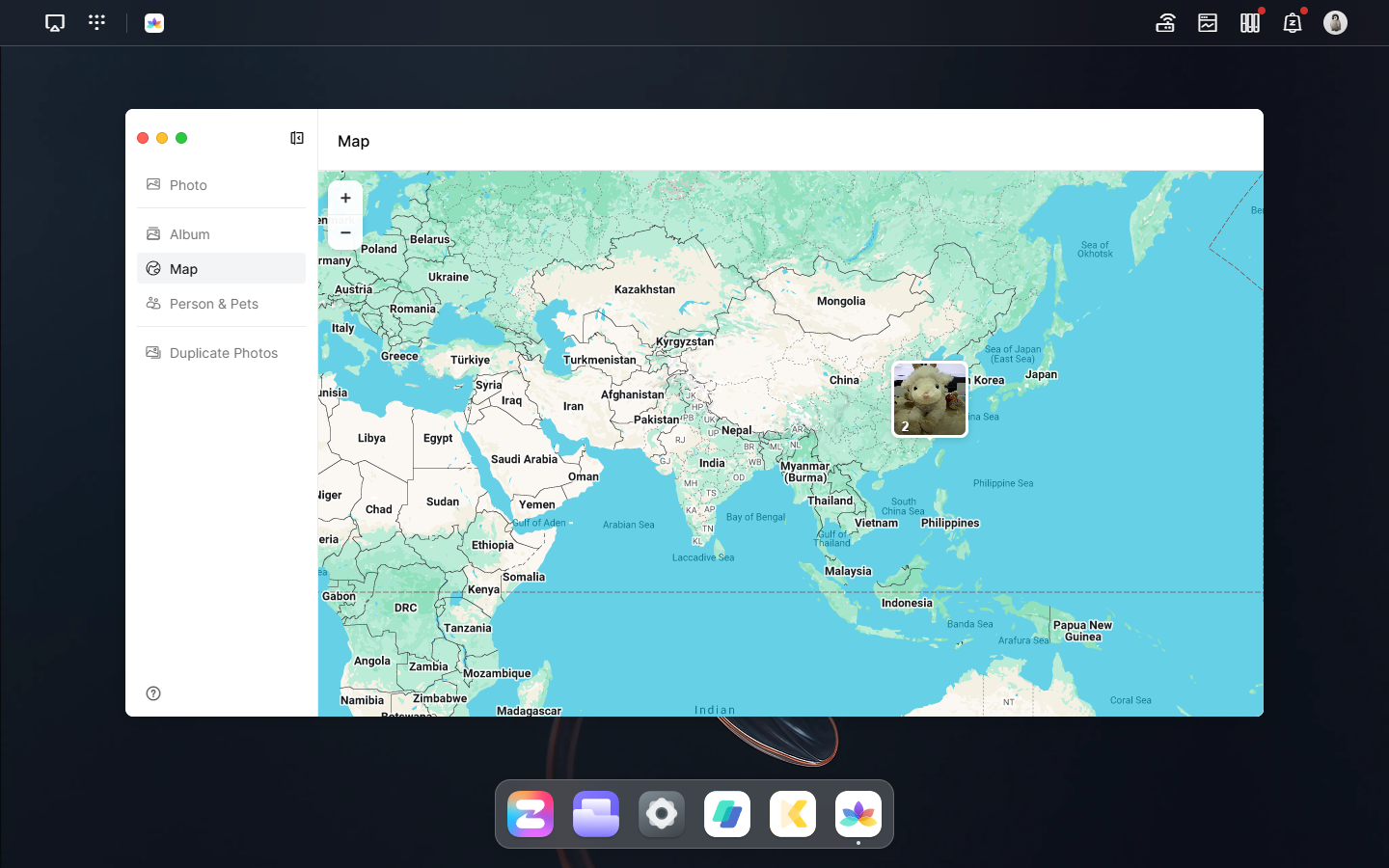
3. Map
See your geo-tagged photos placed on a world map. The system extracts capture locations from EXIF and shows each photo as a pin on the world map. Zoom to view photos across regions, or click a pin to see the corresponding photos.
> ℹ️ About privacy > ** The map service only reads the location data already embedded in your images (EXIF). It never uploads your photos and never exposes user privacy. Photos without GPS data do not appear on the map.
Common issues:
- Map is empty → Photos have no GPS data, or first entry requires an authorization step
- Locations look off → Treat the photo's original EXIF data as the source of truth
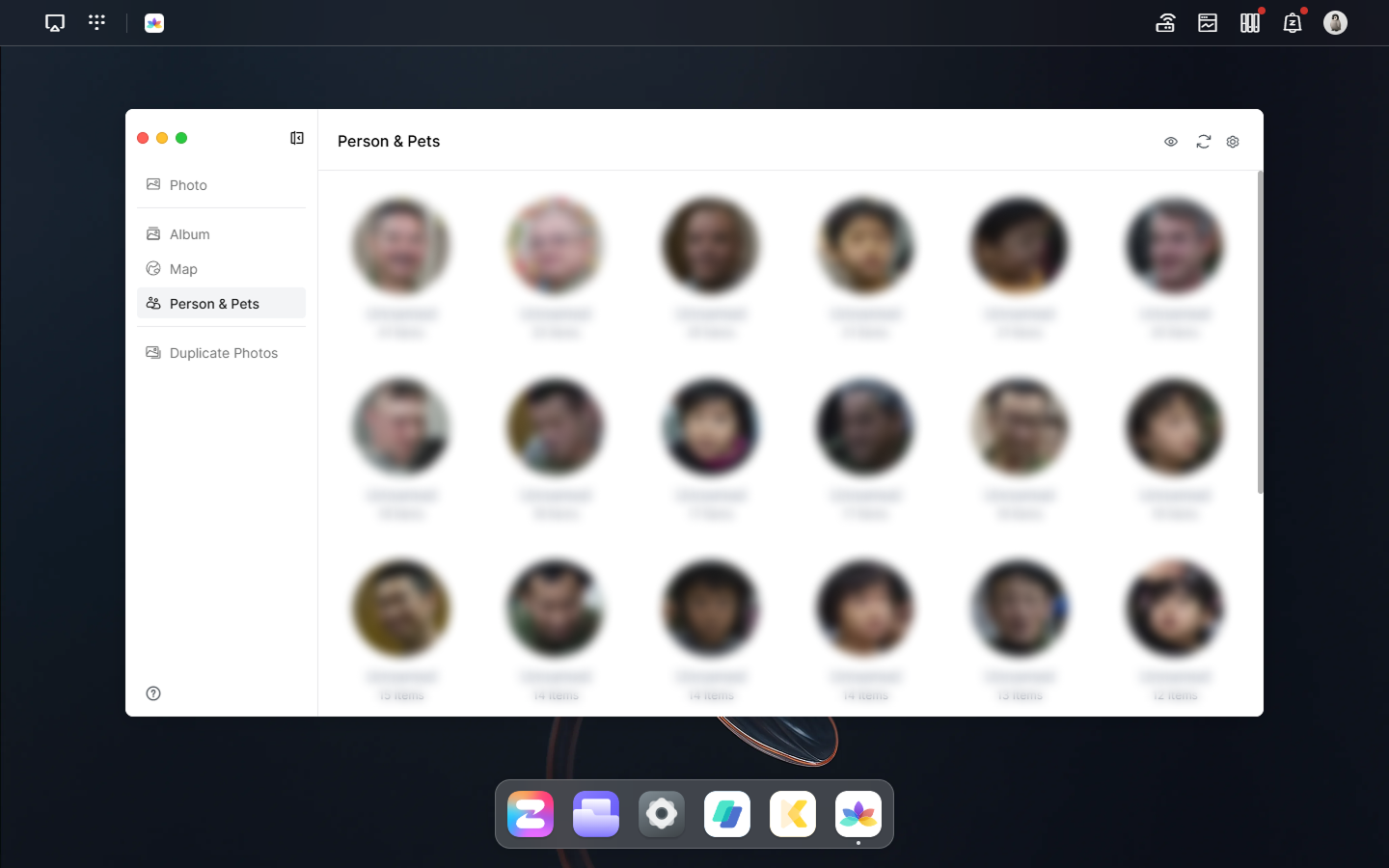
4. People & Pets
People/pet groups recognized by ZettAI (requires AI enabled).
5. Duplicate Photos
See Duplicate Photo Detection.
Troubleshooting
- Cannot see uploaded photos — Check whether the upload landed inside a Photo Path; or wait for indexing
- Timeline dates look wrong — The original capture time (EXIF) is authoritative
FAQ
| Question | Handling or suggestion |
|---|---|
| Why can't I see uploaded photos | The photos are not under a Photo Path, indexing isn't done, or the file format isn't supported Confirm the uploads landed under a Photo Path; wait for indexing; verify the file opens correctly in Files |
| Why are there no photos on the Map | Photos have no GPS info, or indexing isn't done Check the original EXIF location; wait for indexing |
