Learn about App Center categories, search, app details, and app status.
Before You Start
- The NAS has completed initial setup and has an available storage pool.
- The network connection is working.
Steps
- Open App Center.
- Browse apps from the left-side categories: All, Official Apps, Backup, Multimedia, Tools, Developers, Cloud, Installed, or Updates. The number next to Updates indicates how many installed apps currently have updates.
- Enter an app name in the search box on the left to find the target app:
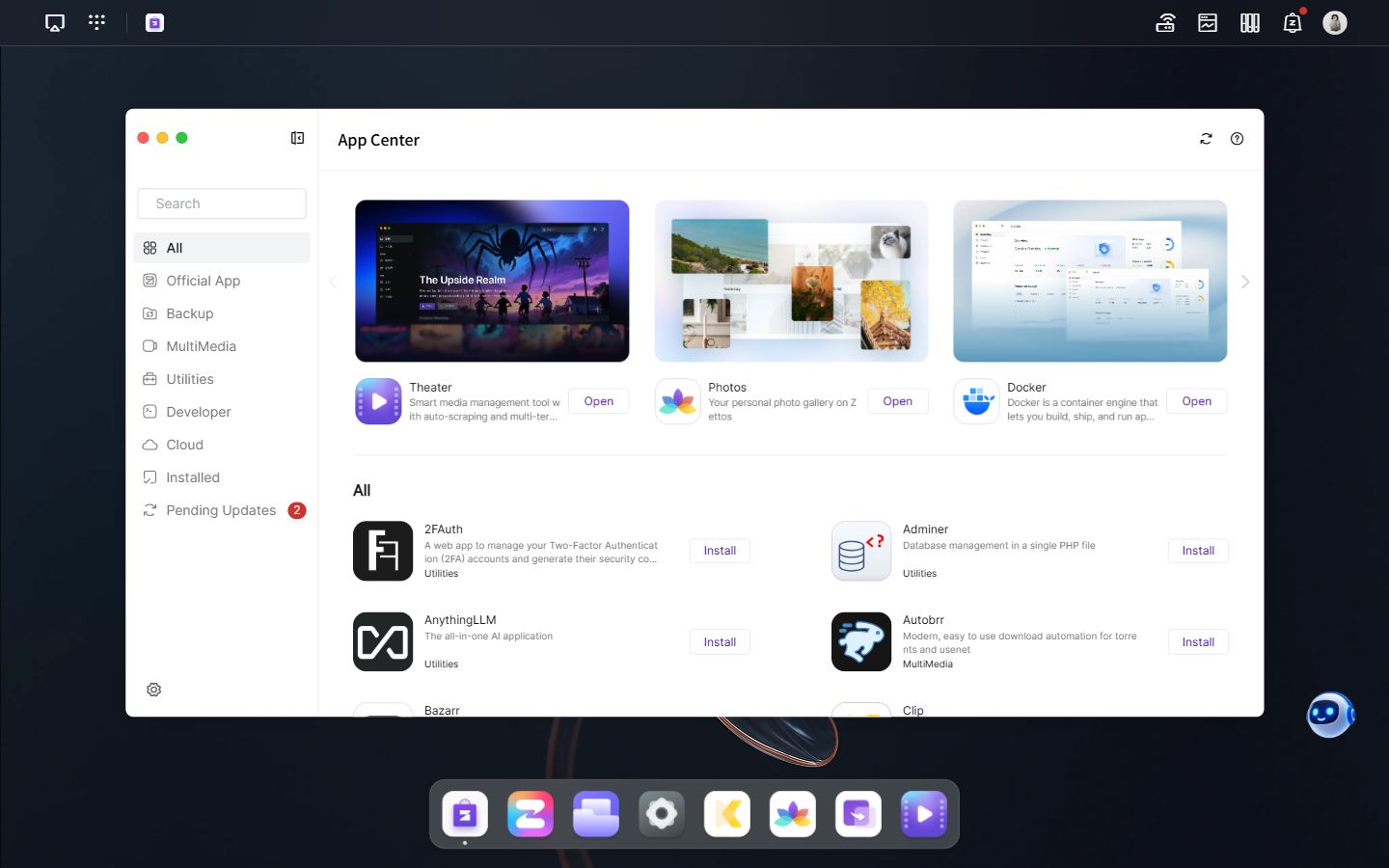
- Check the status button on the app card: [Install] means it can be installed, [Open] means it is installed and can be launched, [Update] means a new version is available, and [Error] means the app is in an abnormal state.
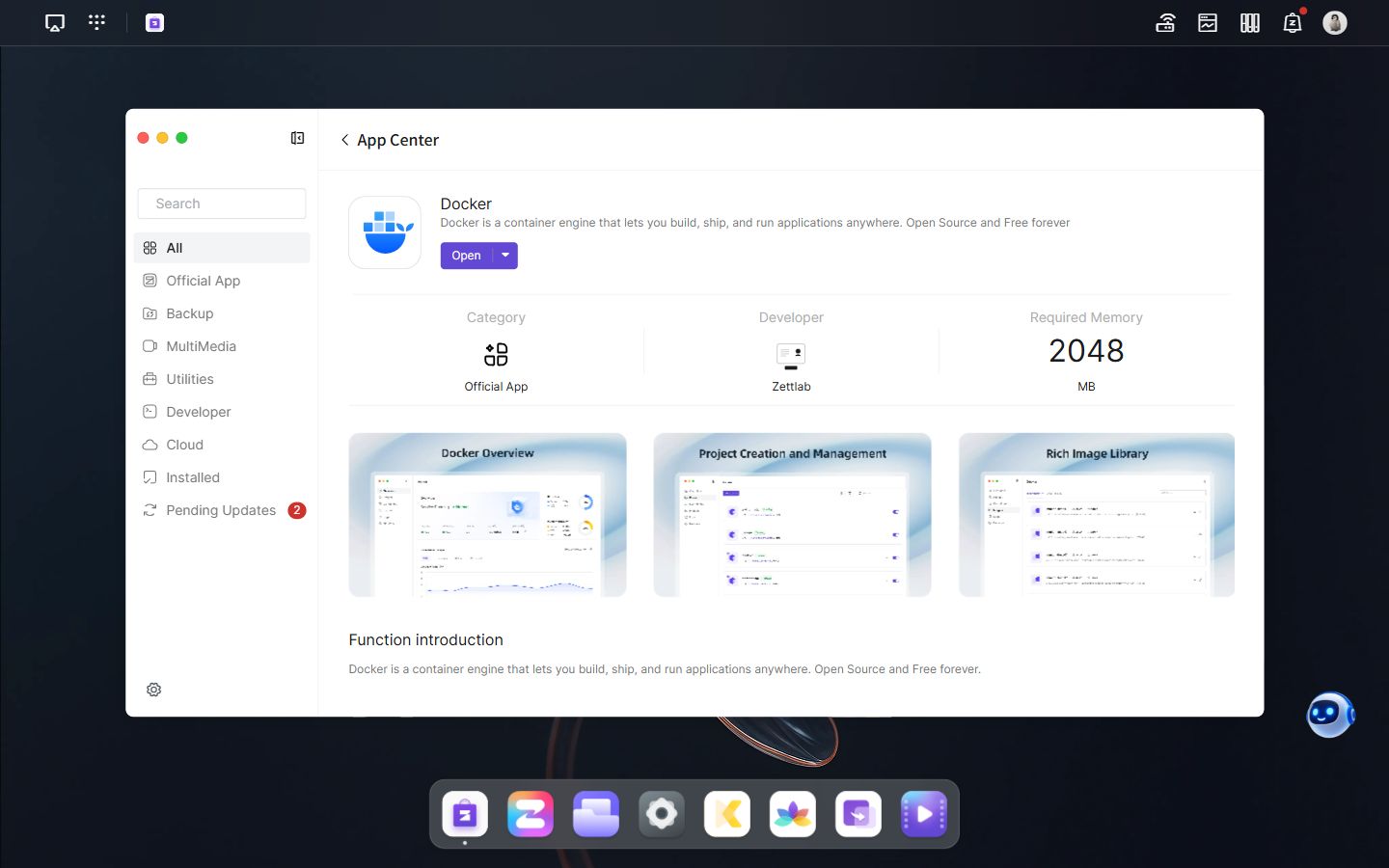
- Click an app card to open its details page, and review its category, developer, memory requirement, screenshots, and feature description:
FAQ
| Question | Handling or suggestion |
|---|---|
| I cannot find an app | Check the keyword, switch to All, or confirm that the network can access the app list. |
| What does the Updates number mean? | It indicates the number of installed apps that currently have newer versions. |
| An app shows Error | Refresh App Center. If it remains abnormal, open the app details page to view the status or contact support. |
