Download or upload device logs to help support locate system issues, app crashes, task failures, or network-related problems.
Before You Start
- Reproduce the issue once if possible so recent abnormal information is included in the logs.
- Confirm that the network is working; uploading logs requires the device to access the support service.
- Logs may include device running status, error information, and records needed for troubleshooting.
Steps
- Open the Logs page in Support:
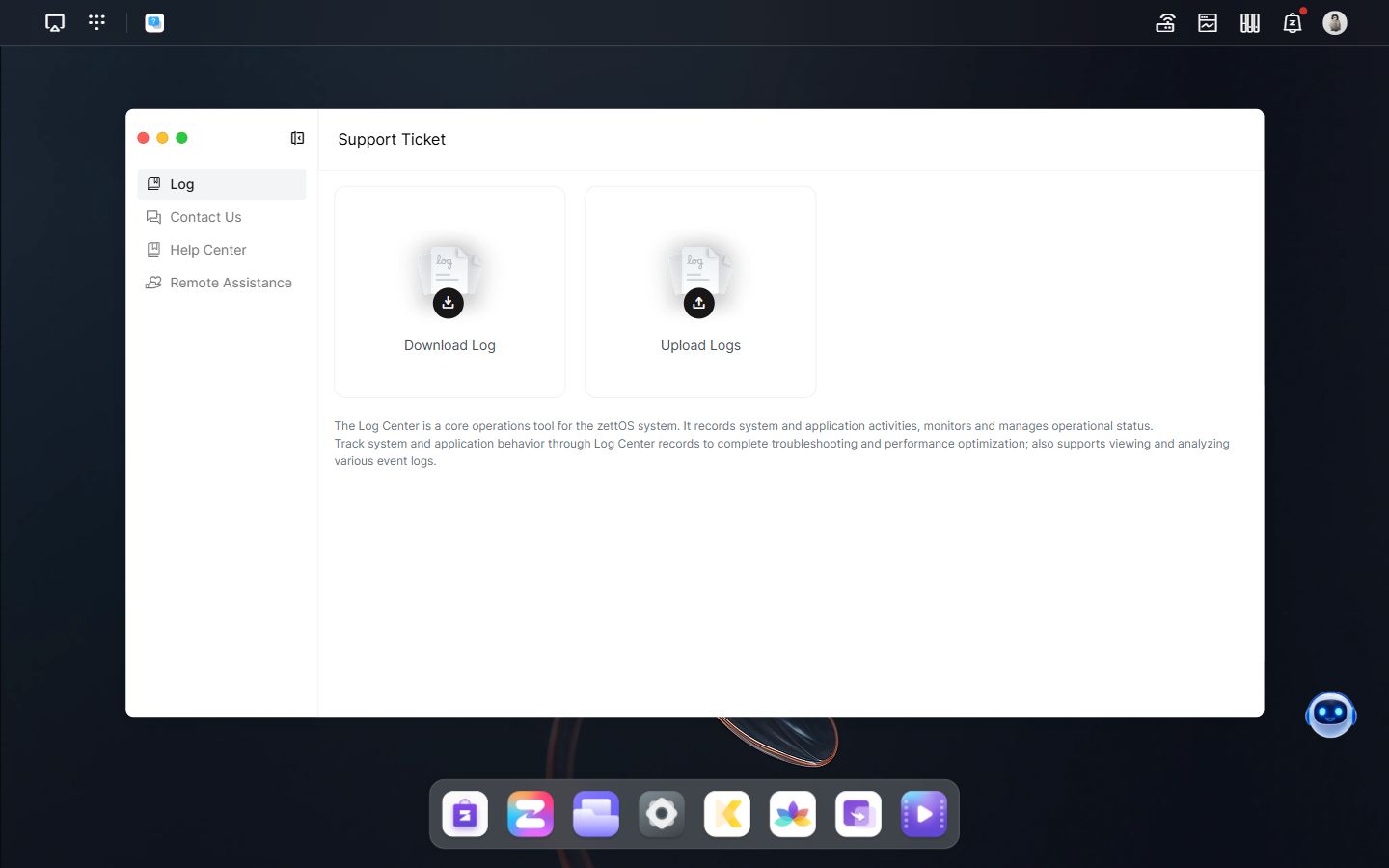
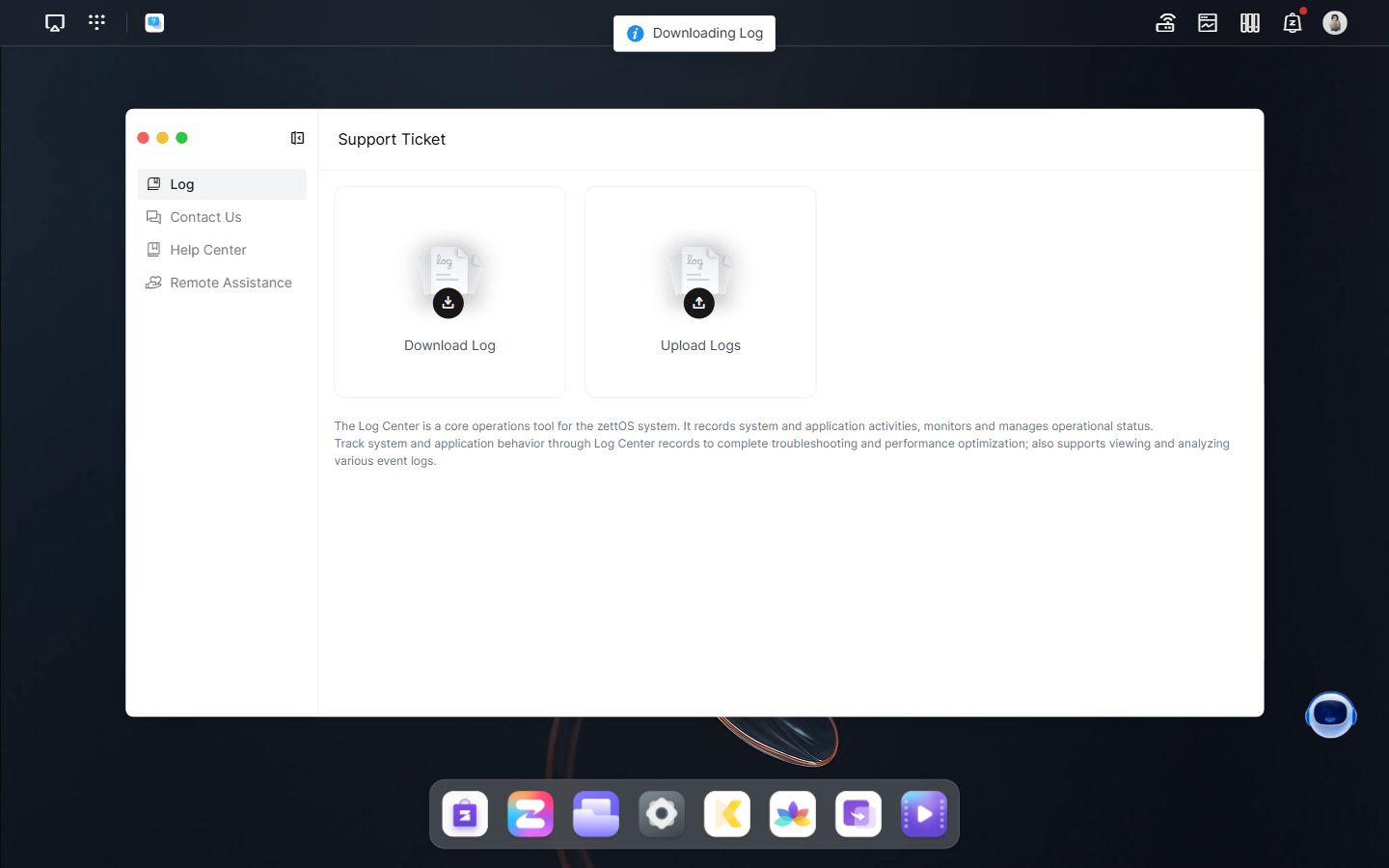
- If support needs you to send a log file, click [Download Logs] and save it locally:
- If support needs remote analysis, click [Upload Logs]:
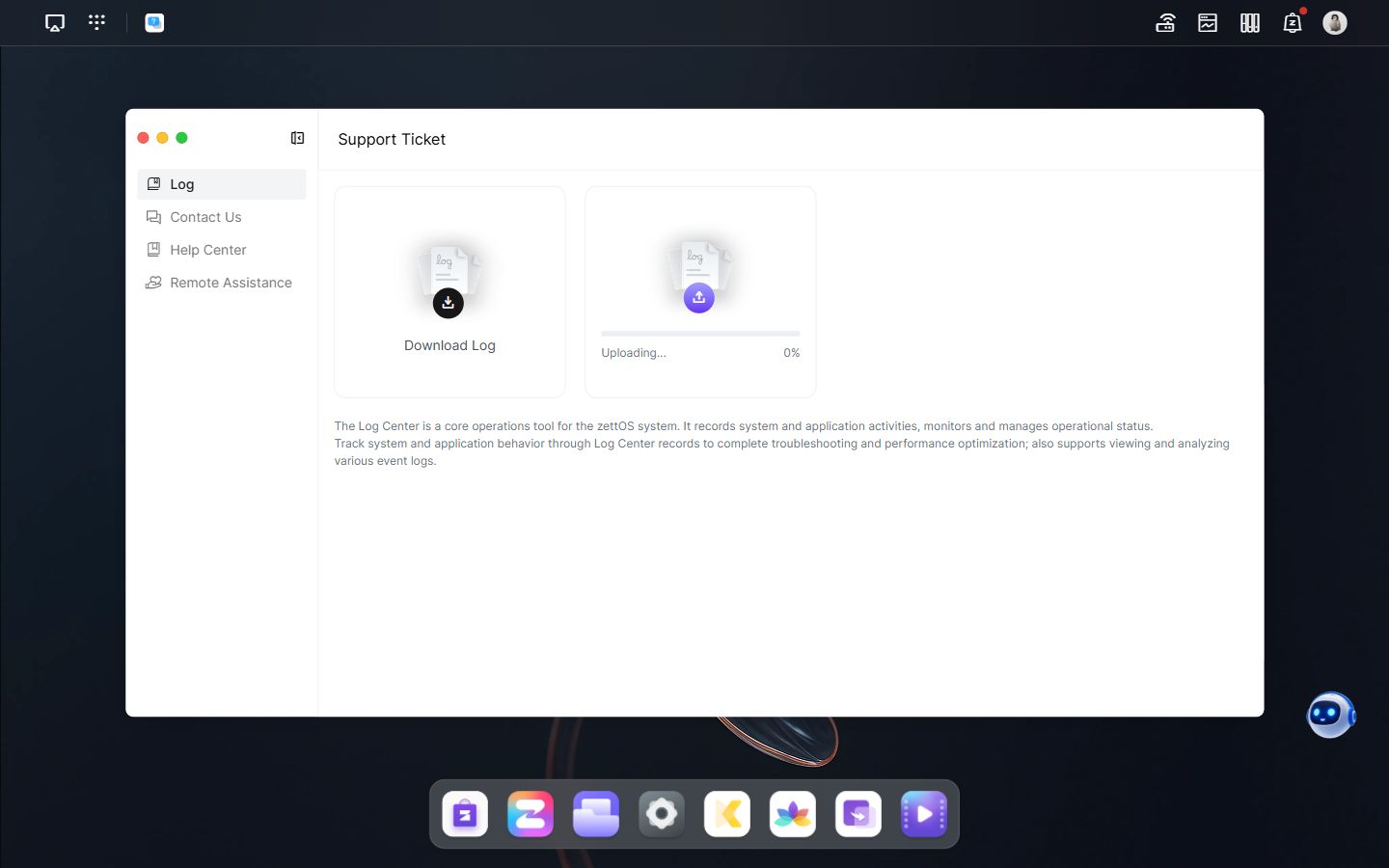
- Wait until the page shows that the upload or sending action succeeded.
- When contacting support, include the issue description, reproduction steps, and log download or upload time.
Success Criteria
- Logs have been downloaded locally, or the page shows that upload/sending succeeded.
- Support can use the log time and issue description to locate the problem.
FAQ
| Question | Handling or suggestion |
|---|---|
| What is the difference between downloading and uploading logs? | Downloading logs saves the log file locally for email or community sharing; uploading logs submits logs for remote analysis by support. |
| What if upload fails? | Check the network and try again. If it still fails, download the logs first and send them through an official contact channel. |
| What do logs include? | Logs are used for troubleshooting and may include device running status, error information, and related service records. |
| When should I upload logs? | Upload logs when support requests remote analysis or when the issue involves a system error, app crash, or failed task. After uploading, provide the upload time and issue description. |
| When should I download logs? | Download logs when you need to send the log file manually by email, community, or another channel. Send the downloaded file as requested by support. |
