In Settings-Network, you can view port connection status, configure IPv4 and IPv6, and create a Standard Bridge. In Settings-Remote Access, you can enable or disable Zettlab Remote Access, modify the Zettlab ID, and add a DDNS configuration.
View Network Interface Status
- Open
Settings-Network:
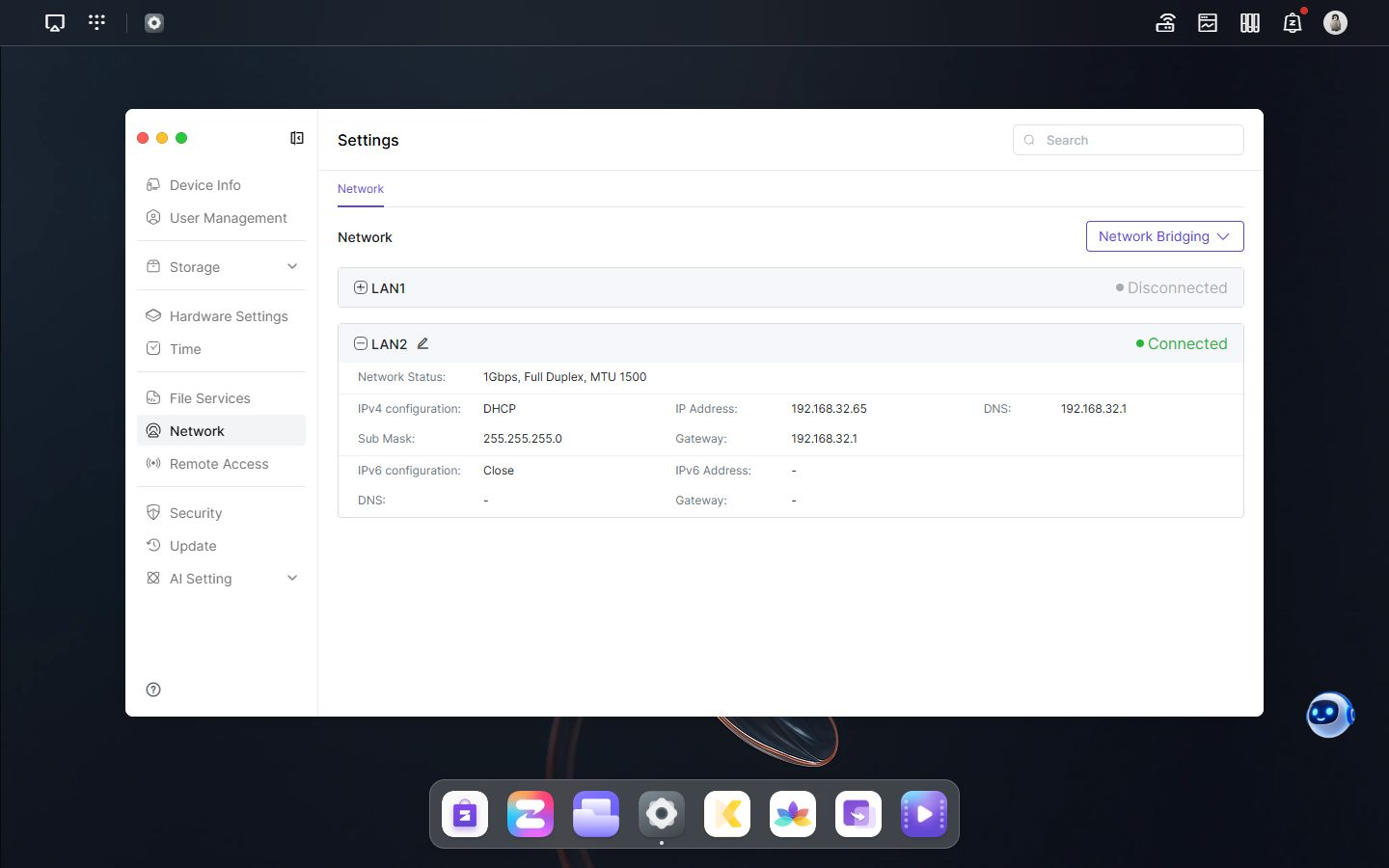
- View the connection status of port cards such as
LAN1andLAN2. - Expand a port card to view the connection status, IPv4 configuration summary, and IPv6 configuration summary for that port.
- For a connected port, click [Edit] next to the port name to open the configuration dialog.
Configure IPv4
- Open
Settings-Network. - Click [Edit] on a connected port card.
- Select the configuration method on the
IPV4tab:
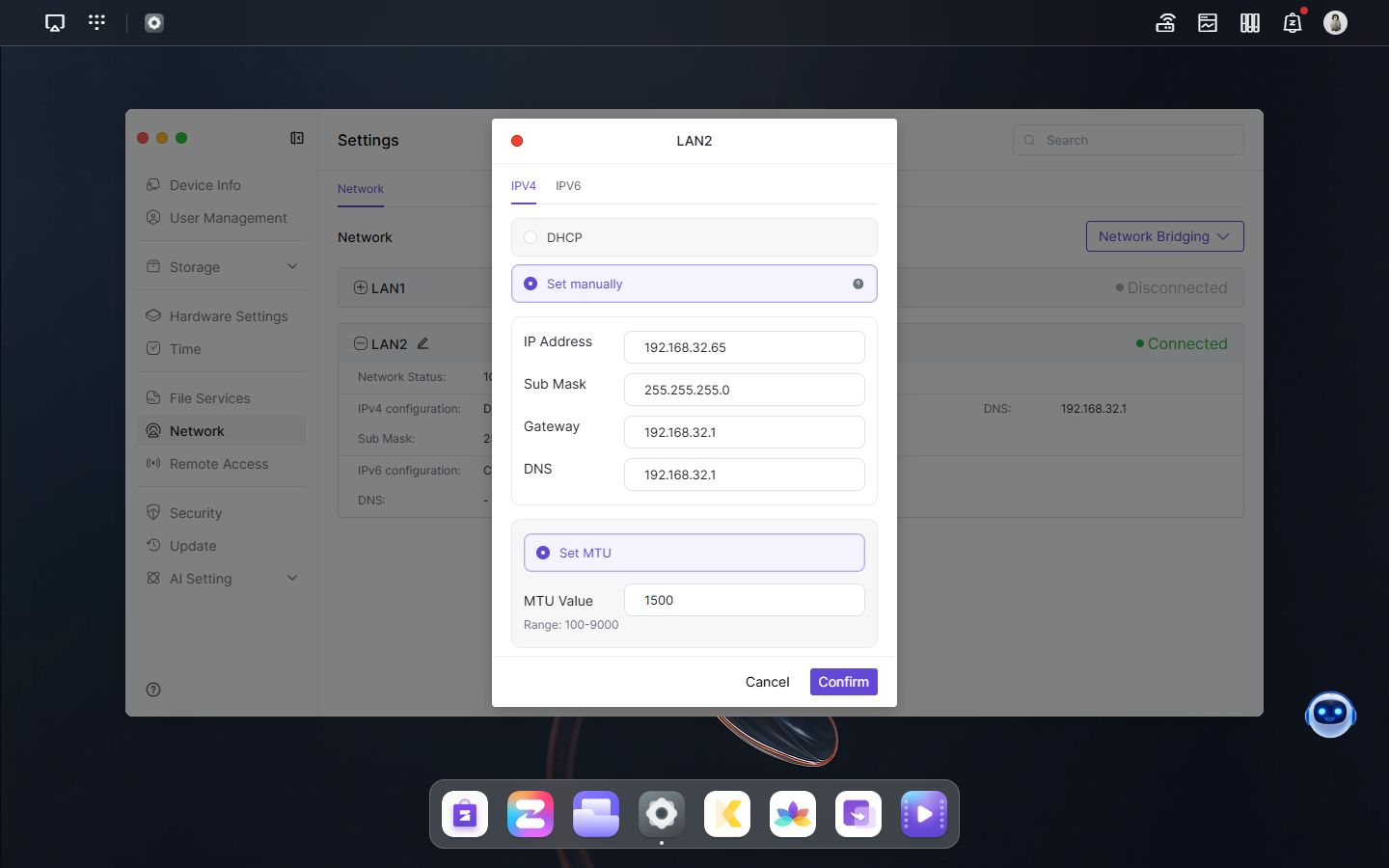
- When
DHCPis selected, the NAS obtains the IPv4 configuration through DHCP. - When
Set manuallyis selected, fill inIP Address,Sub Mask,Gateway, andDNS. - To adjust MTU, select [Set MTU] and enter a value in
MTU Value. The MTU range is100-9000. - After filling in the settings, click [Confirm] to save the configuration. The current network may briefly disconnect after saving.
Configure IPv6
- Open
Settings-Network. - Click [Edit] on a connected port card.
- Switch to the
IPV6tab:
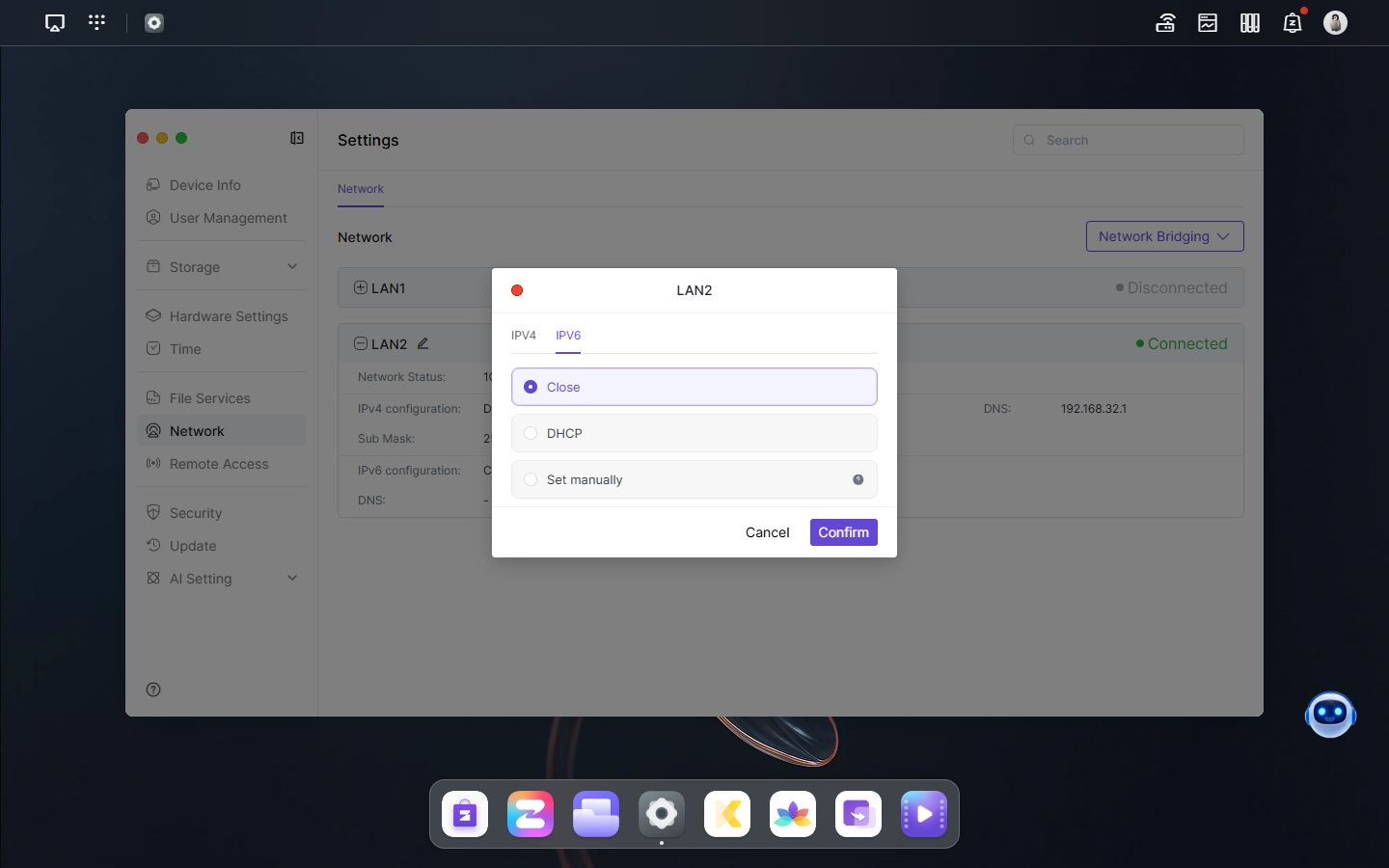
- Select
Closeto disable IPv6 configuration for this port. - When
DHCPis selected, the NAS obtains the IPv6 configuration through DHCP. - When
Set manuallyis selected, fill inIP Address,Gateway,DNS, andPrefix Length.Prefix Lengthis displayed as64by default. - After filling in the settings, click [Confirm] to save the configuration. The current network may briefly disconnect after saving.
Create a Standard Bridge
A Standard Bridge lets a computer access the internet through the NAS while maintaining a high-speed direct connection to the NAS.
- Open
Settings-Network. - Click [Network Bridging] and select [Standard Bridge].
- In the
Standard Bridgedialog, select the ports to add to the bridge:
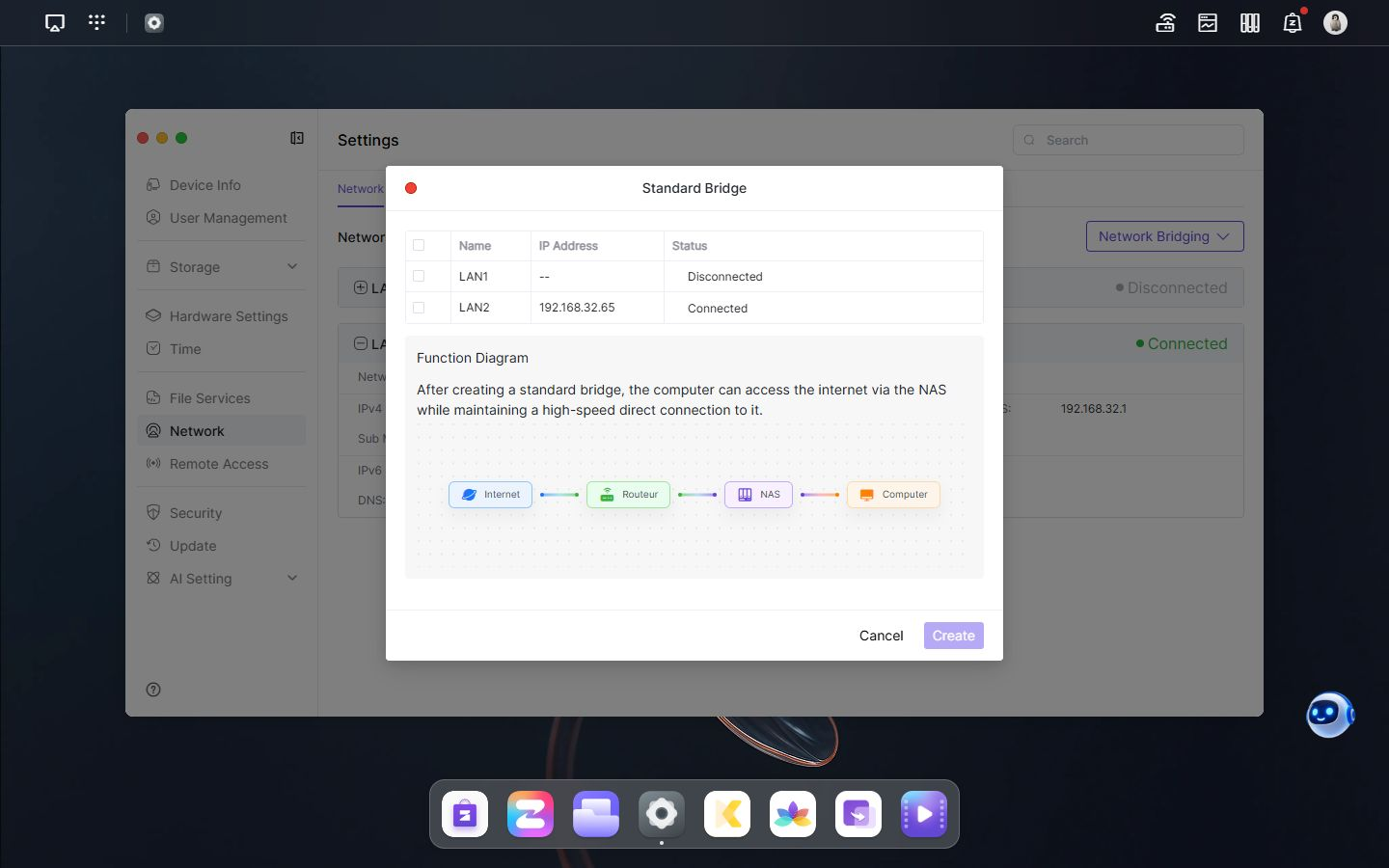
- After at least 2 ports are selected, the [Create] button becomes available.
- Click [Create] to create the Standard Bridge. The current network may briefly disconnect after saving.
Enable or Disable Remote Access
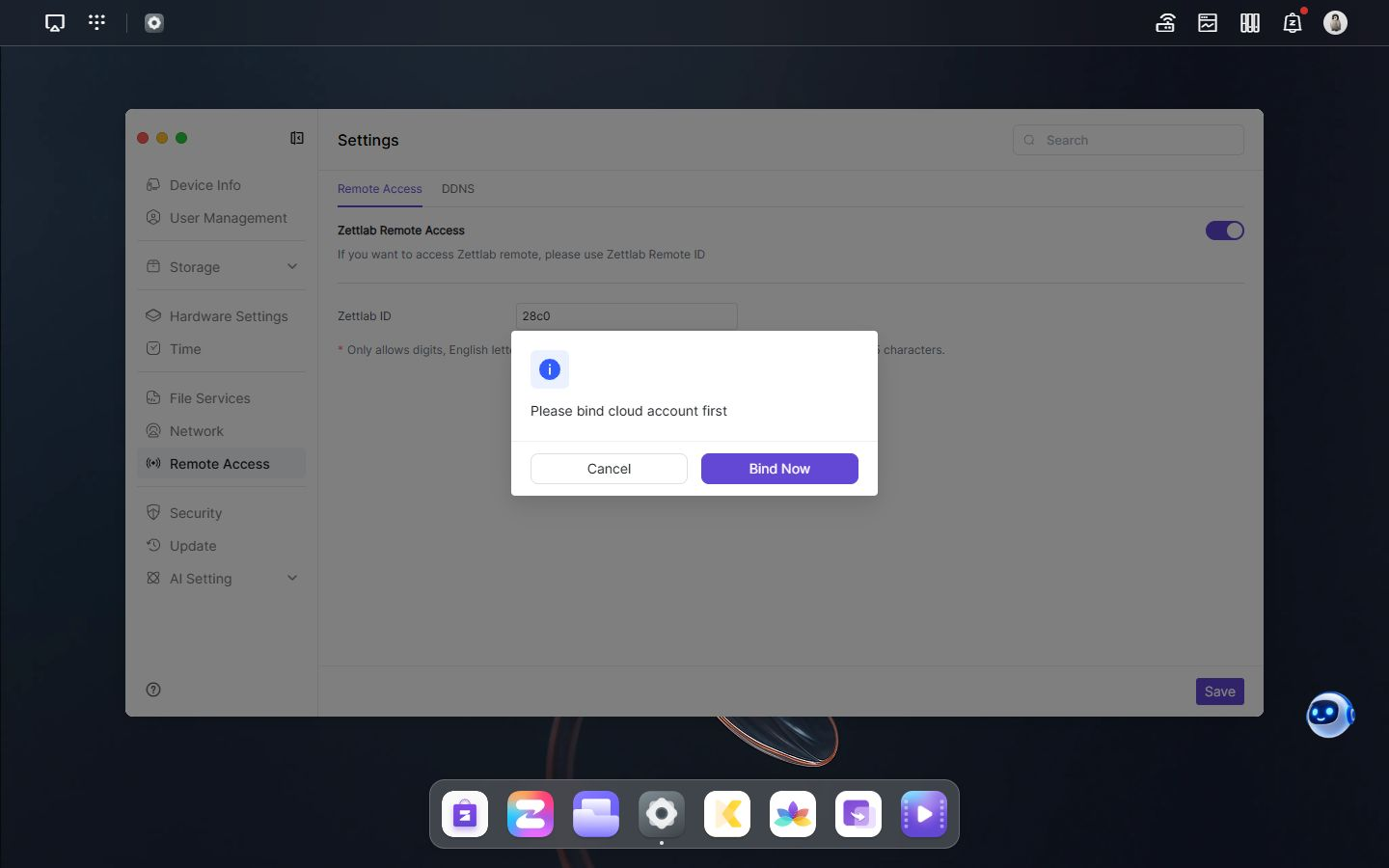
Zettlab Remote Access requires a cloud account to be bound first. If no cloud account is bound, enabling Remote Access prompts Please bind your cloud account first.
- Open
Settings-Remote Access-Remote Access:
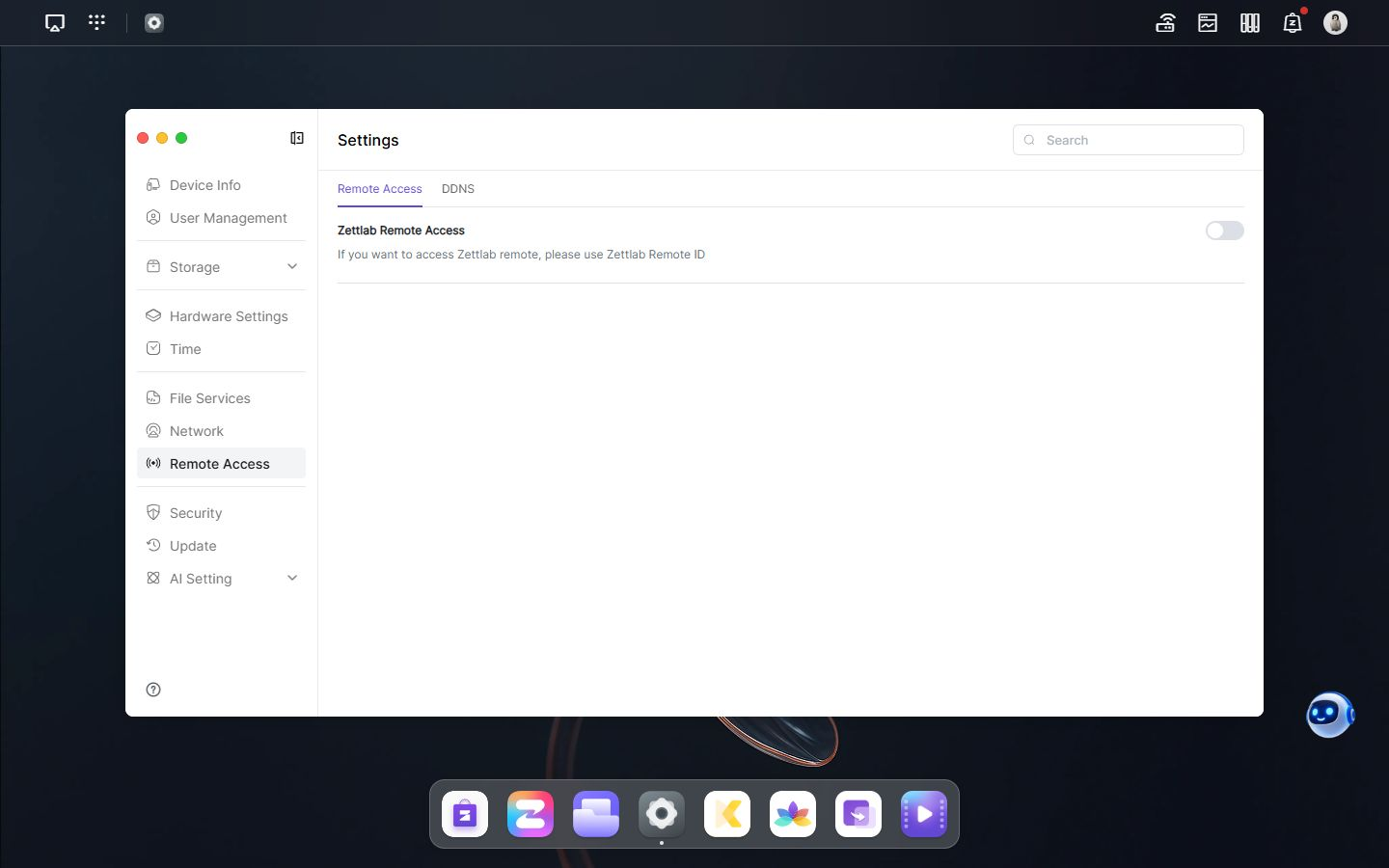
- Enable [Zettlab Remote Access].
- In the confirmation dialog, click [Confirm].
- If the page prompts
Please bind your cloud account first, click [Bind Now] and follow the on-screen instructions to complete binding:
- To disable Remote Access, turn off [Zettlab Remote Access].
- In the confirmation dialog, click [Confirm]. The dialog prompts
After disabling Remote ID, the NAS cannot be accessed from outside the LAN. - After Remote Access is disabled, the page prompts
Remote Access has been turned off.
Modify Zettlab ID
The Zettlab ID is used to identify this NAS during Remote Access.
- Open
Settings-Remote Access-Remote Access. - Enter a new ID in
Zettlab ID. The ID can contain only numbers, English letters,-, and_, and must be8to25characters long. - Click [Save].
- After a valid ID is saved successfully, use the new Zettlab ID for Remote Access.
Add DDNS
DDNS is used to resolve a domain name to the current external IP address of the NAS.
- Open
Settings-Remote Access-DDNS:
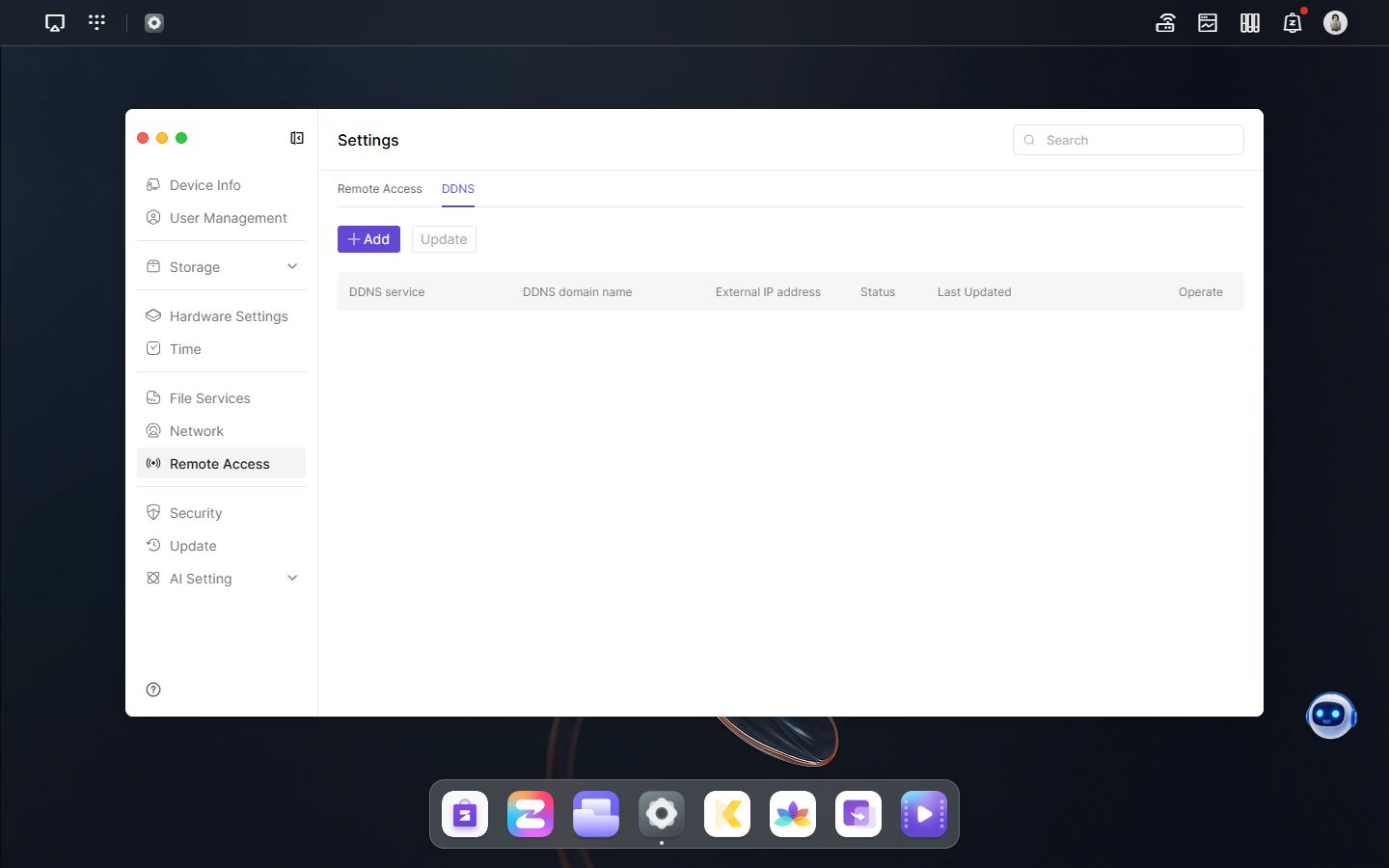
- Click [Add].
- In the
New DDNSdialog, select a service provider:
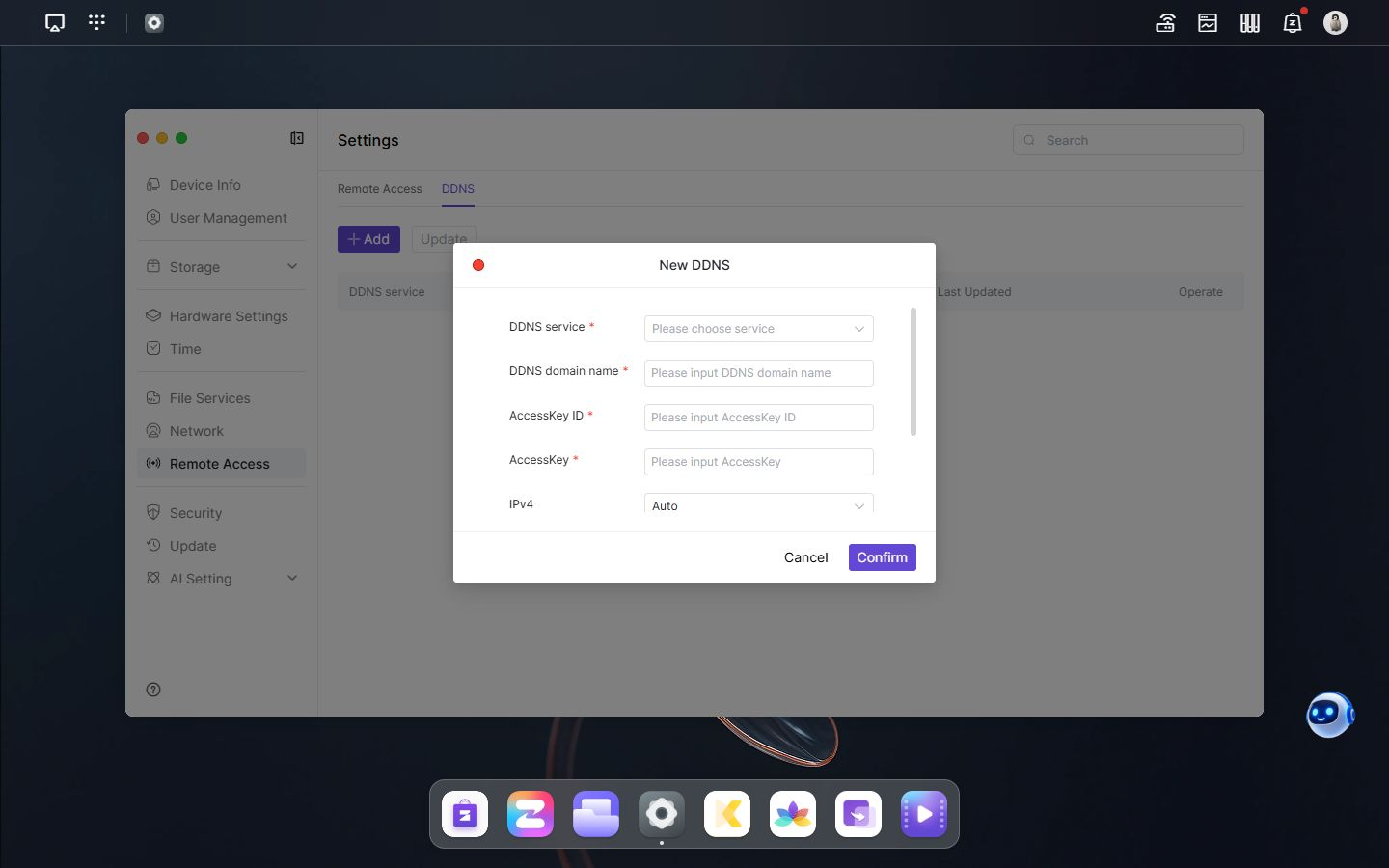
- Available service providers include
Alibaba Cloud,Cloudflare,Huawei Cloud, andTencent Cloud. - Fill in
DDNS domain name,AccessKey ID, andAccessKey.
FAQ
| Question | Handling or suggestion |
|---|---|
| What is required before enabling Remote Access? | You need to bind a Cloud Account first. When no Cloud Account is bound, the interface prompts "Please bind cloud account first". See Configure network and Remote Access. |
| Will the network disconnect after modifying IPv4, IPv6, or creating a network bridge? | After saving network configuration, the current network may be briefly interrupted. Confirm the network parameters before making changes. See Configure network and Remote Access. |
| Which characters can be used in a Zettlab ID? | A Zettlab ID can only contain numbers, English letters, -, and _, and must be 8 to 25 characters long. See Configure network and Remote Access. |
