After connecting your Zettlab NAS to a TV or monitor with an HDMI cable, you can choose Wired Playback in the Zettlab mobile app to play videos on the larger screen and control playback from your phone.
Before You Start
- Connect the Zettlab NAS to your TV or monitor using an HDMI cable.
- Turn on the TV or monitor and switch to the corresponding HDMI input.
- Make sure your phone is connected to the Zettlab NAS.
- Make sure the video you want to play can already be opened in the Zettlab mobile app.
Note: Once the HDMI connection is ready, an HDMI playback guide will appear on the TV or monitor.
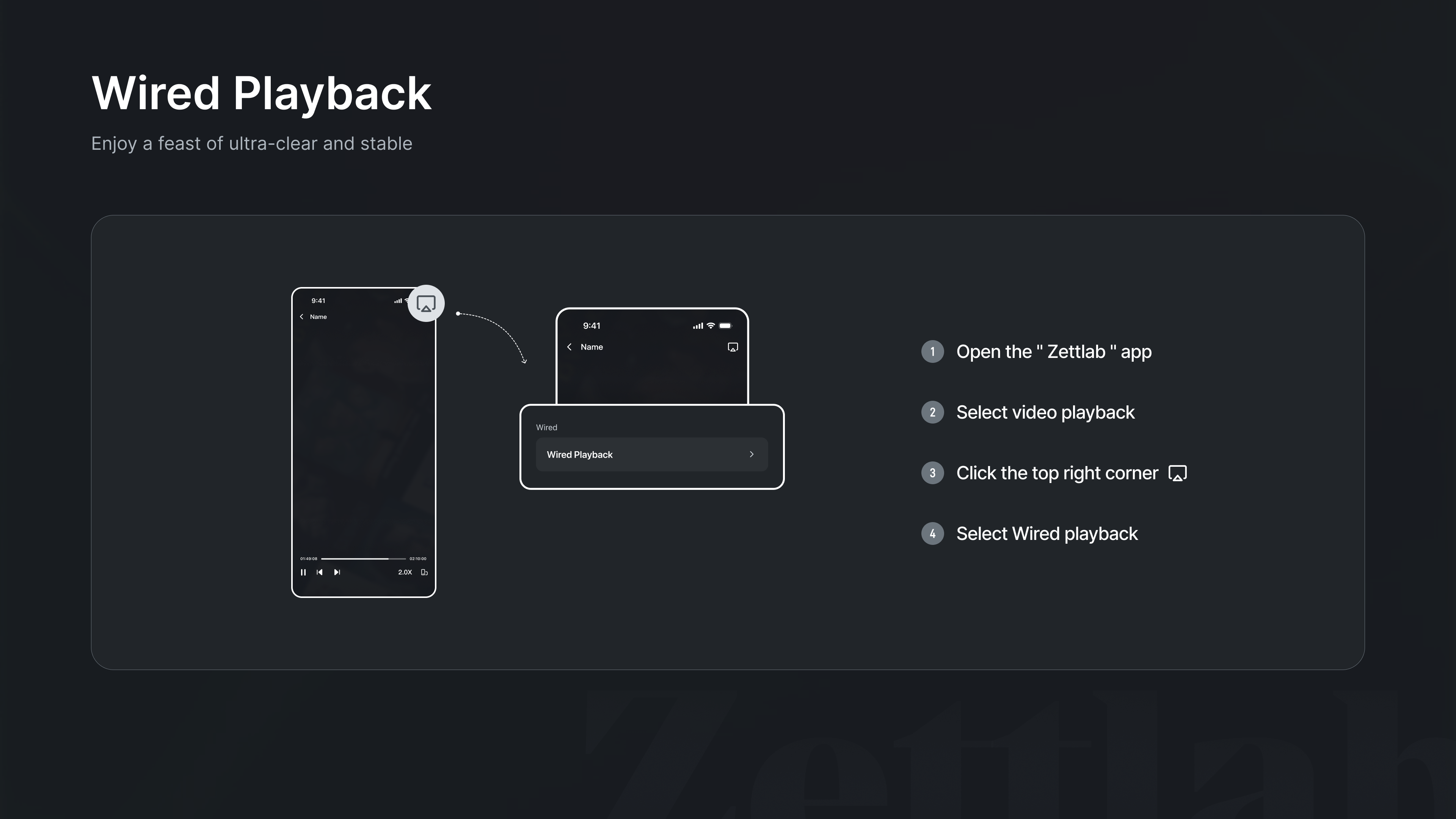
Start Playing
- Open the Zettlab app on your phone.
- Select and play a video.
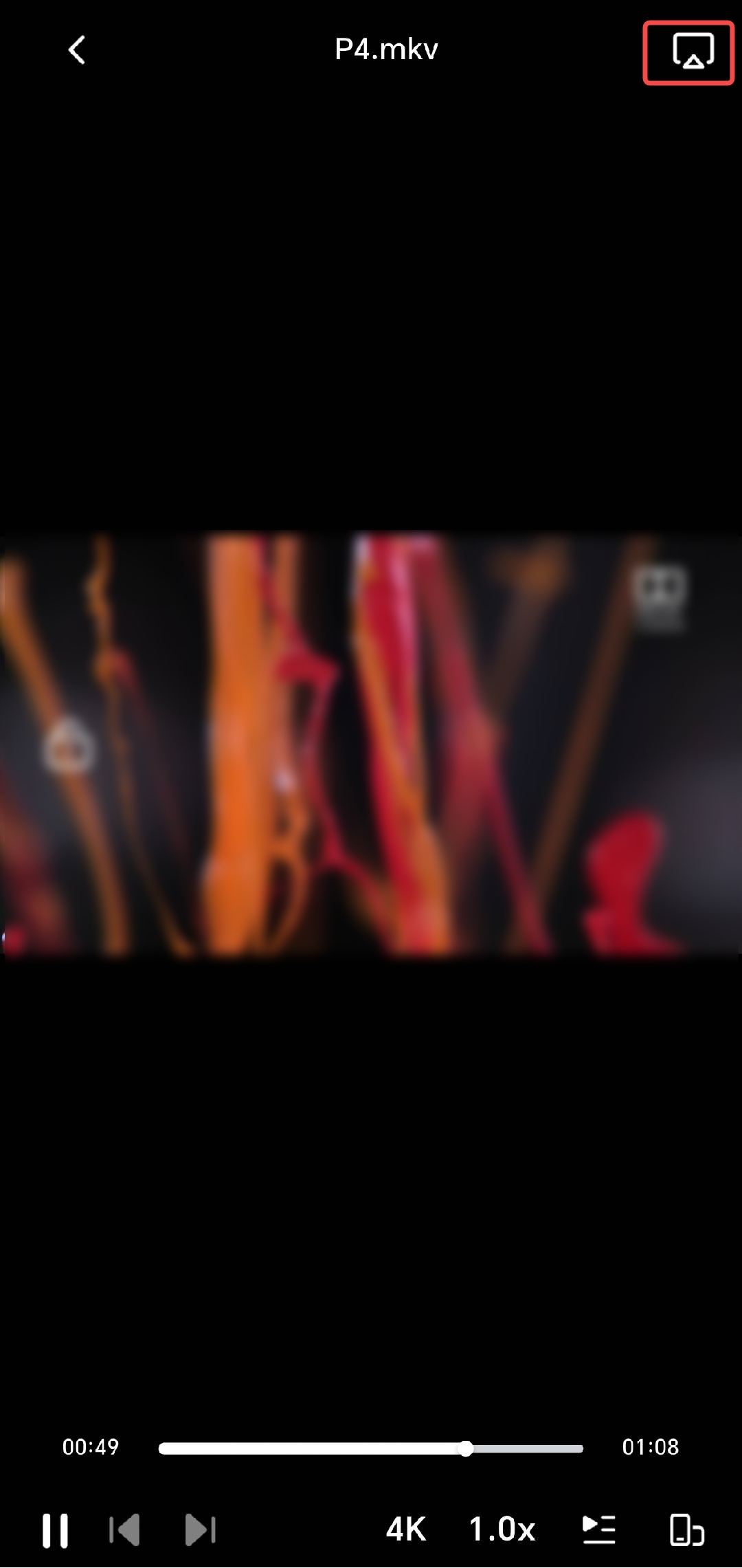
- Tap the Cast button in the upper-right corner of the video player.
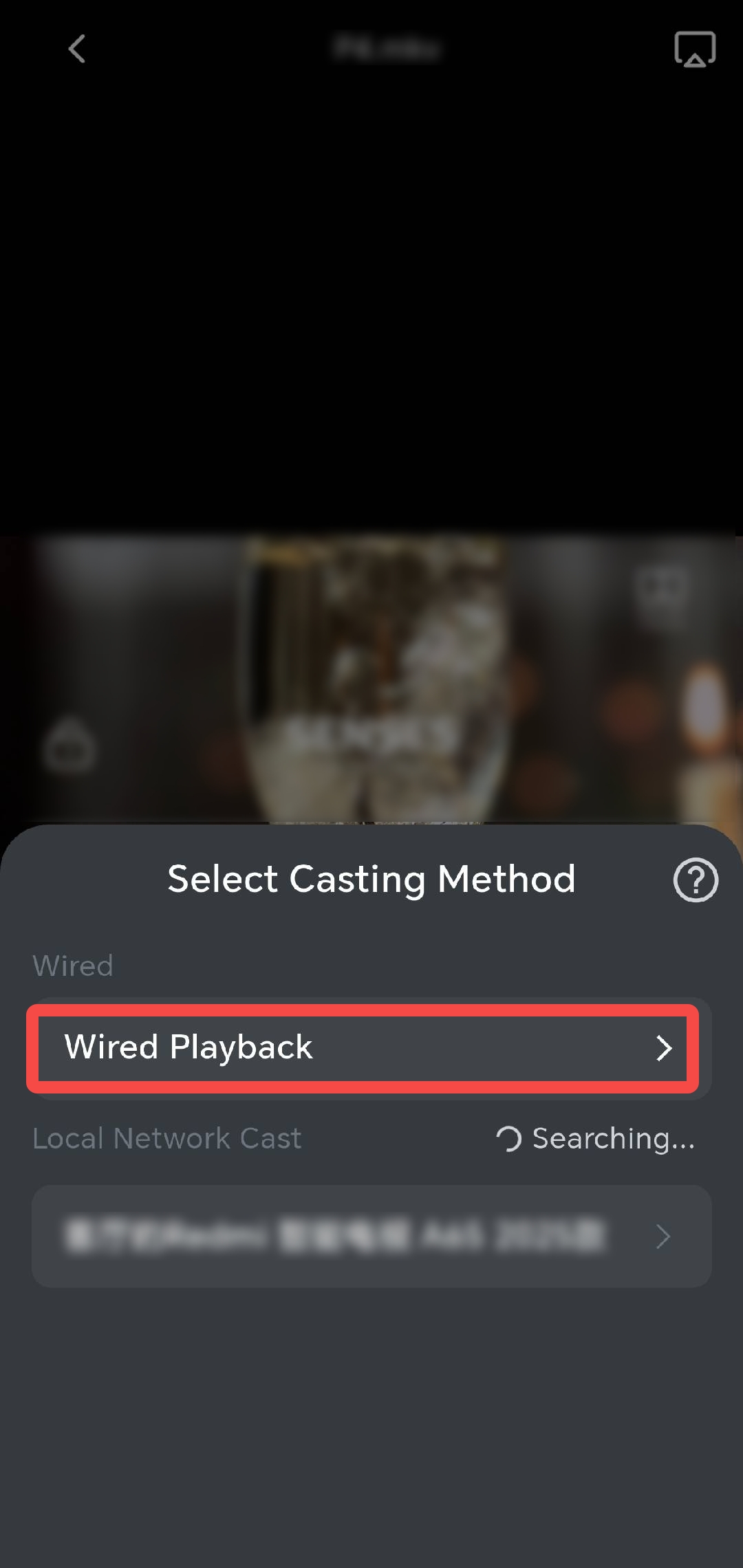
- Select Wired Playback from the casting options.
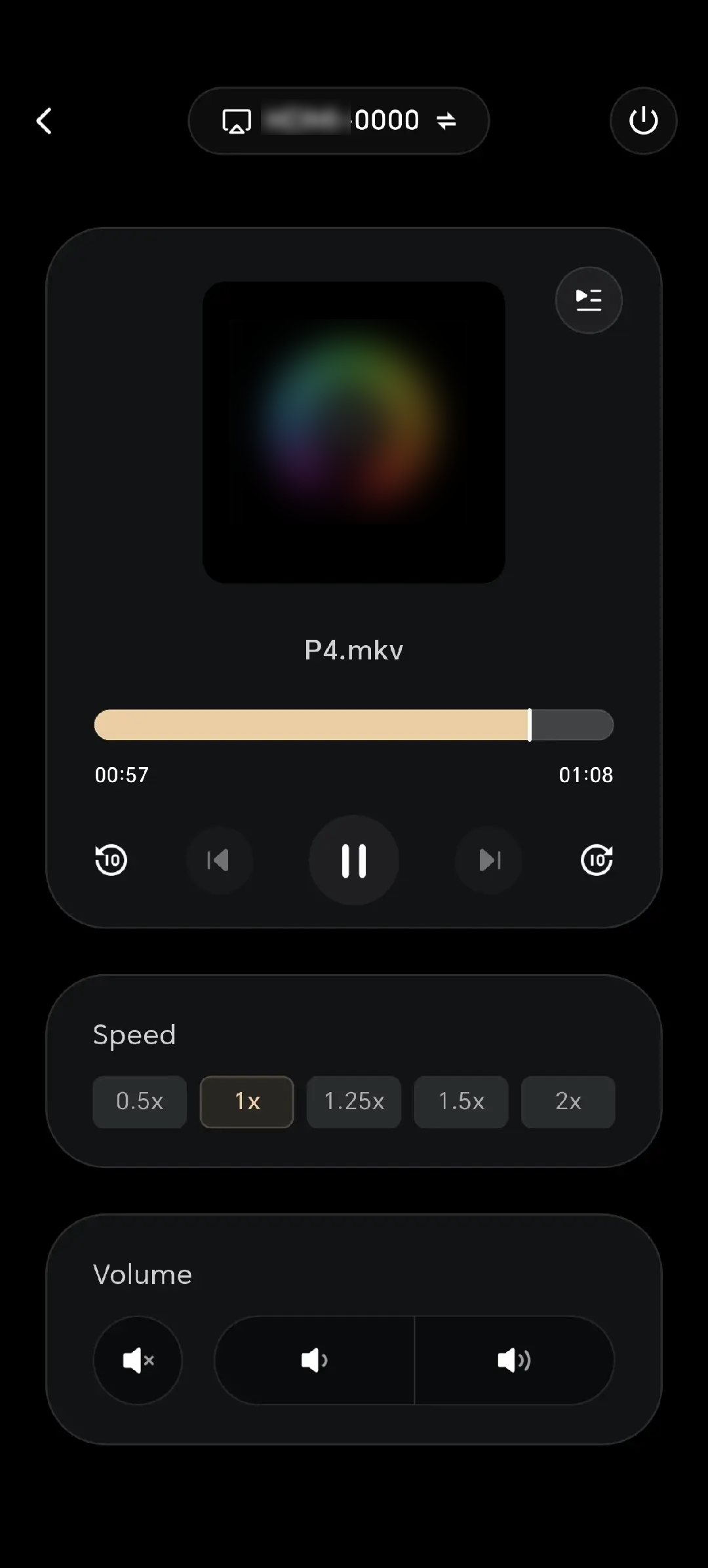
- The app automatically selects the connected HDMI device and opens the playback controls.
- The video begins playing on your TV or monitor.
Playback Controls
Use your phone to:
- Play or pause the video.
- Seek to a different point.
- Skip forward or backward 10 seconds.
- Play the previous or next video.
- Change the playback speed.
- Adjust or mute the volume.
- Open the playlist.
- Stop HDMI playback.
Can't Connect?
| Issue | What to do |
|---|---|
| Nothing appears on the TV or monitor | Make sure the HDMI cable is securely connected to both the NAS and the display, and make sure the display is powered on. |
| The HDMI device cannot be found | Make sure the TV or monitor is using the correct HDMI input, reconnect the HDMI cable, then select Wired Playback again. |
| The phone cannot enter Wired Playback | Make sure your phone is connected to the Zettlab NAS, reopen the video, then tap Cast again. |
| Local Network Cast does not work | If you use Local Network Cast, make sure your phone, NAS, and TV are connected to the same network. |
Screenshot: [Owner to provide] Casting help
