Create a media library and add folders that store movies or TV shows. The selected folders determine which files Theater scans.
Before You Start
- The NAS has been initialized, and the target folder is accessible in File Manager.
- The current account can access the folder you want to add.
- Movie or TV files have been placed in a team space, personal space, or another selectable directory.
- For better recognition, include title, year, season, and episode numbers in file names when possible.
Steps
- Open Theater. If no media library exists, use the add entry on the home page; you can also add one from the media library list in settings.
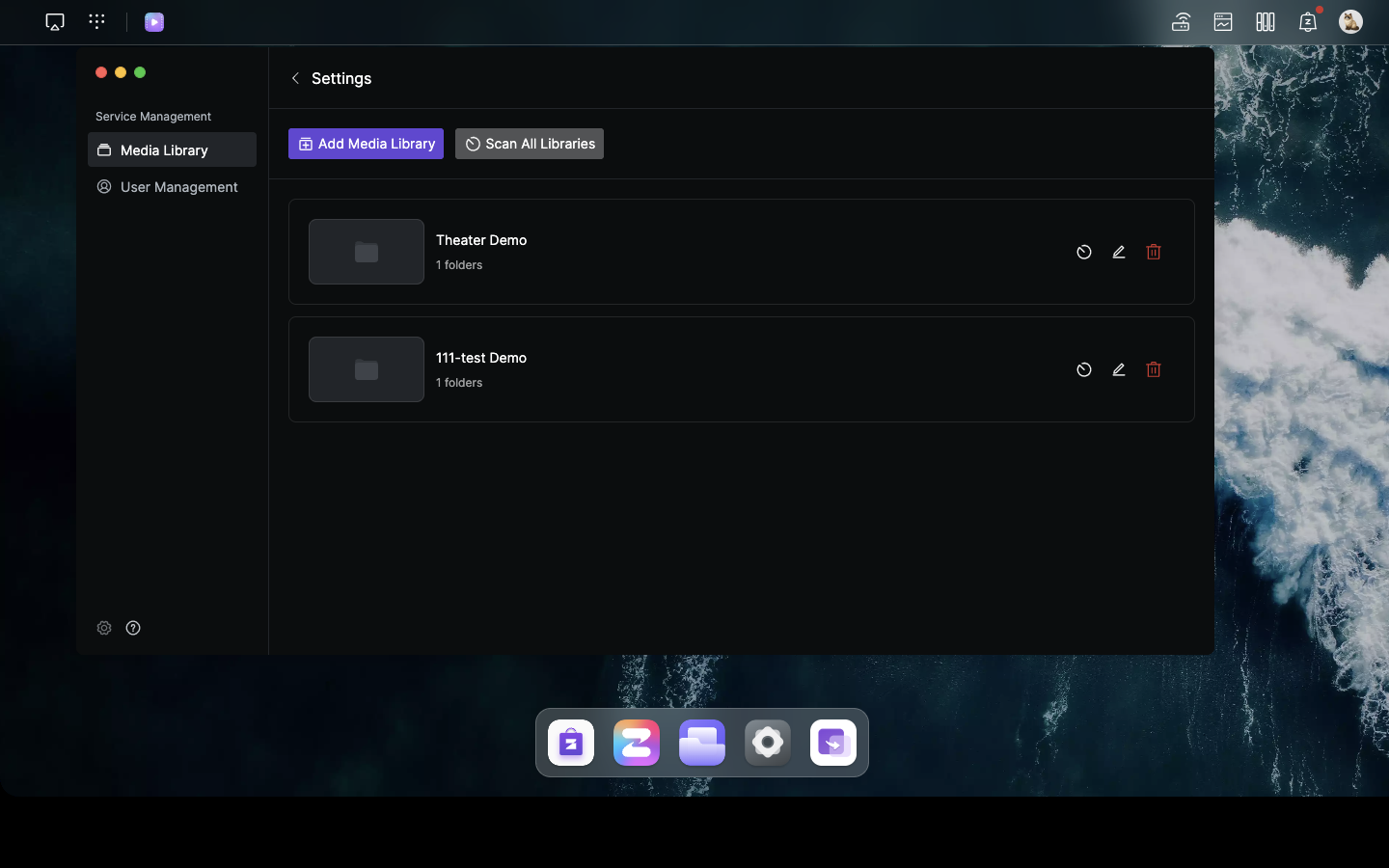
- Click [Add Media Library].
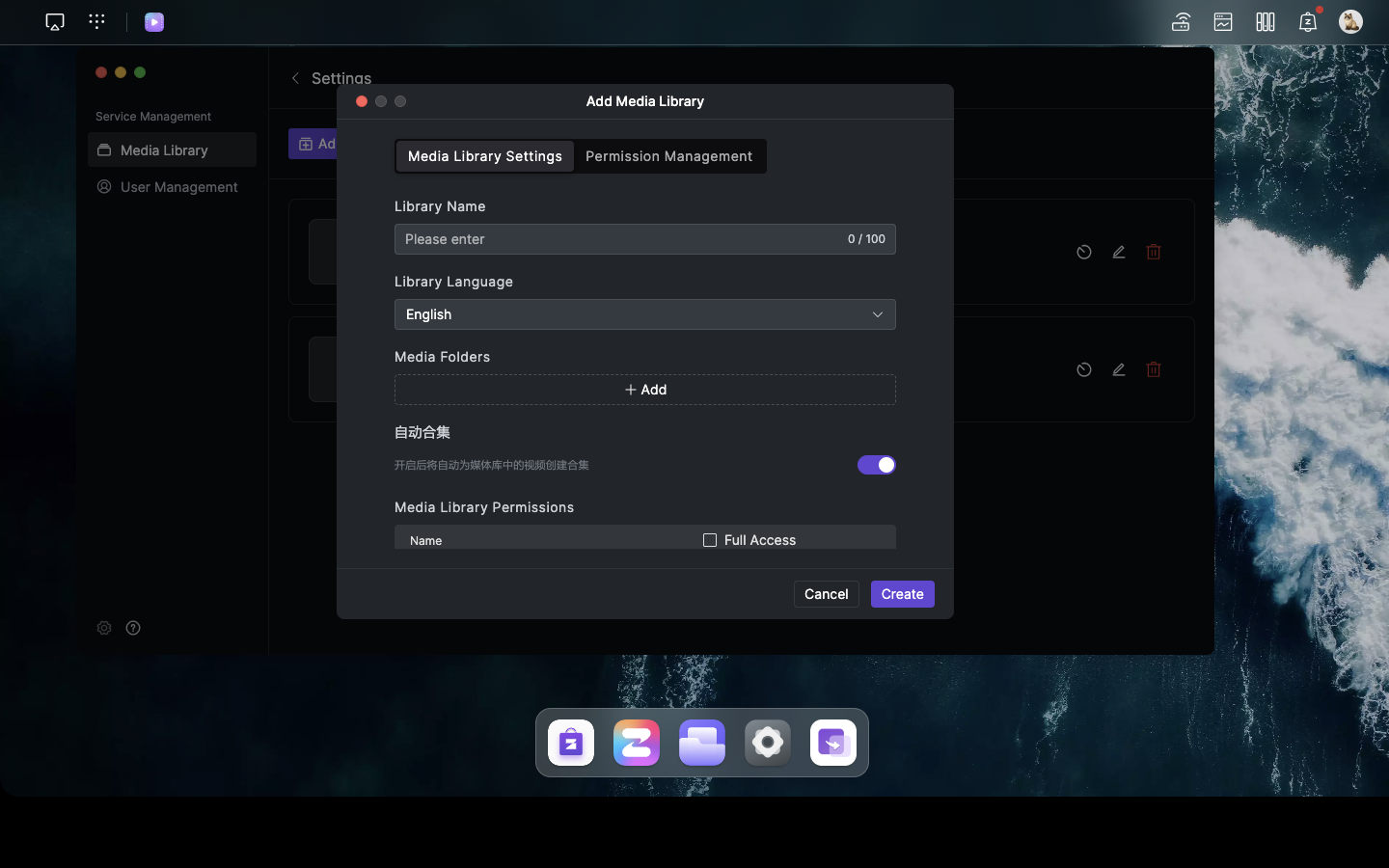
- Enter a media library name, such as Movies, TV Shows, or Variety.
- Select the metadata language for media information.
- In Media Folder, click [Add].
- In the folder selector, open the target space and choose the folder that stores video files.
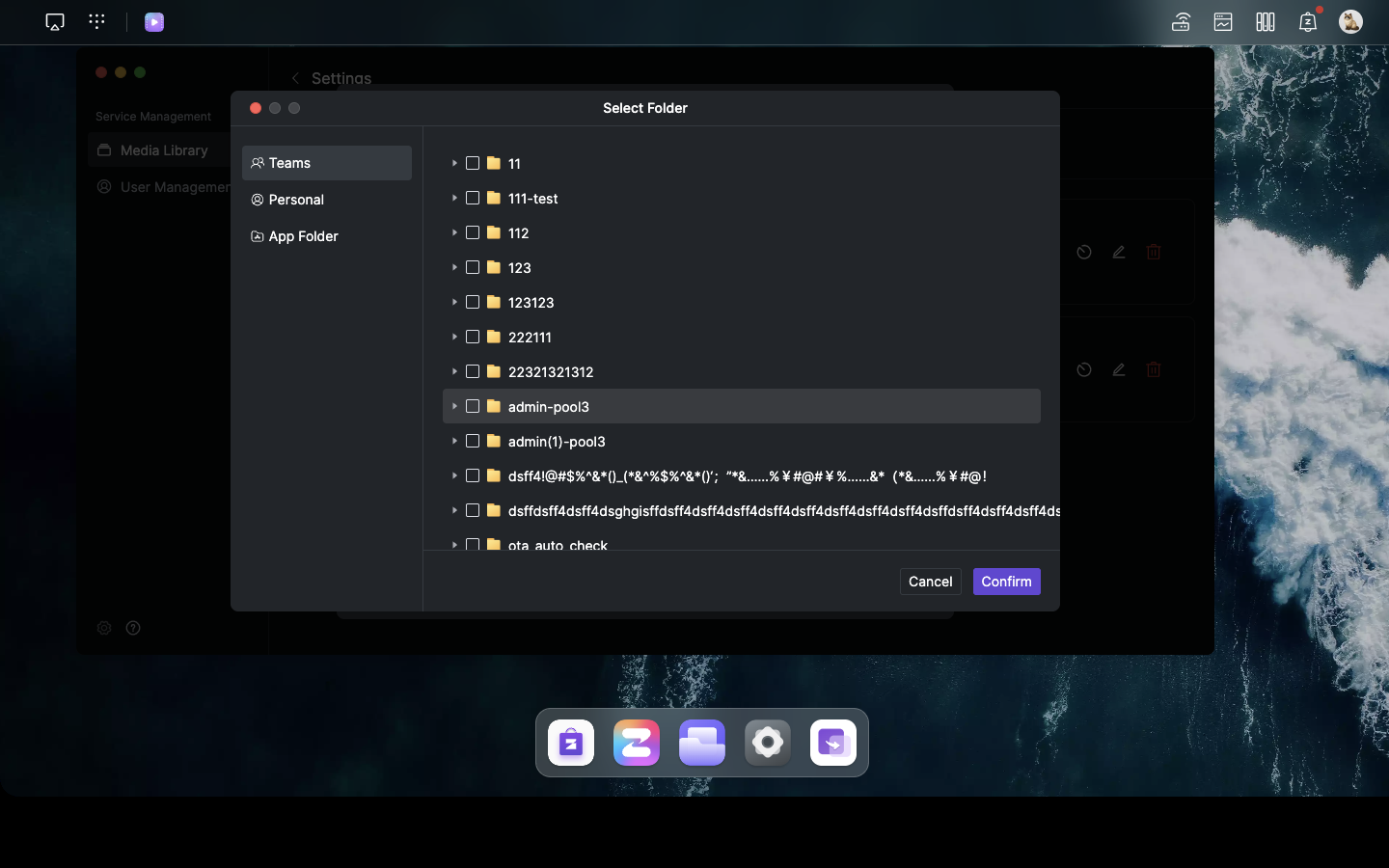
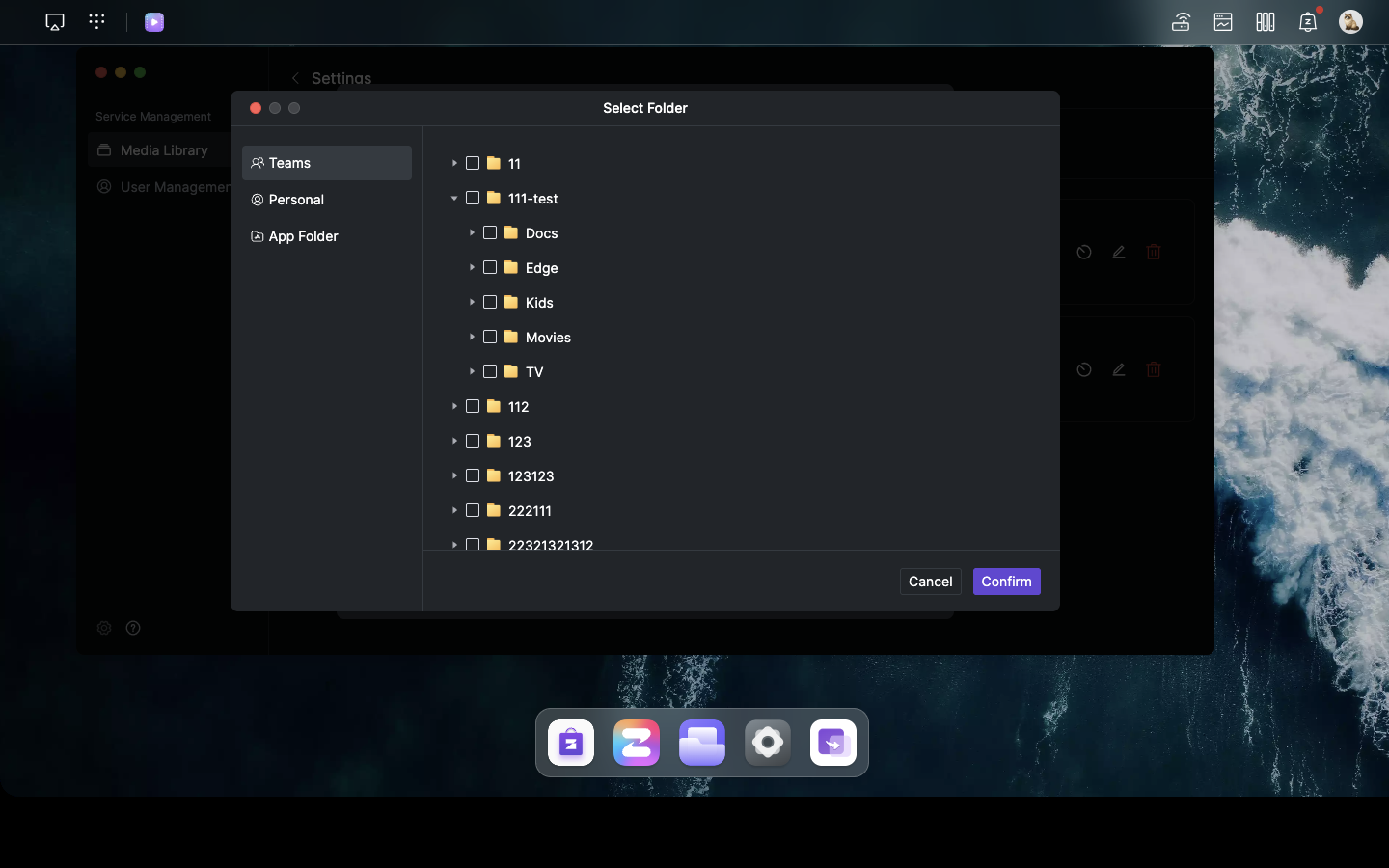
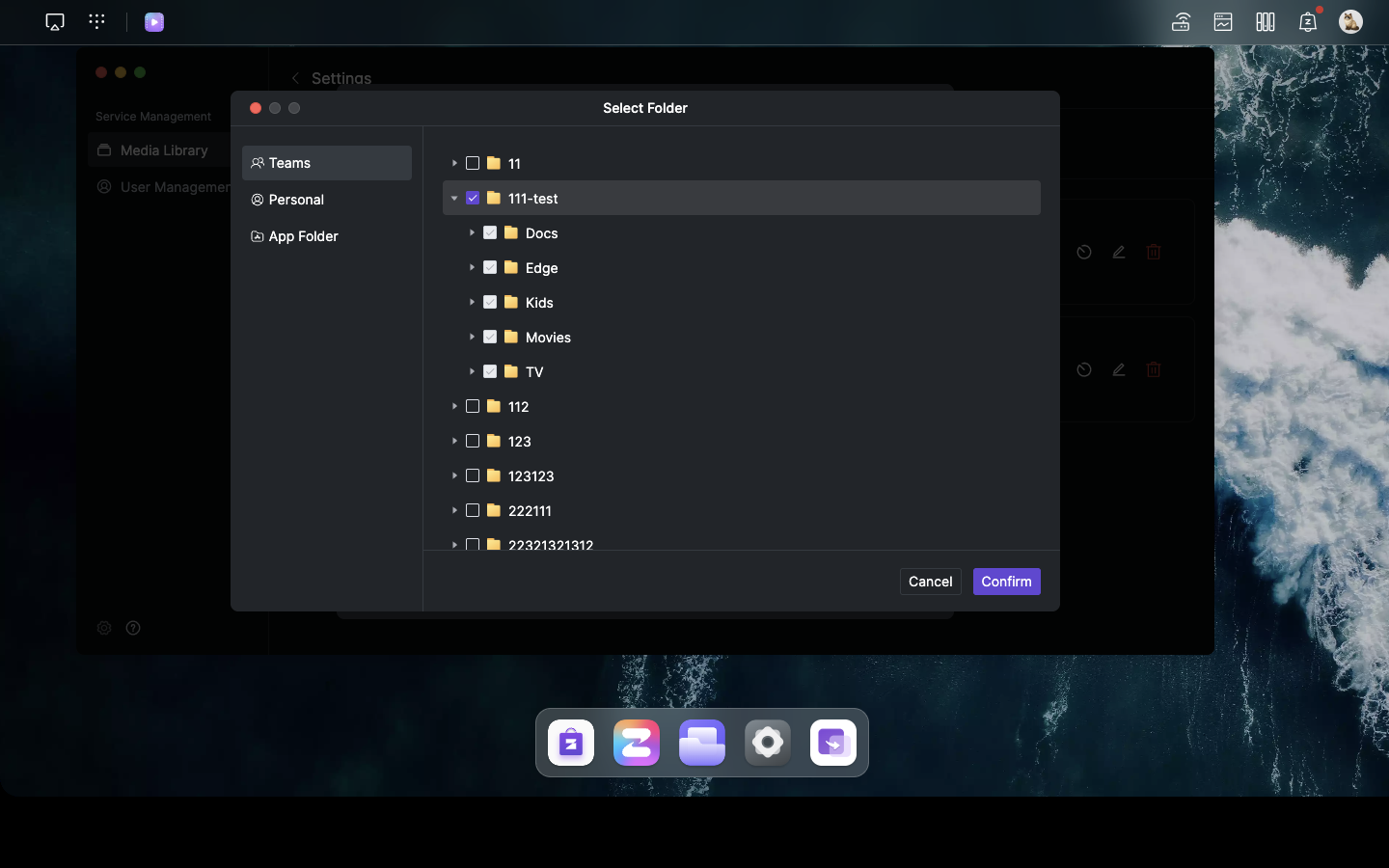
- Confirm the folder and return to media library settings.
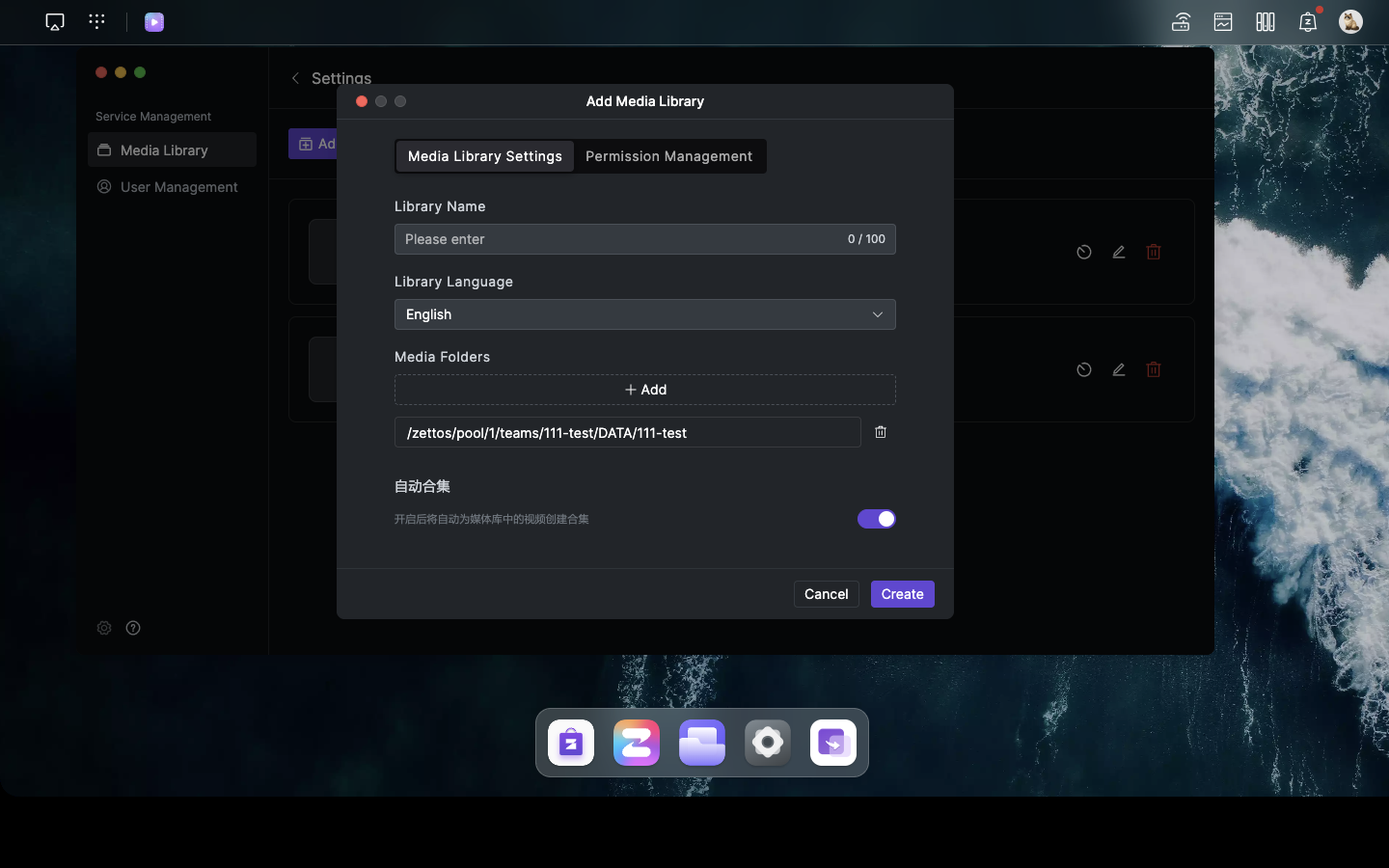
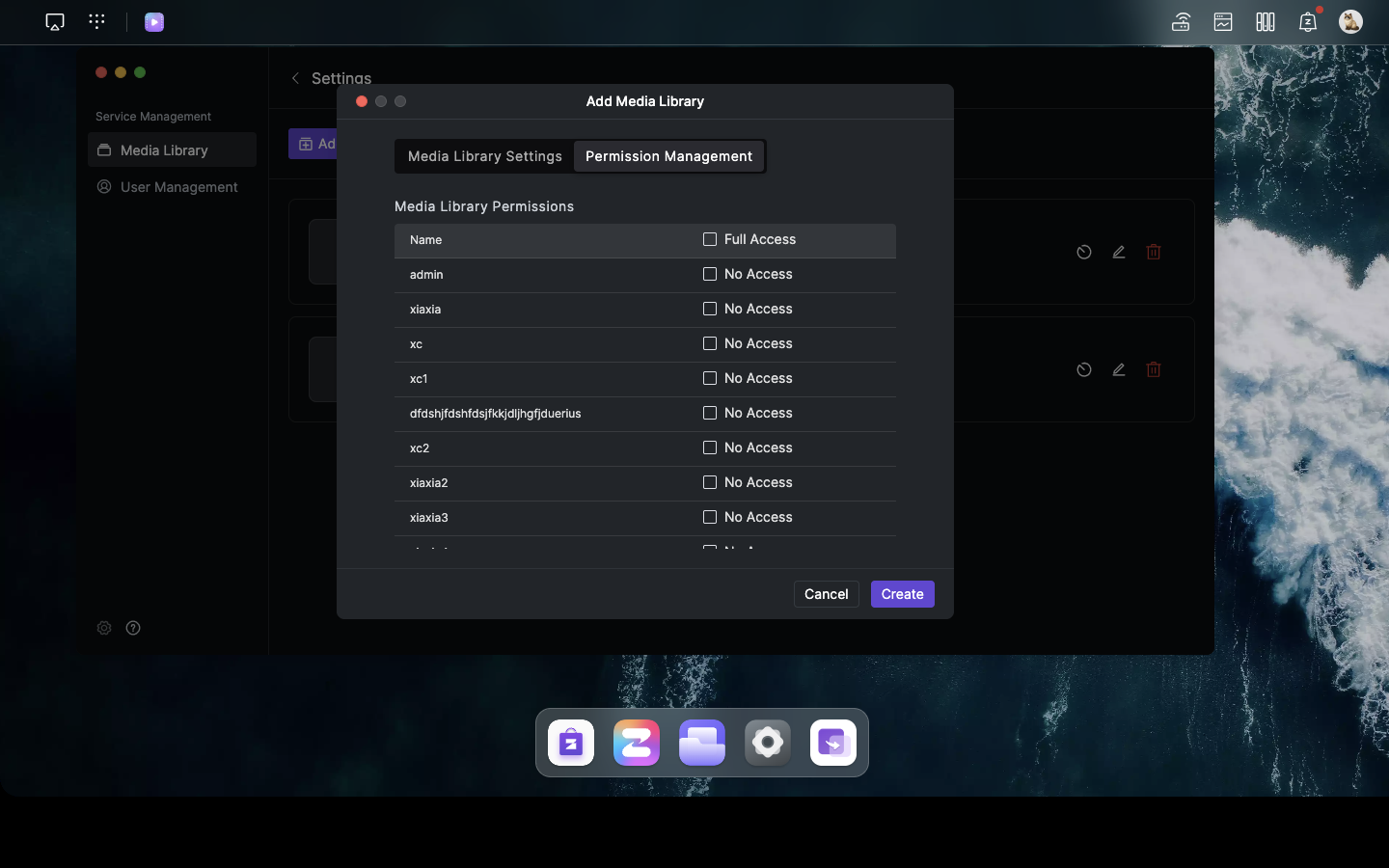
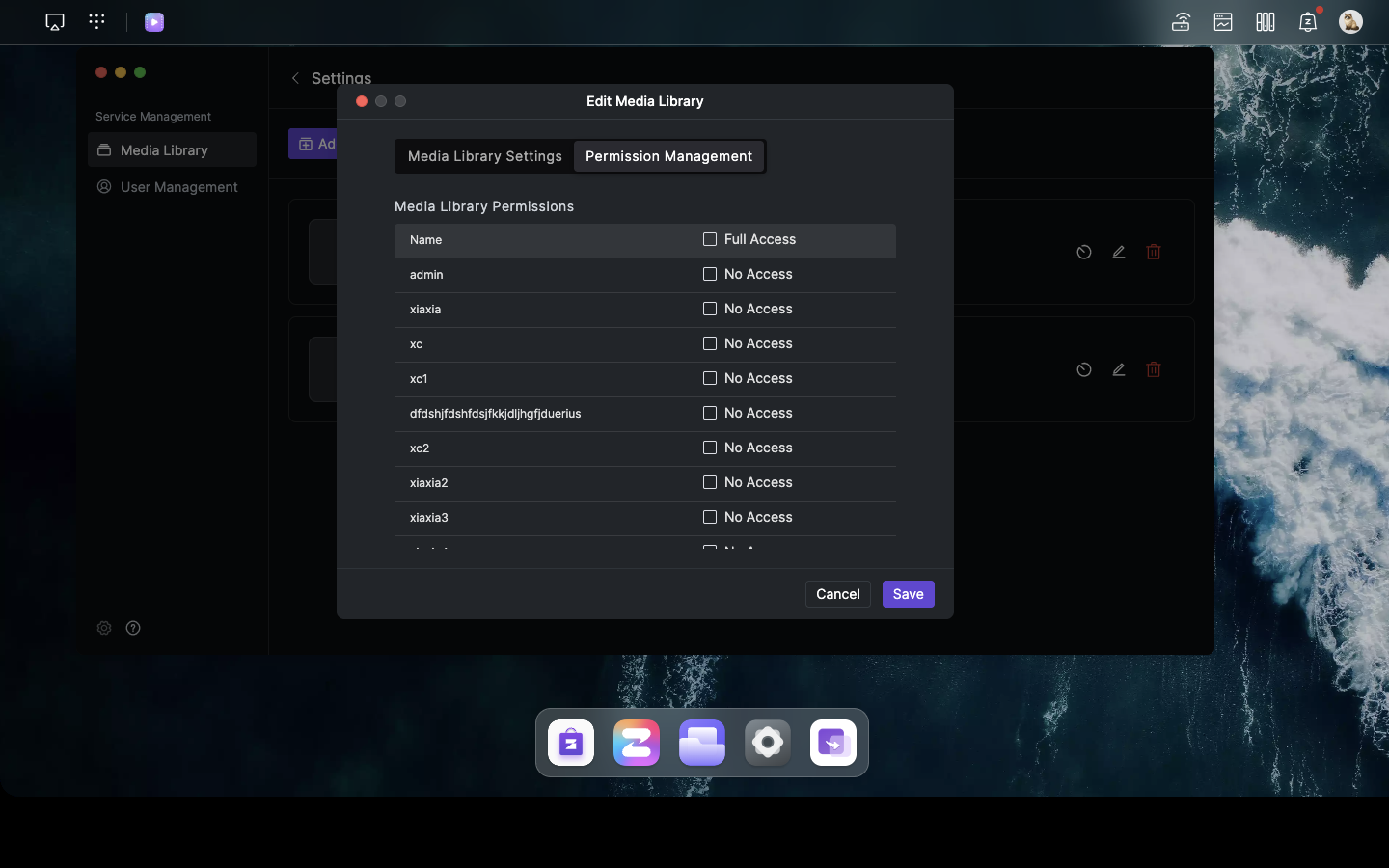
- Configure permissions if needed, then click [Create].
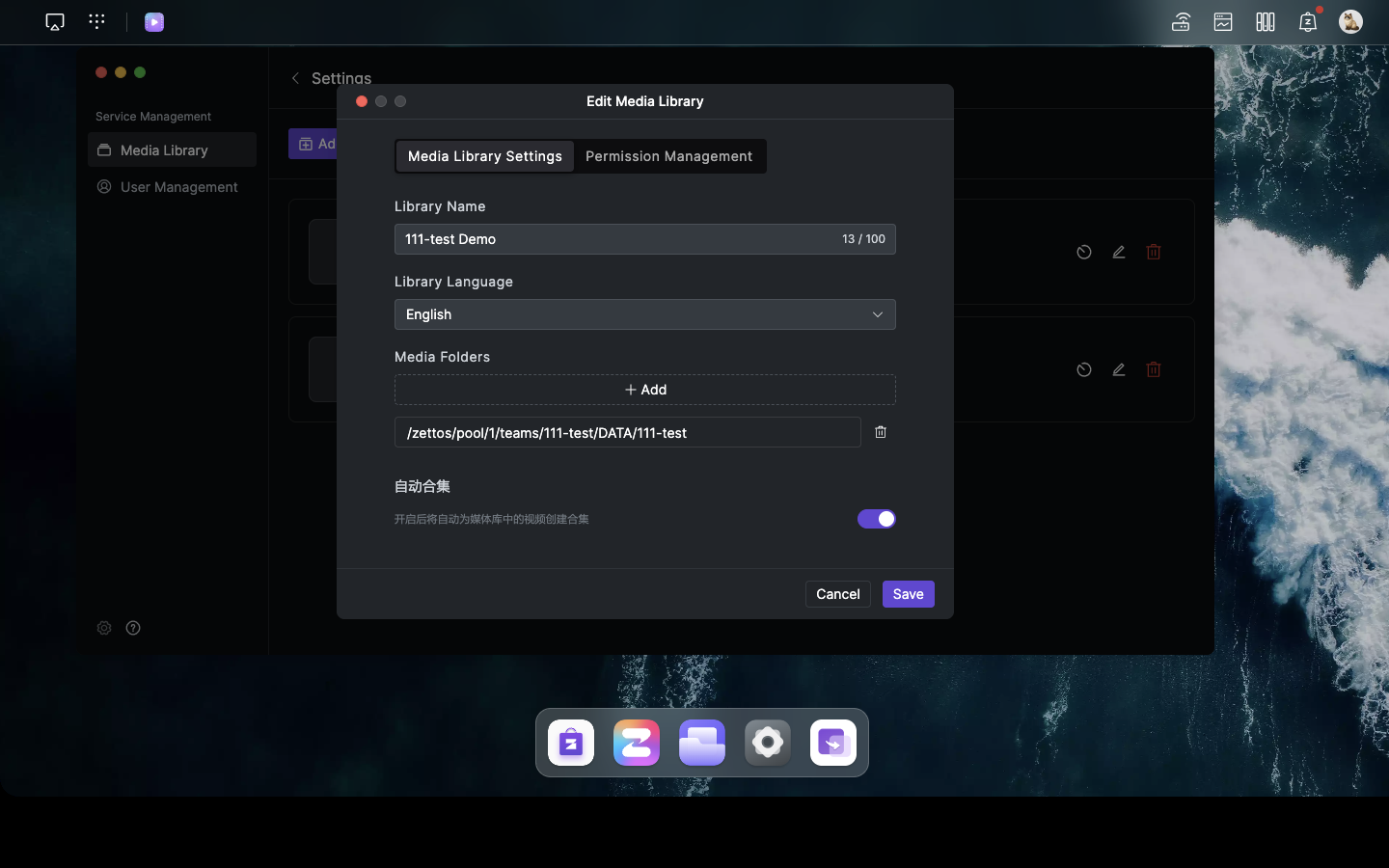
- After creation, open the edit dialog to change the name, language, folders, or permissions.
Success Criteria
- The new media library appears in the library list.
- The selected folder is shown in media library settings.
- Theater starts scanning, or video content begins to appear in the library.
FAQ
| Question | Handling or suggestion |
|---|---|
| Cannot find the folder | Confirm the folder location and permissions in File Manager first. |
| No videos appear after creation | Confirm file formats and folder paths, then wait for scanning to finish. |
| Other users cannot see the library | Check media library permissions and authorize the required users. |
| Why is the Theater home page empty? | No media library has been added, or the library folder has no supported video files. Go to Set Media Library Paths and add the folder that stores movies or TV shows. |
| Why can't I find the target folder? | The current account may not have permission to the space or folder. Confirm the folder location in File Manager first, and ask an administrator for authorization if needed. |
| Will deleting a media library delete source files? | Users may worry about deleting original videos by mistake. Deleting a media library usually removes only Theater records and recognition data; still read the confirmation dialog before deleting. |
