When D4 / D6 and other ARM Series devices need to reinstall, recover, or manually flash the official ZettOS system, use the ARM flashing tool on an x86 computer and flash the Standard Series system image downloaded from the official site.
Important notes
- This tutorial only applies to D4 / D6 and other ARM / Standard Series models. For D6 Ultra / D8 Ultra and other Ultra Series models, use “Ultra Series official system flashing”.
- Flashing reinstalls the device system environment and may clear system settings and system-disk data. Back up important data first, and confirm that the target device and image version are correct.
- Do not power off the device, unplug cables, or close the computer running the flashing tool during flashing.
- For normal version upgrades, use “Settings > System Update” first.
Before you start
| Item | Requirement |
|---|---|
| Computer | x86 computer or x86 Linux environment for running the ARM flashing tool |
| Required files | ARM flashing tool (Win), ARM flashing tool (Linux), and the Standard Series (For D4/D6) system image from Zettlab Download Center |
| Device connection | Connect the device to power and network. If you cannot enter flashing mode through SSH, make sure you can access the Power and Reset buttons. |
1. Download the required files
- Download ARM flashing tool (Win) or ARM flashing tool (Linux) for your environment, and prepare it on an x86 computer or x86 Linux environment.
- Open Zettlab Download Center, switch to ZettOS under “Downloads for Your Devices”, and download the Standard Series (For D4/D6) system image.
- Extract the system image package and confirm that you have the
update.imgfile used for flashing.
2. Linux device flashing steps
Use this path when SSH is enabled and you can still sign in to the device.
- Connect the ARM device to the computer running the flashing tool with a cable.
- Sign in to the ARM device through SSH and run
reboot loaderto enter Loader flashing mode. - In the flashing tool directory on the x86 computer, run
./upgrade_tool ldand confirm that the device is inLoadermode. Example output includesList of rockusb connected(1)and shows fields such asLocationID=33andMode=Loader. - In the flashing tool directory, run
./upgrade_tool -s <LocationID> uf <path-to-update.img>. Replace<LocationID>with the ID shown in the previous step, and replace<path-to-update.img>with the actual ARM system image path. Example:./upgrade_tool -s 33 uf update-img/arm64/1.9.0/update.img. - Wait for the command to finish. Do not power off the device, disconnect cables, or interrupt the flashing command during flashing.
3. Windows device flashing steps
Use this path when you cannot enter Loader mode through SSH, or when you need to select the image in the flashing tool interface.
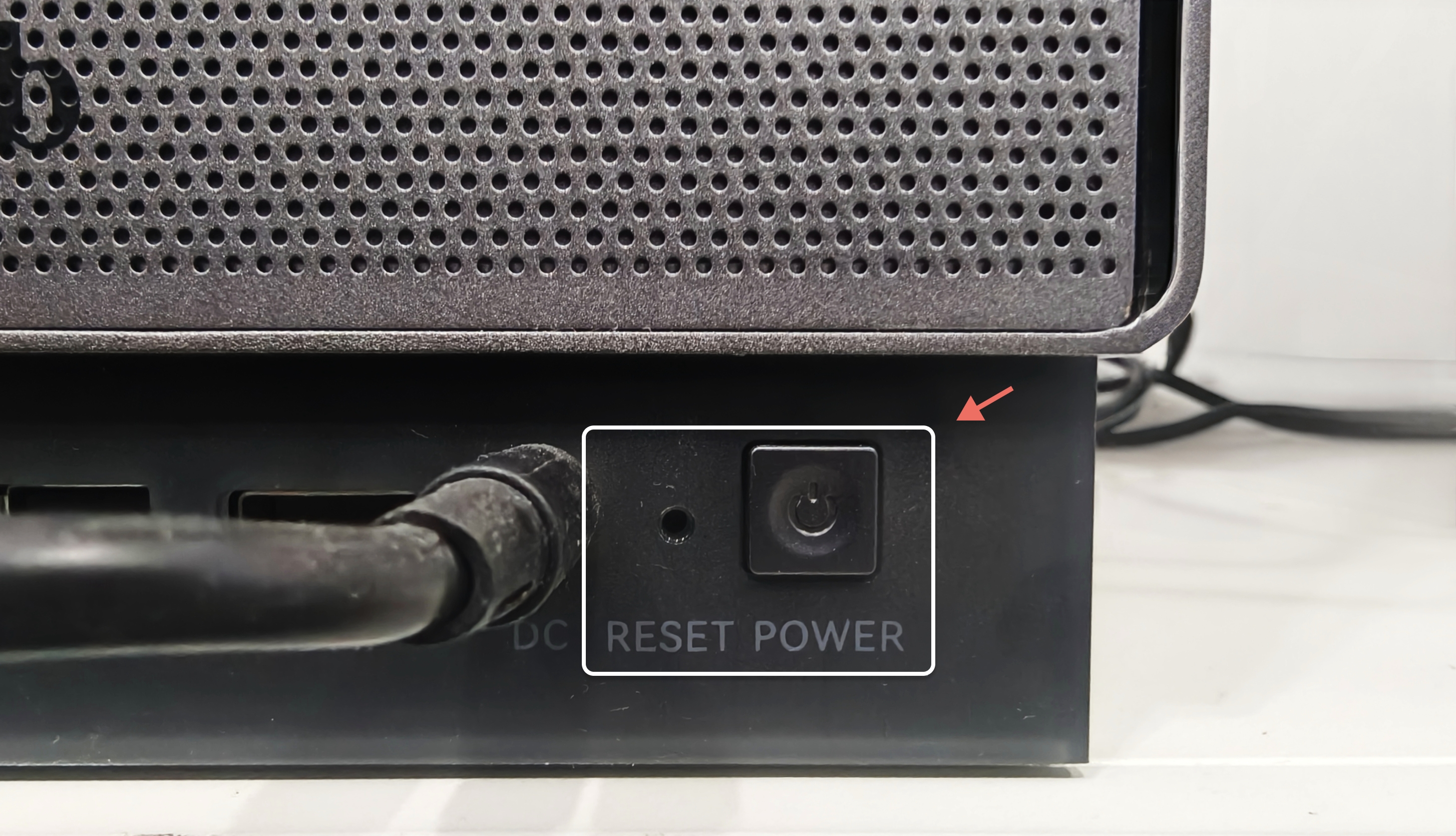
- Power off the device and confirm that it is connected by cable to the computer running the flashing tool.
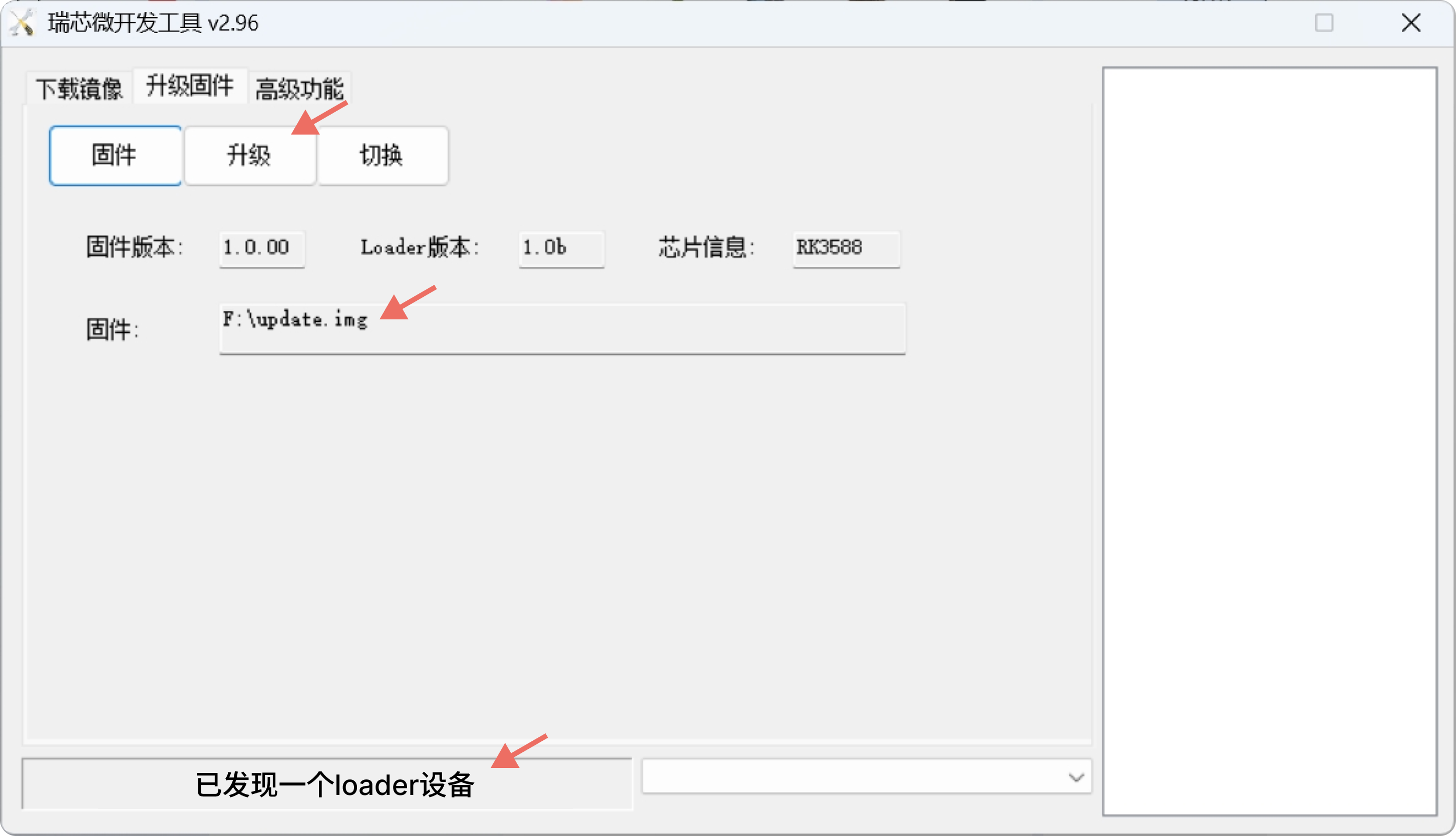
- Press and hold the Power and Reset buttons at the same time until the device enters Loader flashing mode. The flashing tool on the computer shows “Found one LOADER device” at the bottom.
- Open the flashing tool on the computer, go to the firmware upgrade page, and select the extracted
update.img. - After the interface detects the loader device and shows the firmware path, click “Upgrade”.
- Wait for flashing to complete. Do not power off the device, disconnect cables, or close the flashing tool during flashing.
4. Check after flashing
- After flashing completes, restart or power on the device as prompted.
- Wait for the device to enter ZettOS.
- Follow “First Boot and Sign-in” to discover the device and sign in to the management interface.
- Go to “Settings” and check the system version, network, and storage status.
FAQ
| Question | Answer or suggestion |
|---|---|
| Which image should I download? | This tutorial only applies to ARM / Standard Series. For D4 / D6, choose the Standard Series (For D4/D6) system image. |
upgrade_tool ld cannot find the device | Confirm that the device has entered Loader flashing mode and that the USB/network connection is normal. If SSH fails, use the Power + Reset method to enter flashing mode again. |
| Can I power off during flashing? | No. Power loss or disconnection during flashing may prevent the system from booting. |
| Do normal upgrades also require flashing? | No. For normal system version upgrades, use “Settings > System Update” first. Flashing is mainly for system recovery, reinstallation, or manual recovery requested by support. |
