Set the default behavior for file management and prepare accessible personal and team spaces for users.
Applicable scenarios
When using file management for the first time and need to adjust the default location for new windows, or need to understand how to process files with the same name, ordinary users can read "Default Open Location" and "Processing Files with the Same Name". Administrators also need to read "Manage Personal Space" and "Manage Team Space" to allocate space and quotas to users.
Preparation before starting
- Ordinary users: Confirm that you can log in to the NAS and have been assigned a personal space or team space by the administrator.
- Administrator: Log in with an administrator account and confirm that the NAS has an available storage pool.
- If the page prompts that there is no available storage pool, please go to "Settings - Storage" to create or repair a storage pool.
Default opening location
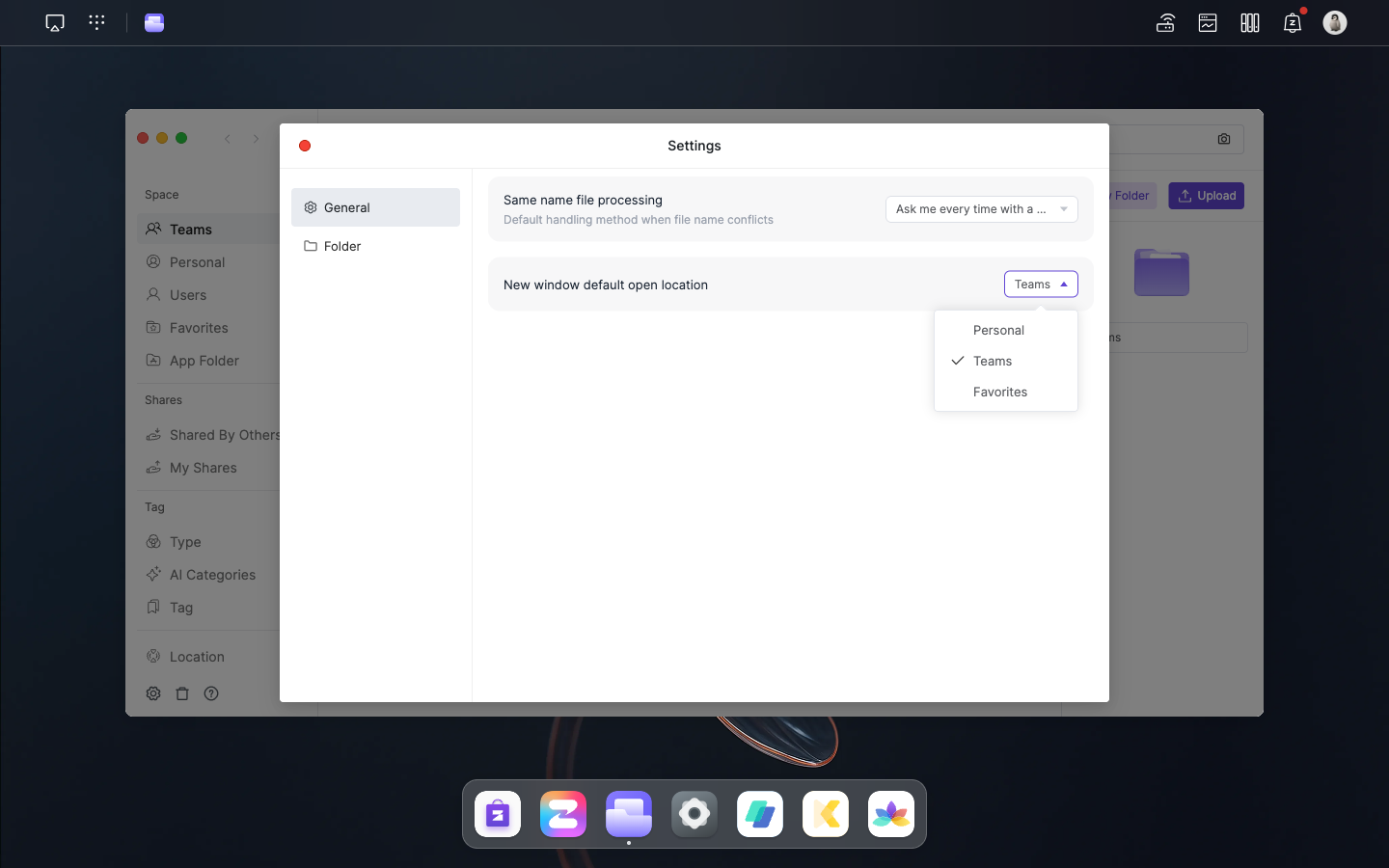
Go to "File Management - Settings - General" and select "Personal Space", "Team Space" or "Favorites" in "Default Open Location for New Windows". After the settings are saved, the newly opened file management window will enter the selected location by default.
Processing of files with the same name
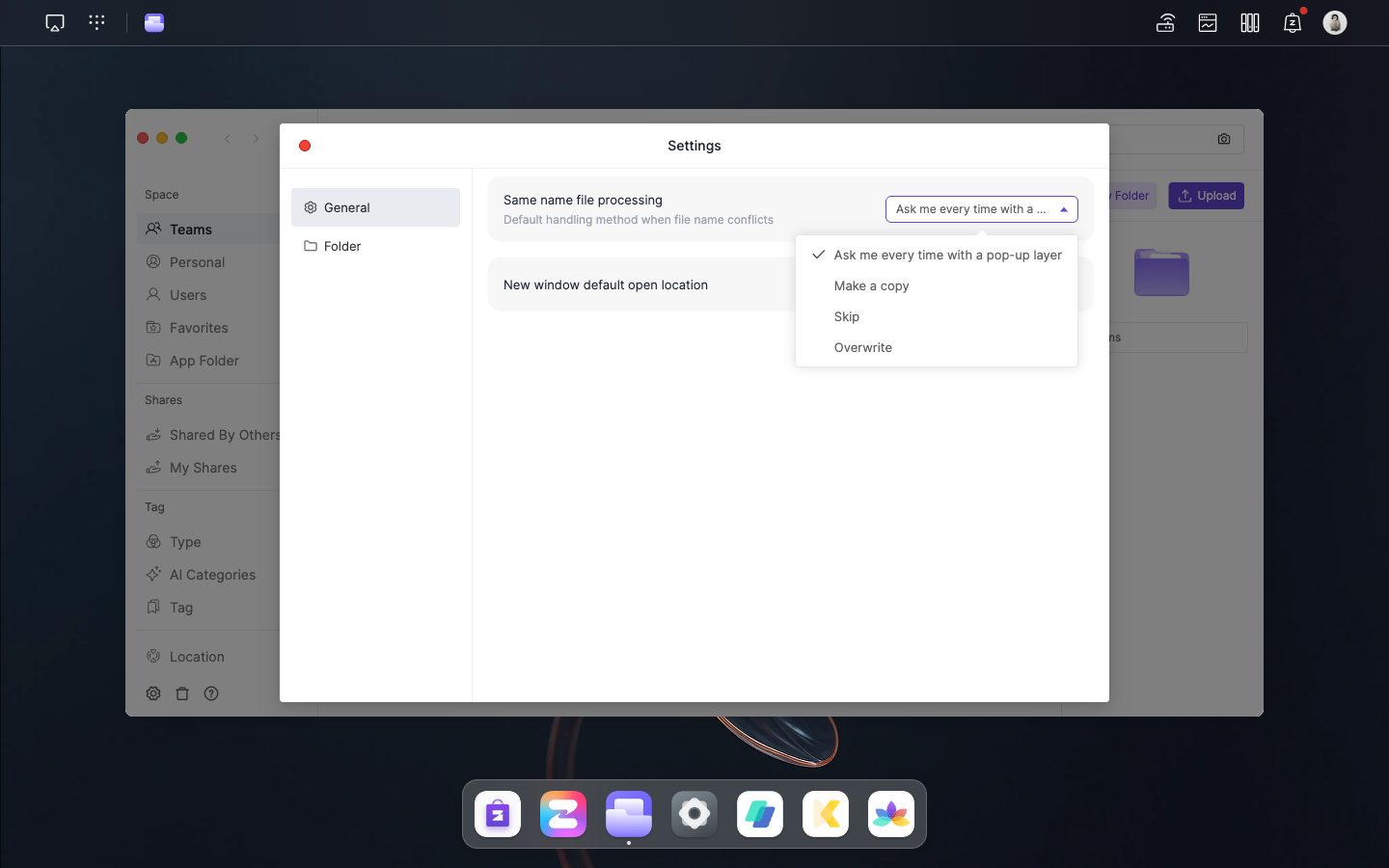
Enter "File Management - Settings - General" and select the default method in "File processing with the same name". Current options include "Ask me every time in a pop-up window", "Create a copy", "Skip" and "Overwrite".
If you are not sure whether you can replace an old file, it is recommended to use "Ask me via pop-up every time" or "Create a copy". Selecting "Overwrite" will replace the file with the same name in the destination location with the file being transferred, so please use it with caution.
Manage personal space
> Visible only to administrators. Ordinary users please contact the administrator to enable or expand the capacity.
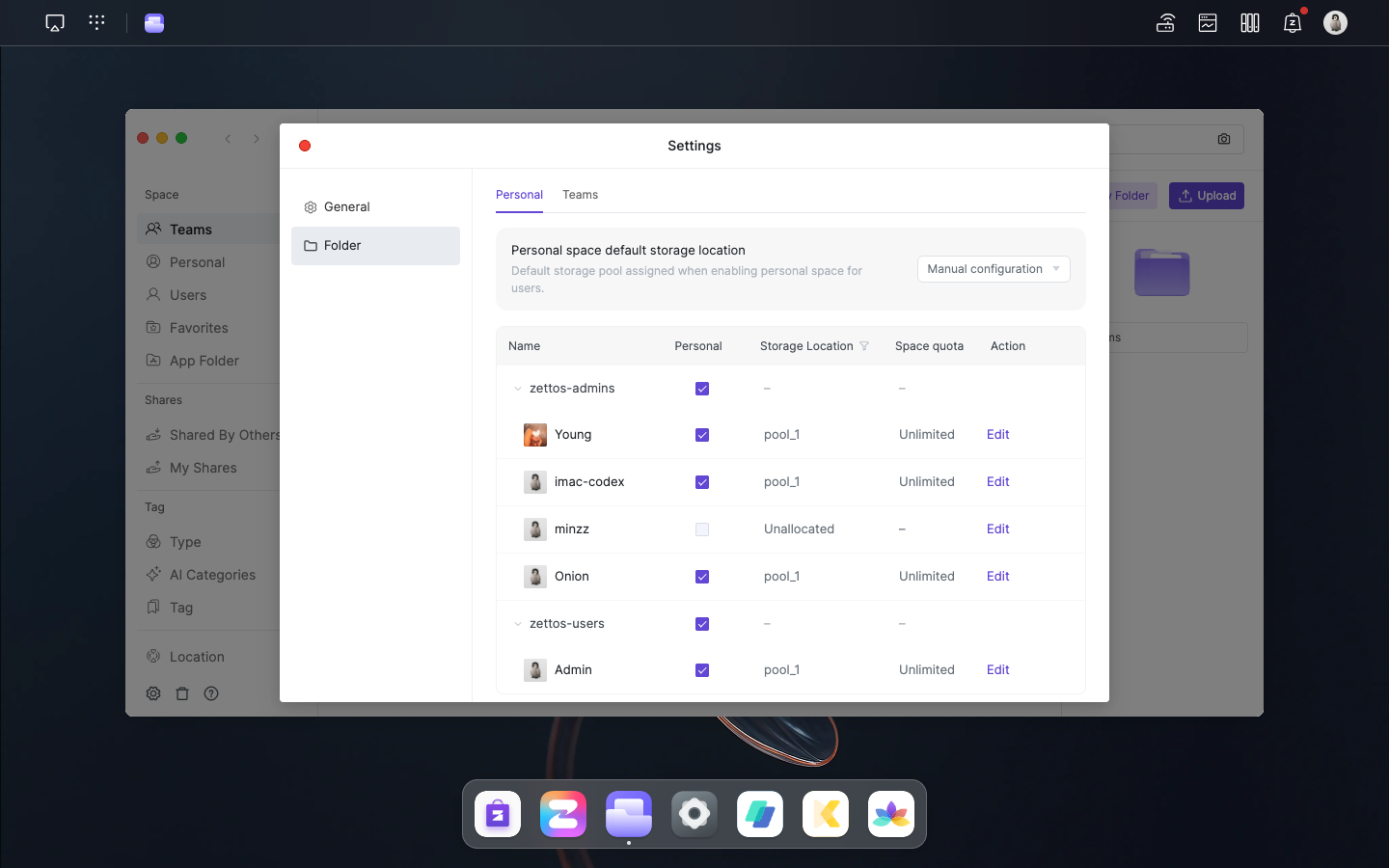
Administrators can enter "File Management - Settings - Folders - Personal Space" to enable or disable personal space for users, and set storage pools and space quotas. After deactivating Personal Space, users will not be able to access Personal Space data; existing data will remain in the system.
Manage team space
> Visible only to administrators. Ordinary users please contact the administrator to enable or expand the capacity.
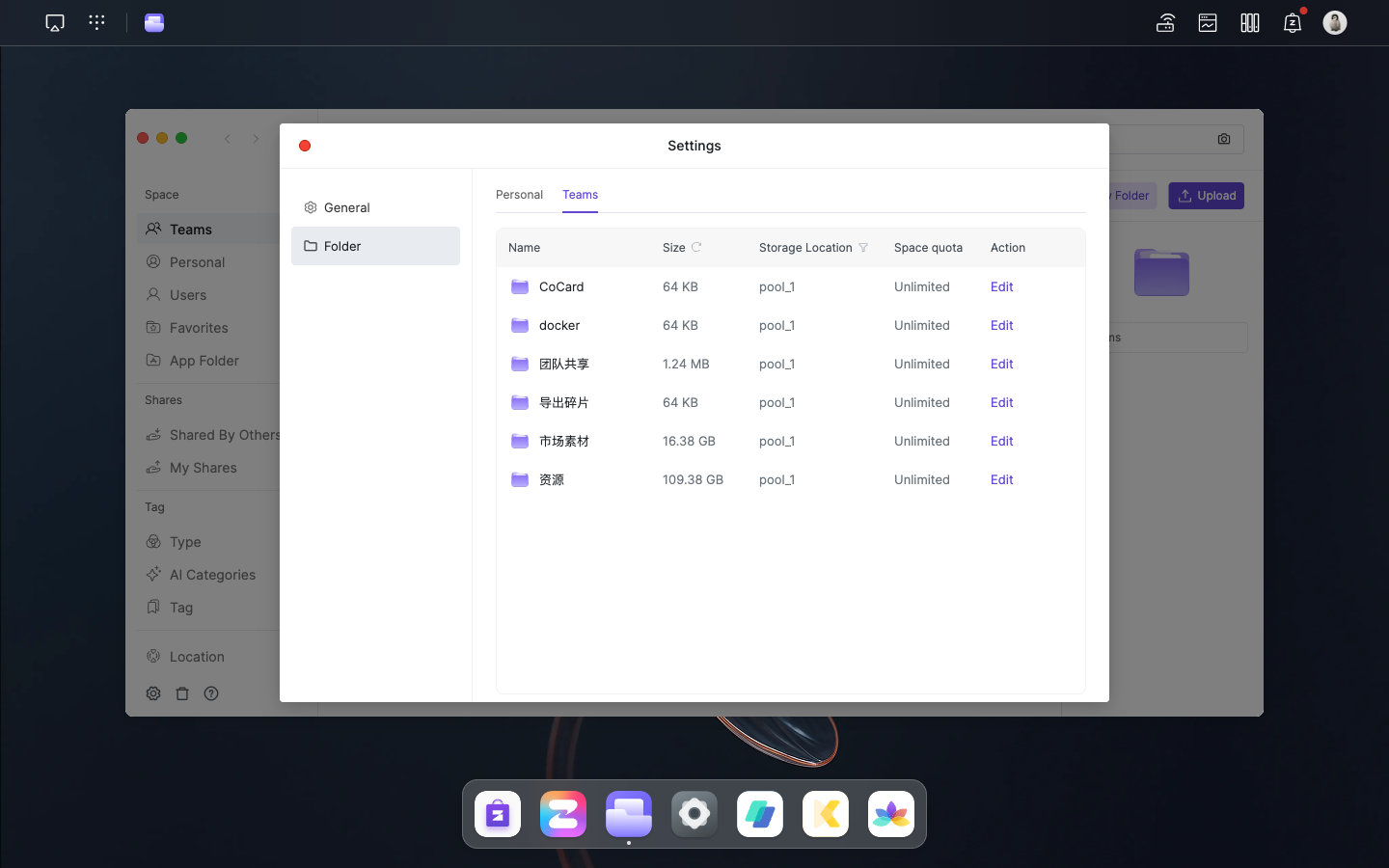
Administrators can go to "File Management - Settings - Folders - Team Space" to centrally manage team shared folders, and follow the page prompts to configure storage pools and space quotas. The team space is used for sharing files among multiple people. Before configuring, please confirm which users or user groups need to access the space.
Success flag
- The default opening location of the new window is already displayed as the entrance you need.
- The processing method of files with the same name already complies with the team's file coverage rules.
- Administrators can see allocated storage pools and quotas in the personal space and team space lists.
FAQ
| question | Processing method |
|---|---|
| Can't see personal space | The administrator needs to first go to "File Management - Settings - Folders - Personal Space" to open the personal space for the current user. |
| Can't see team space | Administrators need to create a team space first and assign access rights to the current user or user group. |
| Prompt no available storage pool | First go to "Settings - Storage" to create or repair a storage pool, and then return to the file management configuration space. |
| Ordinary users cannot configure space | Personal space and team space are configured by the administrator, and ordinary users need to contact the administrator for processing. |
| The folder is full | Clean up unnecessary files, or ask the administrator to adjust the quota for the corresponding space. |
