After tasks are created, view the corresponding task lists on "Synchronization" or "Backup". A local NAS file path in a task can jump to "Files".
View The Sync Task List
- Open "Sync & Backup".
- Go to "Synchronization".
- View existing sync tasks.
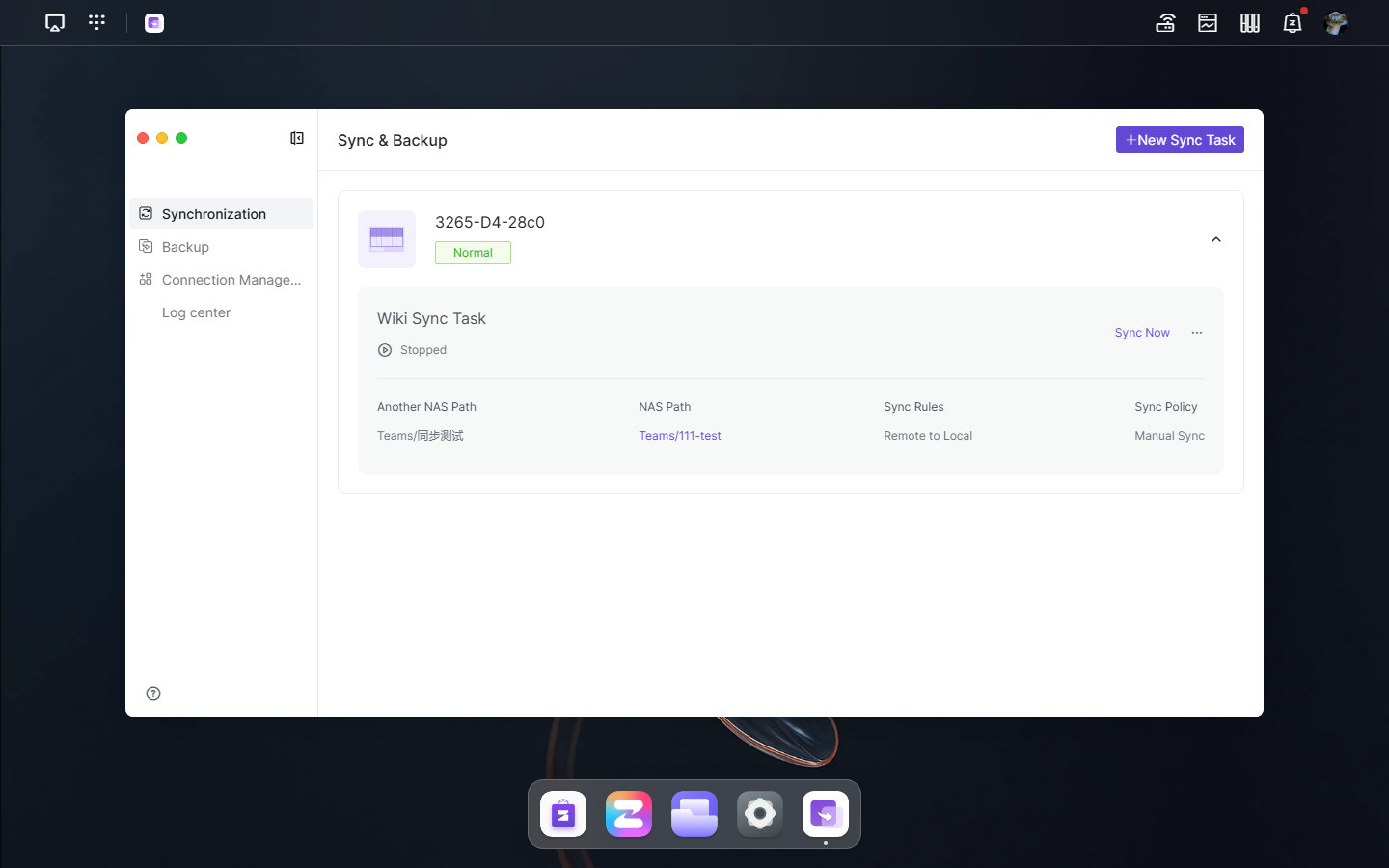
When a sync task exists, click the blank area of the task to open the task detail page. Click a local NAS file path in the task to jump to "Files".
View The Backup Task List
- Open "Sync & Backup".
- Go to "Backup".
- View existing backup tasks.
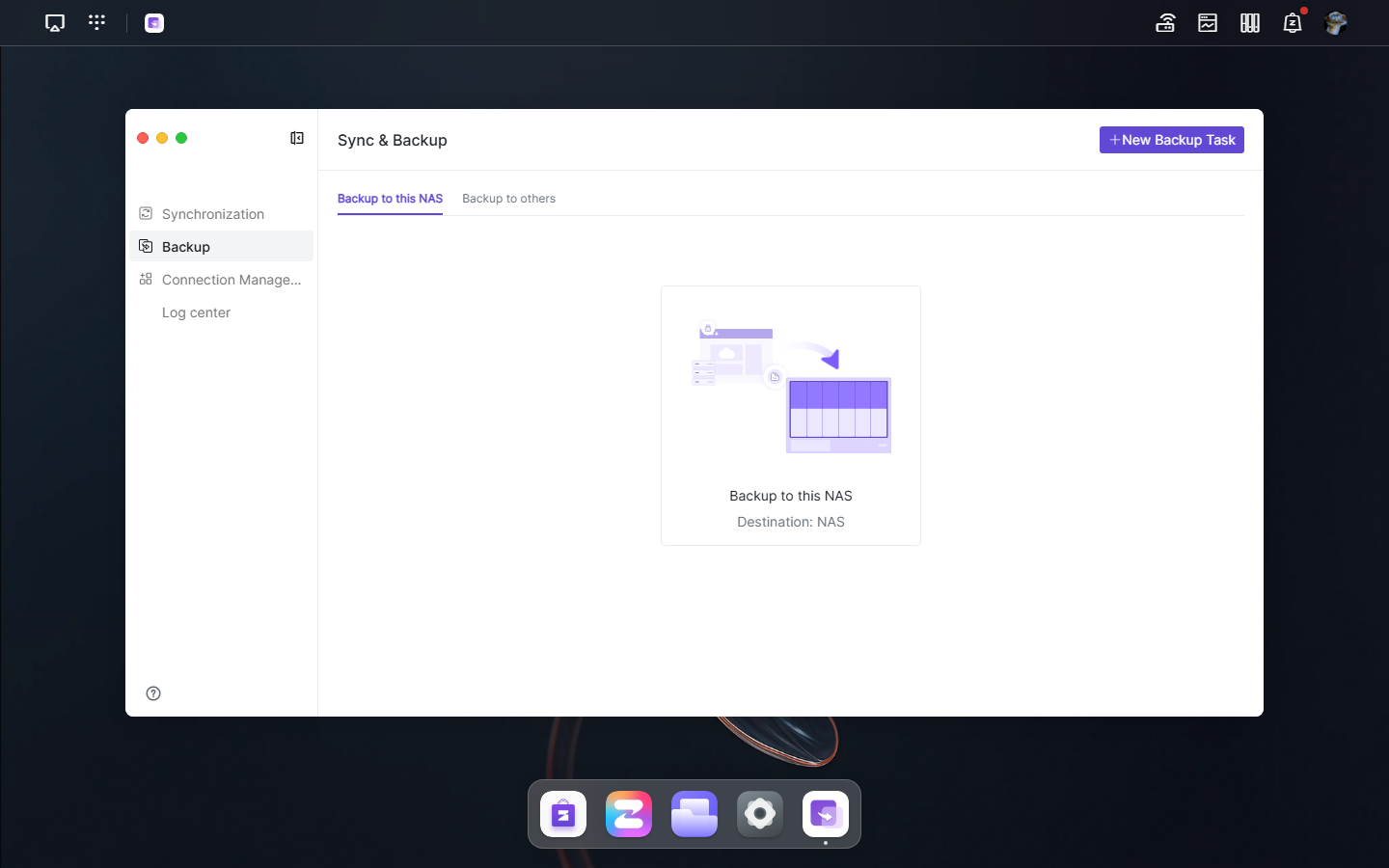
When a backup task exists, click the blank area of the task to open the task detail page. Click a local NAS file path in the task to jump to "Files".
Open Task Details From Logs
In "Log center", click a task log in the log list to jump to the task detail page.
FAQ
| Question | Handling or suggestion |
|---|---|
| Why Can't I Use Sync & Backup | Sync & Backup requires at least one storage pool. If there is no storage pool, create one before entering Sync & Backup to create tasks. During personal-space migration, Sync & Backup cannot be operated and existing sync and backup tasks are paused. After migration finishes, return to "Synchronization" or "Backup" and manually start the tasks that should continue. |
