Open a video detail page in Theater to view identified information and play the video.
Before You Start
- The video already appears in the Theater media library.
- The current account can access the media library.
- The current browser or client supports playback of the video format.
- If subtitles are needed, subtitle files are placed near the video and use recognizable names.
Steps
- Find the target video on the home page, in a category list, in search results, or in a media library.
- Click the poster or title to open the detail page and view the poster, summary, rating, year, genre, region, cast, file path, and quality information.
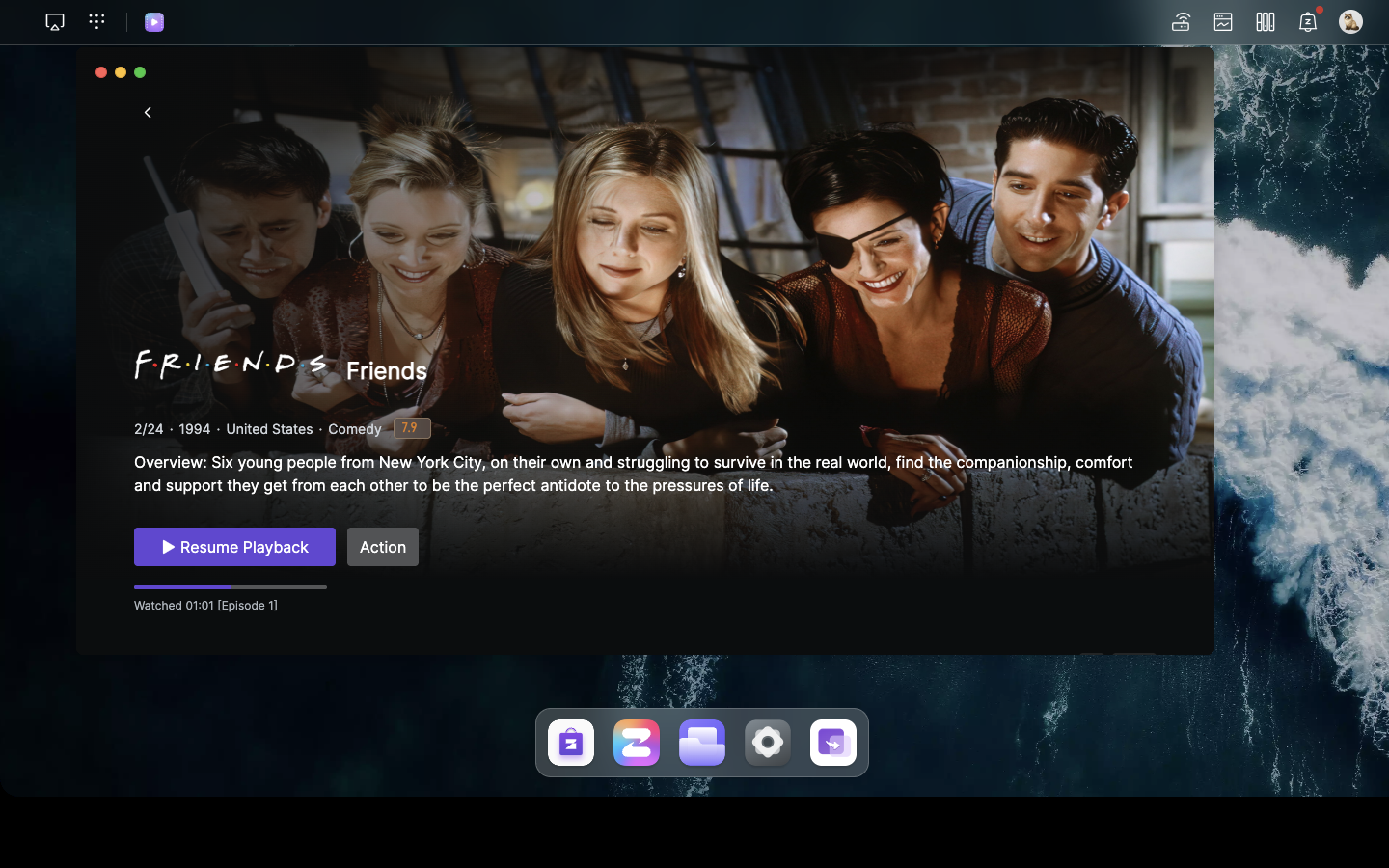
- Click [Play].
- After the video loads, watch it in the player window.
- Adjust progress, volume, or subtitles as needed.
Success Criteria
- The video loads and plays normally.
- The detail page information matches the target video.
- The player controls support common playback actions.
FAQ
| Question | Handling or suggestion |
|---|---|
| Video cannot play | Confirm the source file is accessible, then try another browser or client. |
| Playback stutters | Prefer LAN access and reduce simultaneous download, backup, or transcoding tasks. |
| Subtitles do not appear | Check subtitle file location, name, and format. |
| Which video formats are supported? | Common video files such as MP4, MOV, WMV, and FLV can be added to the media library. Playback still depends on the browser or client decoder, video codec, subtitles, and network status. |
| Which audio formats are supported? | Common audio files such as MP3, WAV, FLAC, WMA, and OGG can be handled as media files. Actual playback depends on the current version and client capability. |
| What if the format is supported but playback still fails? | Confirm the file is accessible in File Manager, then try another browser or client. Special codecs, very high bitrate, or corrupted files may still fail to play. |
