Use File Management to browse NAS files and complete daily actions such as uploading, downloading, copying paths, sharing, renaming, and deleting files from the toolbar or the right-click menu.
When to Use
Use this page when you need to view files on the NAS, upload local files, download files to your computer, organize folders, or restore files from the Recycle Bin.
Before You Start
- Your account must have access to the target space or folder.
- Uploading, creating, renaming, deleting, and similar actions require read-write permission. If you do not have permission, related buttons may be unavailable or disabled.
- If the page says that Personal Space is not enabled, no storage pool exists, or data is being migrated, follow the on-screen guidance first or contact an administrator.
Browse Files
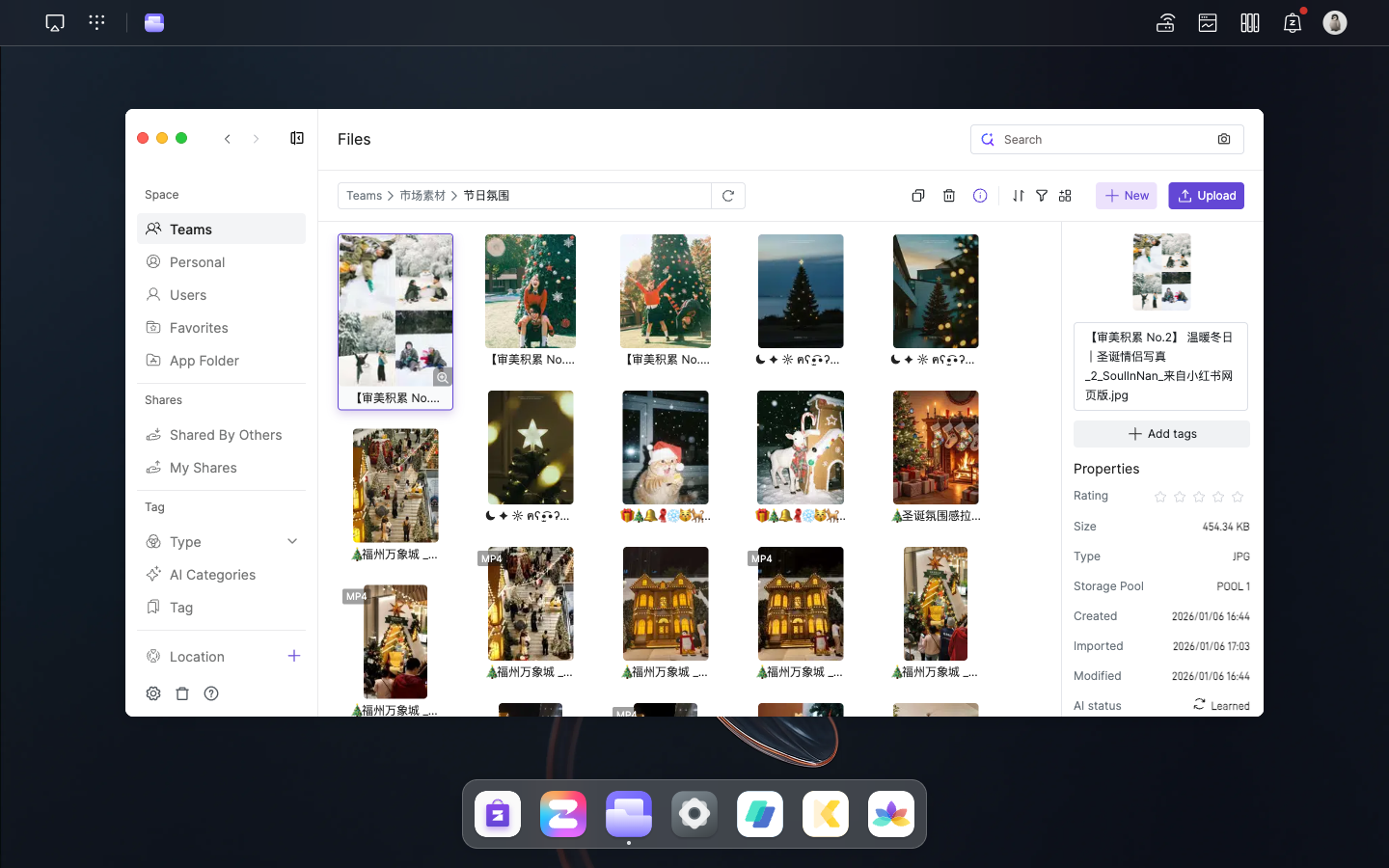
Open File Management, then choose a space on the left to enter the corresponding file directory.
| Entry | Description |
|---|---|
| Team Space | Shared file space for multiple users. Users only see team spaces they have permission to access. |
| Personal Space | File space dedicated to the current account. An administrator enables or assigns it for users. |
| User Space | Admin entry for viewing and managing all users' personal spaces. It is usually not visible to standard users. |
| Favorites | Quick access to favorited files or folders. Adding an item to Favorites does not move the original file. |
| Application Space | Data directory used by installed or running apps. Standard users usually do not need to operate here directly. |
After entering a folder, use the breadcrumb at the top to confirm your current location, and use Sort, Filter, and Change View to adjust the file list.
Upload Files
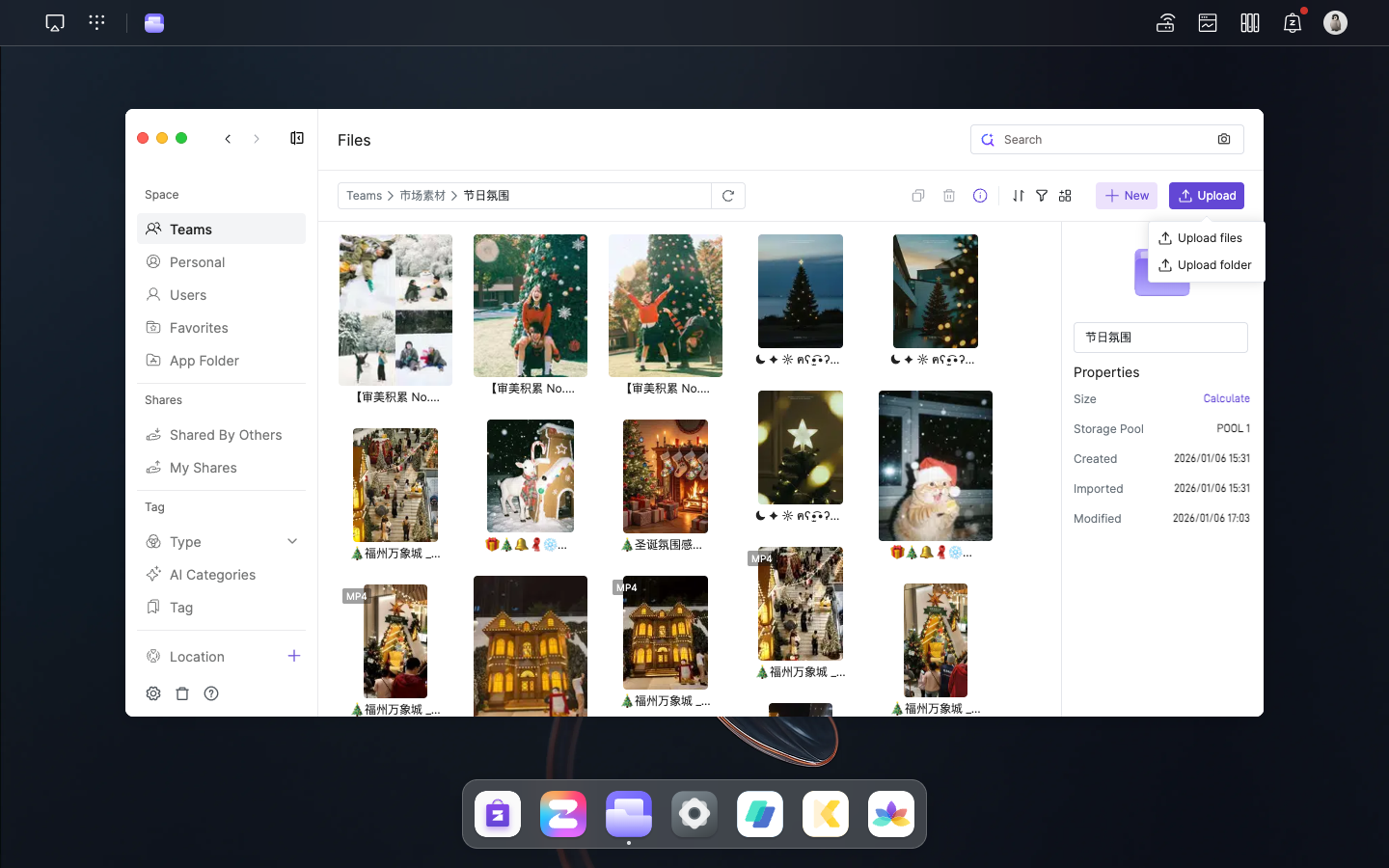
In a folder where you have write permission, click Upload in the upper-right corner, choose Upload File or Upload Folder, and then select the content from your computer.
After the upload starts, follow the page prompts to check the task status. When the upload is complete, the corresponding file or folder appears in the target directory.
If the target location already has a file with the same name, the system follows the rule in File Management - Settings - General - Same-name file handling. If the current rule requires confirmation, a dialog asks you how to proceed.
Right-Click Menu
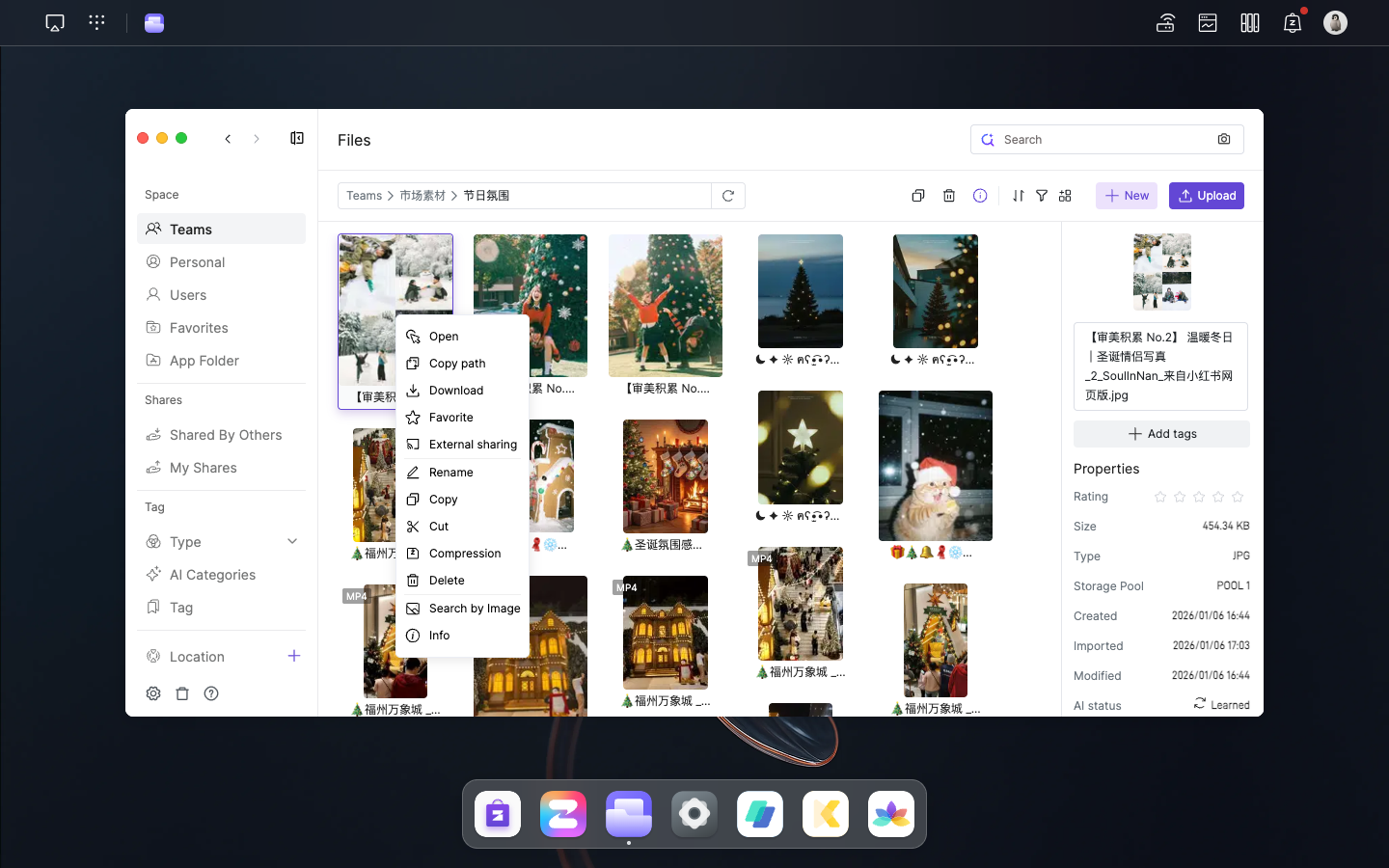
After selecting a file or folder, use the right-click menu to perform common actions. Available actions vary by space, folder permission, and file type. Unsupported actions may be hidden or disabled automatically.
| Action | Applies To Description |
|---|---|
| Open | Folders and previewable files Opens a folder or previews a supported file type. |
| Copy Path | Files and folders Copies the NAS path of the selected item so you can record it or send it to someone for locating the item. |
| Download | Files and folders Downloads the selected file or folder to your computer. After the download starts, follow the system prompt to check progress and the save location. |
| Add to Favorites | Files and folders Adds the selected item to Favorites for quick access later. |
| External Share | Files and folders Creates a share link for external access. The available permissions and validity period depend on the share settings. |
| Rename | Files and folders Changes the file or folder name. It is unavailable in read-only folders or when you do not have permission. |
| Copy | Files and folders Copies the selected item so it can be handled later in a location where you have write permission. |
| Delete | Files and folders Moves the selected item to the Recycle Bin. If you delete directly or empty the Recycle Bin, the item cannot be restored from the Recycle Bin. |
| Permissions | Folders Views or adjusts folder access permissions. It is only available when your account has management permission. |
| Storage Settings | Folders Views or adjusts folder-related storage settings. It is only available in supported locations and with sufficient permission. |
| Info | Files and folders Shows size, location, permission, created time, imported time, modified time, and AI status. |
Delete and Restore Files
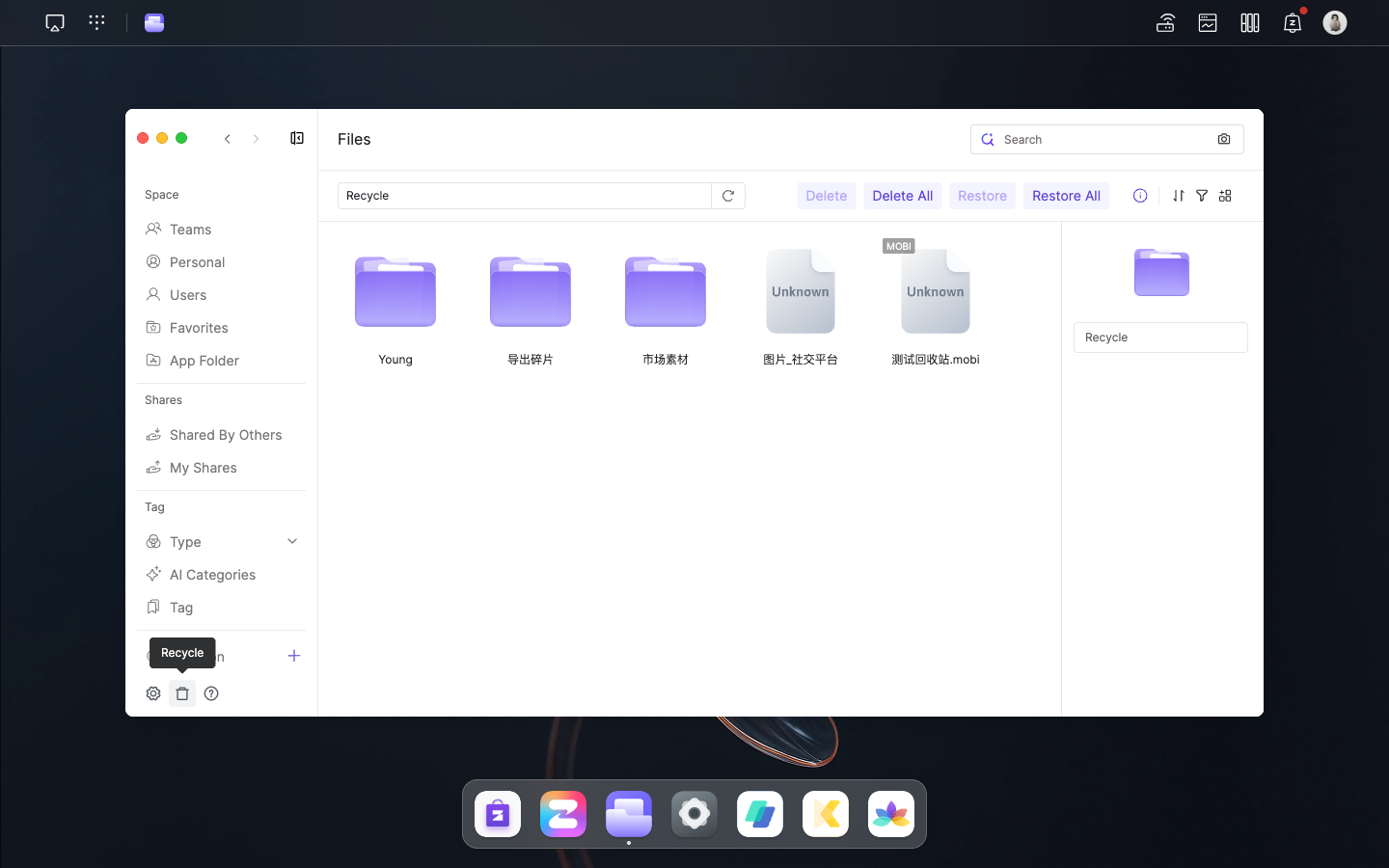
Deleted files are moved to the Recycle Bin by default. To restore a file, open Recycle Bin on the left, select the file, and click Restore.
If you choose Delete directly without moving to the Recycle Bin, or use Delete or Delete All in the Recycle Bin, the file cannot be restored from the Recycle Bin. Confirm that you no longer need the file before using these actions.
FAQ
| Question | Handling or suggestion |
|---|---|
| I cannot upload or create a folder. | Confirm that the current folder supports writing, and check your account permissions. |
| A function is missing from the right-click menu. | The current space, folder permission, or file type may not support that action. Try another folder or check permissions in Info. |
| The Download button is unavailable. | Your account may not have read permission, or the selected item may not support download. |
| What happens when a file with the same name already exists? | The system follows File Management - Settings - General - Same-name file handling. A dialog appears when confirmation is required. |
| I cannot find a deleted file. | Check the Recycle Bin first. If you deleted it directly or emptied the Recycle Bin, it cannot be restored from the Recycle Bin. |
| Why are some space entries not visible? | Entries depend on account role, space assignment, and permissions. Standard users usually cannot see administrator entries. |
<!-- legacy-faq-p0-p1 -->
Transfer and Preview FAQ
| Question | Handling or suggestion |
|---|---|
| What should I do if web upload fails? | Check write permission, browser network status, and remaining capacity. For large files or many files, prefer a client or SMB transfer. |
| What is recommended for large-file backup? | For large files or long-running backup tasks, use SMB, Sync & Backup tasks, or a dedicated client. Browser upload is better for a small number of temporary files. |
| How can I improve upload or download speed? | Prefer LAN access and check the router, switch, network cable, and Wi-Fi quality. For frequent read/write workloads, configure an available SSD cache for the storage pool in Settings - Storage. |
| Which common files can be previewed? | Preview support depends on file type, browser, and system capability. Common supported types include PDF, Word, Excel, PowerPoint, TXT, and image formats such as PNG, JPEG, BMP, TIFF, GIF, and SVG. RAW image support depends on the actual version. |
| Does a failed transfer affect the original file? | A normal upload, download, or backup task failure usually does not modify the source file. Confirm the failure reason, then run the task again. |
