Share your photos with others, or download/export them back to your local device.
Before You Begin
- You know the NAS folder containing the target photos (a directory under your Photo Path, e.g.
Photos) - For external sharing: remote access is enabled (see Configure Networking and Remote Access)
Download Photos (done in Photos)
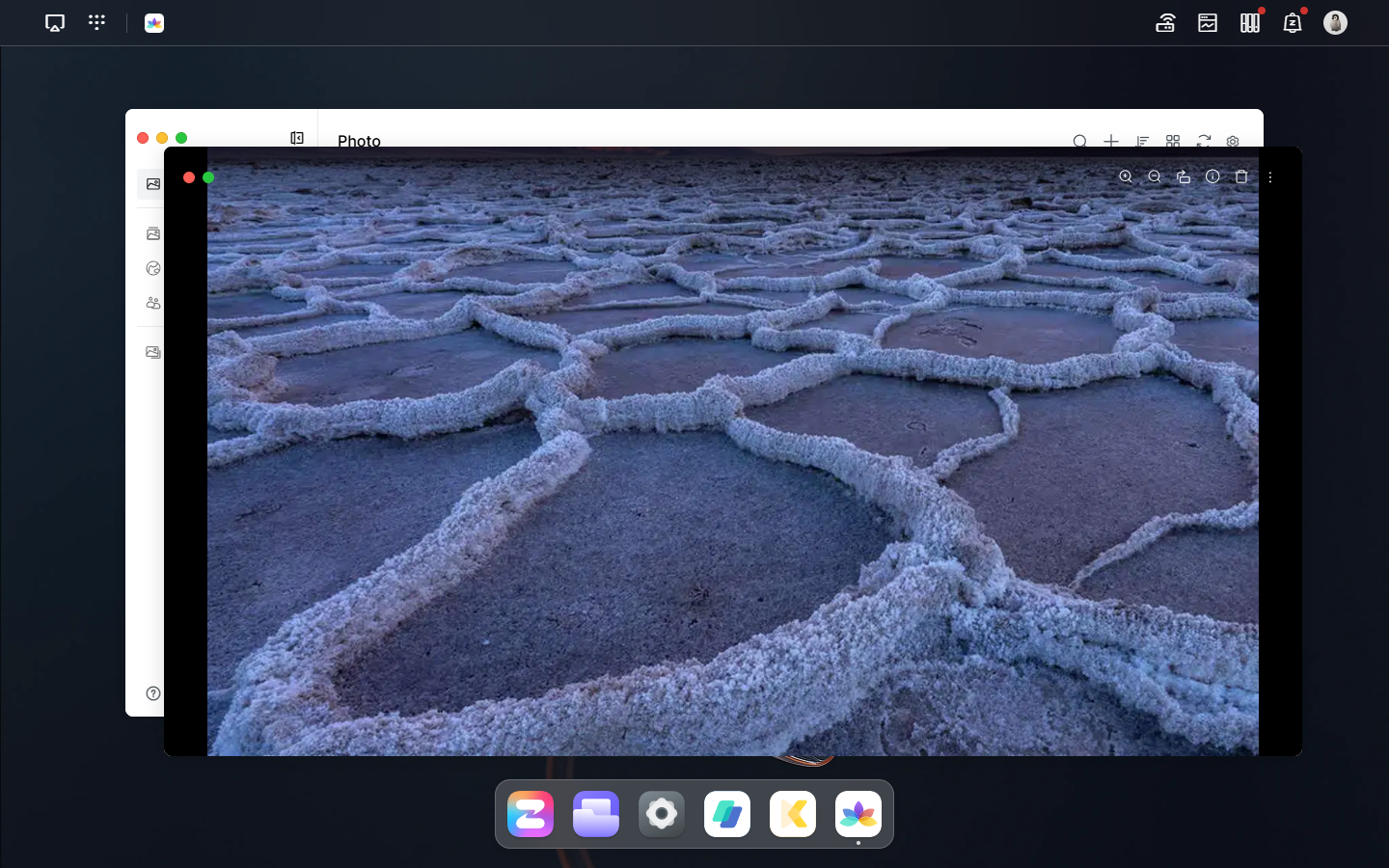
- Single photo: open the photo in Photos, click
⋮ Morein the top-right →Download - Multiple photos: hover a thumbnail in the timeline/album, click the selection circle to enter multi-select, then choose
More→Download
Share Photos (done in Files)
> ℹ️ Note: > The PC Photos app does not provide a Share action itself — use Files** instead. The mobile app does provide a built-in Share action; see the mobile-side instructions.
- Open Files
- Go to Personal Space → find the folder containing your photos (default:
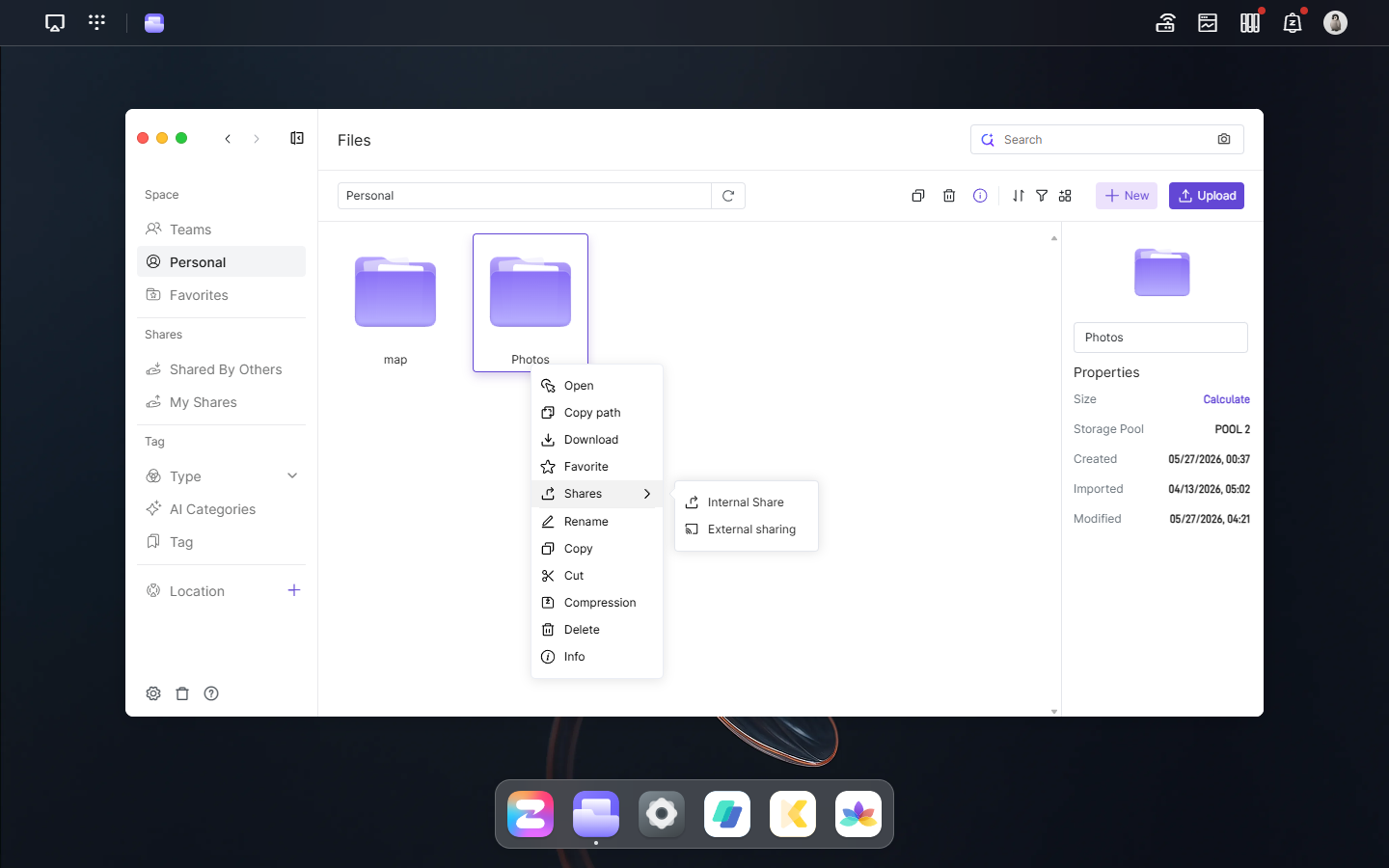
Photos, or any directory you added to your Photo Paths) - Select the folder or specific files, right-click →
Share - Pick from the submenu:
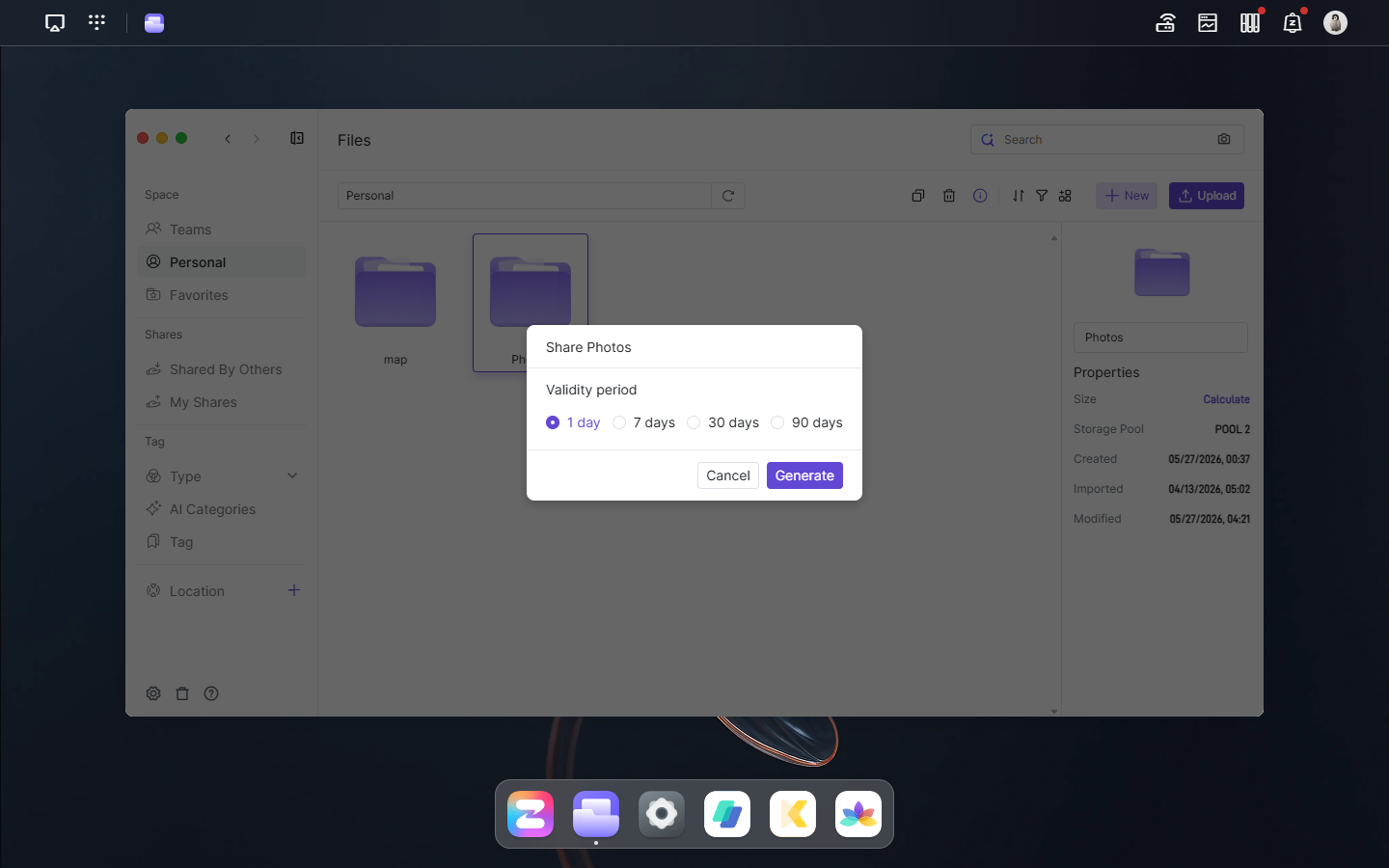
Internal Share — share with other accounts on the same NAS External Share — generate a public link to share with people outside the NAS (link validity: 1 / 7 / 30 / 90 days)
- In the dialog set the validity → click
Generate→ copy the link and send it
View Existing Shares
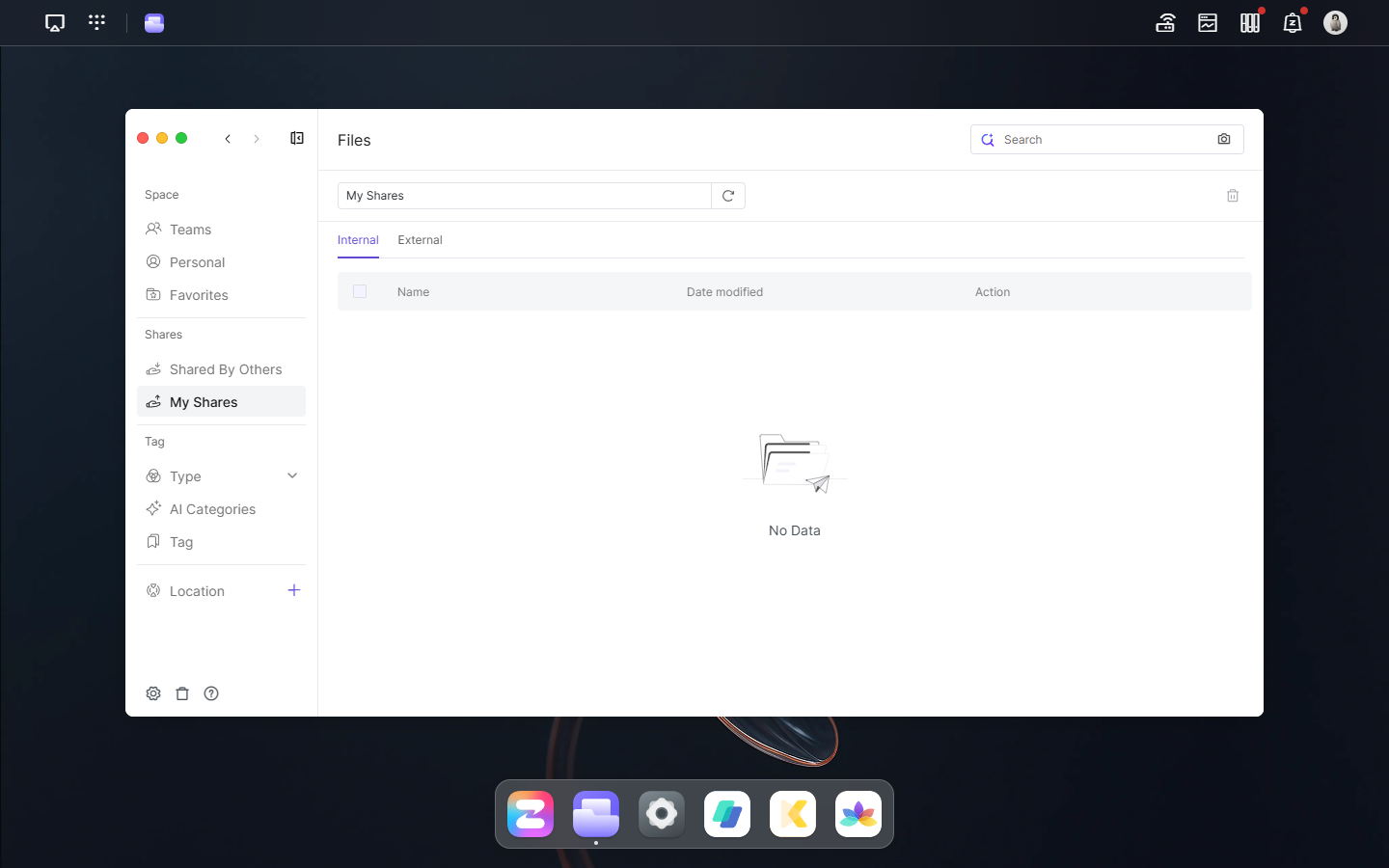
- Files sidebar → Share → My Shares (split into Internal / External tabs)
- Files sidebar → Share → Shared with Me (what others shared with you)
Success Indicators
- The dialog shows a copyable share link
- The new entry appears in "My Shares"
Troubleshooting
- Cannot find the Share button — Share lives in Files, not in Photos
- External share link does not open — Link expired, revoked, or remote access is off
- How to revoke a share — Files → My Shares → find the entry → delete in the action column
FAQ
| Question | Handling or suggestion |
|---|---|
| How do I share photos | The Photos app does not directly offer Share In Files, find the folder containing your photos, right-click → Share → choose Internal or External. See Share and Download Photos |
