Sync tasks keep files consistent between two locations. The English UI provides two targets: "Sync this computer" and "Sync other Zettlab NAS".
Create A New Sync Task
- Open "Sync & Backup".
- Go to "Synchronization".
- Click [New Sync Task].
- Select the target in the "Sync Target" step.
- Continue through "Sync Path" and "Settings".
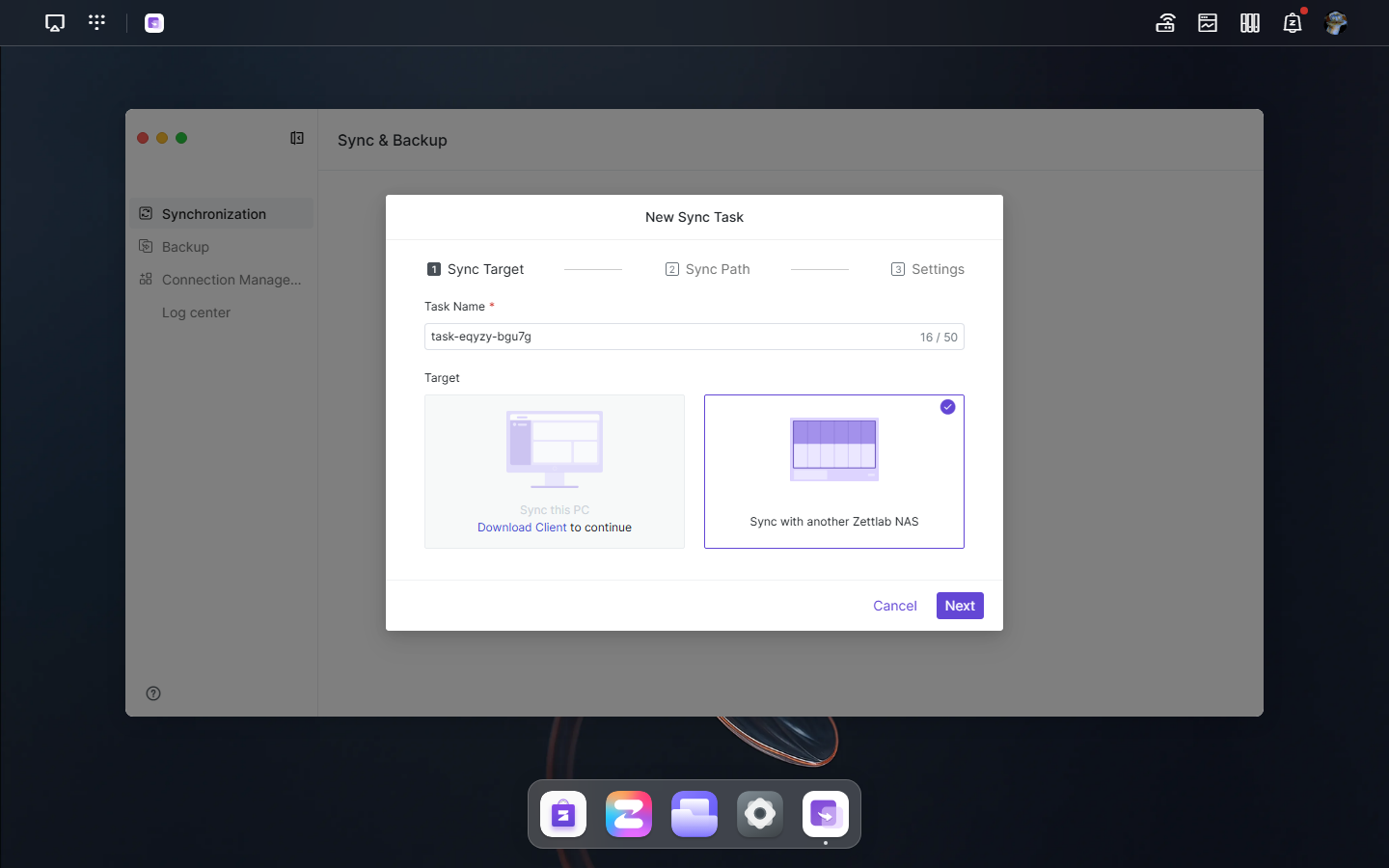
The creation flow includes "Sync Target", "Sync Path", and "Settings". Use a task name that identifies both locations.
Sync This Computer
"Sync this computer" keeps a computer folder and a NAS folder in sync. The web page prompts you to download the client before continuing. After signing in to the Zettlab client, you can create a "Sync this computer" task directly.
- Sign in to the Zettlab client, then open "Sync & Backup".
- Go to "Synchronization".
- Click [New Sync Task].
- In the "New Sync Task" dialog, select "Sync this computer" in the "Sync Target" step.
- Go to the "Sync Path" step.
- In "Computer Path", click the folder icon and select a local folder in the system "Select Folder" window.
- In "NAS Path", click the folder icon and select a NAS folder in the in-app "Select Folder" dialog.
- Expand "Team Space" or "Personal Space" and select a folder. Click [New Folder] if a new directory is needed.
- Click [Confirm], then continue to set the sync rule and save the task.
Sync Other Zettlab NAS
"Sync other Zettlab NAS" syncs files between this NAS and another Zettlab NAS. Before creating the task, make sure the remote NAS has the "Sync & Backup" app installed; otherwise the sync connection cannot be established.
When creating a connection to another NAS, you can enter the remote NAS LAN IP address or its Remote Access ID. The Remote Access ID can be enabled or viewed on the remote NAS in Settings - Remote Access.
- Click [New Sync Task].
- Select "Sync other Zettlab NAS".
- Select or prepare the remote NAS connection. When creating a new connection, enter the remote NAS LAN IP address or Remote Access ID.
- Select folders on this NAS and the remote NAS.
- Set the sync direction and execution method.
- Save the task.
Cross-NAS sync depends on the remote app, connection status, and permissions on both paths. If the connection is unavailable, confirm that the remote NAS has "Sync & Backup" installed and that the LAN IP address or Remote Access ID can be used, then handle the connection in "Connection Management".
Configure Sync Policy
The sync policy defines how the task handles changes between the two locations, such as which direction or method the task uses. Confirm the purpose of both folders before choosing a policy.
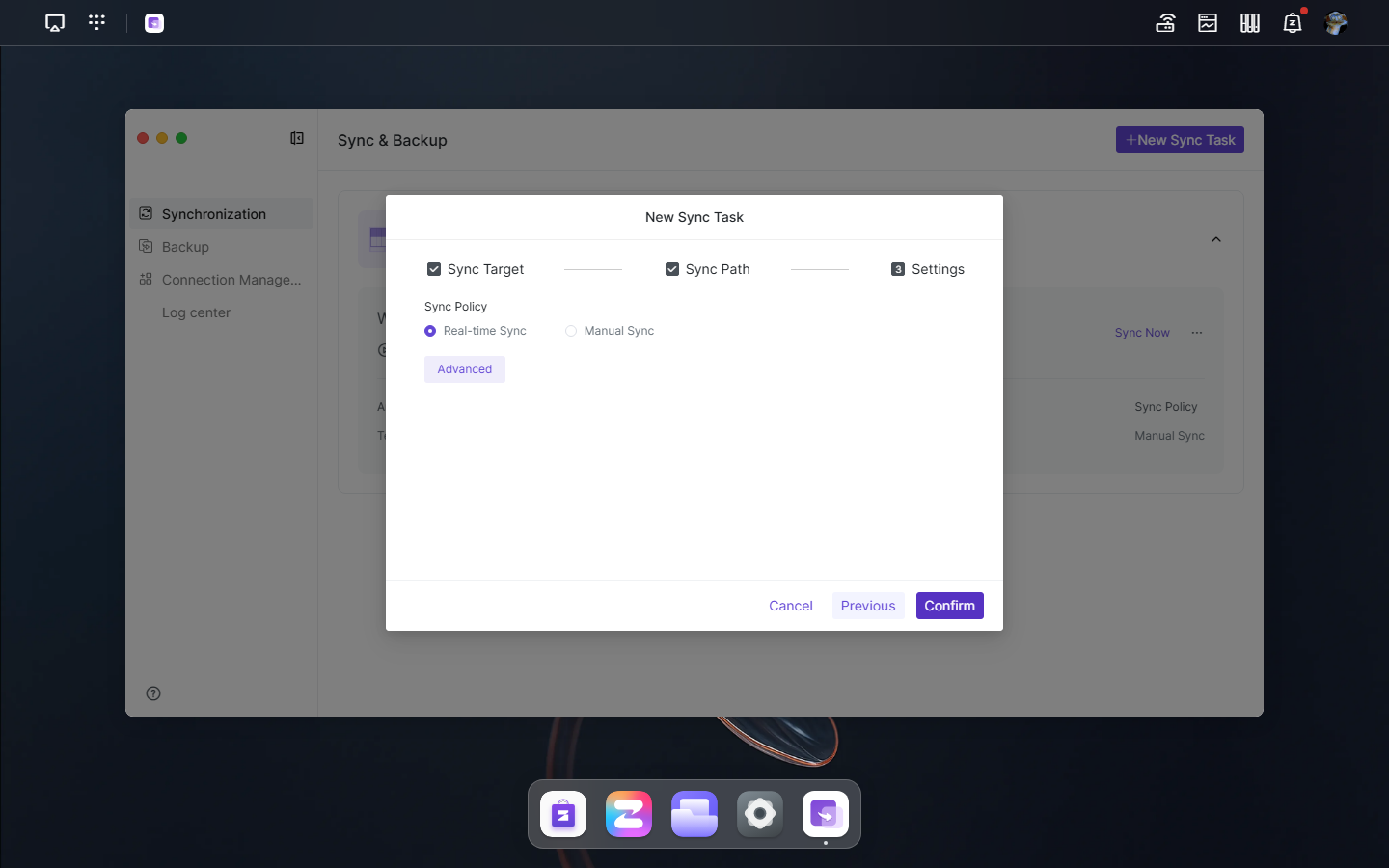
Two-way sync is suitable when both locations are edited. One-way sync is suitable when one location is the main source. The execution method determines whether the task runs automatically or is triggered manually.
Configure Sync Rule
For "Sync this computer", the sync rule defines the sync direction between the computer and the NAS. Available rules include "Two-way sync", "NAS->Computer", and "Computer->NAS".
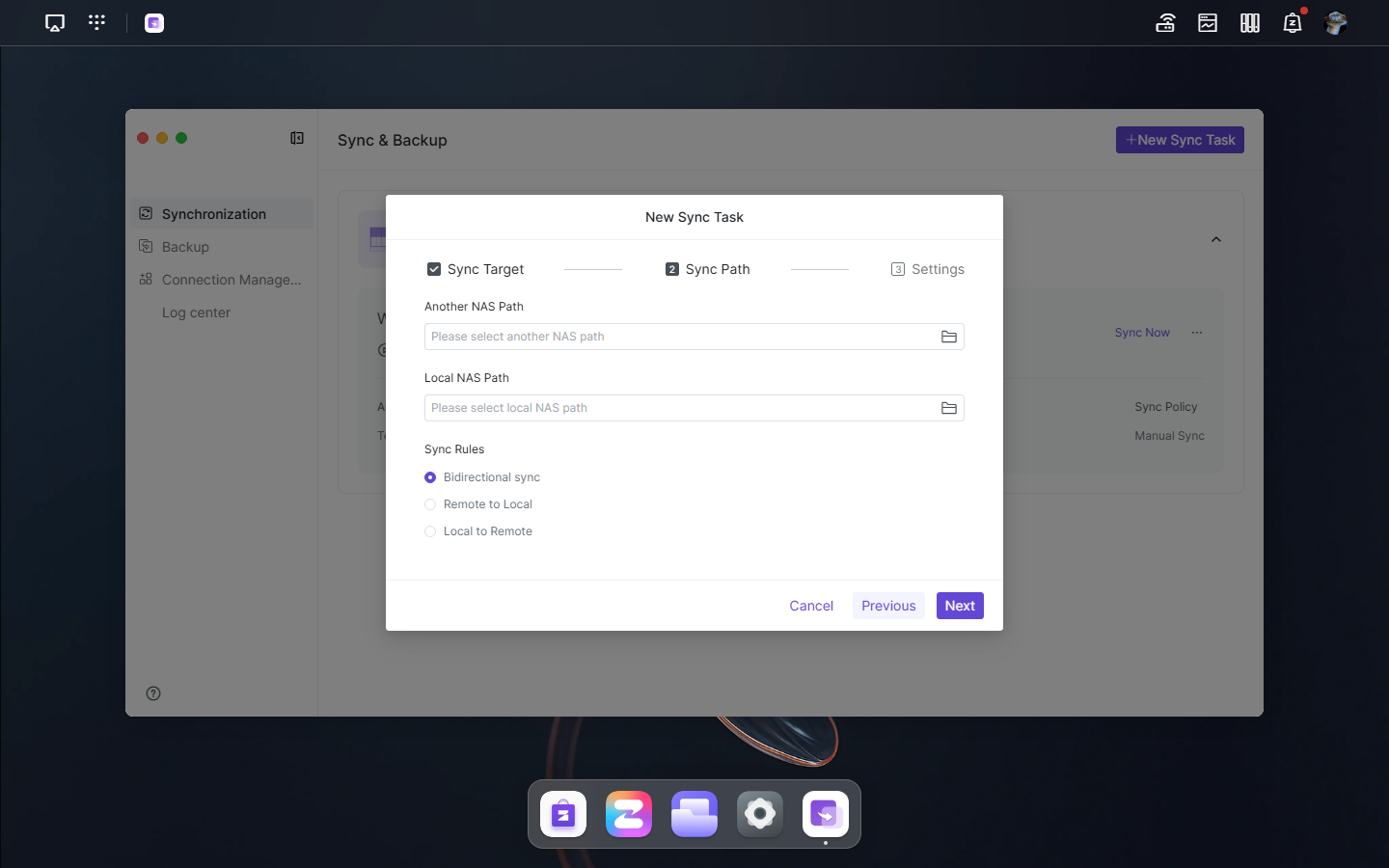
Before choosing a rule, confirm which side is the main editing location and whether changes should be synced both ways. After the task is saved, the rule affects how later file changes are handled.
View The Sync Task After Saving
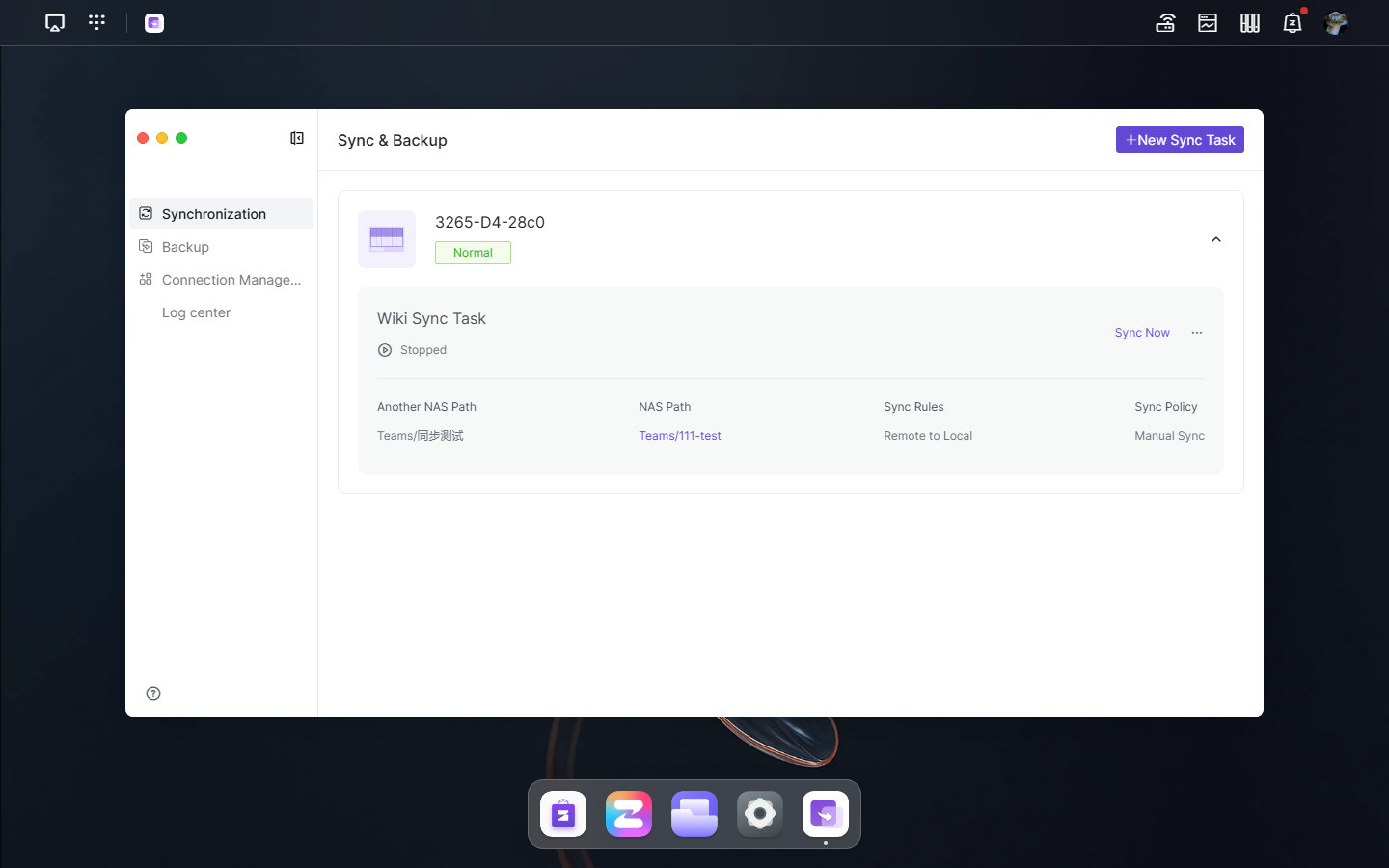
After saving, the task returns to the "Synchronization" page. When a task record exists, click the blank area of the task to open the task detail page. Click a local NAS file path in the task to jump to "Files".
FAQ
| Question | Handling or suggestion |
|---|---|
| Should I Create A Sync Task Or A Backup Task | Choose a sync task if you want two locations to stay consistent. Sync is suitable for continuously syncing work files between a computer and NAS, or between this NAS and another Zettlab NAS. Choose a backup task if you want to keep a copy. Backup is suitable for copying important data to this NAS, an external device, a cloud drive, or a file service. |
| Why Can't The Web Page Create A Sync This Computer Task | "Sync this computer" needs the client to access local folders on the computer. When this target is selected on the web page, the page prompts you to download the client before continuing. After downloading and signing in to the client, create the sync task between the computer and the NAS in the client. |
| Why Can't I Select A Sync Path | Sync paths must satisfy permission and occupation rules. Confirm that the current account can access the folder, and avoid using the same folder or parent-child folders repeatedly in sync tasks. If it is a remote NAS path, confirm that the connection is available, then select the path again. |
| What Is The Difference Between Sync Policy And Sync Rule | Sync policy describes how the task handles changes between two locations. Sync rule selects the sync direction between the computer and the NAS, such as "Two-way sync", "NAS->Computer", or "Computer->NAS". |
