1. Product Introduction
OpenClaw is a self-hosted personal AI assistant that supports integration with mainstream messaging applications such as WhatsApp, Telegram, Discord, Slack, etc. It is compatible with multiple AI models and can achieve task automation, web browsing, and file management functions.
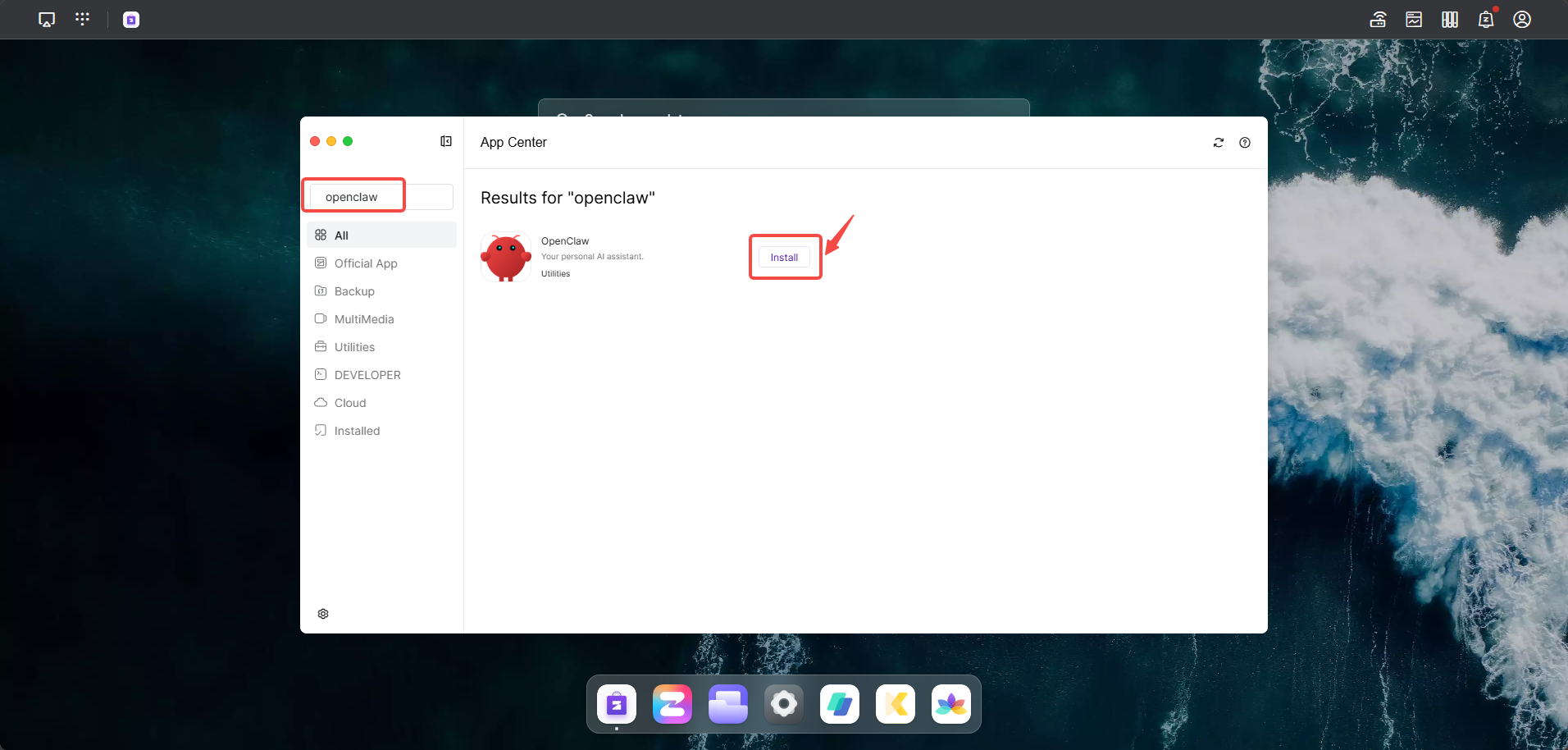
2. Open App Center to Install OpenClaw
2.1 First Login Authentication
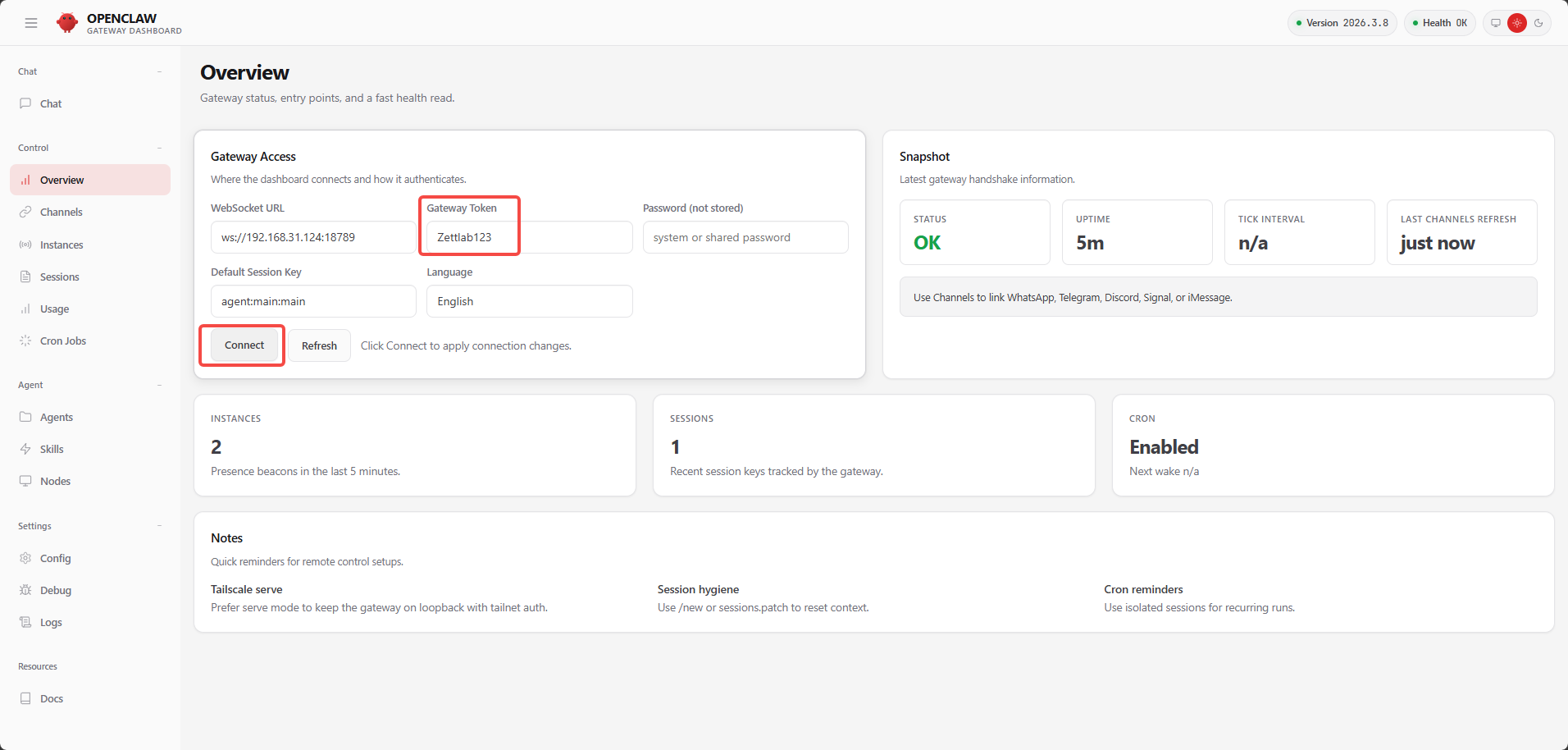
- Open OpenClaw and click on the Overview page in the left sidebar
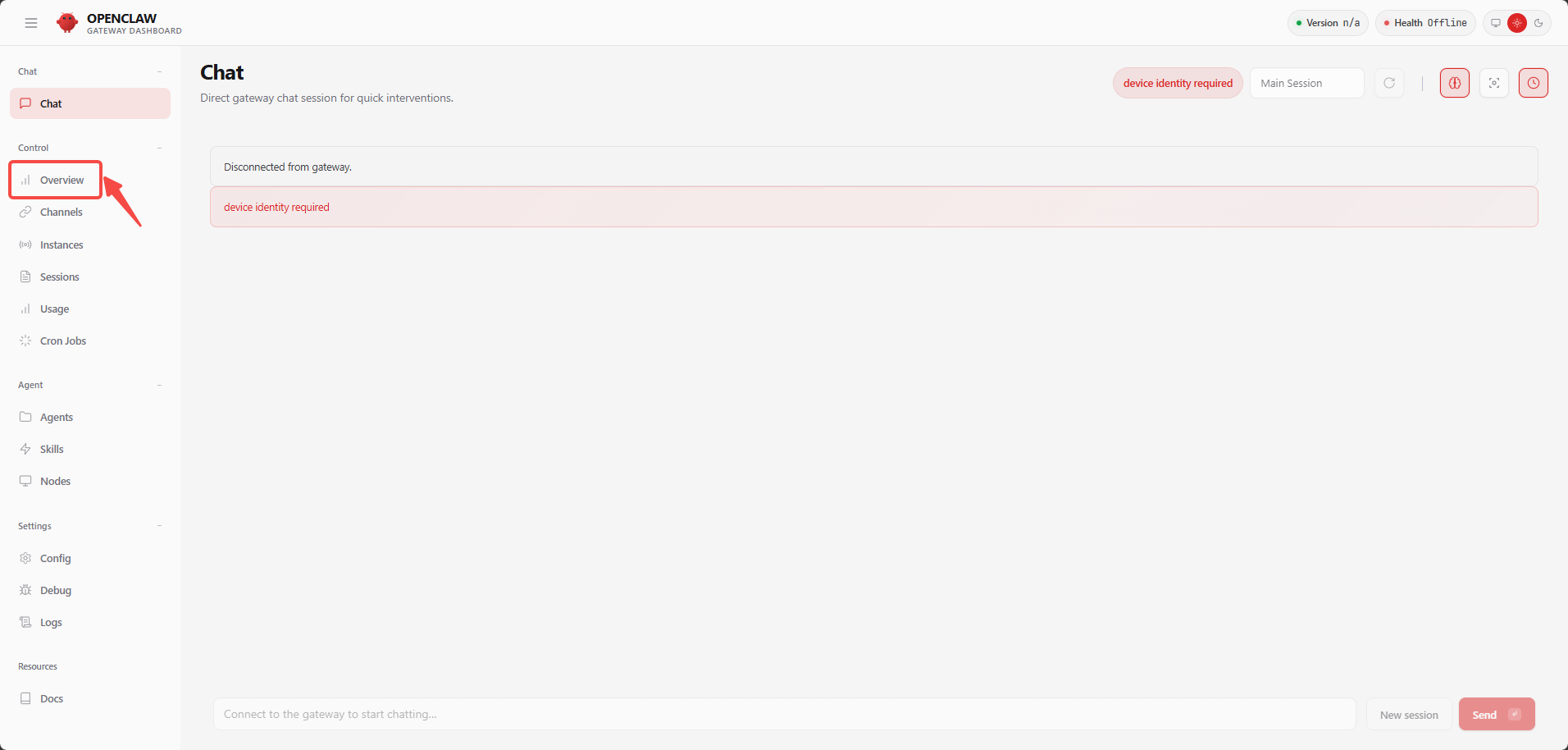
- Find the "Gateway Token" area, enter "Zettlab123" - click "Connect"
2.2 AI Model Configuration
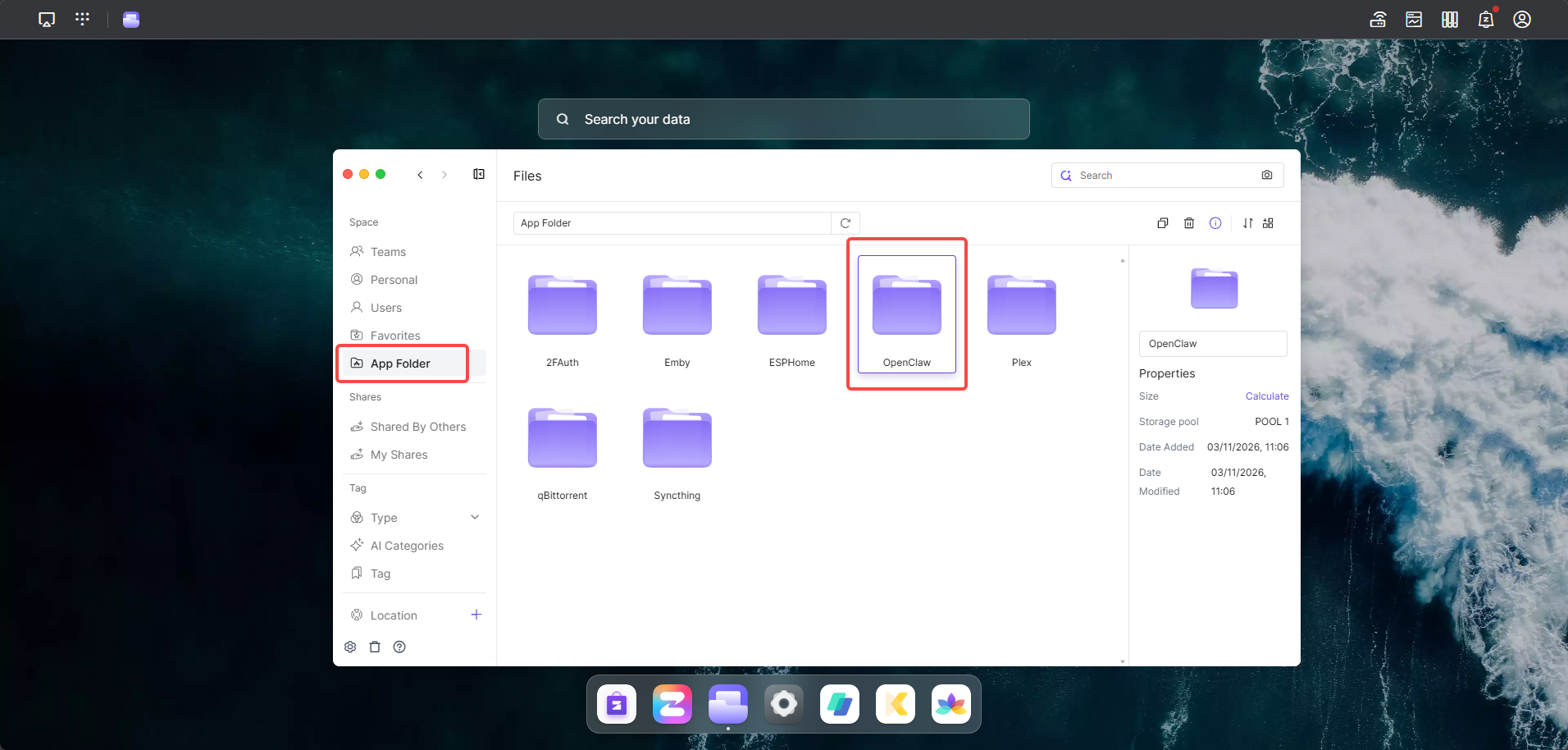
Find the OpenClaw interface path: Files → App Folder → OpenClaw → data → conf → openclaw.json
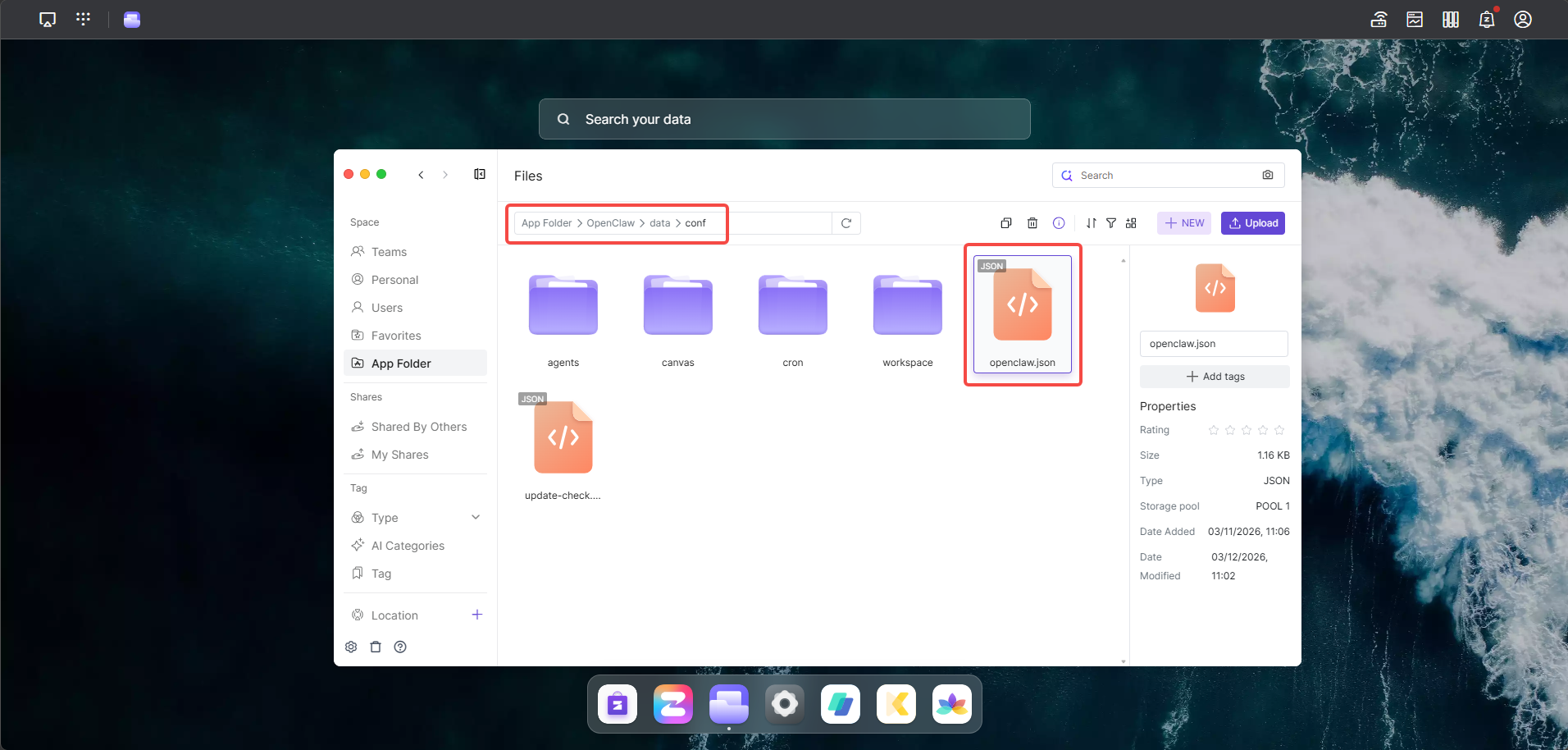
Open and edit the file, find the apiKey field for the corresponding model, enter your API Key and click "Save"
    "providers": {
      "zai": {
        "api": "anthropic-messages",
        "apiKey": "Replace with your model's token key",
        "baseUrl": "https://open.bigmodel.cn/api/anthropic",
        "models": [
          {
            "contextWindow": 131072,
            "cost": {
              "cacheRead": 0,
              "cacheWrite": 0,
              "input": 0,
              "output": 0
            },
            "id": "glm-4.7",
            "input": [
              "text",
              "image"
            ],
            "maxTokens": 16384,
            "name": "GLM-4.7"
          }
        ]
      }
    }
  }
}
3. Restart OpenClaw
Please "Disable" OpenClaw in the App Center, then "Enable" it, and you can "Open" it for normal use. 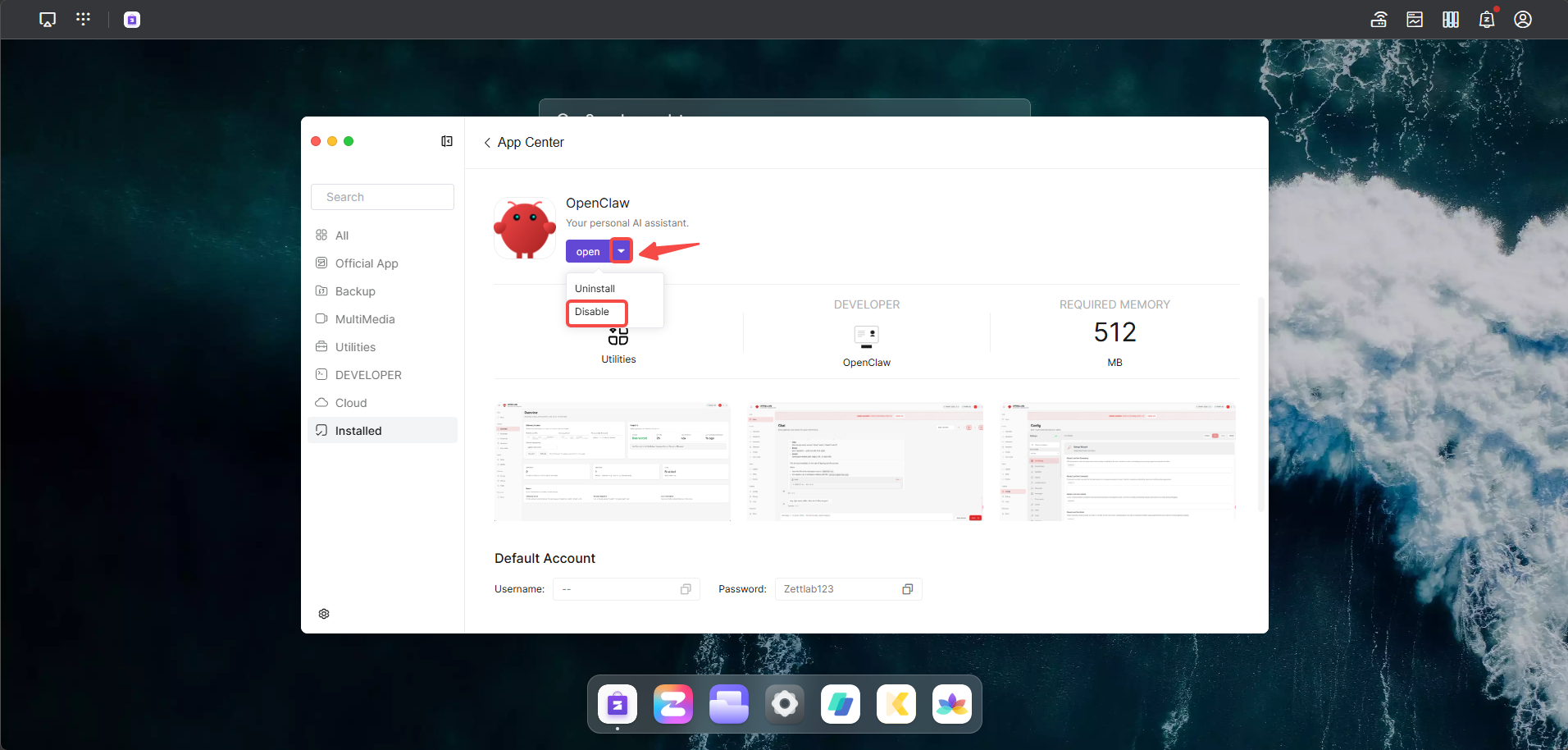
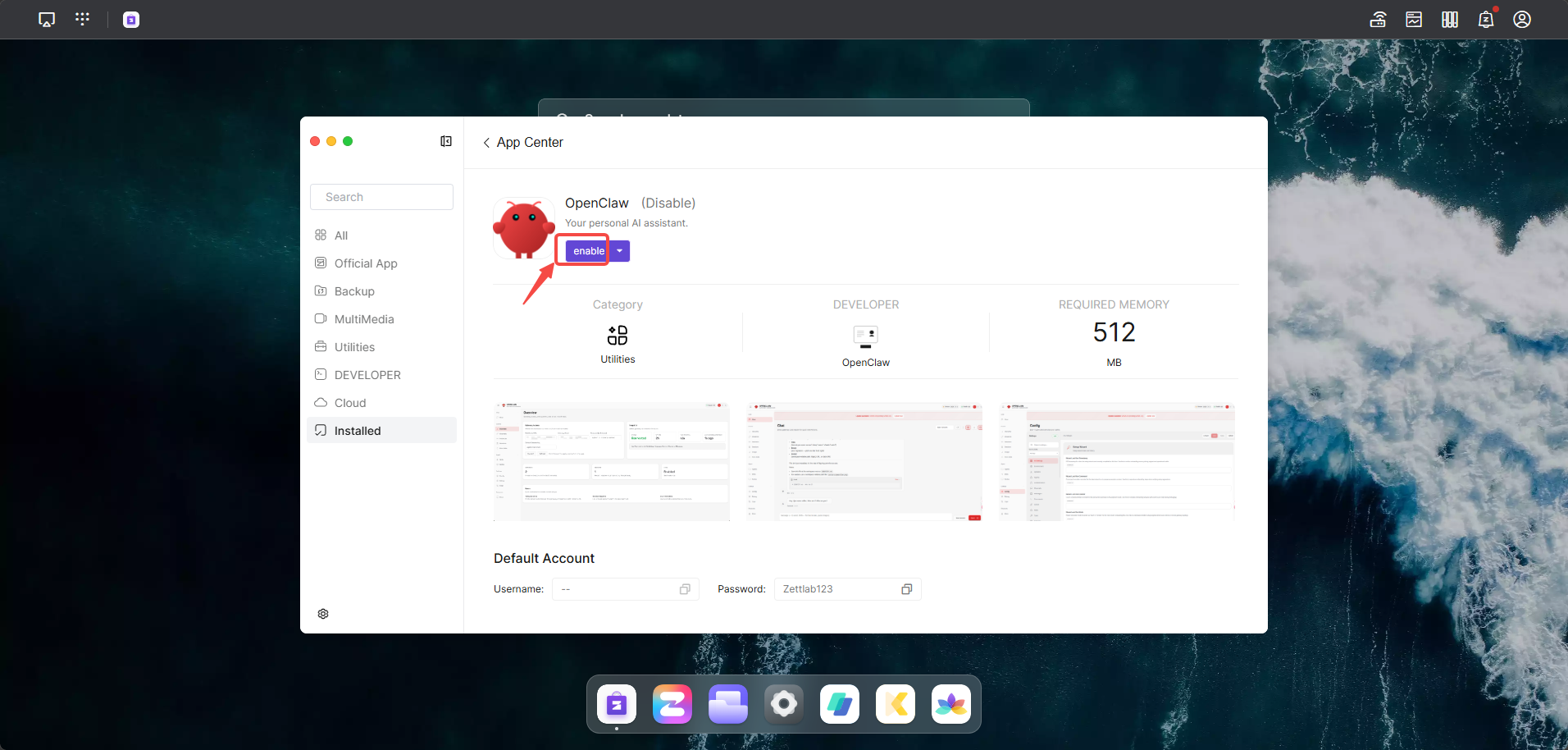
4 How to Switch Models
4.1 Modify openclaw.json
Modify the model in openclaw.json, then configure the corresponding apiKey to complete the model switch. 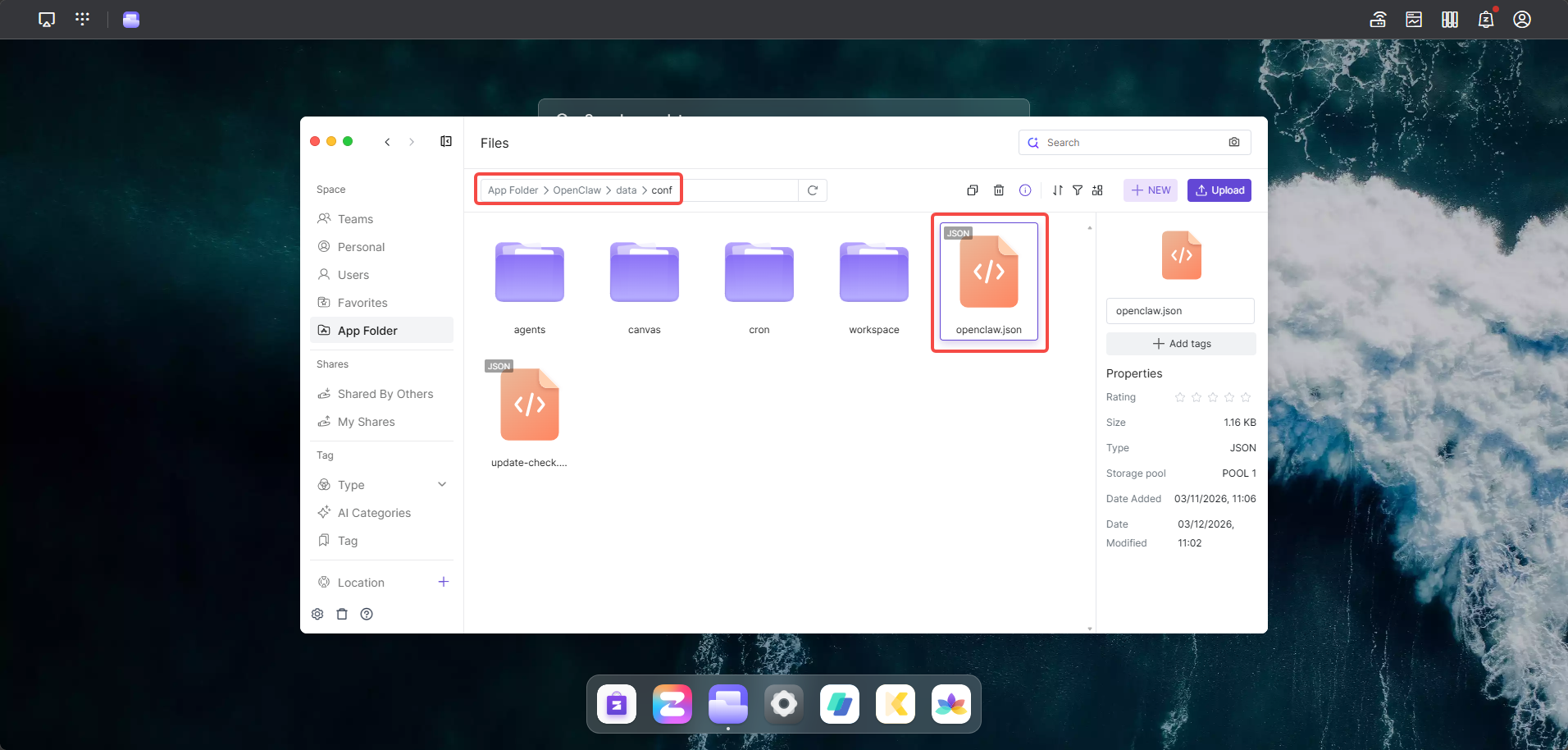
4.2 Switch via OpenClaw Container Shell Command
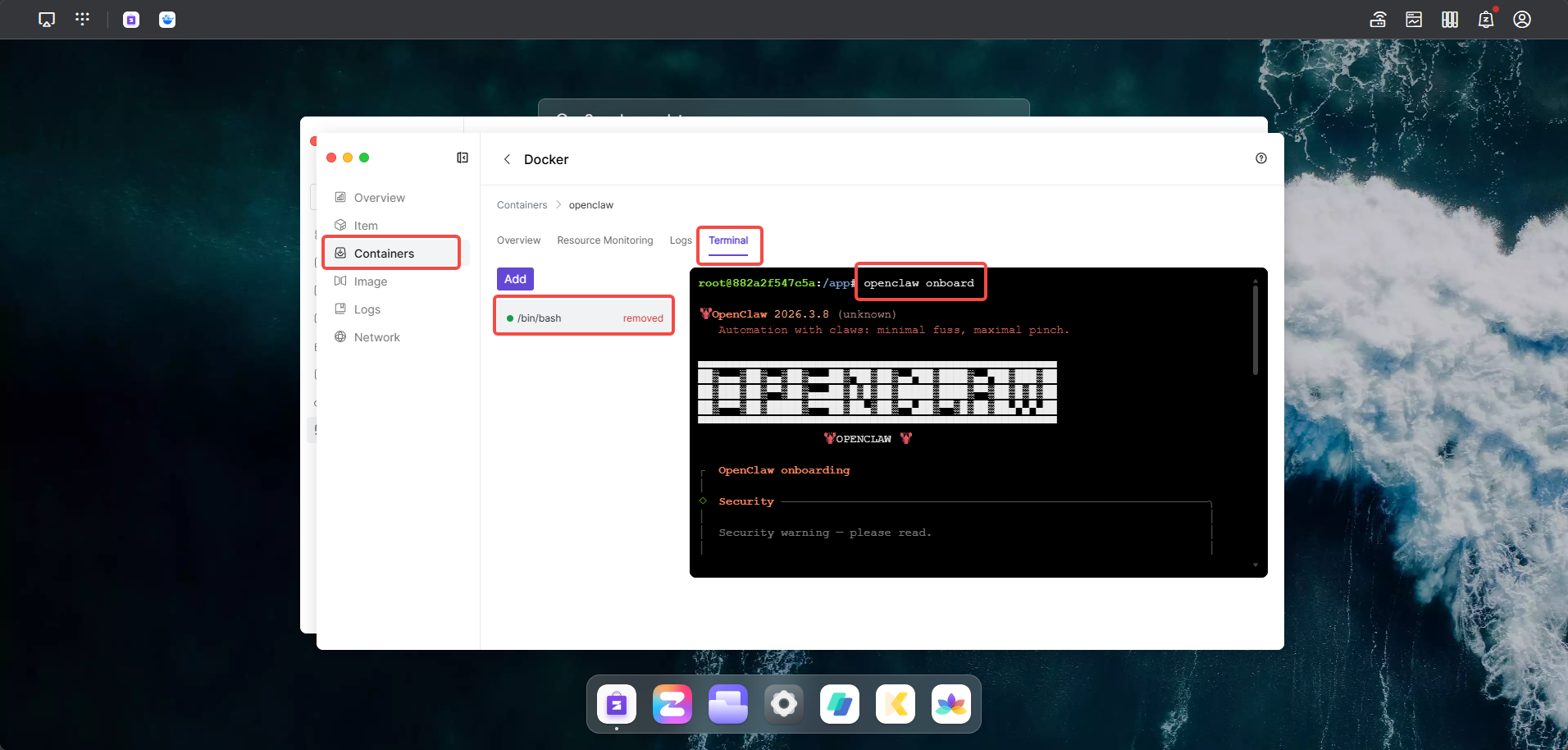
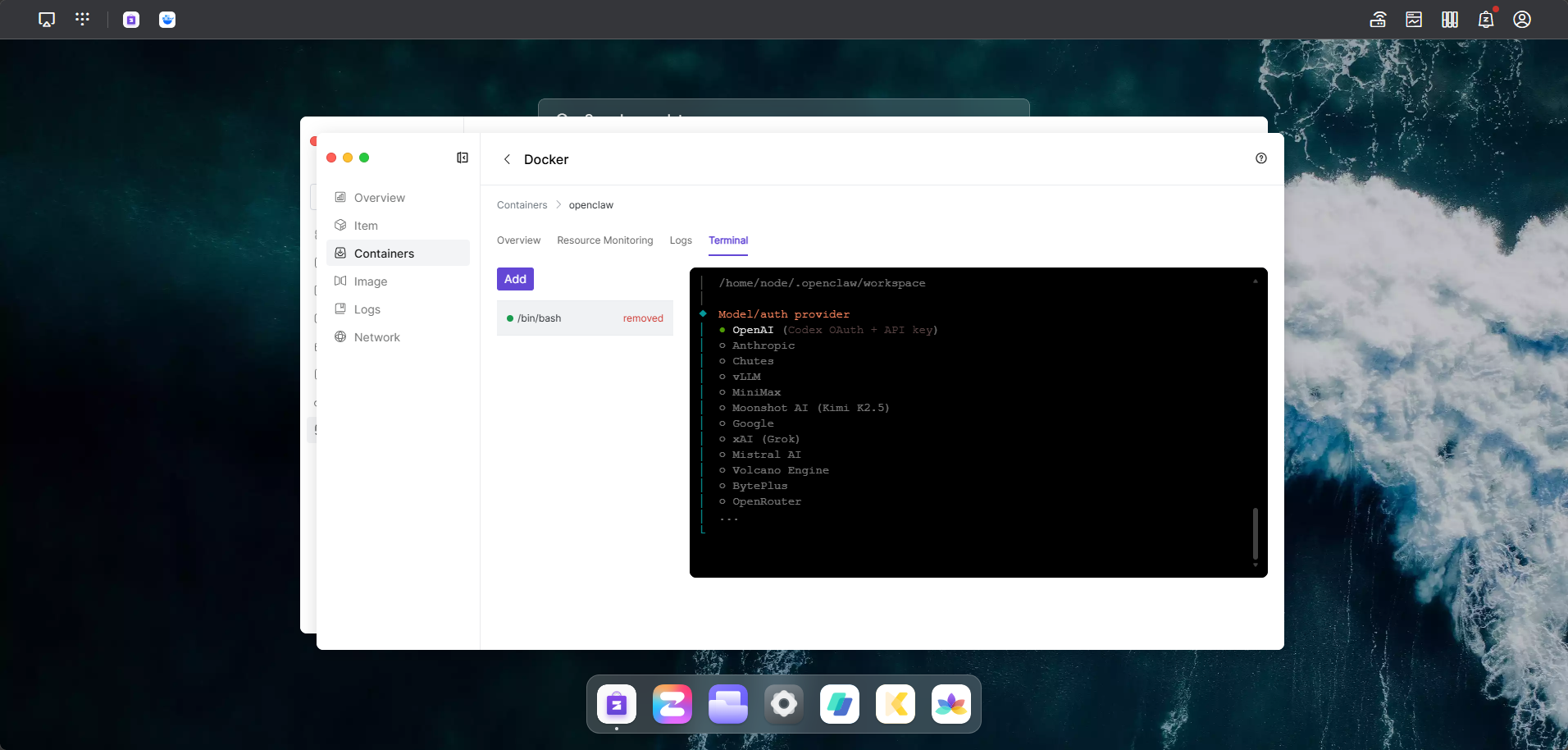
Go to [Container] on the left of Docker App, find openclaw, enter [Terminal], add a new terminal, enter /bin/bash to create a link; Enter the command openclaw onboard, then follow the corresponding instructions to switch to the corresponding model.