
Theater
Feature Overview
Adaptable to NAS local and network storage. Features grouped media library management, one-click automatic scraping of metadata (posters, season/episode info), and visual organization. Supports multi-device sync, HD decoding and playback, and efficient management of your home media library.
Create Media Library
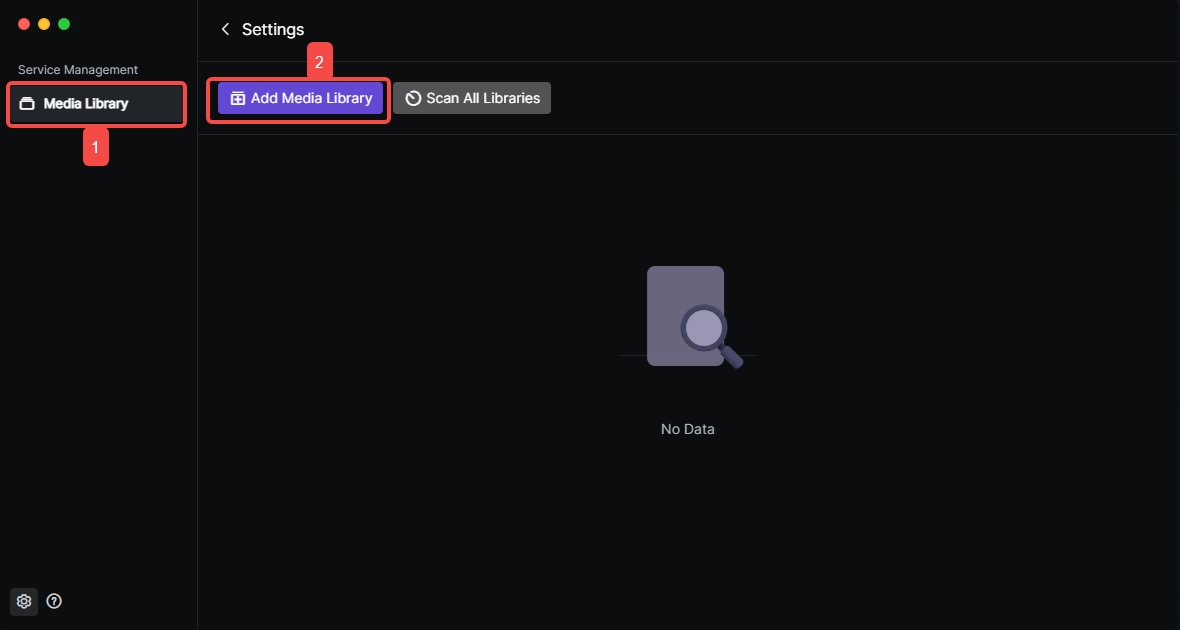
1.Open the "Theater" app and click the "Settings" button in the bottom left corner. 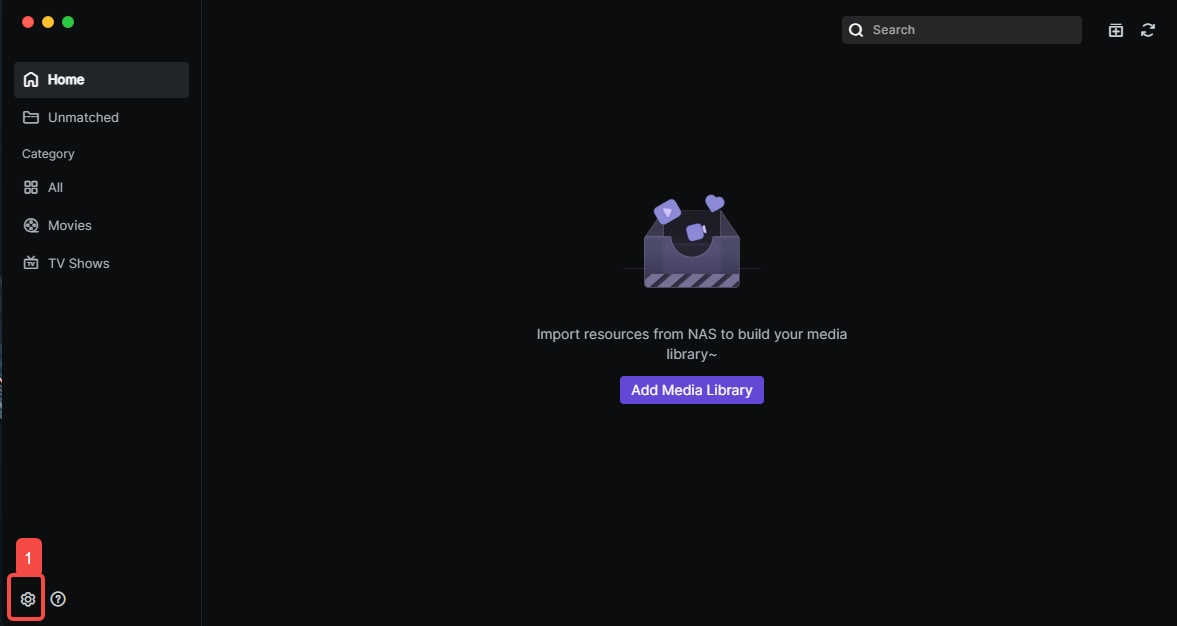 2.In the settings menu, click "Media Library" > "Add Media Library" to go to the configuration page.
  3.Enter the library name in the "Library Name" field (e.g., Variety Shows, TV Series). 4.Click the "Add" button in the "Media Folders" field and select the folder storing your video resources.
 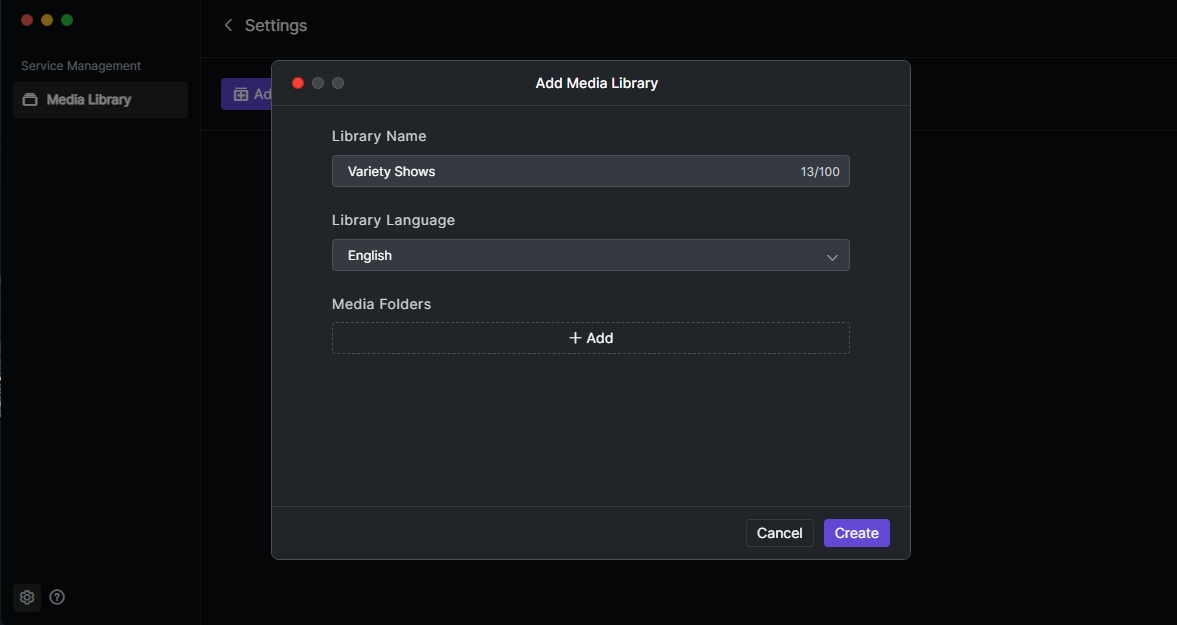 5.After confirming all settings, click "Create" to save. The system will start scanning and synchronizing resources in the library.
Scan Media Library
When new videos are added to the library folder or configuration is modified, you can rescan to get new video information. 1.Select the corresponding library, click "..." > "Scan". The system will start scanning and synchronizing resources. 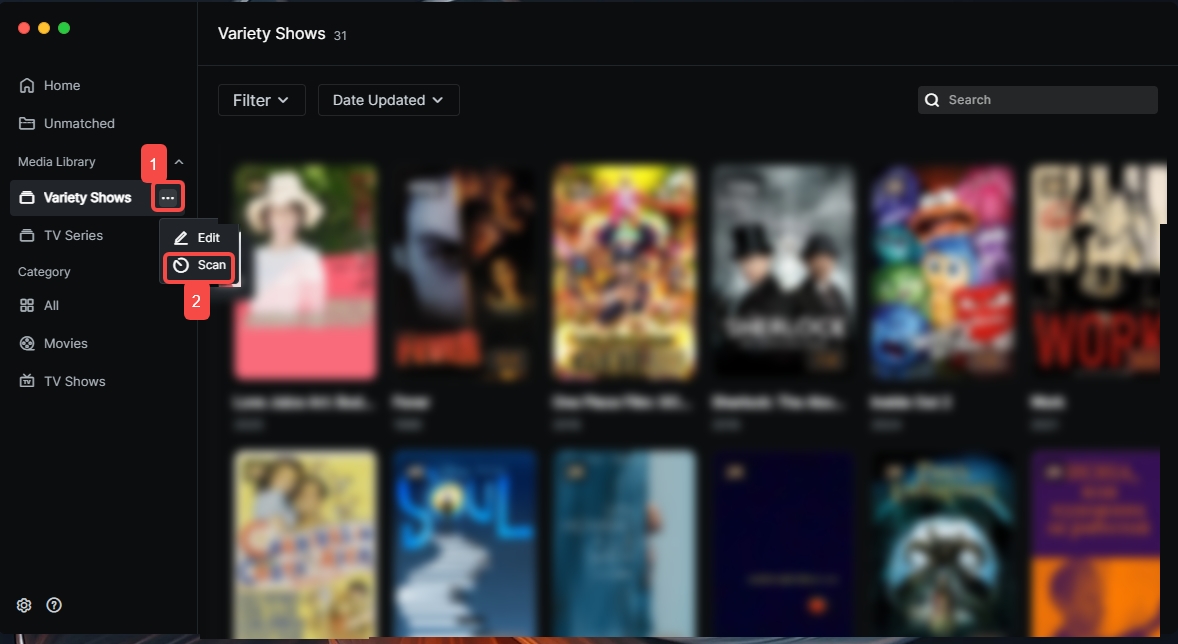
Delete Media Library
1.Open the "Theater" app and click the "Settings" button in the bottom left corner. 2.In the settings menu, click "Media Library", select the corresponding library, and click "Delete". 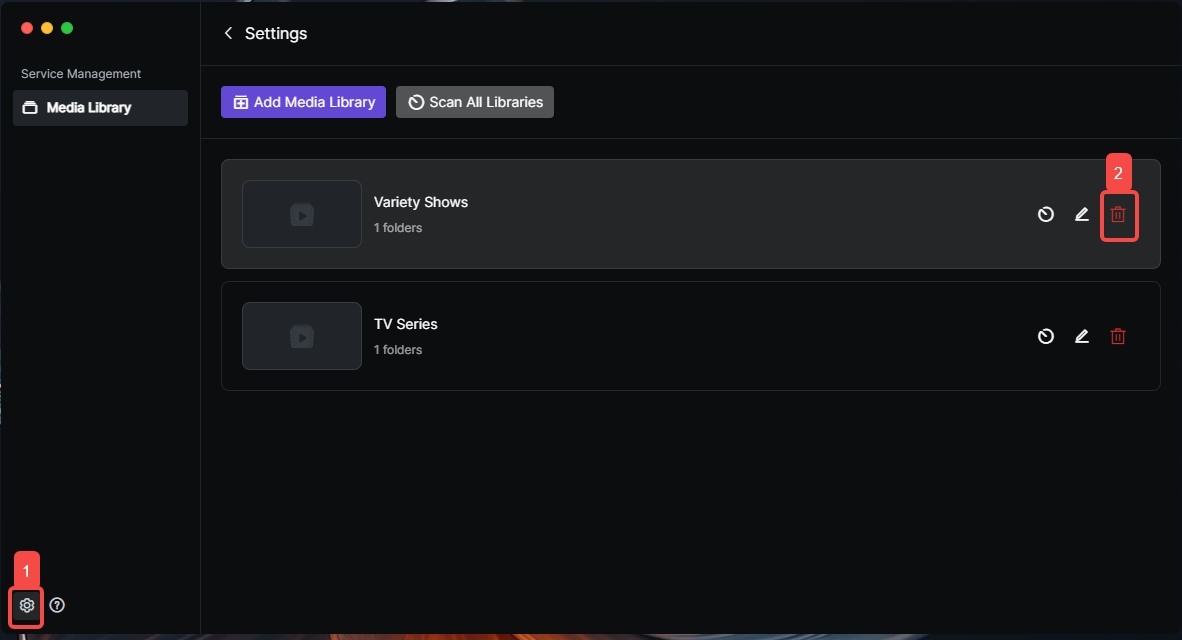
3.Click "Confirm" 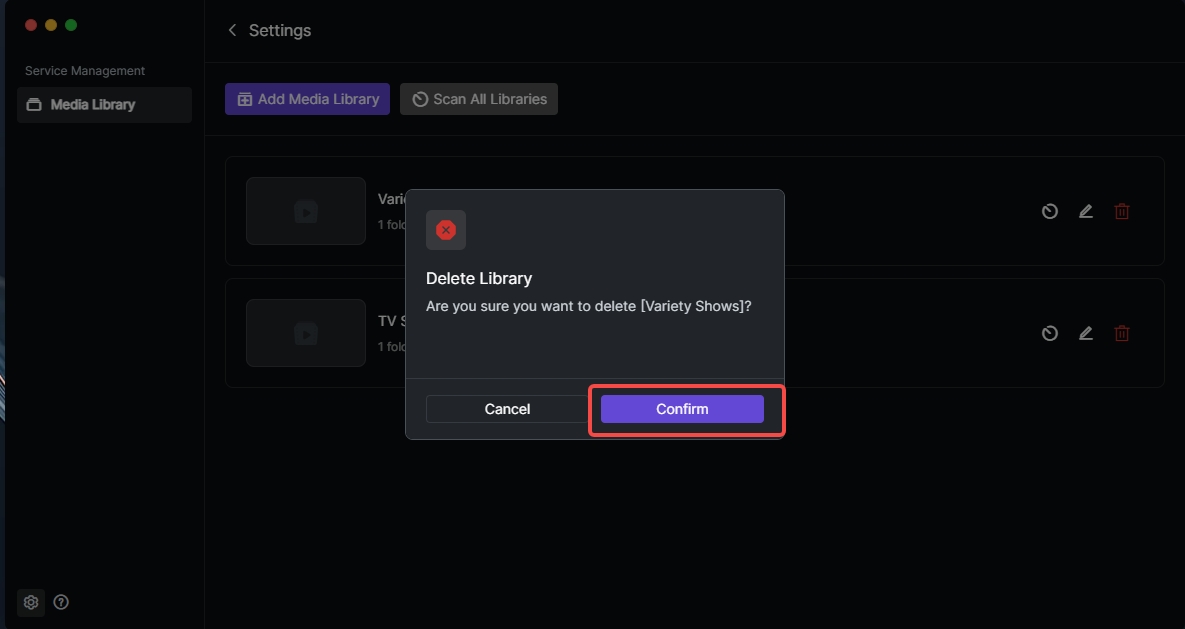
Home
After creating a library and importing video files, Theater automatically matches HD posters and full video info (director, cast, plot, etc.) via TMDB metadata scraping, giving your personal library a professional look. Continue Watching:Quickly review recently played videos and continue watching. 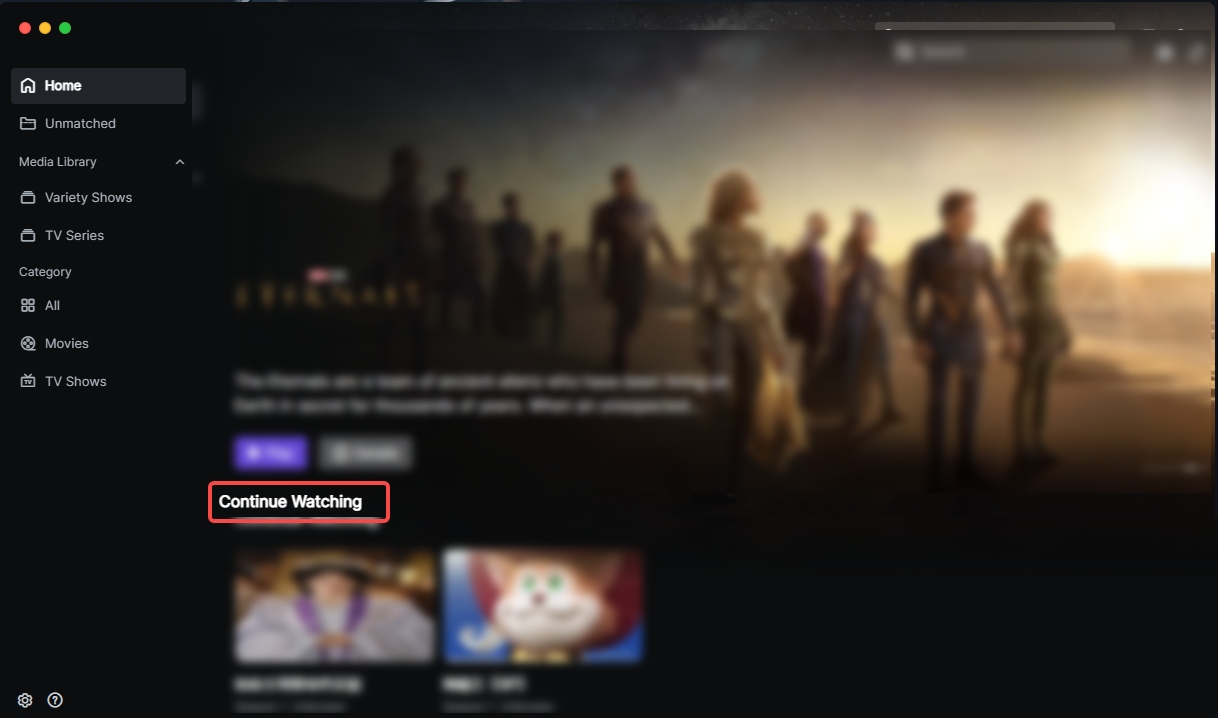
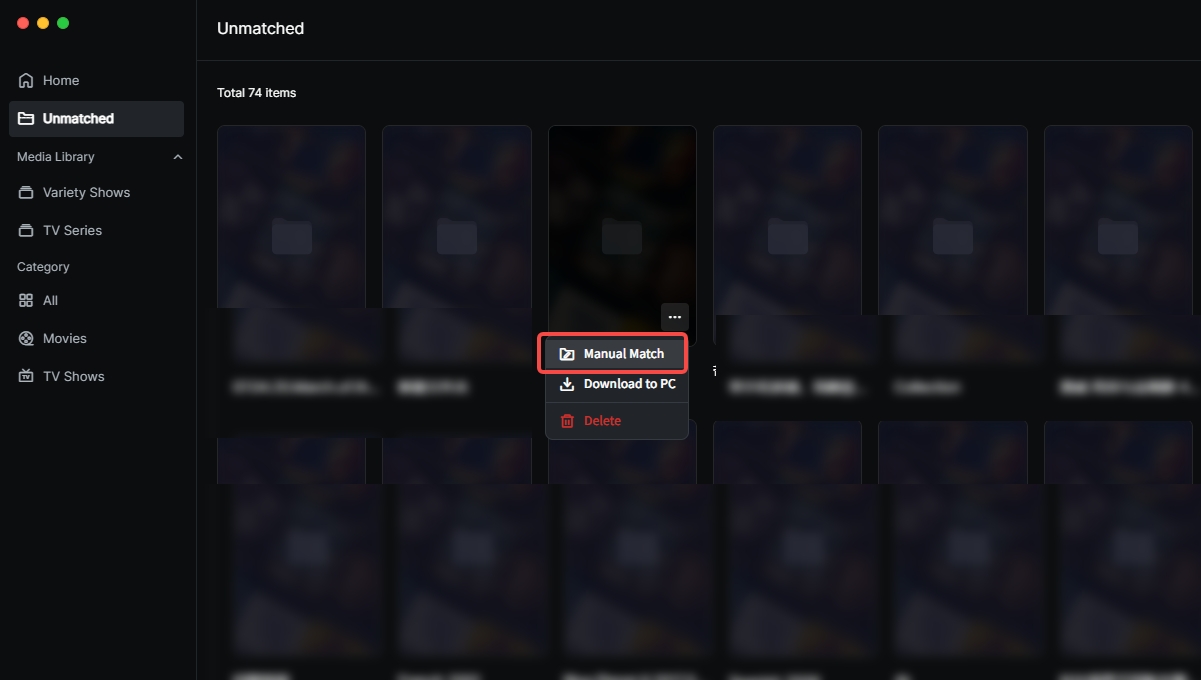
Unmatched:Stores video files that failed automatic identification. Supports manual matching to perfect the poster wall. 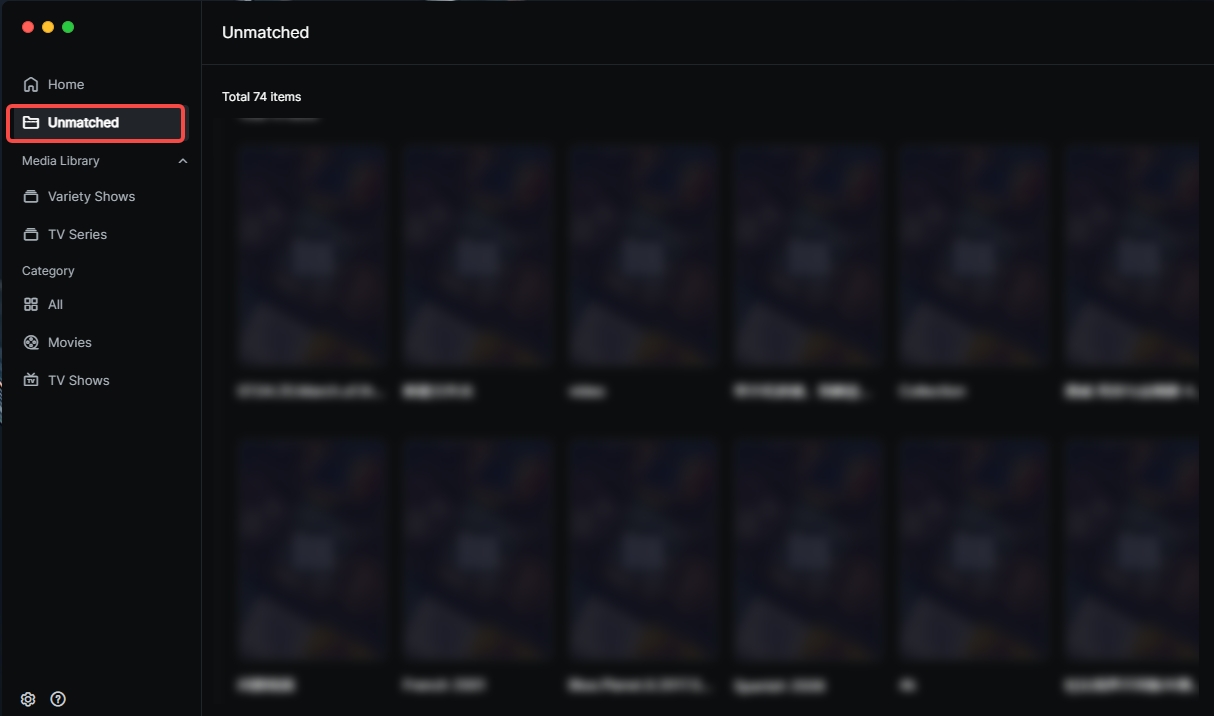
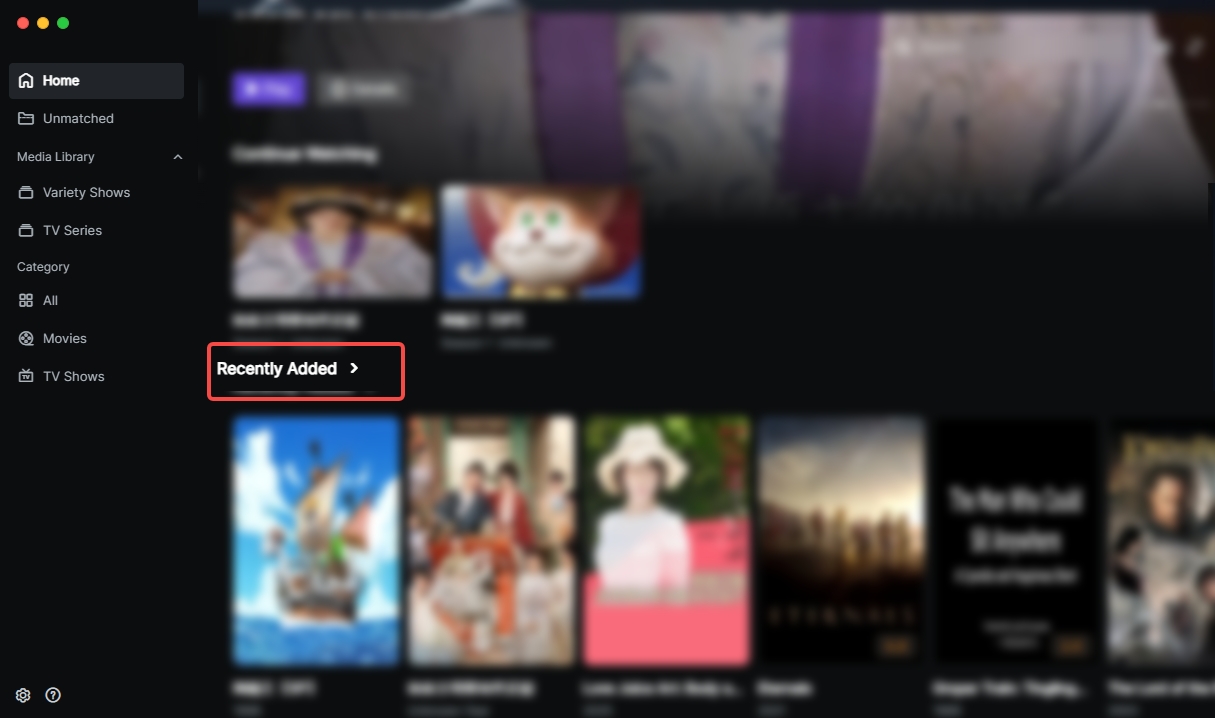
 Recently Added: View video resources recently added to the library. Click "Recently Added" to jump to the All page.
  Multi-dimension Classification:Organizes resources by Movies and TV Shows categories to help users find content efficiently.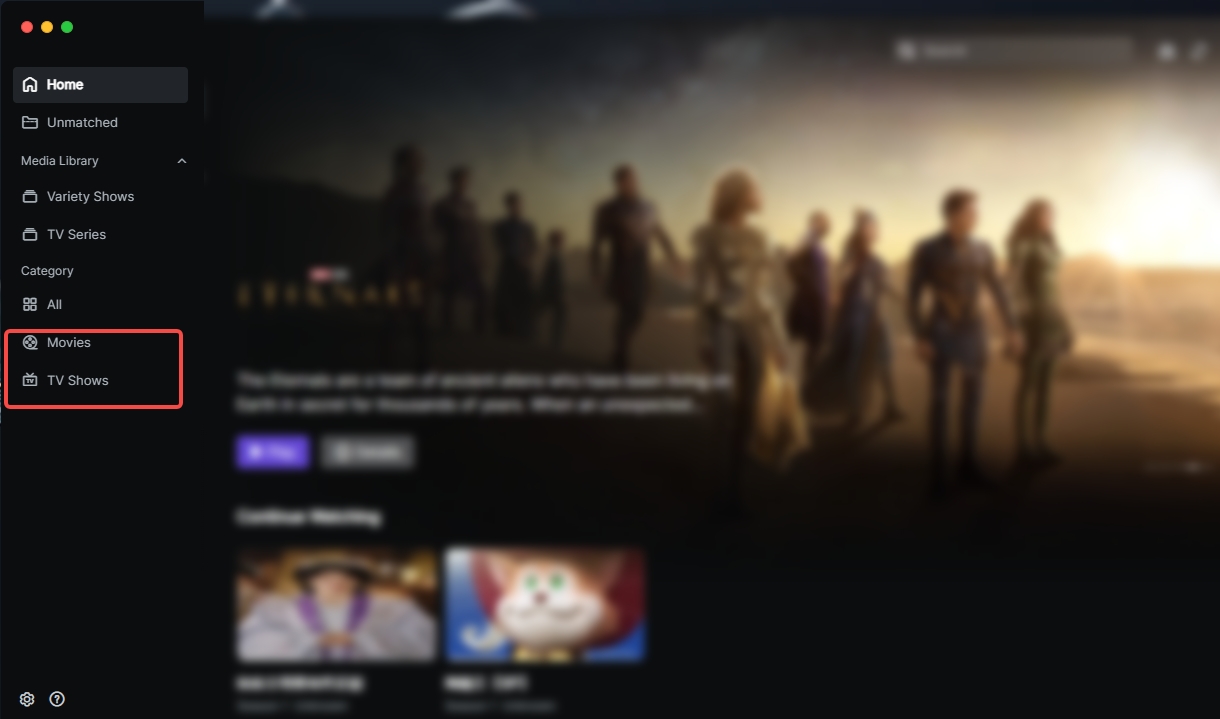
Search
Theater features a prominent search button in the top right corner, allowing you to enter keywords to locate relevant resources anytime. 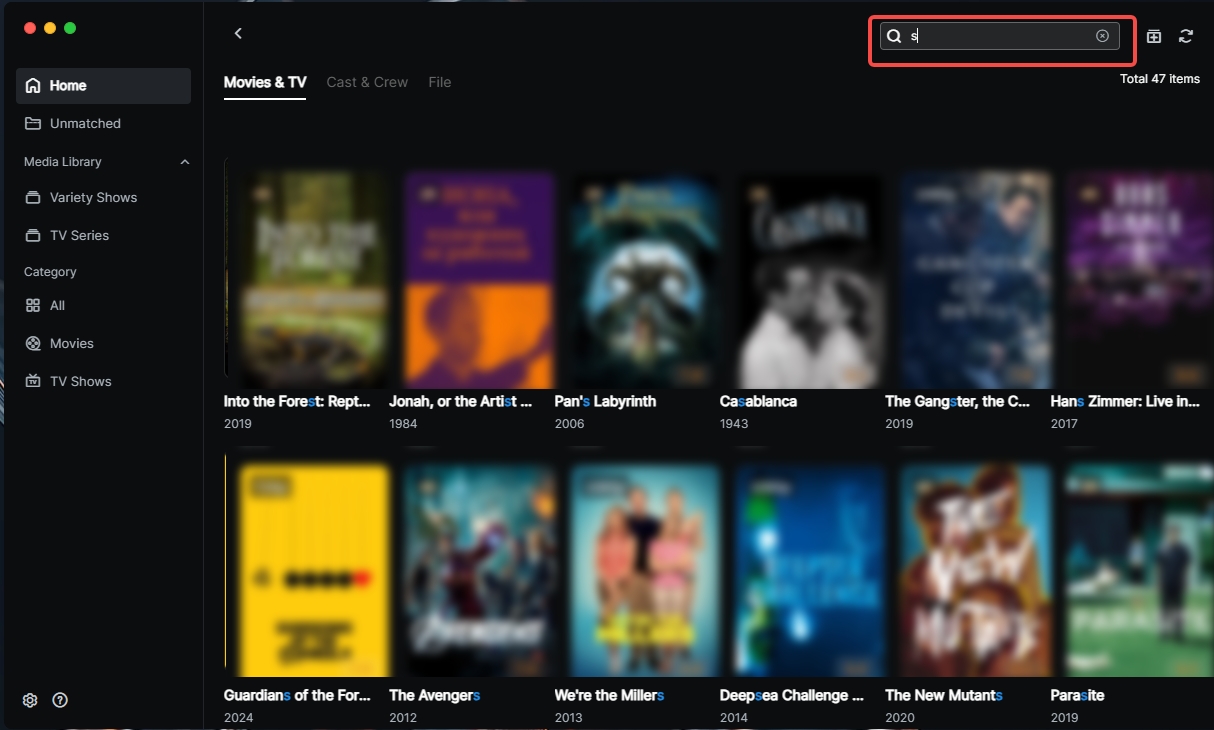
Filter & Sort
Filter Function: Provides six categories of tags: Status, Progress, Style, Region, Year, and Genre for quick filtering. 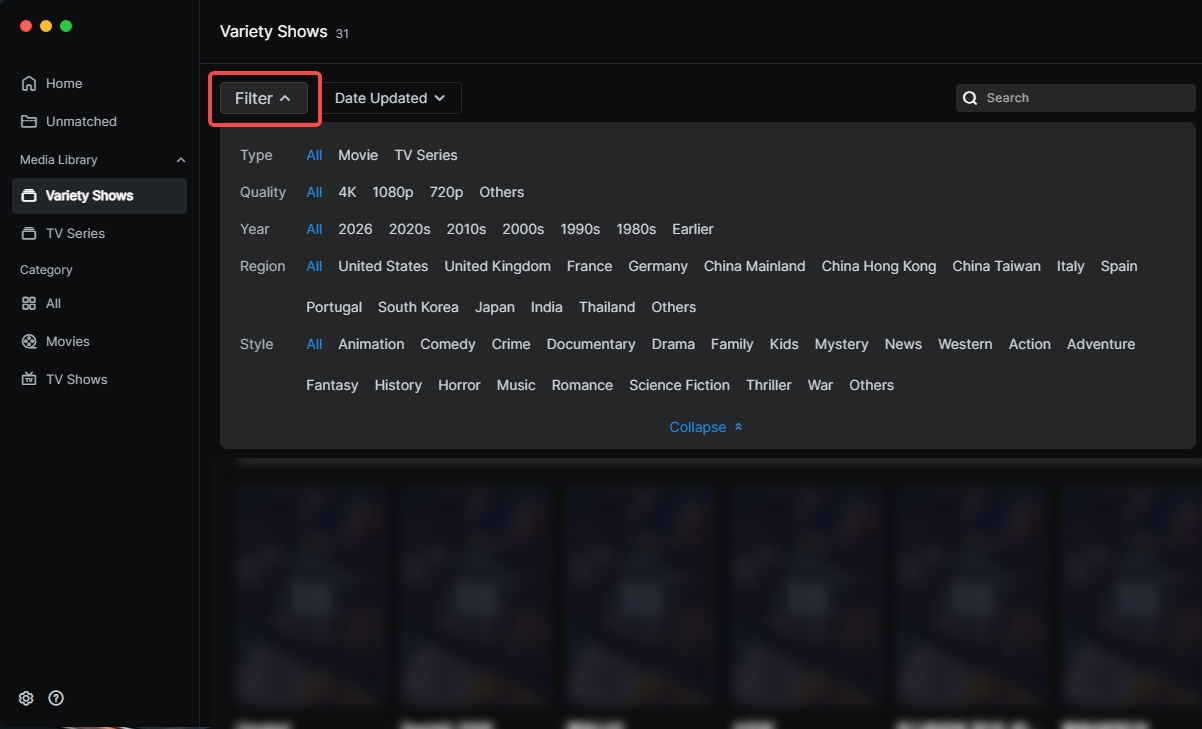 Sort Function:Supports sorting by Name, Date Added, Date Updated,Release Date, and Rating. You can choose Ascending/Descending order for personalized management.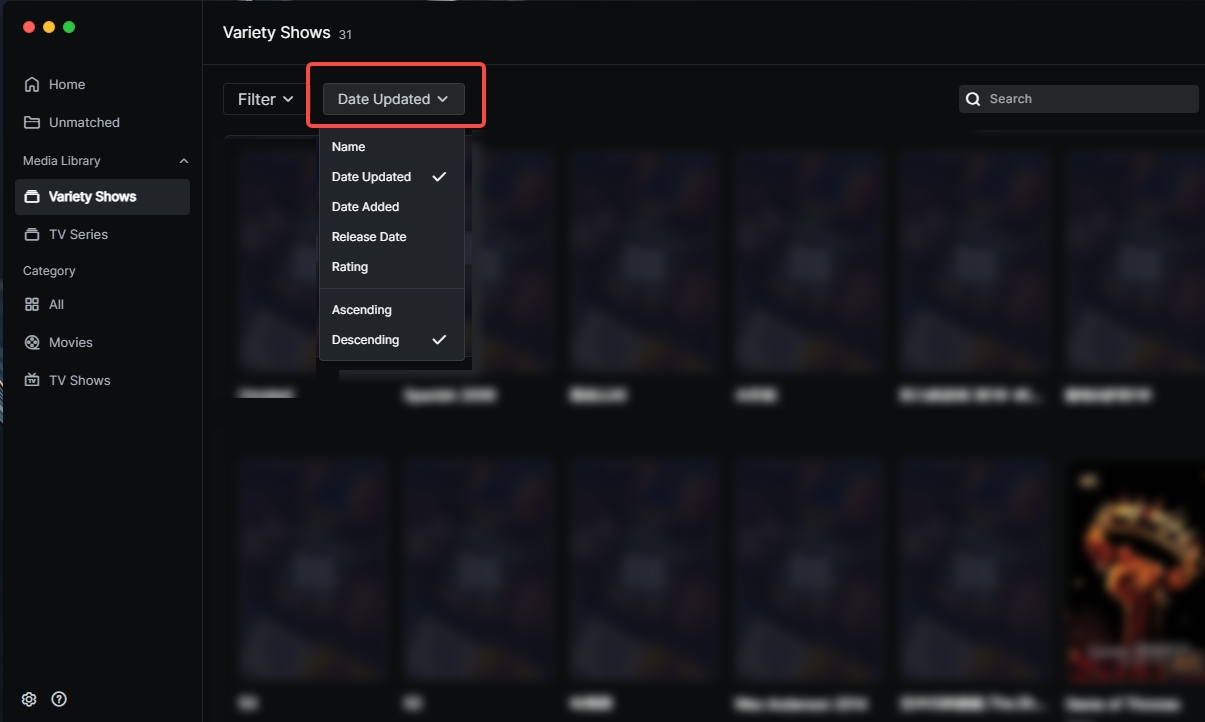
Video Details
Movie Details: Displays Title, Score, Year, Genre, Region, Duration, Summary, Cast&Crew, Quality, Dynamic Range, File Path, etc. 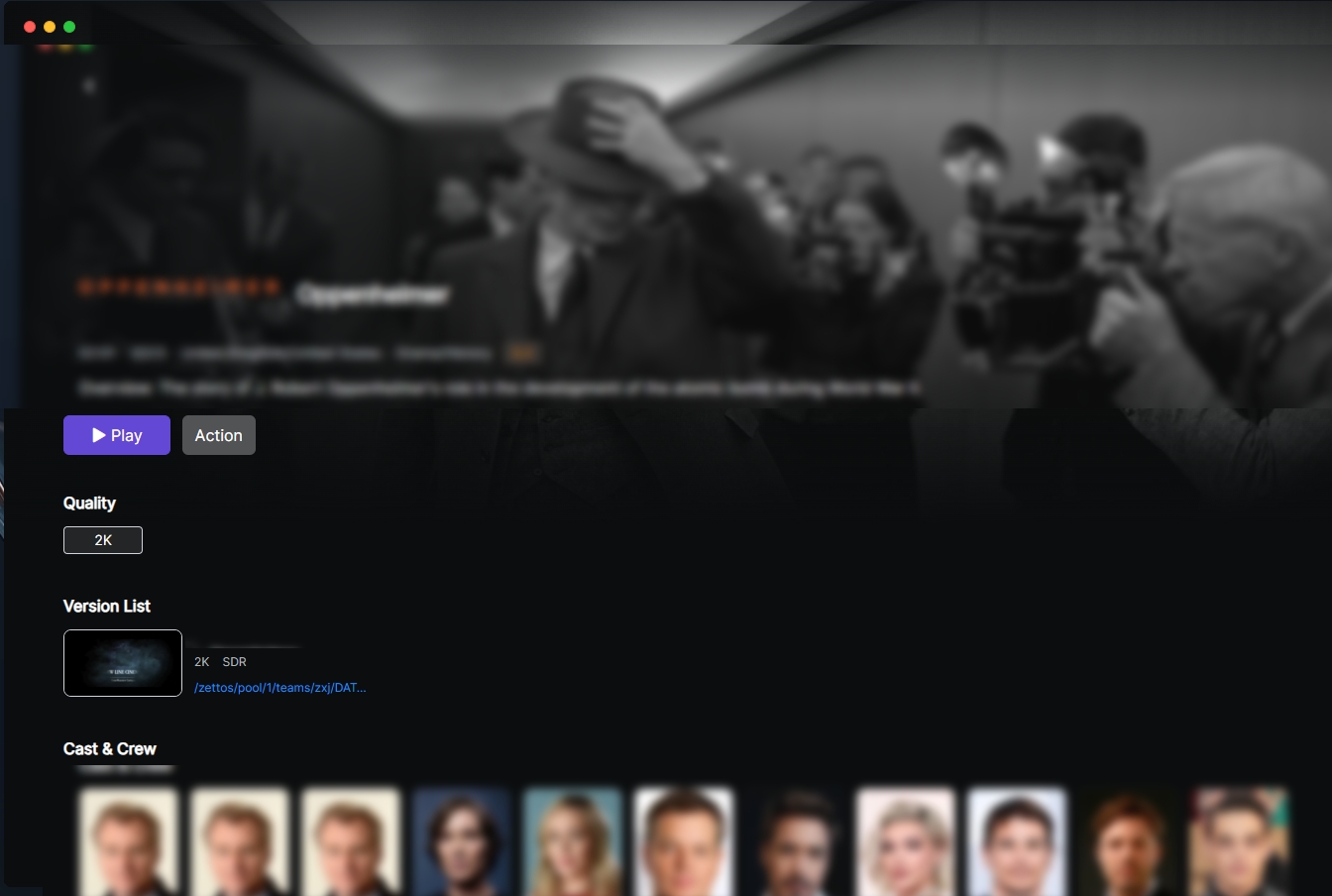 TV Show Details: Displays episode titles, summaries, and covers. Supports switching display modes (Summary/Episodes).
 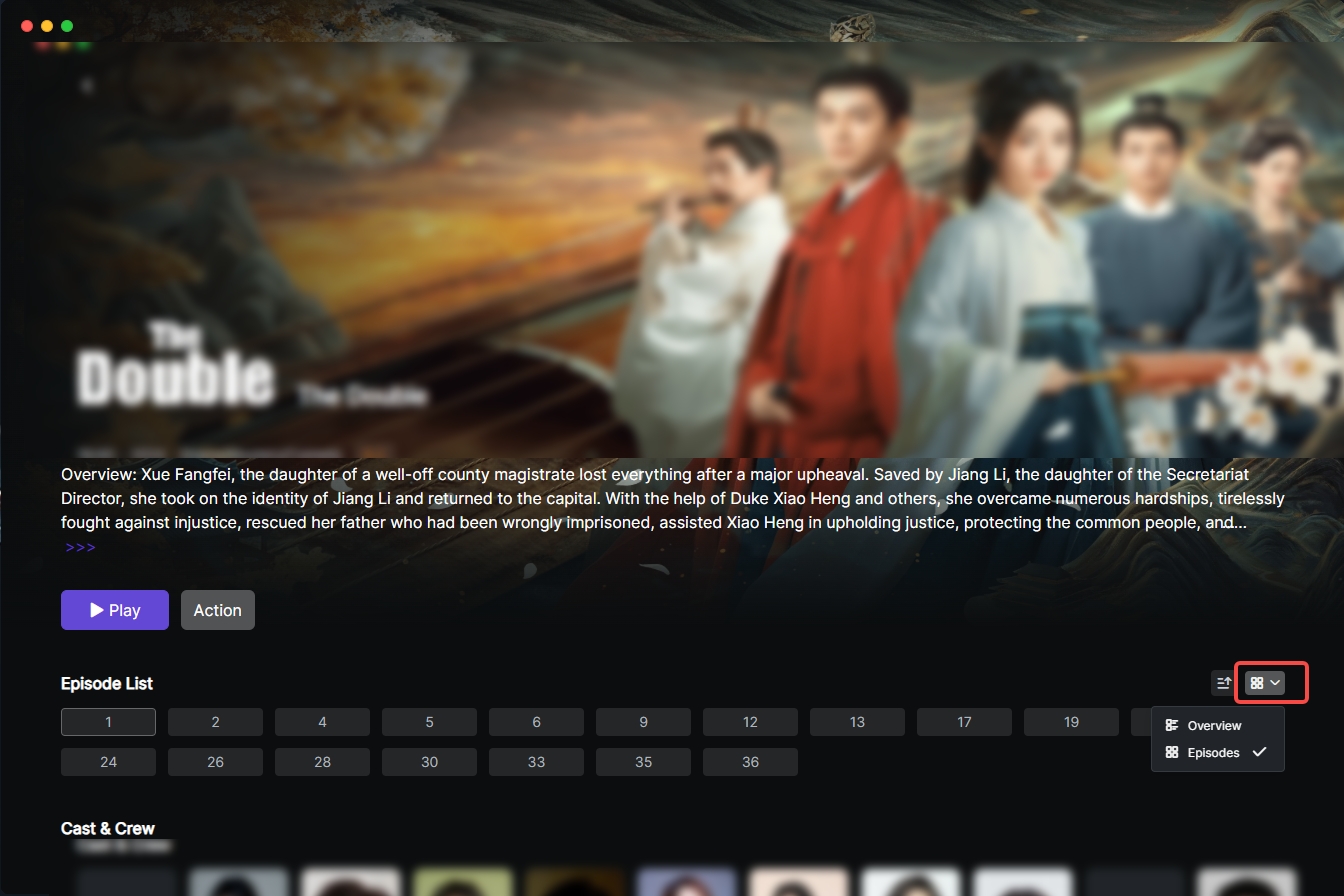 Cast Details: Click on an actor's image or name to view their detailed profile and browse other movies they are in.
Modify Poster Info
If the matched info is incorrect or unmatched, you can perform "Manual Match" on the detail page or unmatched page. 1.Click the video to enter details or go to the Unmatched tab, select the folder, click "Action" or "...", then click "Manual Match". 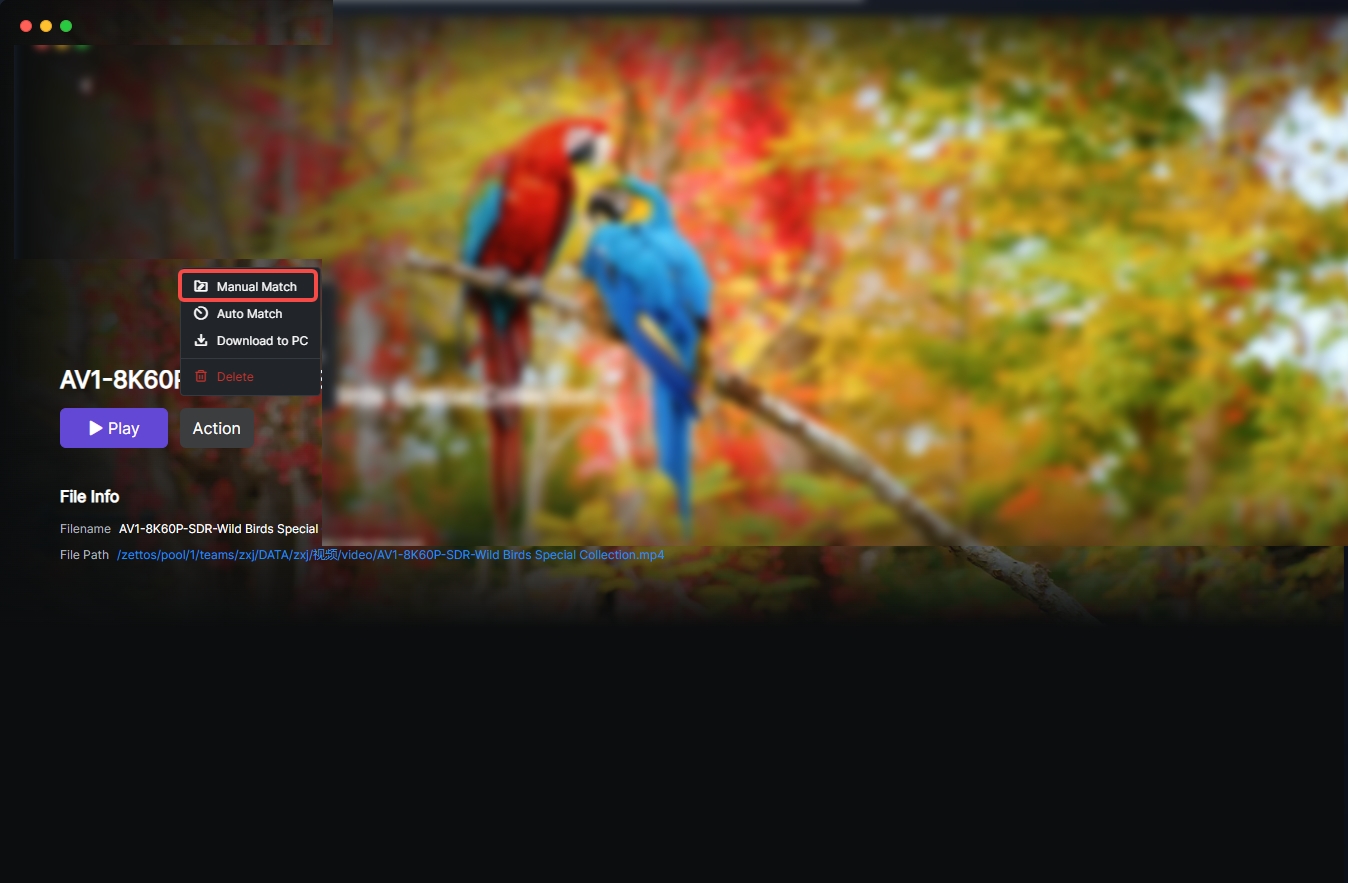 2. Enter the video name and click "Search". Movies: Wait for the list, select the correct movie, click "Confirm".
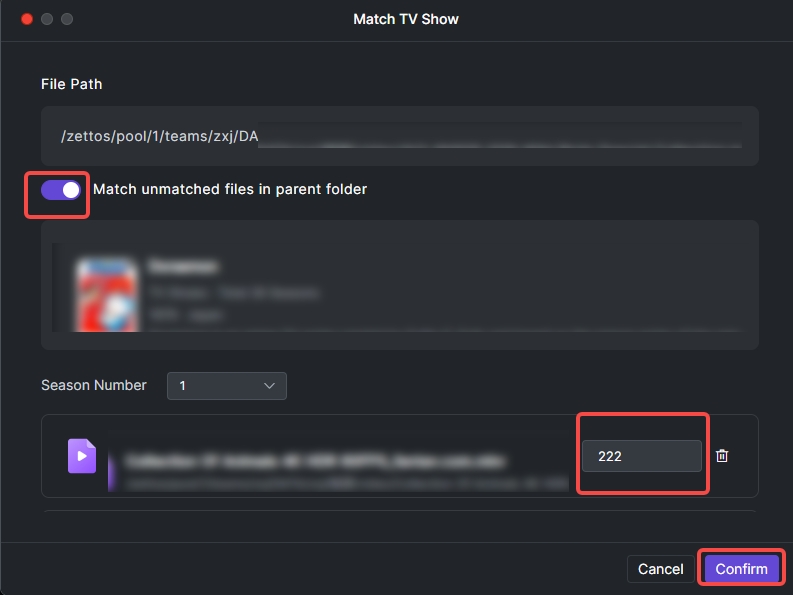
 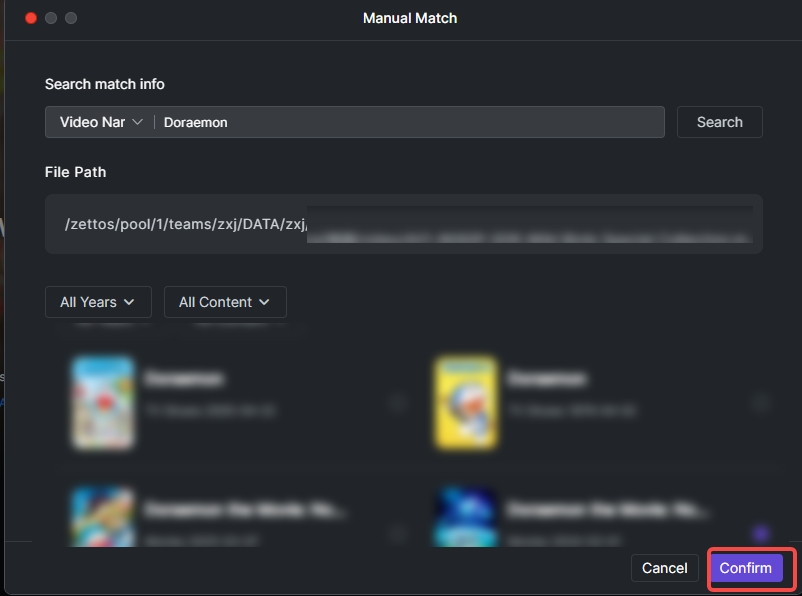 TV Shows: Wait for the list, select the correct show, click "Continue". Supports one-click matching for unmatched files in parent folders and manual modification of episode numbers. Click "Confirm" after modification.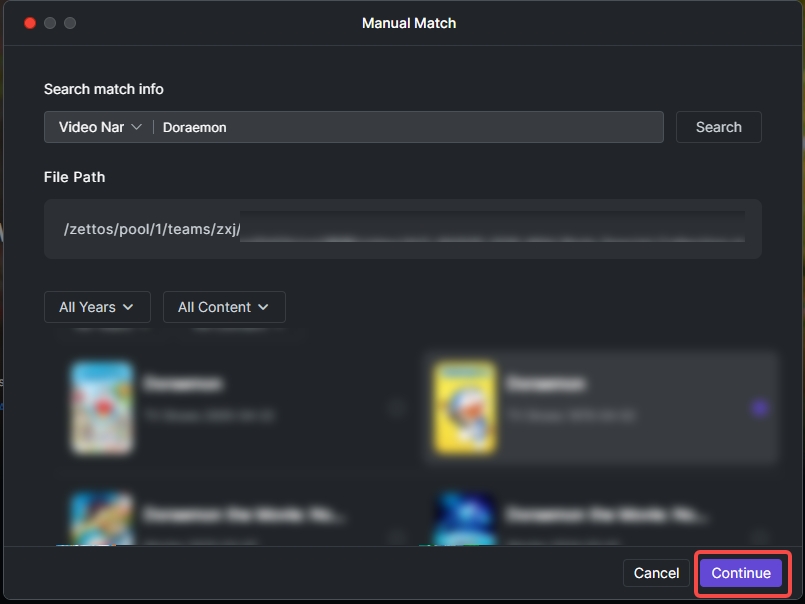
Delete Video
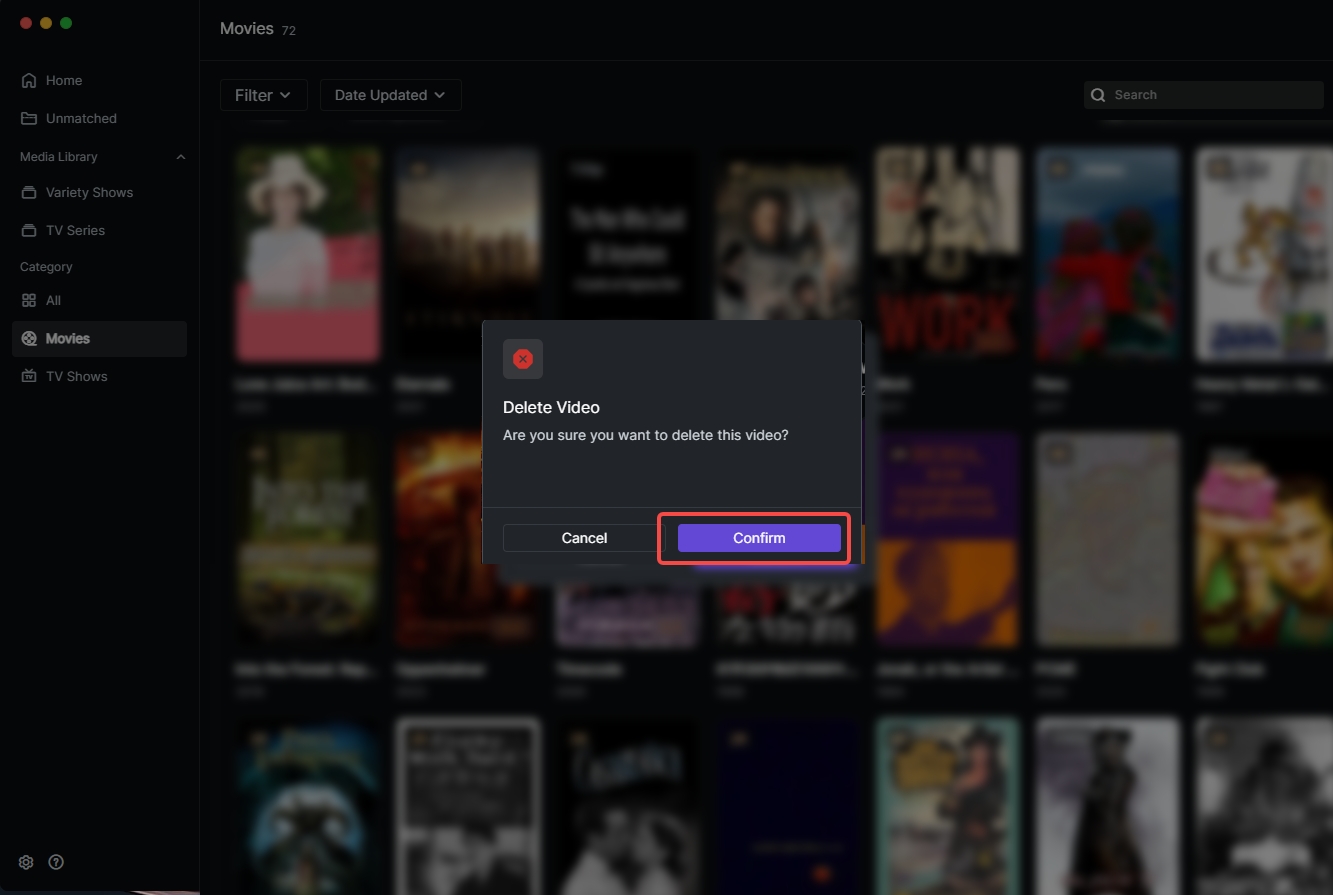
Hover over a poster card, click "..." > "Delete" > "Confirm". Deleted files are removed from the library only and do not affect source files. 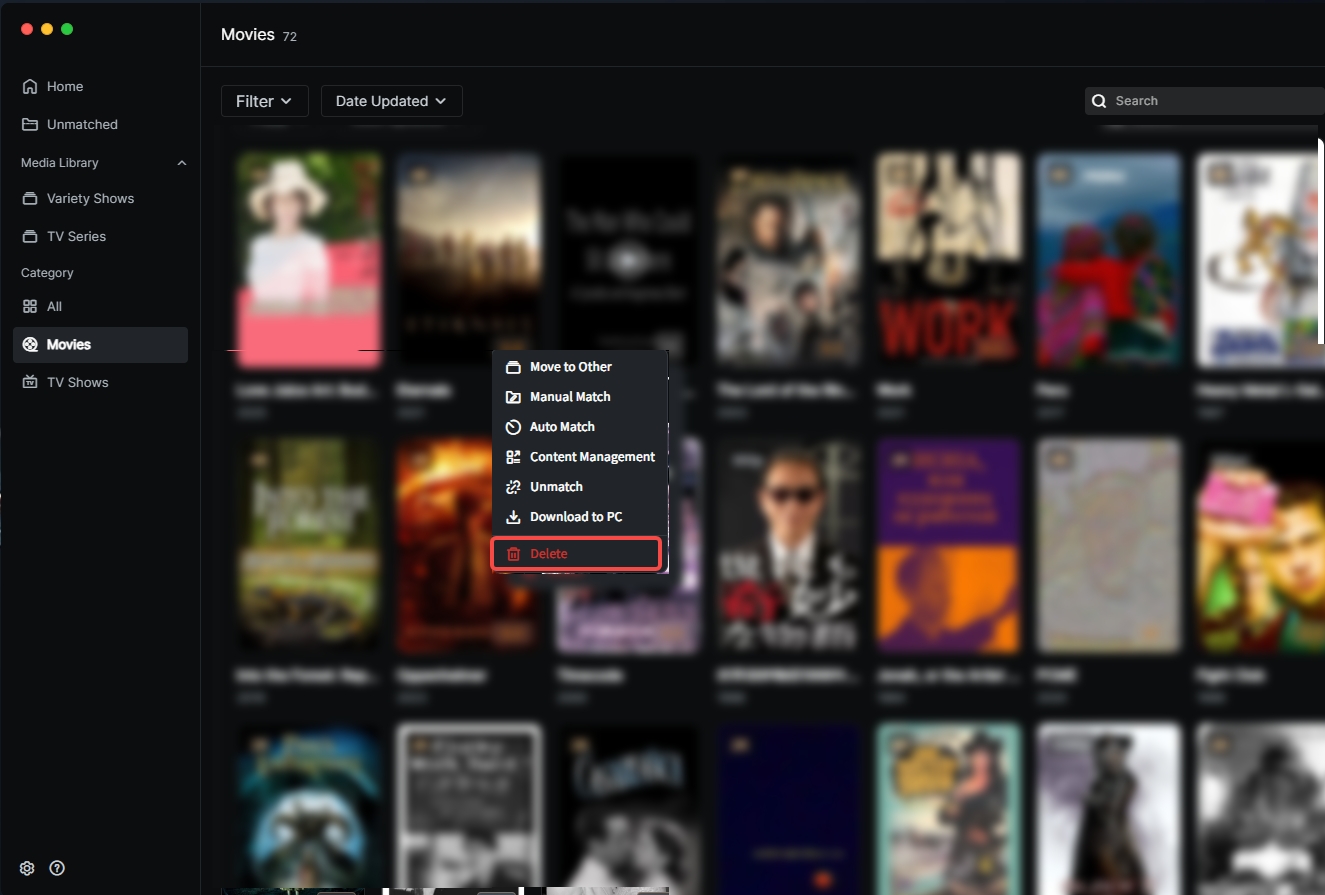
Organize Videos
Adjust Episodes:
1.Hover over a poster card, click "..." > "Content Management" to enter the popup. 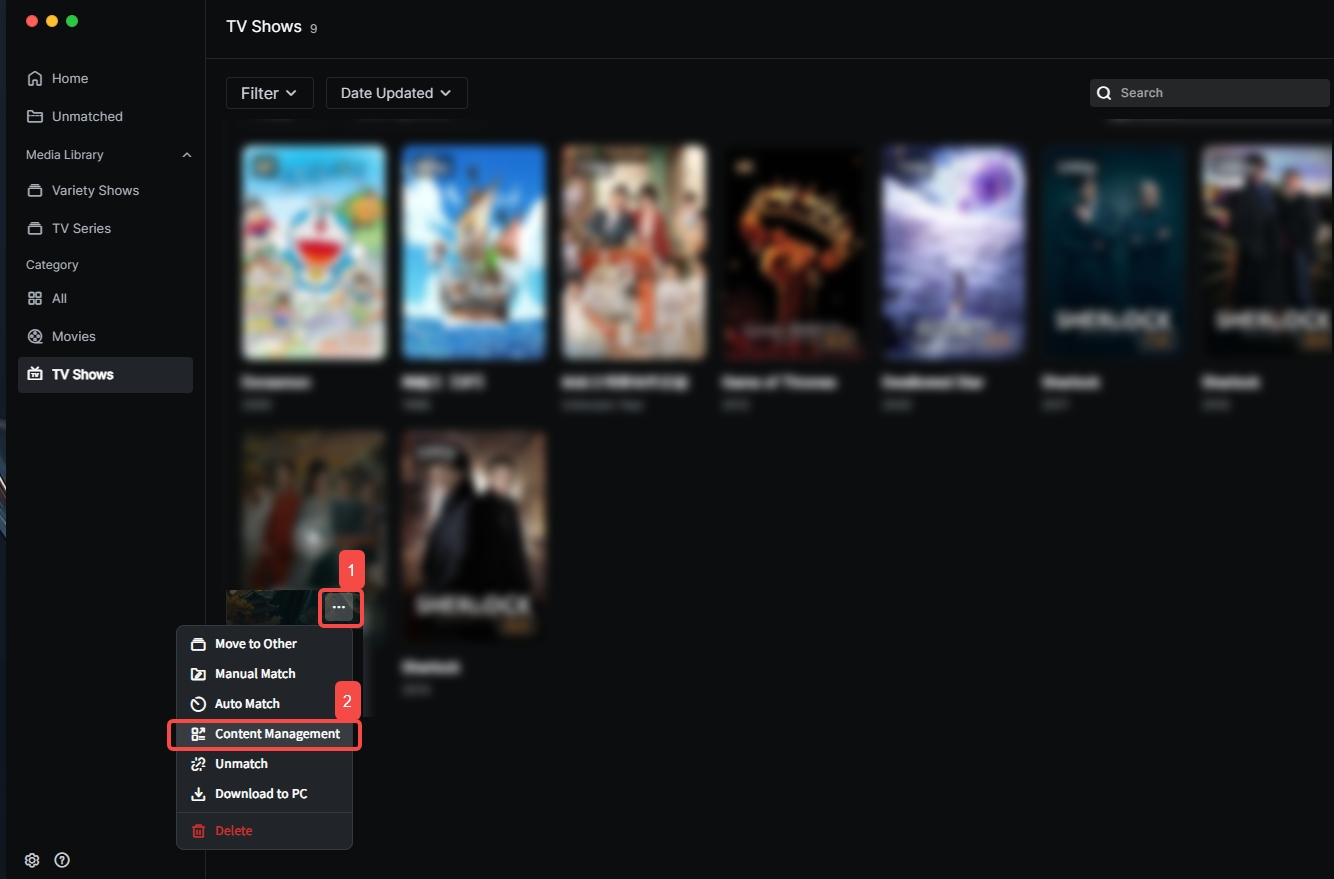 2.Select the episode, enter the number in the range, and complete the adjustment.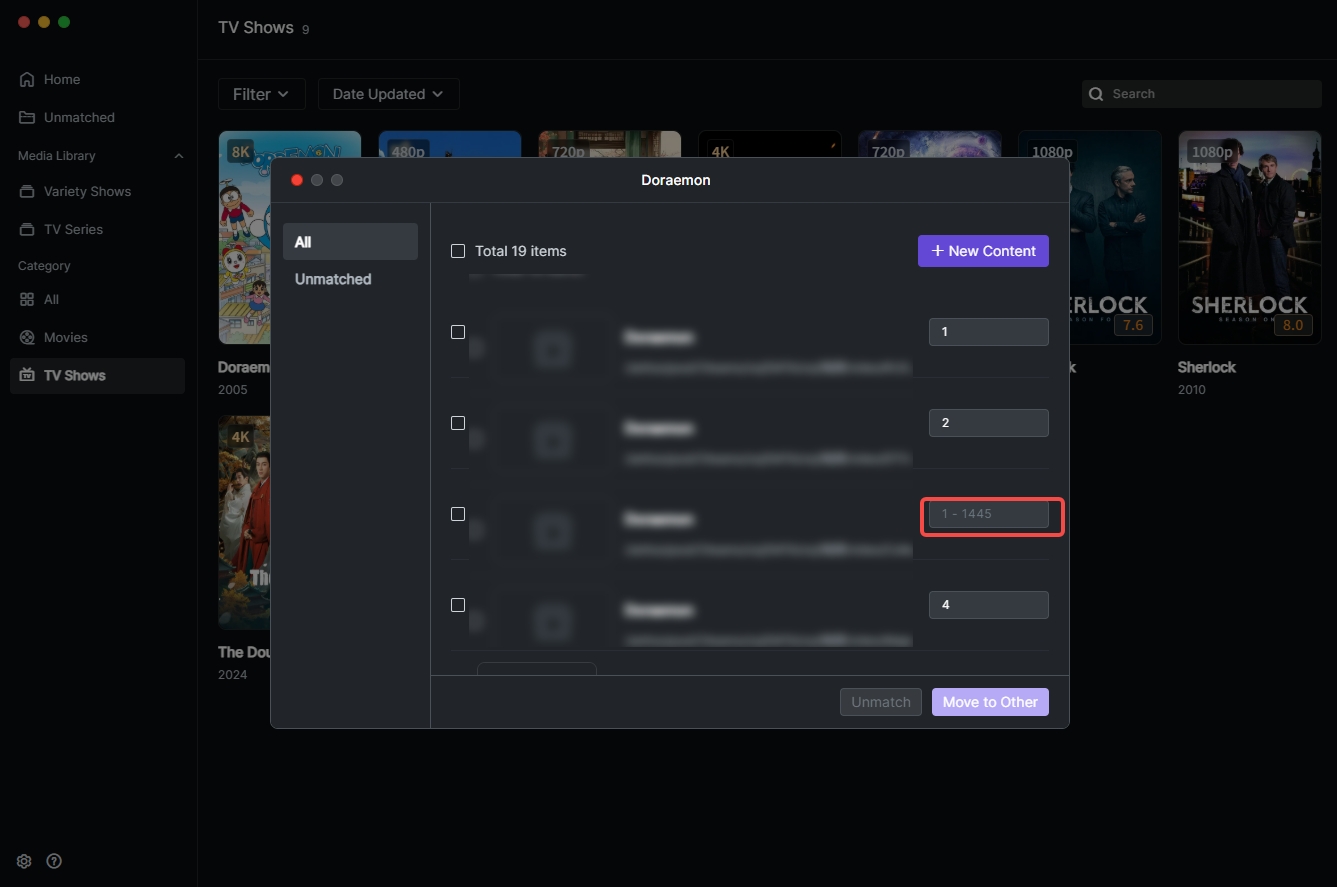
Download to PC:
1.Hover over a poster card, click "..." > "Download to PC". 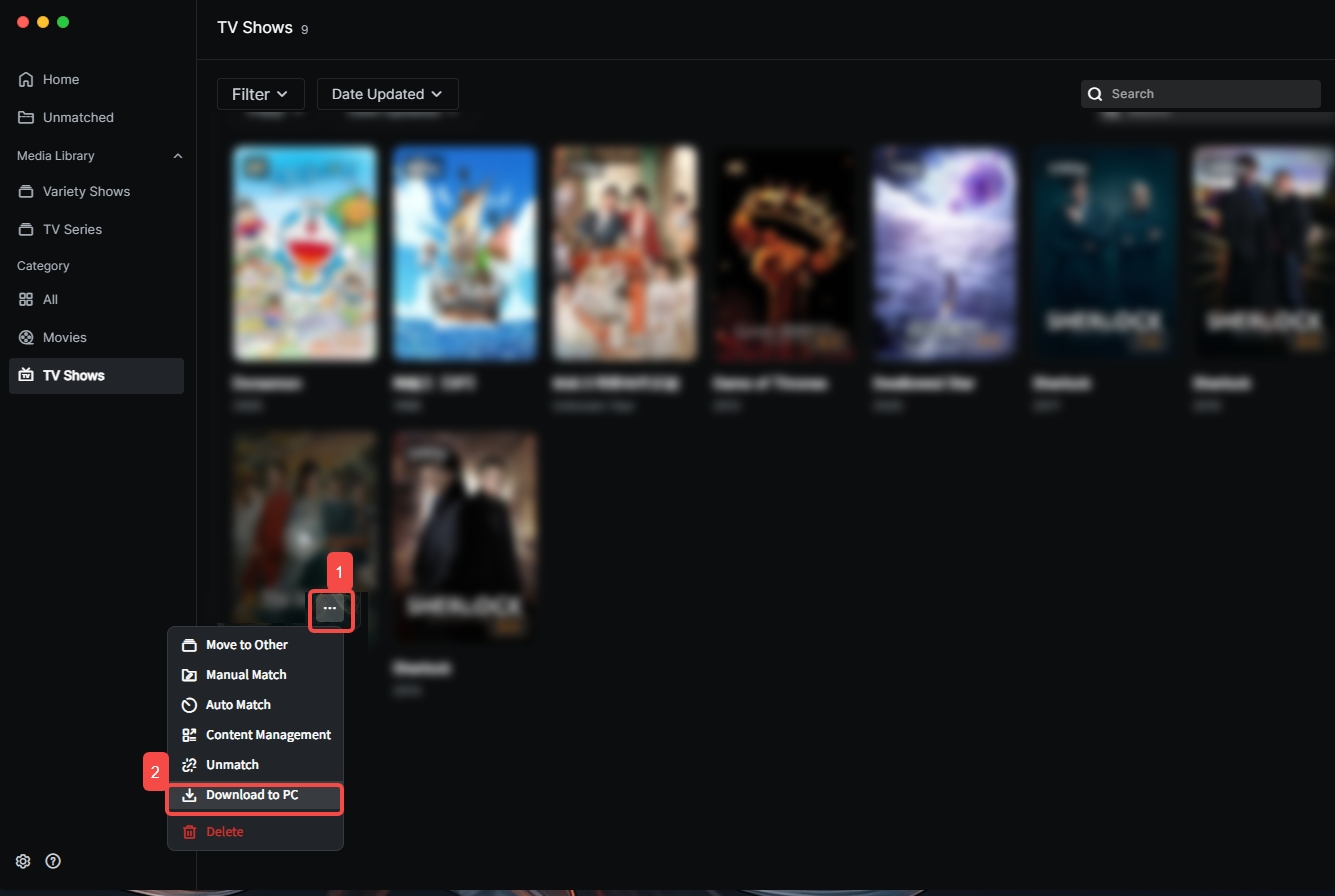
2.Check the videos to download and click "Download". You will get a zip file named after the video. 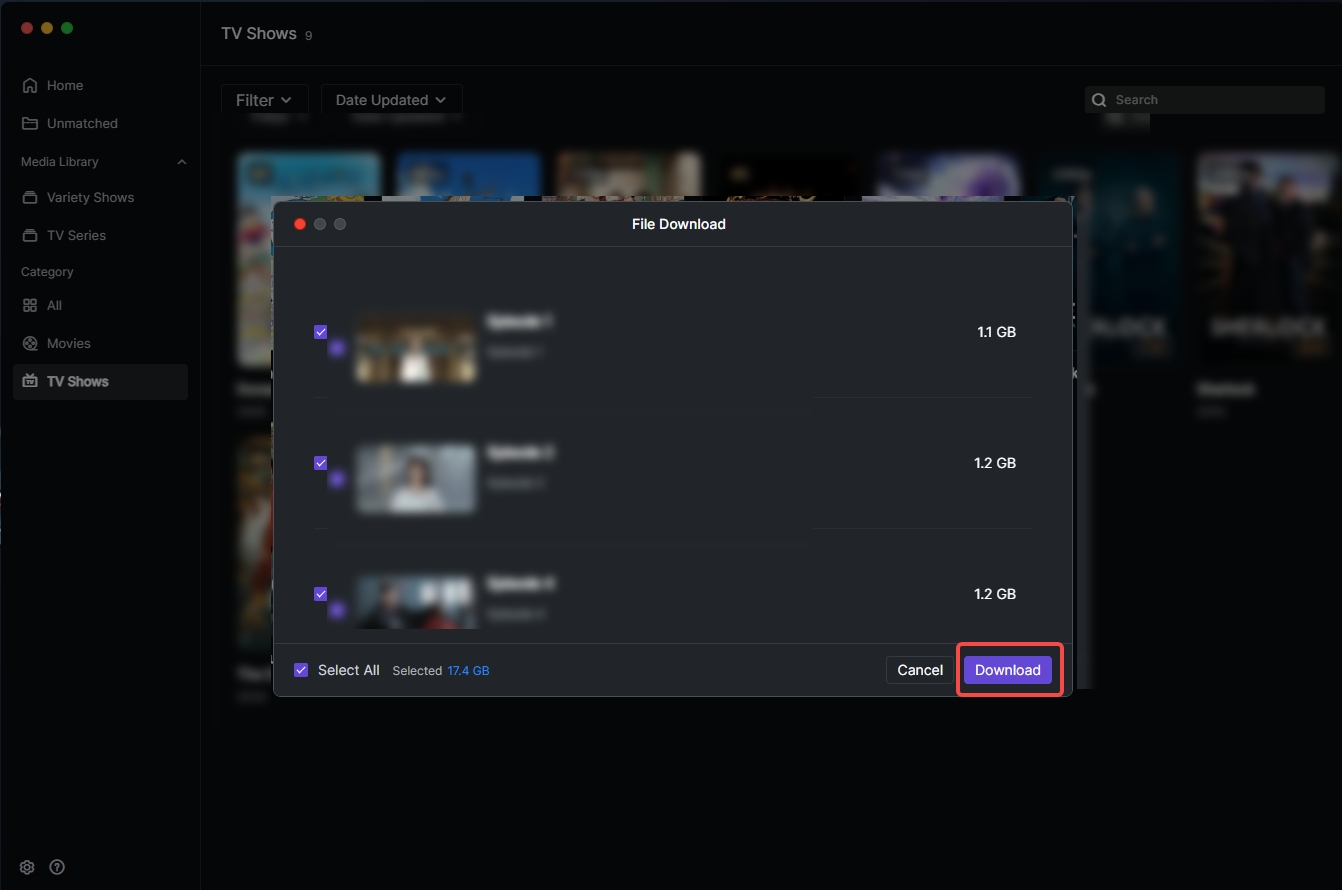
Organize Mismatched Videos:
1.In "Theater", find the mismatched video file. 2.Hover over the poster, click the "..." button, select "Move to Other". 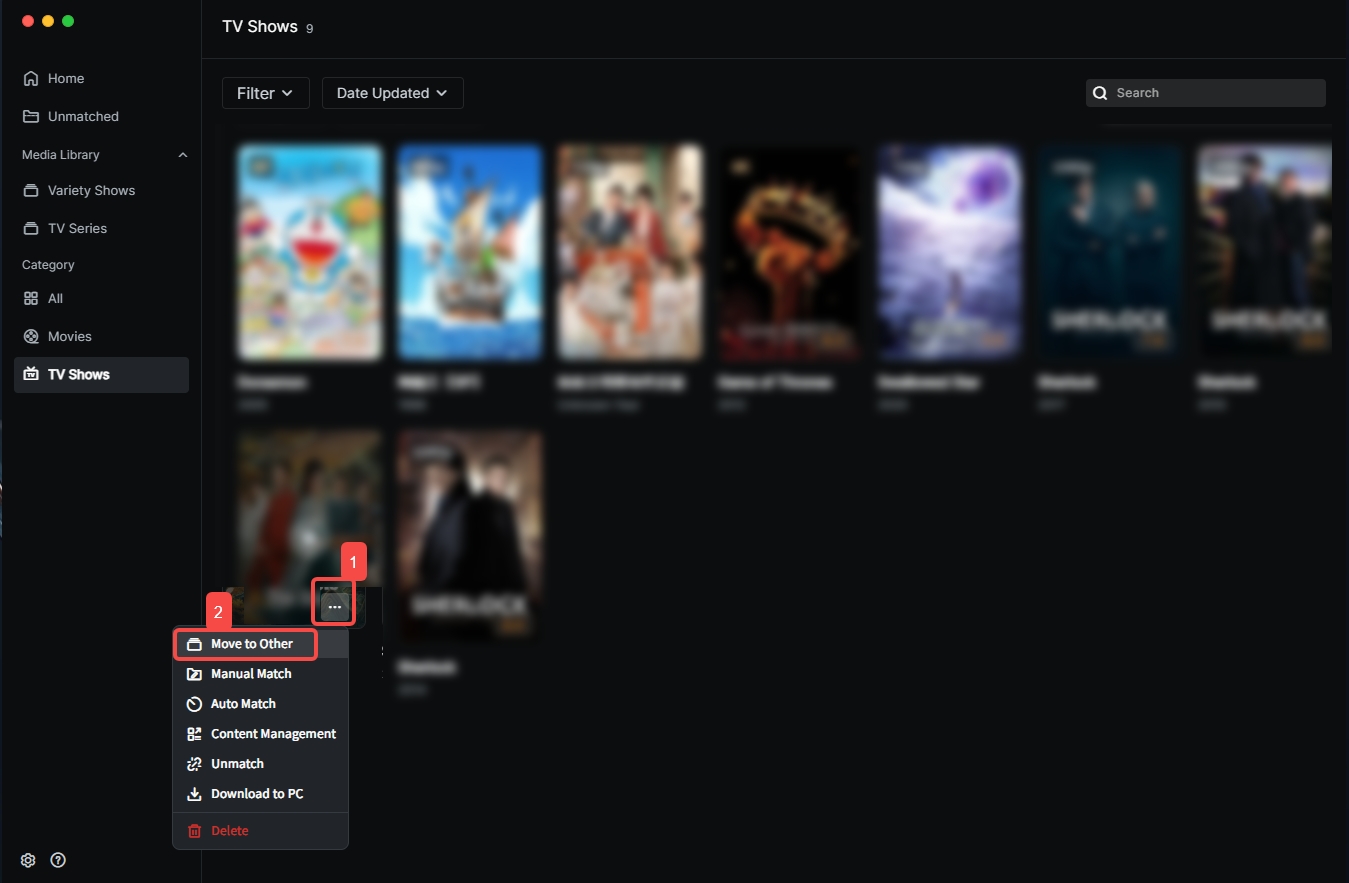 3.Select the corresponding video and click "Confirm".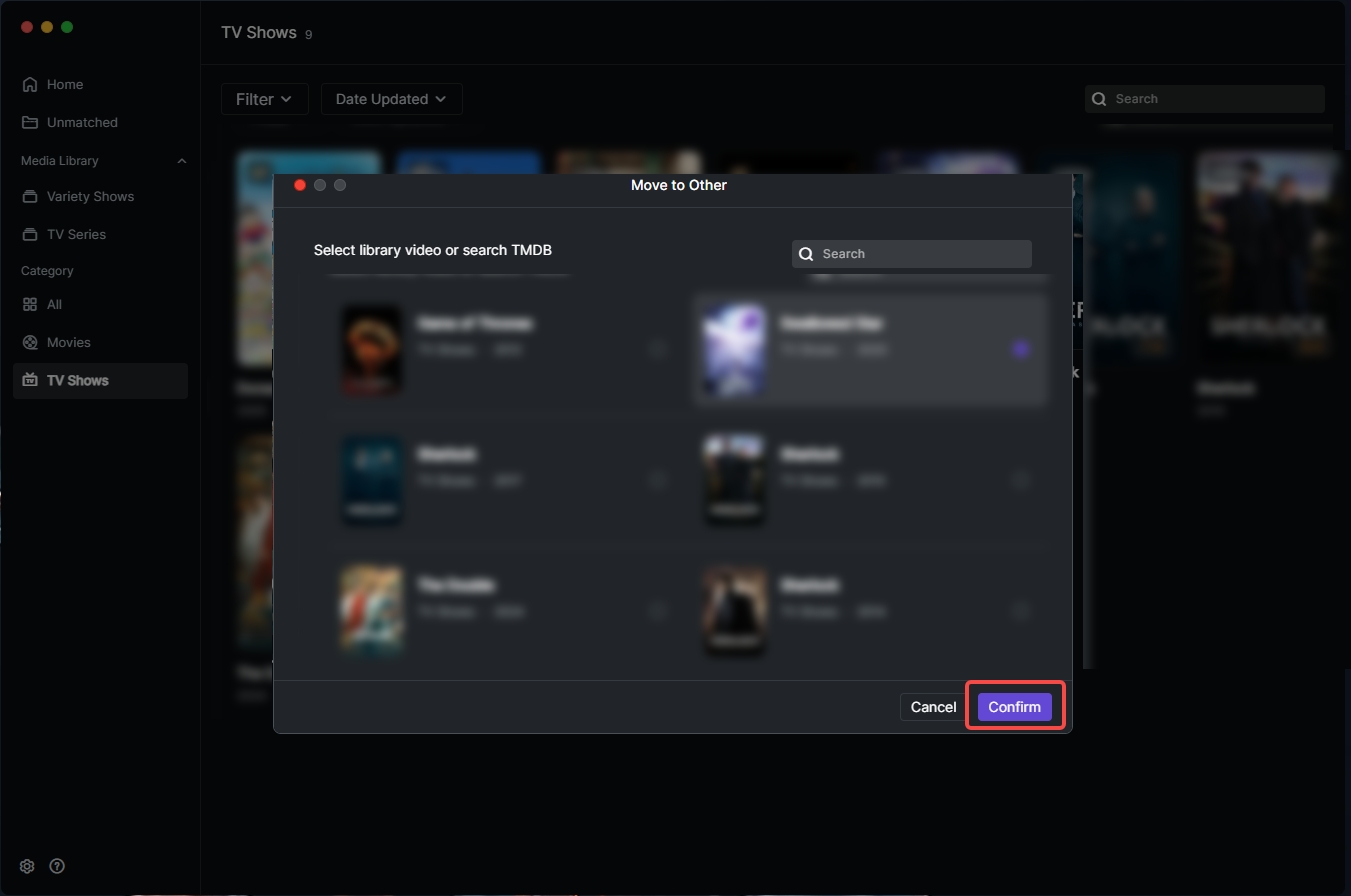
FAQ
Theater Naming Conventions
Movies
Movie filenames should start with the full title (Chinese or English). Other information can follow. If there are movies with the same name, include the release year. Examples: Examples: 1.Title (Year): The Avengers (2012) 2.Translated Name + Original Name + Year + Cut + Note + Resolution + Source + Codec - Group 复仇者联盟.The.Avengers.2012.HDR.2160p.BluRay.x265.SPARKS Note: Use common separators like "." between segments. Extra info (bluray, x264, etc.) are extended fields and won't affect scraping. Fields after the year are optional.
TV Shows
Episode filenames must start with the show title (Chinese or English), keeping it consistent across all files. Follow with Year, Season, and Episode. Example: American Dad.2010.S01E01. For specials/extras, start with the show title, set Season to 0, and specify the Episode. Example: Doraemon.2005.S00E01.mkv.
Note: Keep filenames concise to ensure scraping accuracy. Use standard Season/Episode formats like S01E01. For specials, use S00E01.
Theater Supported Video Formats
mp4、avi、mkv、mov、wmv、flv、mpeg、mpg、vob、webm、m4v、m2ts、mts、ts、m2v、m2t、m2s、m2p、3gp、3g2、mxf、ogx、ogm、swf、asf、f4v、insv